
Officially released on June 10, 2025, Android 16 moves beyond incremental feature additions to address long-standing structural challenges within the Android ecosystem, most notably platform fragmentation and the inconsistent user experience on large-screen devices.
The Android 16 release is defined by three core strategic pillars:
- The formal standardization of mature OEM innovations, particularly from Samsung.
- The establishment of a new, user-accessible baseline for mobile security; and
- A concerted effort to refine and unify the core user experience across different device form factors.
This Android 16 guide explains all the new features and improvements in Android 16 for both users and developers. As some of the new features, e.g., Desktop Windowing and Live Updates, have already been presented in Samsung’s Galaxy devices for a long time, this guide also tries to explain the origin of the new features and their possible connection with Samsung.
For developers, Android 16 introduces a dual-pronged approach. On one hand, it imposes stricter mandates for app adaptability on large screens, effectively ending the era of letterboxed phone apps on tablets. On the other hand, it provides a more agile and predictable development cadence through a new Major/Minor SDK release model, decoupling disruptive platform changes from the rapid introduction of new APIs.
From a user perspective, the Android 16 update delivers significant enhancements in productivity, security, and accessibility. The introduction of a native desktop mode, a more organized and actionable notification system, and a comprehensive, one-tap security suite called Advanced Protection Mode are standout features. Concurrently, Google continues to delineate the AOSP platform from its own Pixel experience, reserving its most advanced AI-driven features as exclusive differentiators for its hardware, while contributing the foundational OS improvements to the broader community.
Android 16 Platform Architecture: New SDK Release Model ( Major and Minor Releases)
The most impactful architectural change for the developer community is the formalization of a new, dual-track Software Development Kit (SDK) release model. This new structure fundamentally alters how the Android platform evolves throughout the year, aiming to balance stability with rapid innovation.
The new model consists of two distinct release types:
- Major SDK Release: This is the traditional, annual platform update, exemplified by the June 2025 launch of Android 16. Critically, this is the only release within a year that will introduce planned, app-impacting behavior changes. These are the changes that require developers to update their application’s targetSdkVersion to support, ensuring compatibility with new platform security and privacy enforcements.
- Minor SDK Release: This is a supplementary SDK update planned for later in the year (Q4 2025 is the first scheduled instance) for Android 16. A minor release is designed to deliver new developer APIs, features, performance optimizations, and bug fixes without introducing breaking behavior changes. Developers can target these new APIs without needing to recompile against a new platform version. To facilitate this, Google has introduced new build constants like SDK_INT_FULL and methods like Build.getMinorSdkVersion(), allowing an app to check for the presence of a specific minor API version at runtime and adapt its behavior accordingly.
Previously, the annual release cycle bundled all changes—both new features and breaking changes—into a single, high-stakes update. This forced a difficult trade-off. If Google wanted to introduce new APIs to support emerging hardware (like foldable displays) or new software paradigms (like generative AI), it had to tie them to a full platform upgrade. This created a high barrier for developers, who had to invest significant resources to adapt their apps to the breaking changes just to access the new tools. Consequently, the adoption of innovative new APIs was often slow, hindering the platform’s ability to react nimbly to market trends.
The new model addresses these concerns. The major release provides a predictable, stable, and annual milestone for developers to manage compatibility and security updates. The minor release, in contrast, acts as a low-friction “feature injection” mechanism. It allows Google to push new Jetpack libraries, AI-powered APIs, and other tools to the ecosystem much more rapidly. This allows the platform to innovate at a faster pace while simultaneously offering the stability and predictability that enterprise and large-scale app developers require. It is a fundamental shift designed to make the Android platform both more agile and more dependable.


Live Updates: Standardizing Dynamic Notifications
Android 16 introduces “Live Updates,” a new classification of high-prominence, persistent notifications designed for tracking real-time, ongoing activities, similar to iOS’s Live Activities. The primary use cases are for services like ride-sharing, food delivery, and turn-by-turn navigation, where users require at-a-glance status information without repeatedly opening the app.
When an app uses the Live Updates API, its notification is elevated. On the lock screen and always-on display, it appears in a fully expanded, detailed view. While the device is in use, the update manifests as a compact, persistent “chip” in the status bar, providing minimal but crucial information. Tapping this chip reveals the full notification content without interrupting the user’s current task. Users retain control and can disable Live Updates for any app via a long-press on the notification or through the app’s notification settings page.
The feature is built upon a new AOSP API, Notification.ProgressStyle, which allows developers to create notifications centered around progress bars with defined states and milestones. While this foundational API is part of the base Android 16 release, the full user-facing experience—specifically the status bar chip and elevated lock screen placement—is being rolled out first on Pixel devices via a Quarterly Platform Release (QPR). The complete functionality is already active in the Android 16 QPR1 beta, indicating its imminent arrival for Pixel users later in the year.
Live Update in Android 16 is a direct AOSP standardization of “Live Notifications,” a concept Samsung pioneered in One UI 7 with its “Now Bar” interface. However, Samsung’s initial implementation had a critical limitation: it was a proprietary system, largely restricted to Samsung’s own first-party applications. Some other Android vendors also implemented similar features in different ways.
Forced Notification Auto-Grouping
To reduce notification clutter, Android 16 now enforces automatic notification grouping at the system level. The OS will mandatorily bundle all notifications originating from a single app into a collapsible group, preventing applications from overwhelming the user with a long, unmanageable stream of individual alerts.
This represents a significant policy shift in Android’s handling of notifications:
- Android 7.0 (Nougat): First introduced the concept of notification grouping with the setGroup() API. However, its implementation was left to the discretion of individual app developers. It was positioned as a “best practice” rather than a requirement.
- Android 16: Removes developer choice entirely in this matter. The system now enforces grouping as a non-negotiable UX standard for all applications, regardless of whether the developer has explicitly used the grouping API.
Android 16 completes the multi-year project of implementing predictive back navigation, a feature designed to make the back gesture more intuitive and less error-prone. It provides users with a visual “peek” of the destination screen as they perform the back gesture, allowing them to either commit to the action or cancel it and remain in the current view.
The key enhancement in Android 16 is that this feature is now enabled by default for all apps that have opted in, and it has been extended to support the traditional 3-button navigation layout. Users with 3-button navigation can now long-press the back button to trigger the same predictive preview that gesture navigation users see.
The journey of this feature illustrates the evolving core UX paradigms:
- Pre-Android 13: Back navigation was primarily handled programmatically via the onBackPressed() function, which has since been deprecated in favor of the more flexible OnBackPressedDispatcher and OnBackPressedCallback APIs.
- Android 13: Officially introduced the concept of predictive back navigation. However, it was an opt-in feature for developers, and its animations were hidden behind a “Predictive back animations” toggle in the system’s Developer Options.
- Android 15: Took the next step by removing the developer option toggle. For apps that had opted in, the back-to-home, cross-task, and cross-activity animations were shown automatically, making the feature more visible to users.
- Android 16: Represents the final stage of integration. By making the behavior a default expectation and, crucially, by achieving feature parity between gesture and 3-button navigation, Google has unified the back navigation experience for all users, completing this long-term transition.
Desktop Windowing
The flagship productivity feature of Android 16 is “Desktop Windowing,” a native, AOSP-supported desktop environment. This feature enables true freeform, resizable multi-windowing, allowing users to open, move, and resize multiple app windows simultaneously, akin to a traditional desktop operating system. This functionality is available natively on tablets and is activated on phones and foldables when connected to an external display.
This development is the most prominent and explicit outcome of the intensified collaboration between Google and Samsung. Google officials have publicly stated that Android 16’s desktop mode is “built on the foundation of Samsung DeX“.
Samsung DeX (Desktop eXperience) was first launched in 2017 with the Galaxy S8 and has been continuously refined over numerous product generations (e.g., DeX Station, Dex Pad, Dex cable), giving the Korean manufacturer unparalleled institutional knowledge and technical expertise in creating a viable phone-powered desktop environment.
The rollout of Desktop Windowing is phased. While the underlying APIs and frameworks are part of the initial Android 16 stable release in June, the full user-facing feature is scheduled to be enabled on compatible devices in a subsequent update later in the year, most likely as part of a Quarterly Platform Release (QPR).
For years, Android’s experience on tablets and other large-screen formats has been a persistent weakness, lagging significantly behind competitors, namely iPadOS. Samsung single-handedly attempted to solve this problem for its own customers with DeX, but its proprietary nature meant that its benefits were confined to the Galaxy ecosystem and did little to improve the baseline experience for other OEMs or incentivize broad developer support.

- Google Pixel 9a is engineered by Google with more than you expect, for less than you think; like Gemini, your built-in AI assistant[1], the incredible Pixel Camera, and an all-day battery and durable design[2]
- Take amazing photos and videos with the Pixel Camera, and make them better than you can imagine with Google AI; get great group photos with Add Me and Best Take[4,5]; and use Macro Focus for spectacular images of tiny details like raindrops and flowers
- Google Pixel’s Adaptive Battery can last over 30 hours[2]; turn on Extreme Battery Saver and it can last up to 100 hours, so your phone has power when you need it most[2]
- Get more info quickly with Gemini[1]; instead of typing, use Gemini Live; it follows along even if you change the topic[8]; and save time by asking Gemini to find info across your Google apps, like Maps, Calendar, Gmail, and YouTube Music[7]
- Pixel 9a can handle spills, dust, drops, and dings; and with IP68 water and dust protection and a scratch-resistant display, it’s the most durable Pixel A-Series phone yet[6]
App Adaptability Mandates (for developers)
With the introduction of Desktop Windowing, Android 16 imposes strict new rules on app behavior for applications targeting the new platform (API level 36) when running on large-screen devices (defined as having a smallest width of 600dp or greater).
The new mandates include:
- Mandatory Edge-to-Edge Display: Apps can no longer opt out of displaying their content edge-to-edge. The system will ignore flags that attempt to prevent this.
- Mandatory Resizability: The system will ignore manifest attributes and runtime APIs that an app might use to restrict its screen orientation, aspect ratio, or resizability. On large screens, the app will be forced into a fully resizable window, regardless of its original configuration. Developers can test this behavior on older apps using the UNIVERSAL_RESIZABLE_BY_DEFAULT compatibility flag.
The introduction of Desktop Windowing is the new, powerful carrot. But the success of this flagship productivity feature is entirely contingent on the quality and behavior of the apps running within it. A desktop environment populated by non-resizable, fixed-orientation phone apps would be a non-starter and a critical failure. Therefore, the new mandates are not arbitrary; they are a necessary prerequisite for the desktop mode to be viable. Google is now using its platform authority to force the developer ecosystem to adopt the best practices it has long advocated for, ensuring a baseline level of quality and functionality for its new large-screen paradigm.
Advanced Protection Mode

The cornerstone of Android 16’s security upgrades is the new Advanced Protection Mode. It is designed as a single-toggle, high-security state that aggregates and enables multiple critical security features across the operating system simultaneously. This approach is intended to provide robust protection against a wide range of digital and physical threats without requiring the user to navigate numerous sub-menus and technical settings.
When activated, Advanced Protection Mode enforces the following safeguards:
- Blocks App Sideloading: Prevents the installation of applications from sources other than the official Google Play Store.
- Disables USB Data Transfer (When Locked): Restricts the USB port to charging-only functionality unless the device is unlocked, preventing data extraction via physical connection.
- Deactivates 2G Networks: Disables connectivity to legacy 2G cellular networks, which are known to have significant security vulnerabilities.
- Enforces HTTPS: Mandates secure, encrypted connections for web browsing, warning users before connecting to non-HTTPS sites.
- Inactivity Reboot: Automatically reboots the device if it has remained locked for an extended period (e.g., 72 hours), which forces re-authentication and re-secures the device’s encrypted storage.
- Integrates Scam/Spam Protection: Leverages Google’s existing call and message screening technologies to provide real-time threat protection.
On-Device Intelligence and Proactive Defense
Beyond the unified security mode, Android 16 introduces several new features that leverage on-device intelligence to proactively defend against modern threats.
- AI-Powered Scam Detection: A Pixel-first feature that uses on-device AI to monitor phone calls in real-time. If the system detects patterns indicative of a scam (e.g., a caller pressuring the user to install an app or share sensitive information), it will intervene by blocking high-risk actions. For instance, it can prevent the user from installing an APK from a browser, disabling Google Play Protect, or granting sensitive accessibility permissions while the potentially fraudulent call is active. Because the analysis happens locally, the call audio is not sent to the cloud, preserving privacy.
- Identity Check: This feature, which saw a limited rollout previously, is being expanded in Android 16. It acts as a situational biometric safeguard for critical device settings. When the device detects it is outside of a user-defined “Trusted Place” (like home or work), it will require biometric authentication (fingerprint or face) before allowing sensitive actions such as changing the device PIN, disabling theft protection features, or modifying saved passkeys in the Google account.
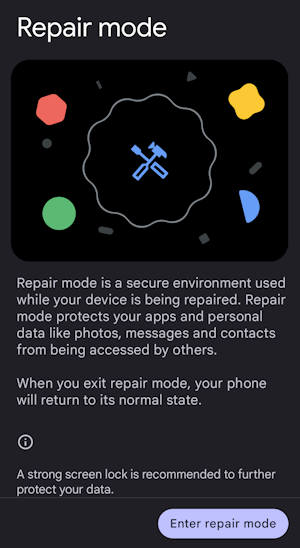
- Repair Mode / Trade-in Mode: This is a new AOSP feature designed to address the privacy concerns associated with device servicing or trade-ins. When enabled, it creates a secure sandbox environment that wipes all personal user data (accounts, photos, messages) while leaving the core OS and diagnostic tools accessible. This allows technicians or resellers to verify device functionality without gaining access to the previous owner’s private information.
Professional-Grade Video and Imaging
A key focus of the media stack update is to better position Android devices within professional content creation workflows.
- Advanced Professional Video (APV) Codec: Android 16 introduces support for the APV codec, a new AOSP-native format designed specifically for high-quality video recording and post-production. Its primary characteristic is its robustness against generational loss. The codec is engineered to be “perceptually lossless,” meaning it can withstand multiple cycles of decoding and re-encoding—a common process in professional video editing—without suffering from the severe visual quality degradation that affects many consumer-grade codecs. This makes Android devices running the new OS a more viable option for serious videography.
- UltraHDR Enhancements: The platform continues to build upon the UltraHDR image format, which was a major feature of the previous release. UltraHDR was introduced in Android 14 (API level 34). It is a backward-compatible image format that embeds an HDR “gain map” into a standard JPEG file. This allows devices with HDR-capable screens to render the image with a higher dynamic range, while older devices or platforms simply display the standard SDR base image. This solved the problem of sharing HDR photos across a mixed ecosystem of devices. Android 16 extends and matures this technology in two key ways. First, it adds support for embedding UltraHDR gain maps within the High-Efficiency Image Container (HEIC) format, providing a more modern and efficient alternative to JPEG. Second, it incorporates new parameters from the draft ISO 21496-1 standard, signaling a commitment to aligning the format with emerging international standards for HDR imaging.
More Camera2 APIs
For developers who build custom camera applications, Android 16 exposes more granular control over the imaging pipeline through its core Camera2 API. These additions are aimed at enabling more professional-level camera features within third-party apps.
New capabilities include:
- Hybrid Auto-Exposure: New modes that allow an application to manually control certain exposure parameters (e.g., shutter speed) while letting the device’s auto-exposure algorithm manage the remaining variables (e.g., ISO).
- Precise Color Temperature and Tint Adjustments: Fine-grained controls for white balance, allowing for more accurate color reproduction in professional video recording scenarios.
- Standardized Motion Photo Intent: A new set of Intent actions (ACTION_MOTION_PHOTO_CAPTURE and ACTION_MOTION_PHOTO_CAPTURE_SECURE) that provide a standard, system-level way for an app to request that the default camera application capture and return a motion photo.
- Night Mode Scene Detection: An API that allows an app to query whether the camera hardware recommends switching to a dedicated night mode, improving low-light photography.
Enhanced Hearing Device Support (LE Audio)
Android 16 introduces a suite of critical quality-of-life improvements for users of hearing aids that support the Bluetooth LE Audio standard. These features move beyond basic connectivity to provide deep integration with the operating system.
The key enhancements include:
- Microphone Input Switching: A crucial new feature that allows a user in a noisy environment to switch the audio input during a phone call from the hearing aid’s built-in microphones to the smartphone’s microphone. The microphones on hearing aids are typically optimized to pick up ambient sound and the voices of others, not the wearer’s own voice. Using the phone’s mic can result in significantly clearer call quality for the person on the other end of the line.
- Native OS Controls: Android 16 provides native, system-level controls for hearing device settings. This allows users to adjust parameters like volume directly from the phone’s system UI, providing a consistent experience regardless of the hearing aid brand.
- Ambient Volume Control: Users can now adjust the volume of ambient sound being picked up and passed through by their LE Audio hearing aids directly from their Android device.
Android has included support for the basic Bluetooth Low Energy (BLE) protocol since version 4.3 (Jelly Bean) in 2013. The full LE Audio specification, which includes the LC3 codec and support for hearing aids, was finalized by the Bluetooth SIG in 2022.
Visual and Text Accessibility
Android 16 also brings improvements to visual and text rendering to aid users with low vision and to better support non-Latin scripts.
- Outline Text: This new feature replaces the previous “high contrast text” option. Instead of simply increasing the contrast, Outline Text draws a thin, sharp, contrasting outline around all text. This technique significantly improves legibility for users with various forms of visual impairment by creating a clearer separation between the text and its background. New APIs in AccessibilityManager allow apps to check if this mode is enabled and listen for changes.
- Vertical Text Support: The platform now includes foundational, low-level support for rendering and measuring text vertically. This is a critical building block for library and app developers who need to properly support languages that use vertical writing systems, such as Japanese, Chinese, and Korean.

Pixel-Exclusive Features
These features are not part of AOSP and are not intended for other OEMs. They typically rely on Google’s proprietary applications, cloud services, and, increasingly, on-device generative AI models that are unique to the Pixel software experience.
The June 2025 Pixel Feature Drop, which coincided with the Android 16 launch, highlights several of these exclusives:
- Pixel VIPs Widget: A highly personalized and interactive widget from the Contacts app that provides at-a-glance information and quick actions for designated “VIP” contacts, including call/message history and shared location data.
- Gboard Custom Stickers: A generative AI feature, powered by “Pixel Studio,” that allows users to create unique stickers directly within Gboard by typing a text prompt or using a photo from their camera roll.
- Advanced App-Specific AI:
- Recorder App: The ability to generate AI-powered summaries of audio recordings is being expanded to more languages (French and German).
- Magnifier App: A new “live search” capability that uses the camera to find and highlight text in the real world in real-time, without needing to first capture a photo.
Android 16 Feature Matrix
The table below summarizes the Android 16 features with the feature name, functionality, availability, precedent in Samsung One UI, and the origin of the feature.
| Feature Name | Core Functionality | Platform Availability | Precedent in Samsung One UI | Origin |
| Desktop Windowing | Native desktop environment with freeform, resizable multi-windowing on tablets and external displays. | AOSP (Phased Rollout) | Yes (Directly built on Samsung DeX foundation) | New (AOSP) / Samsung DeX (2017) |
| Advanced Protection Mode | Single-toggle, high-security mode aggregating multiple safeguards (blocks sideloading, 2G, etc.). | AOSP | No (Adopted by One UI 8 from AOSP) | New |
| Live Updates | High-prominence, persistent notifications for tracking ongoing activities (e.g., deliveries, rides). | AOSP (Foundation) / Pixel (Full UI via QPR) | Yes (Standardizes “Live Notifications” from One UI 7’s Now Bar) | New |
| Forced Notification Auto-Grouping | System mandatorily groups all notifications from a single app, removing developer discretion. | AOSP | Partial (Grouping existed, but enforcement is new) | Android 7.0 (Optional Grouping) |
| Predictive Back Navigation | Visual “peek” of the previous screen during a back gesture, now default and extended to 3-button nav. | AOSP | Yes (Adopted from AOSP) | Android 13 (Developer Preview) |
| App Adaptability Mandates | Apps targeting API 36 on large screens are forced to be edge-to-edge and resizable. | AOSP | N/A (Platform Mandate) | Evolved from years of developer guidance. |
| Enhanced LE Audio Support | Native OS controls for hearing aids, ability to use phone mic for calls, ambient volume control. | AOSP / Pixel (Initial Rollout) | Yes (One UI 8 adds similar support) | Android 4.3 (Basic BLE support) |
| Advanced Professional Video (APV) Codec | New AOSP codec designed for professional workflows, resilient to re-encoding quality loss. | AOSP | No | New |
| UltraHDR Enhancements | Adds support for UltraHDR gain maps in the HEIC format and new ISO standard parameters. | AOSP | Yes (Super HDR uses Ultra HDR format) | Android 14 (UltraHDR in JPEG) |
| AI-Powered Scam Detection | On-device AI blocks high-risk actions during calls if a scam is suspected. | Pixel Exclusive | No | New |
| Identity Check | Requires biometrics for sensitive actions (e.g., changing PIN) when outside trusted locations. | AOSP (Expanded Rollout) | Yes | Evolved from earlier security features. |
| Repair Mode / Trade-in Mode | Secure state for device servicing that wipes user data but preserves diagnostics. | AOSP | Yes | New |
| Pixel VIPs Widget | Personalized Contacts widget with deep integration for key contacts. | Pixel Exclusive | No | New |
| Gboard Custom Stickers | On-device generative AI for creating stickers from text or photos. | Pixel Exclusive | No | New |
| Outline Text | Improved accessibility feature that adds a contrasting outline to text for better legibility. | AOSP | Yes (Adopted) | Evolved from “High contrast text.” |
Do you have any questions about the new features and changes of Android 16?
Please let us know your questions or comments about the new features and changes in Android 16 in the comment box below.
If you are looking for guides for features introduced in other versions of Android (most of the “new” features in old versions of Android should work in newer ones), you may use the search bar to search or navigate to other sections of this site.


If your Android phone or tablet is on any of the following Android versions, you may check these guides respectively:
- For Android 16, please check the Android 16 guides page.
- For Android 15, please check the Android 15 guides page.
- For Android 14, please check the Android 14 guides page.
- For Android 13, please check the Android 13 guides page.
- For Android 12, please check the Android 12 guides page.
- For Android 11, please check the Android 11 guides page.
- For Android 10, please check the Android 10 guides page.
- For Android Pie (Android 9), please check the Android Pie guides page.
- For Android Oreo (Android 8.0 and 8.1), please check the Android Oreo guides page.
- For Android Nougat (Android 7.0 and 7.1), please check the Android Nougat guides page.
- For Android Marshmallow (Android 6.0), please check the Android Marshmallow guide page.
- For Android Lollipop (Android 5.0 and 5.1), please check the Android Lollipop guide page.
- For other general Android questions or problems, please check the Android 101 page.
You may also reach us through:
Enjoy your Android 16.

Leave a Reply