
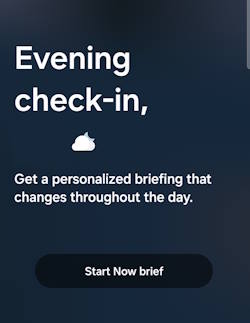
Most of us often struggle with too many notifications and updates from different apps, which can be overwhelming. Now Brief, which was introduced with Galaxy S25 aims to help with this problem by using AI to filter and collect important information and then presenting such information in a clear and simple way, making it easier for us to follow and keep updated.
This Galaxy S25 how-to guide provides a comprehensive overview of the Now Brief feature, explaining its functionalities and mechanisms. The guide also demonstrates three distinct methods for accessing Now Brief on Galaxy S25 and shows you how to customize Now Brief according to your personal preferences. Additionally, the relationship between the Now Bar and Now Brief is elaborated upon to clarify some misunderstandings of these two features.
Now Brief is available on three models of Galaxy S25 as part of the One UI 7. So, this guide also applies to other Samsung Galaxy phones with One UI 7 update.
Update: with the One UI 8 (Android 16) update, you can now check stock info in the Now Bar.
What is Now Brief on Galaxy S25?
At its essence, Now Brief is an AI-driven information dashboard that curates personalized, real-time updates tailored to user preferences and daily routines. Utilizing the advanced capabilities of Galaxy AI, it analyzes user behavior and context to deliver targeted information that aligns with individual schedules and interests.
The Now Brief on Galaxy S25 highlights Samsung's latest efforts to demonstrate the practical applications of Galaxy AI, aiming to show that its capabilities extend beyond mere marketing claims and can deliver tangible benefits to a wide range of users. It is marketed as the #1 new Galaxy AI feature.
Now Brief lets you receive a tailored briefing of selected content that is updated throughout the day, occurring between your designated wake-up time (defaulting to 6:00 AM if no sleep information is registered) and your bedtime (defaulting to 9:00 PM if no sleep information is registered). Normally, you will see at least different updates in the morning, middle of the day, and evening.
In addition to weather information, you can get personalized reminders of upcoming schedules or missed calls. If you own a Galaxy Watch or Galaxy Ring, sleep patterns and energy levels will also be shown. You can choose what should be included, including some third-party apps (read on).
On Galaxy S25, Now Brief is integrated into the Now Bar on the lock screen. You can also access it with a widget on the Home screen or the Edge panel.
How does Now Brief on Galaxy S25 work?
Now Brief works through three primary components: data aggregation, AI data analysis, and personalized briefings.
Data Aggregation (input)
Now Brief aggregates information from an extensive array of sources, including Samsung’s in-house applications (such as Calendar, Routine, GalleryHealth, and SmartThings), alongside selected third-party apps (such as Google Maps and YouTube Shorts). You can choose to opt out of some data sources, e.g., YouTuber Shorts.
AI data analysis (processing)
Leveraging the capabilities of Galaxy AI, Now Brief agent analyzes the aggregated data to discern patterns and predict your requirements. The AI algorithm also learns from your interactions, such as frequently visited locations, preferred applications, and established routines.
Personalized Briefings (output)
Utilizing insights gathered from its AI data analysis, the Now Brief agent then uses generative AI to formulate customized briefings that are dispatched at strategic intervals throughout the day—morning, midday, and evening. These briefings may include:
- Upcoming appointments and reminders.
- Traffic conditions and navigation assistance.
- Local weather forecasts.
- Health metrics and activity data.
- Relevant news updates.
- Time-sensitive notifications, including expiring promotional offers or travel alerts.
So, in the background, the AI agent periodically aggregates data, analyses them, and then generates briefings.
![SAMSUNG Galaxy Ring, AI Smart Ring, Size First w/Sizing Kit, No App Subscription, Fitness Monitor, Sleep Tracker, Up to 7-Day Battery, Size 10, Titanium Gold [US Version, 1Yr Manufacturer Warranty]](https://m.media-amazon.com/images/I/41R1PkmCQxL._SL160_.jpg)
![Samsung Galaxy Watch 7 40mm Bluetooth AI Smartwatch w/Energy Score, Wellness Tips, Heart Rate Tracking, Sleep Monitor, Fitness Tracker, 2024, Green [US Version, 1Yr Manufacturer Warranty]](https://m.media-amazon.com/images/I/41ew4GQ5kML._SL160_.jpg)

Three ways to access Now Brief on Galaxy S25
There are three different ways to access Now Brief on Galaxy S25:
- Now Bar on the lock screen.
- Widget on the Home screen.
- Widget on the Home screen
Now Bar on the lock screen
By default, Now Brief is included in the Now Bar, which is similar to Live Activities on iPhones and also a new feature in Galaxy S25 (and One UI 7).
You can check live updates, including Now Brief, from the Now Bar without unlocking the phone.
On the Galaxy S25 lock screen, you can find the Now Bar at the bottom part between the two app shortcuts, as shown in the screenshot below. The official Samsung Galaxy S25 case, e.g., Galaxy S25 Flipsuit Case, does not affect the Now Bar.

Just like checking other live notifications, you can tap the Now Brief to check the curated briefing for you without unlocking the phone (you can set it).
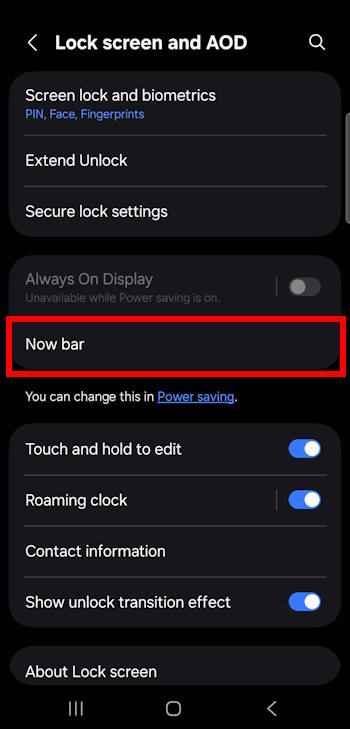
In Galaxy S25 locks screen settings (Settings — Lock screen and AOD), as shown in the two screenshots, you can choose to:
- Exclude Now Brief, if you do not need it.
- Disable the Now Bar by disabling Now Brief and all other live notifications

Widget on the Home screen
If you set up your Galaxy S25 as a new device or did not copy Home screen settings from your old phone, the Now Brief widget would be installed by default, as shown in the screenshot below.

This is a normal widget. So, you can add it by tapping and holding any empty area on the Home screen, then tap Widget to select it, as explained in this guide.
You can also manage it like other widgets, for example, you can tap and hold (long tap) the widget to customize it, for example, create widget stacks, as shown below.
However, you cannot resize the Now Brief widget because it is a fixed-size widget.

Shotcut on the Edge Panel
Many Galaxy S25 owners are not aware of the existence of the Edge Panel (aka Edge Screen), which was introduced in Galaxy S6 Edge for the curved screen. Later, Samsung made Edge Panel a software gimmick, instead of a hardware feature. So, Edge Panel has existed on all Galaxy S phones since Galaxy S7.
By default, following the setup of the Galaxy S25, you will observe the presence of the Edge Pane handle on the Home screen, as illustrated in the previously referenced screenshot. It is important to note that the default Edge Panel handle appears thinner than depicted in the image. You have the ability to customize the thickness, color, and location of the Edge Panel handle.
To use Edge panels, swipe inward from the Edge Panel handle towards the center of the display. If the Edge Panel handle is absent from your Home screen, it's likely that the feature has been disabled. You can activate it by navigating to Settings — Display — Edge Panels.
As shown in the screenshot below, you can find the shortcut for Now Brief.
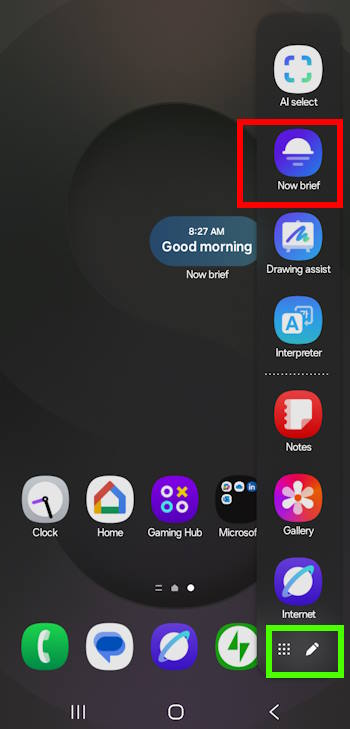

You can tap the shortcut, just like tapping app icons on the Home screen, to open the Now Brief screen, as shown above.


How to customize Now Brief on Galaxy S25?
In addition to enabling or disabling Now Brief on the Now Bar, you can also customize the contents of the Now Brief on Galaxy S25.
There are a few different methods to access Now Brief settings, including:
- From the Now Brief page.
- From Galaxy AI settings (Settings — Galaxy AI — Now Brief).
For example, as shown in the screenshot above, you can tap the Gear icon on the briefing page to open the Noe Brief settings, as shown below.
Please note both methods direct you to the same page.
On the Now Brief settings page, as shown in the screenshot below, you can:
- Enable/disable reading Now Brief without unlocking the phone.
- Customize content to be included in the briefing.
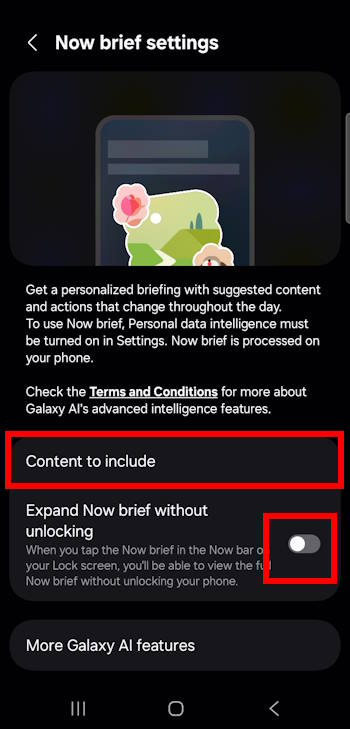

As shown in the screenshot above, you can include or exclude the sources for the Now Brief. For example, many users may not want to show YouTube Shorts in the briefing.
What are the differences between Now Brief and Now Bar?
There may be some ambiguity regarding these two features, the Now Brief and Now Bar, among Galaxy S25 users. Samsung spent too much effort on creating hypes instead of explaining them in detail.
The Now Bar feature on the Galaxy S25, which is integrated within One UI 7, facilitates the display of real-time information on the lock screen, including live notifications, music playback status, and active modes or routines. This functionality is akin to the Live Activities feature that was introduced in iOS 16, allowing for enhanced interactivity and quick access to pertinent information without unlocking the device. If you use it effectively with status icons, you can greatly improve your productivity.
Now Brief, on the other hand, is a new Galaxy AI feature. It uses Galaxy AI to collect, process and present relevant info to keep you updated in the day.
By default, Now Brief is included in the Now Bar and given a high priority if you haven't checked it.
Currently, the Now Bar is exclusively accessible via the lock screen on the Galaxy S25. In contrast, Now Brief can be accessed from multiple entry points: the Now Bar, the Home screen, and the Edge Panel.
Do you have any questions about Now Brief on Galaxy S25?
If you have questions about using or customizing Now Brief on Galaxy S25, please let us know in the comment box below.
The community is ready to help you.
You may check other sections of Galaxy S25 Guides: Everything about Galaxy S25:

- The Galaxy S25 News and Updates section provides the latest news, updates, and analyses for Samsung Galaxy S25, S25+, S25 Ultra, and S25 Slim. You can find a broad range of topics, including Galaxy S25 specifications, design features, One UI updates, and market dynamics so that Galaxy S25 owners or potential owners can remain well-informed about the latest updates and trends of Galaxy S25.
- The Galaxy S25 New Features Guides deliver an in-depth analysis of the advancements and new capabilities of the Galaxy S25, S25+, and S25 Ultra models compared to their predecessors in the Galaxy S series, as well as other leading Android flagship devices. These guides are an invaluable resource for answering technical questions related to Galaxy S25, while also offering detailed insights and comparative evaluations to facilitate informed decision-making in the purchasing process.
- The Galaxy AI Guides section comprises a thorough collection of resources and tools aimed at assisting users in effectively navigating and using the features of Galaxy AI on Galaxy S25, S25+, and SD25 Ultra. This section includes detailed explanations, comprehensive step-by-step instructions, and expert recommendations. Each guide is specifically designed to address particular functionalities, ensuring that individuals, regardless of their experience level, can enhance their knowledge and efficiency in utilizing Galaxy AI.
- The Galaxy S25 How-to Guides provide an extensive array of resources that deliver comprehensive instructions on using and personalizing the Galaxy S25, S25+, and S25 Ultra. These thorough guides encompass all facets of operating the Galaxy S25 series, including hardware and software features, functionalities of the Android operating system and One UI, as well as procedures for migration and data sharing. By consulting the Galaxy S25 How-to Guides, you can gain an in-depth understanding of both the capabilities and customization options available for your Galaxy S25, S25+, and S25 Ultra.
- The Galaxy S25 Camera Guides section offers a comprehensive compilation of instructional resources designed to assist Galaxy S25 owners in effectively using the Galaxy S25 camera for capturing exceptional photographs and recording high-quality videos. Additionally, it includes guidance on the application of the photo (and video) editor available on the Galaxy S25, S25+, and S25 Ultra.
- The Galaxy S25 Accessories Guides section offers detailed guides on the usage of various accessories specifically designed to enhance functionality and protect the Galaxy S25, S25+, and S25 Ultra. These guides cover a wide range of topics, including protective accessories and feature augmentation accessories. Furthermore, this section provides comprehensive reviews of specific accessories for Galaxy S25, S25+, and S25 Ultra.
- The Galaxy S25 User Manual section comprises the official user manual for the Samsung Galaxy S25, S25+, and S25 Ultra, available in PDF format. These user manuals have been released by Samsung across various regions and are organized according to the respective languages. The content of this material is comprehensive and structured, facilitating easier access to the necessary information for Galaxy S25 owners.
- The Galaxy S25 Reviews section is dedicated to reviews of the Galaxy S25, S25+, and S25 Ultra and their accessories. These reviews are all based on our own usage as consumers. Depending on the objects being reviewed, Galaxy S25 reviews include detailed technology and design evaluations, everyday usage and performance, and comparison to other similar products.
You can also reach us through:
- Our Facebook page.
- Our YouTube channel.
- Contact Us page.
Don't miss out on the latest updates, guides, tips, and tricks for the Samsung Galaxy S25 – sign up for our newsletter now!