status icon

Use Galaxy S25 Camera App
Galaxy S25 Camera Guide, Galaxy S25 How-to Guides

How to Use Galaxy S25 Camera App?
Use Galaxy S25 Camera App

The Galaxy S25 Camera app is essential for unlocking the device's outstanding photographic potential. Mastering the Galaxy S25 Camera app is crucial for capturing high-quality photos and videos.

This Galaxy S25 Camera app guide explains the 5 sections of the Galaxy S25 Camera app user interface and their functions. It covers how to use the shutter button in the Camera app, how to switch between the front and rear cameras on the Galaxy S25, and how to manage the various camera modes in the Galaxy S25 Camera app. Additionally, the guide provides a detailed explanation of the meanings and usage of all the settings found in the Galaxy S25 Camera app user interface.

Although Galaxy S25, S25+, and S25 Ultra differ in camera capabilities, the Camera app on these 3 phones is identical. So, this guide applies to all Galaxy S25 phones. Some features that are exclusive to the Galaxy S25 Ultra are highlighted explicitly.

Understand the Galaxy S25 Camera app user interface

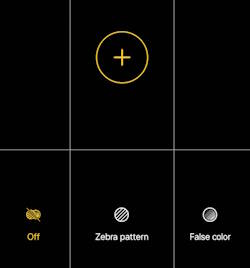
The Galaxy S25 Camera App user interface can be divided into 5 sections, as shown in the screenshot below:

  1. Preview screen section.
  2. Zoom and the quick tools section
  3. Functional buttons section.
  4. Camera mode selection section
  5. Current options section.
5 sections of Galaxy S25 Camera app interface

1. Preview screen section

In the Galaxy S25 Camera app, the preview screen section has three functions:

  • Preview the photo or video to be captured. This allows you to preview the scene before capturing it.
  • Enhance your photo-taking experience with exposure adjustment and lock, focus lock, pinch-to-zoom, and swipe-to-switch between front and rear
Read the rest
Now Brief on Galaxy S25
Galaxy AI, Galaxy S25 How-to Guides, Galaxy S25 New Features

How to Access and Customize Now Brief on Galaxy S25?

How to Access and Customize Now Brief on Galaxy S25?

Most of us often struggle with too many notifications and updates from different apps, which can be overwhelming. Now Brief, which was introduced with Galaxy S25 aims to help with this problem by using AI to filter and collect important information and then presenting such information in a clear and simple way, making it easier for us to follow and keep updated.

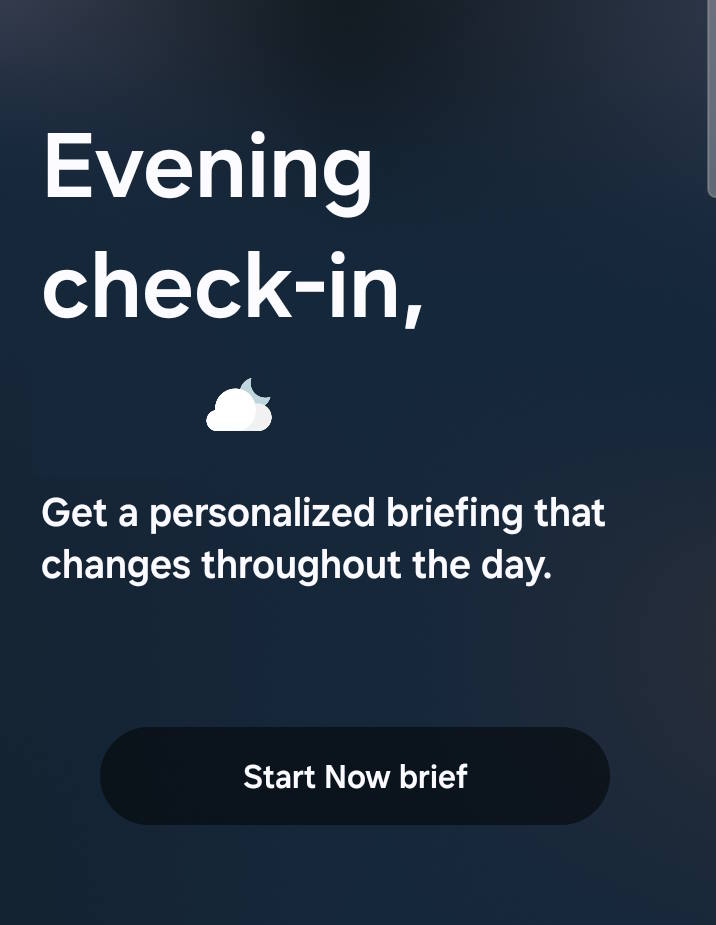
This Galaxy S25 how-to guide provides a comprehensive overview of the Now Brief feature, explaining its functionalities and mechanisms. The guide also demonstrates three distinct methods for accessing Now Brief on Galaxy S25 and shows you how to customize Now Brief according to your personal preferences. Additionally, the relationship between the Now Bar and Now Brief is elaborated upon to clarify some misunderstandings of these two features.

Now Brief is available on three models of Galaxy S25 as part of the One UI 7. So, this guide also applies to other Samsung Galaxy phones with One UI 7 update.

Update: with the One UI 8 (Android 16) update, you can now check stock info in the Now Bar.

What is Now Brief on Galaxy S25?

At its essence, Now Brief is an AI-driven information dashboard that curates personalized, real-time updates tailored to user preferences and daily routines. Utilizing the advanced capabilities of Galaxy AI, it analyzes user behavior and context to deliver targeted information that aligns with individual schedules and interests.

The Now Brief on Galaxy S25 highlights Samsung's latest efforts to demonstrate the practical applications of Galaxy AI, aiming to show that its capabilities extend beyond mere marketing claims and can deliver tangible benefits to a wide range of users. It is marketed as the #1 new Galaxy AI feature.

Now Brief lets you receive a tailored briefing of selected content that is updated throughout the day, occurring between your designated wake-up time (defaulting to 6:00 AM if no … Read the rest

Layout of Galaxy S25, S25+, and S25 Ultra
Galaxy S25 How-to Guides

Layout of Galaxy S25, S25+, and S25 Ultra

Layout of Galaxy S25, S25+, and S25 Ultra

Gaining a deep understanding of the layout of Galaxy S25, Galaxy S25+, and Galaxy S25 Ultra is crucial for maximizing their value and effectiveness in everyday use. By familiarizing yourself with the design of Galaxy S25, S25+, and S25 Ultra, you can fully harness their capabilities and unlock the full potential of the flagship phone of 2025.

This Galaxy S25 How-to guide provides a comprehensive overview of the layout of Galaxy S25, S25+, and S25 Ultra. It details the functions of each component in the layout of Galaxy S25, S25+, and S25 Ultra, enabling you to gain a thorough understanding of these 3 models. Additionally, this guide offers you recommendations for the effective use and maintenance of each part depicted in the layout of Galaxy S25, S25+, and S25 Ultra, ensuring optimal performance and longevity of the Galaxy S25 series.

The Galaxy S25 and Galaxy S25+ vary in size, but their layouts are identical. In contrast, the Galaxy S25 Ultra features a different layout on the bottom and rear due to the inclusion of the S Pen and additional camera sensors, as explained in Galaxy S25 vs. Galaxy S25+ vs. Galaxy S25 Ultra. However, the front view of the Galaxy S25 Ultra is nearly identical to that of the Galaxy S25 and Galaxy S25+. The software, including the One UI 8 update (Android 16), is identical on all these models.

Front view of the layout of Galaxy S25, Galaxy S25+, and Galaxy S25 Ultra

The Galaxy S25 Ultra has made a noteworthy … Read the rest

Top 10 new features of Galaxy S25, S25+, and S25 Ultra
Galaxy S25 New Features, Galaxy S25 News and Updates, Galaxy S25 Reviews

Top 10 new features of Galaxy S25, S25+, and S25 Ultra

Top 10 new features of Galaxy S25, S25+, and S25 Ultra

The Galaxy S25 series may not represent the groundbreaking advancements that some stakeholders anticipated, which may lead to a sense of disappointment. Nevertheless, a range of compelling new features of Galaxy S25 reinforce its standing as the premier flagship smartphone of 2025.

This Galaxy S25 new features guide explains the top 10 new features of Galaxy S25, S25+, and S25 Ultra, including One UI 7, seamless action across apps, Personal Data Engine, Now Brief, Audio Eraser, Snapdragon 8 Elite for Galaxy, Nightography, Object-aware engine, Energy Score, and Virtual Aperture.

These top 10 new features of Galaxy S25 are available in all three models of Galaxy S25 (S25, S25+, and S25 Ultra), although the three models differ significantly. You may check this post on the new Galaxy AI features on Galaxy S25, S25+, and S25 Ultra.

If you have updated your Galaxy S25 to One UI 8 (Android 16), there are some must-try new features.

1. One UI 7

The Galaxy S25, S25+, and S25 Ultra come pre-installed with Android 15. However, it is One UI 7 that truly sets the Galaxy S25 series apart from others. One UI 7 features more refined and easier-to-locate app icons, improved notification management, and a revamped lock screen that provides a quick overview of ongoing activities. Additionally, compared to One UI 6.1, Galaxy AI is tightly integrated into One UI 7 to enhance the user experience and future expansion of AI features.

The all-new Now Bar allows you to access your Now Brief, alerts, music, timer, and other useful information directly. The Now Bar is located at the bottom of the lock screen on the Galaxy S25. When an alert from Now Brief comes in, it slides up behind a stack of notifications from active apps on the Now Bar.

Customizable widgets enable you to manage and personalize the layout of widgets on the Home screen. Certain widgets, such as the weather, clock, sleep score, and gallery, can slide into view from both the left and right sides.

Live notifications display … Read the rest

Scroll to Top