

Galaxy S25 status icons and notification icons on the Galaxy S25 series provide essential information regarding the device's battery level, connectivity status, signal strength, and notifications from designated applications. Understanding the meaning of these Galaxy S25 icons is crucial for optimizing the use of the Galaxy S25, Galaxy S25+, Galaxy S25 Ultra, and Galaxy S25 Edge. Galaxy S25 status icons and notification icons can help you fully leverage the capabilities of the latest hardware and new features available in these devices.
This Galaxy S25 how-to guide explains the meaning of Galaxy S25 status icons and notification icons shown on Galaxy S25, Galaxy S25+, Galaxy S25 Ultra, and Galaxy S25 Edge. The differences between Galaxy S25 status icons and notification icons are also highlighted. These Galaxy S25 icons are grouped into 8 categories to make it easier for you to locate them.
Please note that Samsung may employ region-specific and carrier-specific variations in some Galaxy S25 status icons and notification icons for the Galaxy S25. As a result, you might encounter discrepancies between the icons displayed in this guide and those present on your device. This is a common occurrence. If you find yourself needing clarification on certain icons, we encourage you to share a screenshot on our Facebook page, where the community can assist you in identifying and interpreting the icons accurately.
Update: The One UI 8 update forGalaxy S25, S25+, S25 Ultra, and S25 Edge does not introduce new status icons.
- Differences between Galaxy S25 status icons and notification icons
- Categories of Galaxy S25 status icons and notification icons
- Mobile network related Galaxy S25 status icons and notification icons
- Mobile network signal strength icon
- Mobile network in range icon
- Mobile network unavailable icon
- Roaming mode icon
- Airplane mode (flight mode) icon
- GPRS mobile data connection icon
- EDGE mobile data connection icon
- 3G mobile data connection icon
- HSPA mobile data connection icon
- HSPA+ mobile data connection icon
- 4G LTE mobile data connection icon
- voLTE status icon
- 5G network connection status icon
- SIM card toolkit icon
- Preferred SIM card icon (dual SIM version of Galaxy S22 only)
- Data saver icon
- Meaning of battery and power related Galaxy S25 status icons and notification icons
- Meaning of phone calls and sound mode related Galaxy S25 status icons and notification icons
- Call in progress icon
- Missed call notification icon
- Call forwarding notification icon (call divert)
- Call on-hold notification icon
- Microphone muted notification icon
- Voicemail notification icon
- Do not disturb status icon
- Alarm icon
- Mute mode (silent mode) status icon
- Vibrate mode status icon
- Separate app sound notification icon
- Meaning of WiFi, Bluetooth, and NFC related Galaxy S25 status icons and notification icons
- Meaning of USB related Galaxy S25 status icons and notification icons
- Meaning of messages related Galaxy S25 status icons and notification icons
- Meaning of system settings related Galaxy S25 status icons and notification icons
- System error status icon
- Storage full status icon
- Location service icon
- Camera access status (indicator) icon
- Microphone access status icon
- System certificate info icon
- Lock screen settings notification icon
- Sync error status icon
- Sync icon
- Smart view icon
- Download notification icon
- Upload notification icon
- Secure Folder icon
- Screenshot notification icon
- S Pen status and notification icons (Galaxy S25 Ultra only)
- Do you know the meaning of status icons and notification icons on Galaxy S25, S25+, and S25 Ultra now?
Differences between Galaxy S25 status icons and notification icons
Like other smartphones, the Galaxy S25 features a status bar at the top of its touchscreen display, playing a vital role in your interaction with the phone. This status bar displays an array of icons that keep you updated on your phone's performance, alert you to any issues, and deliver notifications from your apps.
In the full-screen mode, the Galaxy S25 status bar is hidden, a behavior evident in apps such as the Galaxy S25 Camera app and various games. You can reveal the status bar by swiping down from the top of the screen. Additionally, when the status bar is concealed, the navigation bar will also disappear if the device is set to use navigation buttons.
The icons displayed in the status bar are generally divided into two categories: Galaxy S25 status icons and Galaxy S25 notification icons. This classification is straightforward, although it may be considered somewhat arbitrary for certain icons.
But generally speaking, the differences between Galaxy S25 status icons and notification icons are obvious:
- Galaxy S25 status icons are always related to the system, while notification icons are usually linked to specific apps (including a few system apps and third-party apps).
- Galaxy S25 status icons are shown on the right side of the status bar, while Galaxy S25 notification icons always appear on the left side of the status bar except on the Galaxy S25 lock screen. On the Galaxy S25 lock screen, the notification icons or notification details are displayed below the contact info, not in the status bar.
- Galaxy S25 status icons are generally universal in all regions and designed by Samsung, while notification icons depend on individual apps. Developers can use whatever they like.
- Galaxy S25 status icons usually do not have any corresponding notifications in the notification panel, while notification icons usually have one or more corresponding notifications in the notification panel.
- You can customize the notification icon styles (e.g., the number of icons) on the Galaxy S25 status bar. But you cannot customize the Galaxy S25 status icons in the status bar.
In this guide, we will cover the meaning of:
- Galaxy S25 status icons, and
- Galaxy S25 system-related notification icons.
It is almost impossible to cover third-party app notification icons because, as mentioned earlier, the developer may choose (and change) whatever they want for their apps.
Categories of Galaxy S25 status icons and notification icons
To make it easy to read, this guide groups Galaxy S25 status icons and notification icons into the following 8 categories:
- Mobile network related;
- Battery/power related;
- Phone calls and sound mode related;
- WiFi, Bluetooth, and NFC related;
- USB related;
- Messages related.
- System settings/apps related;
- S Pen status and notification icons (Galaxy S23 Ultra only).
Now, let's go through these icons one by one.

Mobile network related Galaxy S25 status icons and notification icons
Galaxy S25 continuously notifies you about mobile network connectivity status and any related issues using icons. It will also report SIM card problems with specific icons.
To get more details about the network and SIM card status, you can check Galaxy S25 Settings —About phone — Status information — SIM card status.

Mobile network signal strength icon
The Galaxy S25 status icon on the Galaxy S25 reflects the quality of mobile signal strength in the surrounding environment. The strength is represented by the number of displayed bars, where a greater number of bars typically indicates a more reliable connection and improved reception.
Please be advised that eSIM functions similarly to a conventional physical SIM card. The signal strength will be displayed in the same manner as it is for other SIM cards. For further information, please refer to this guide on eSIM support for the Galaxy S20, S21, S22, S23, S24, and S25.

Mobile network in range icon
This Galaxy S25 status icon indicates there is a mobile network in range. But Galaxy S25 failed to register onto it.
When you encounter this icon, consider rebooting your Galaxy S25 and allowing some time for your SIM card to automatically register to a network. If the issue continues, it's advisable to reach out to your carrier to verify the activation status of your SIM card or to inquire about the mobile signal coverage in your area.
Another possible cause of this icon is the improper mobile network mode settings. You should try to use auto-connect in Galaxy S25 Settings — Connections — Mobile networks — Network mode SIM1 (and 2).

Mobile network unavailable icon
This Galaxy s25 status icon indicates that the device is not successfully registered on any mobile networks within the vicinity. As a result, all mobile network functionalities are compromised; you will be unable to place or accept calls, nor access mobile data services.
The problem may be caused by the following:
- There is no mobile network signal coverage of your carrier in the specific location at that time; or
- The SIM card has not been activated yet.
- Wrong mobile network mode. You should try to use automatic connect in Settings —Connections — Mobile networks — Network mode.
You have to call your carrier to solve the issue if you get this icon persistently.

Roaming mode icon
This Galaxy S25 status icon shows that your device is roaming on a partner's network, rather than your carrier's home network. Voice and data charges are typically higher when using a roaming network.
By default, mobile data roaming is disabled to help you avoid expensive mobile data charges in a guest network. You can enable/disable data roaming in Settings — Connections — Mobile networks — Data roaming.

Airplane mode (flight mode) icon
This Galaxy S25 status icon indicates your Galaxy S25 is in flight (airplane) mode.
Under flight mode, all connections, including WiFi, mobile network, and Bluetooth, will be turned off by default.
You can manually turn on WiFi and Bluetooth connections on Galaxy S25 in flight mode. But you cannot turn on the mobile network (data or voice) in flight mode.
Since Android 14 (One UI 6), the Airplane mode has become smarter. The phone remembers your options for Bluetooth and WiFi and uses them automatically when you turn on the flight mode next time.
It's a good idea to switch your smartphone to flight mode when it's allowed during the flight, typically while cruising. This not only helps you conserve battery life but also keeps your device in compliance with airline regulations. However, when the plane is taking off or landing, you are generally required to completely power off your Galaxy S25.

GPRS mobile data connection icon
This Galaxy S25 status icon indicates that the phone is connected to the mobile data network using GPRS (General Packet Radio Service), which is a type of 2G mobile data connection and is the slowest available. This connection is only suitable for checking emails or downloading MMS messages. However, it is far too slow for any serious web browsing in today’s digital landscape.
If your mobile plan includes 3G, 4G LTE, or 5G data but you're frequently seeing the GPRS data connection icon, it's a good idea to check with your carrier about the availability of 3G, 4G, and 5G network coverage in your area.

EDGE mobile data connection icon
This Galaxy S25 status icon indicates that your Galaxy S25 is connected to a 2G EDGE (Enhanced Data Rates for GSM Evolution) mobile data network. While this connection is generally faster than GPRS, it still falls under the 2G category, making it slower than both 3G and 4G connections.
If your mobile plan includes 3G data, 4G LTE data, or 5G, but you often get this Galaxy S25 status icon, you may check with your carrier on the 3G, 4G, and 5G network coverage in your area.

3G mobile data connection icon
This Galaxy S25 status icon indicates the phone is connected to a UMTS network. It is generally faster than GPRS and EDGE connections.
HSPA and HSPA+ are usually considered as 3G connections (using 3G network infrastructure) as well. But Samsung (and most carriers) use different status icons on Galaxy S25 for them.

HSPA mobile data connection icon
This Galaxy S25 status icon indicates the phone is connected to an HSPA network.
HSPA (High-Speed Packet Access) is considered as mobile “broadband”. The typical speed is about a few Mbits per second. In some regions, it may be referred to as a 3.5G network.
The connection speed is typically faster than the 3G UMTS connection.

HSPA+ mobile data connection icon
This Galaxy S25 status icon indicates the phone is connected to an HSPA+ network.
HSPA+ (Evolved HSPA) is the fastest 3G data connection you can get currently.
In some regions, HSPA+ is marketed as 3.75G or 4G (3G in nature, actually). The typical speed of the HSPA+ network is about 10-20 Mbits.


4G LTE mobile data connection icon
Depending on your region and carrier, you should see only one of these two 4G LTE status icons. The icon indicates your Galaxy S25 is connected to a 4G network.
LTE (Long-Term Evolution) and LTE+ are usually called 4G in most regions.
Unlike 3G, HSPA, and HSPA+, the frequency bands for 4G LTE can vary significantly across different regions and carriers. When traveling, you might notice that your Galaxy S25 falls back to 3G, HSPA, or HSPA+ networks. This is completely normal, as the LTE frequency utilized in that area may not be enabled on your Galaxy S25.
Although the Galaxy S25 supports all LTE bands, in each region, some bands were disabled in the firmware. So, you should buy Galaxy S25 for your region so that you can use all available bands in your region/carrier.
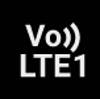
voLTE status icon
This Galaxy S25 status icon indicates your Galaxy S25 uses VoLTE for voice calls.
VoLTE (voice over LTE) is a carrier-dependent feature. It usually offers better voice quality and faster connecting.
By default, the Galaxy S25 has VoLTE enabled if your carrier supports it. Generally, it's best not to turn it off. However, if you prefer to disable or enable this feature, you can easily do so by going to Settings — Connections — Mobile networks — VoLTE calls. Just keep in mind that in some regions, this option might not be visible.
Please note that there is no VoLTE button in the Galaxy S25 quick setting panel in most regions.
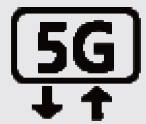
5G network connection status icon
This Galaxy S25 status icon means the phone is connected to a 5G network.
5G is the successor of 4G LTE. It is the latest cellular network technology with faster speed, lower latency, and higher throughput.
In all regions, Galaxy S25, S25+, S25 Ultra, and S25 Edge support the 5G network, including 5G SA and 5G Sub-6. You can find the big letters of 5G on the outside of the Galaxy S23 box, indicating that 5G is supported in your region.
However, 5G mmWave is only supported in the US version of Galaxy S25.
Please read this guide for a detailed explanation of 5G NSA, 5G SA, 5G mmWave, and 5G Sub-6.

SIM card toolkit icon
This Galaxy S25 status icon indicates some value-added SIM card services were enabled.
The SIM card toolkits depend on individual carriers. You should also find a new app icon (e.g., SIM toolkit) on the Galaxy S25 Apps screen. The app was installed by your carrier automatically.


Preferred SIM card icon (dual SIM version of Galaxy S22 only)
When you use two SIM cards in the dual-SIM version of Galaxy S25, you have the option to set a preferred (default) SIM card for outgoing calls in Settings — Connections — SIM card manager — Calls.
If you set the preferred SIM card as SIM card 1, the SIM card icon with the number “1” will be shown in the status bar. If you set it to SIM card 2, the icon will have the icon for the number “2”. If you set it as Ask always (i.e., no preferred SIM card), the first icon shown above will be used in the status bar.
Samsung is retiring these icons in most regions of the Galaxy S25. This status icon only appears in a few carrier models of Galaxy S25.

Data saver icon
This Galaxy S25 status icon indicates that the data saver is enabled for the mobile data.
The icon shows up on the status bar after you enable data saver in Settings — Connections —Data usage — Data saver.
Data saver may also help you extend battery life.
Meaning of battery and power related Galaxy S25 status icons and notification icons
Keeping an eye on the battery level and any potential issues with the Galaxy S25 is essential for maintaining its optimal performance. To ensure the battery remains healthy, it’s advisable to recharge it regularly and avoid letting it run down completely, as this can adversely affect both its lifespan and overall condition.
Certain power-saving configurations, such as Battery Protection, can prolong the lifespan of your battery, but at the expense of system performance.
This group of Galaxy S25 status icons and notification icons gives some essential information about your battery and battery-related settings.

Battery level status icon
The battery level status icon gives you quick info on the battery capacity left so that you can know when to charge the battery.
By default, the exact percentage of the reading is not shown on the Galaxy S25 status bar. You can enable it in Settings — Battery — Show battery percentage.

Battery charging status icon
The battery charging status icon indicates that the Galaxy S25 is currently being charged through either a USB cable or a wireless charging pad. For detailed guidance on selecting a compatible wireless charger for the Galaxy S25 and other Galaxy smartphone models, please check this page.
The Galaxy S25 (and S24) offers a new Battery Protection feature that allows you to regulate the charging behavior of your device to minimize battery wear. Please check this guide on how to choose the proper Battery Protection settings (maximum or adaptive) for your Galaxy S25, S25+, S25 Ultra, and S25 Edge.

Power saving mode icon
This Galaxy S25 status icon indicates the power-saving mode is enabled. It generally will use less battery than the default optimized mode to achieve a longer battery life.
On Galaxy S25, the power-saving mode can be used together with processing speed (enhanced processing).
You can also enable the Suspend Execution for Cached Apps in the Galaxy S25 Developer Options to save more battery.

Performance profile icon
This Galaxy S25 status icon indicates the performance profile is set as Light.
By default, the Standard performance profile is used on Galaxy S25. The icon disappears when in this mode. You may check this guide on when and how to use the light performance mode to extend battery life and keep your phone cooler.
The performance profile is a new feature introduced with One UI 6 to replace the processing speed (which is a revamped version of enhanced processing introduced in the Android 11 update).

Battery problem icon
This Galaxy S25 status icon indicates that there are some unknown problems with the Galaxy S25 battery.
You can try to connect the phone to a charger or reboot the phone to see whether the icon is gone.
If the status icon appears for a long time, and you cannot get the normal battery icons, you may try to back up your data and send the phone for repair/check.

Wireless PowerShare icon
This Galaxy S25 status icon indicates wireless PowerShare is activated. In other words, Galaxy S25 is charging other devices.
If your Galaxy S25 battery level is lower than 30%, and it is not connected to a wall charger, then you cannot use wireless PowerShare by default. You can raise (not lower) this limit for Galaxy S20, S21, S22, S23, S24, and S25.
Please check this guide on how to use the wireless PowerShare on Galaxy S10, S20, S21, S22, S23, S24, and S25.

Moisture detected icon
This Galaxy S25 notification icon indicates an abnormal level of moisture is detected in the USB port.
You cannot charge the Galaxy S25 battery through the USB port when this icon appears. You have to charge the battery with a wireless charging pad.
The issue indicated by the moisture detection is unrelated to waterproofing measures. The moisture sensor is situated in an area designed to withstand contact with water. The displayed icon serves only as a reminder that there is a moisture accumulation on the exterior of the USB port that exceeds anticipated levels.
In some cases, the moisture problem can be caused by the weather or an oversensitive moisture sensor.
This icon does not say anything about what happened inside the phone.
Please refer to this guide on how to solve the moisture problem in Galaxy S8, S9, S10, S20, S21, S22, S23, and S25.
Meaning of phone calls and sound mode related Galaxy S25 status icons and notification icons
When you receive a call, pick up a call, or miss a call, Galaxy S25 will alert you with some notification icons.
You may use various sound modes (sound, muted, vibrate) and Do Not Disturb on Galaxy S25. Some Galaxy S25 status icons are also shown to let you know the current sound mode.

Call in progress icon
This Galaxy S25 notification icon indicates you are engaged in a call.
The icon shows up on the left side of the status bar when you're receiving a call (just before answering, while the Galaxy S25 ringtone is playing) and remains visible during the call (after you’ve picked up).

Missed call notification icon
This Galaxy S25 notification icon indicates there is a (or more) missed call.
You can check the caller info through the notification panel. You can also find detailed info on the missed calls in the history panel of the Phone app on Galaxy S25.

Call forwarding notification icon (call divert)
The Galaxy S25 notification icon means phone calls are currently diverted/forwarded to other numbers or voicemails.
You can set call forwarding in the Phone app on your phone. Alternatively, you can set up call forwarding through your carrier’s support lines directly.
Although the call forwarding service itself may be free in most carriers, your carrier will charge the airtime for the forwarding. When you are roaming abroad, the expensive international calling rate is usually applied for forwarded calls. So, be mindful when you use call forward (divert) when roaming.
When you use two SIM cards on Galaxy S25 ( and enable dual SIM always on, call forwarding and call waiting (on-hold) will be enabled automatically.

Call on-hold notification icon
This Galaxy S25 notification icon reminds you of the existence of an on-hold call.
You can place the current call on hold and accept another call. Thus you can talk to the first caller after you finish the second call.
You also need to use the call on-hold feature when you initiate a conference call.

Microphone muted notification icon
This Galaxy S25 notification icon alerts you that the microphone is muted for the Phone app. So the people on the line will not hear you.
During a call, you may occasionally want to mute the microphone. Once the microphone is muted during a call, you will see this notification icon in the status bar.

Voicemail notification icon
This Galaxy S25 notification icon means you get a new voicemail message.
For most carriers, you can tap and hold (long tap) button 1 in the Phone app's dialer to access your voicemail box to check new messages. Other carriers may ask you to dial a special code to access the voicemail box.
Unlike SMS messages, voicemail messages are NOT saved on the phone. They are saved on your carrier’s server. That’s why most carriers only allow a certain number of messages in the voicemail box. Some carriers may not offer it at all.

Do not disturb status icon
This Galaxy S25 status icon indicates you set the phone in do not disturb (DND) mode.
In the DND mode, you will get very limited distractions from Galaxy S25. Most notifications and calls will be silenced.
You can instantly enable or disable the Do Not Disturb mode using the button in Galaxy S25 quick settings panel.

Alarm icon
The Galaxy S25 notification icon means that there are one or more incoming alarms.
You can find and manage all alarms in the Clock app.

Mute mode (silent mode) status icon
This Galaxy S25 status icon indicates Galaxy S25 is in Silent mode: no sounds and no vibrating for all calls and notifications.
Galaxy S25 has three sound modes:
- Sound mode
- Vibrate mode
- Silent mode (mute mode)
In the Silent mode, you can still play media files and listen to music.
You can change the sound mode in Settings — Sounds and Vibration — Sound mode.

Vibrate mode status icon
This Galaxy S25 status icon indicates that your Galaxy S25 is in vibrate mode.
In this vibrate mode, when you get calls and notifications, Galaxy S25 will not play the ringtones or notifications sounds. Instead, the phone may vibrate depending on other (vibration) settings.

Separate app sound notification icon
This Galaxy S25 notification icon indicates you set up the separate app sound for at least one app, and it is active now.
You can set up Galaxy S23 separate app sound in Settings — Sounds and vibration — Separate app sound.
Meaning of WiFi, Bluetooth, and NFC related Galaxy S25 status icons and notification icons
Galaxy S25 can connect to other devices or the Internet through WiFi, Bluetooth, and NFC. Galaxy S25 also supports ultra-wideband (UWB). NFC and Bluetooth may also be used for mobile payment.
You will see this group of status icons or notification icons when Galaxy S25 is connecting to such networks.

WiFi connected status icon
This Galaxy S25 status icon indicates the phone is successfully connected to a WiFi access point.
If there are any data transfers, the two arrows should flash/animate.

WiFi 6 connected status icon
This Galaxy S25 status icon indicates the phone is successfully connected to a WiFi 6 access point.
Please note all three Galaxy S25 models (S25, S25+, and S25 Ultra) support WiFi 6 (802.11ax) and WiFi 6E (6 GHz).

WiFi in range status icon
The Galaxy S25 status icon indicates there are some unknown WiFi networks. You can open the WiFi settings to scan the available networks.
This WiFi in range status icon appears if:
- WiFi is turned on; and
- There are one or more WiFi access points in the range; and
- You are not connected to any of these WiFi access points.
You may check what available WiFi networks (Settings —Connections — Wi-Fi) and choose the one you can access.

WiFi no internet connection status icon
This Galaxy S25 status icon indicates the phone is connected to a wireless network. But there is no internet connection.
Usually, the problem lies on the router, not on your Galaxy S25. You should check router settings or the internet connection to the router.
In some regions, the exclamation icon (!) may be replaced with a cross (x).

WiFi Extender (WiFi sharing) icon
Galaxy S25 allows you to share WiFi connections with other devices. This Galaxy S25 status icon appears when you share WiFi connections.
WiFi sharing can be enabled in Settings — Connections — Mobile hotspot and tethering — Mobile hotspot. When you activate the mobile hotspot for the first time on your Galaxy S25, you'll see a prompt reminding you that WiFi will be shared when your phone is connected to a WiFi network while the hotspot is on. Keep in mind that mobile data will only be shared if there isn't an active WiFi connection.


Hotspot notification icon
This Galaxy S25 notification icon alerts you that you have enabled the hotspot and are sharing your mobile data connections with other devices.
In some regions, the notification icon can be different.
Some carriers may disable the hotspot feature for some mobile plans.

VPN connection notification icon
When your Galaxy S25 is connected to a VPN service, you will see this notification icon.

Bluetooth status icon
This Galaxy S25 status icon appears when you enable Bluetooth or connect to Bluetooth accessories (e.g., Galaxy Buds).
The color of the icon may change depending on the status of the Bluetooth connection (enabled or connected).

NFC status icon
This NFC status icon may appear when you enable NFC on Galaxy S25.
In most regions, the NFC icon is not shown even if NFC is enabled. This is normal (to save space in the status bar).
NFC is mainly used for mobile payment. The NFC antenna is located on the back of the Galaxy S25 (as explained in the Galaxy S25 layout)
Some Galaxy S25 accessories may depend on NFC. For example, the Galaxy S25 Flipsuit Case needs NFC to draw power from the phone.

Casting notification icon
This Galaxy S25 notification icon appears when you are casting from Galaxy S25 to a Chromecast device or a Google Home device.
Meaning of USB related Galaxy S25 status icons and notification icons
The USB-C port at the bottom of Galaxy S25 (see Galaxy S25 layout) is often referred to as a multipurpose port.
The Galaxy S25 features a USB-C port that serves dual functions: it enables battery charging and facilitates connection to a range of USB peripherals. You can leverage this port for direct file transfers or data migration by connecting USB thumb drives or portable drives. Additionally, a USB-C to Ethernet adapter can be employed to establish a wired connection to an Ethernet network, enhancing network stability and speed.

USB data connection or USB OTG connection icon
This Galaxy S25 notification icon appears when you transfer data from or to the phone through USB.
For example, when you insert a USB thumb drive (e.g., SanDisk Ultra Dual Drive) into Galaxy S25, you will see this notification icon.

USB OTG power failure notification icon
When you connect an unpowered device to the USB port, Galaxy S25 will power it up and connect to it.
But if Galaxy S25 fails to power it up for whatever reason, this notification icon appears.
You may try to reconnect the device or accessory again. Some accessories may require an external power source. In this case, you need to connect the external power source to the accessory before connecting it to Galaxy S25.

USB OTG unknown failure notification icon
This Galaxy S25 notification icon indicates there are some unknown failures when trying to connect to a USB device.

USB Ethernet notification icon
This Galaxy S25 notification icon indicates a USB-C to Ethernet adapter (like this one) is connected to Galaxy S25.

USB Ethernet status icon
This Galaxy S25 status icon indicates Galaxy S25 is connected to a wired network. Normally, this is done through a USB Ethernet adapter.
Unlike the previous notification icon, this icon appears on the right side of the status bar.
Meaning of messages related Galaxy S25 status icons and notification icons
The following Galaxy S25 status icons and notification icons are messages related.
![SAMSUNG Galaxy Ring, AI Smart Ring, Size First w/Sizing Kit, No App Subscription, Fitness Monitor, Sleep Tracker, Up to 7-Day Battery, Size 10, Titanium Gold [US Version, 1Yr Manufacturer Warranty]](https://m.media-amazon.com/images/I/41R1PkmCQxL._SL160_.jpg)
![Samsung Galaxy Watch 7 40mm Bluetooth AI Smartwatch w/Energy Score, Wellness Tips, Heart Rate Tracking, Sleep Monitor, Fitness Tracker, 2024, Green [US Version, 1Yr Manufacturer Warranty]](https://m.media-amazon.com/images/I/41ew4GQ5kML._SL160_.jpg)


Text message notification icon
This Galaxy S25 notification icon indicates there are one or more new text messages.
In most regions, MMS uses the same icon for the notification.

Chat notification icon
This Galaxy S25 notification icon is used in a few regions for some legacy services.

Gmail notification icon
This Galaxy S25 notification icon indicates you have some new emails in the Gmail app.
You can set up some non-Google email accounts in the Gmail app. So this Galaxy S25 notification icon does not necessarily mean new emails in a Gmail account. Rather it means there are some new emails in the Gmail app.

Email notification icon
This Galaxy S25 notification icon alerts you there are new emails in the Email app.
It is for the Samsung Email app.


More notifications icon
This Galaxy S25 notification icon indicates there are more notifications than what is shown in the status bar.
On Galaxy S25, you can customize the notification icon style to show the recent 3 icons, or all icons, or the number of icons.
If you choose to show the most recent 3 icons (default), and there are 4 or more icons, you will see the dot icon.
Similarly, if you choose to show all icons, but the space is not sufficient to show all of the notification icons, you will also see the icon.

Number of notification icons
This Galaxy S25 notification icon indicates the number of notifications.
It appears only if you customize the notification icon style as the number of notification icons.

Dual Messenger icon
Galaxy S25 dual messenger allows you to have two accounts of the supported messenger apps (e.g., WhatsApp, Facebook Messenger, WeChat, Telegram, Viber…) and Facebook accounts in Galaxy S25.
You can use these two messenger accounts simultaneously on Galaxy S25. You can even use these two accounts side-by-side in the Multi Window mode.
Please refer to this guide on how to use dual messenger on Galaxy S25, S24, S23, S22, S21, S20, S10, S9, and S8.
Meaning of system settings related Galaxy S25 status icons and notification icons
These Galaxy S25 status icons and notification icons represent various system services and components, including storage, synchronization, privacy, and location features.
These icons play a vital role in ensuring the phone's reliability and integrity. It's important to comprehend the meanings behind the Galaxy S25 status and notification icons fully, so you can take appropriate action when necessary.

System error status icon
This Galaxy S25 status icon indicates there are some severe system errors on your phone.
You should try to back up your data as early as possible if you see this icon.
You may try to reboot the phone and/or clear the cache partition to see whether the icon disappears.
It is better to visit the local Samsung service center to check your Galaxy S25 if you consistently get this status icon.

Storage full status icon
This Galaxy S25 status icon tells you that you are out of the phone's internal storage.
The performance of the Galaxy S25 will degrade severely when you see this status icon. You should clean up some files to free up the internal storage space.
You can check storage usage in the My Files app. Device care can help you to clear some unnecessary files.
Please note that none of the Galaxy S25 models support a microSD card. You can transfer your files to the cloud (e.g., Google Drive or OneDrive) or a USB thumb drive.

Location service icon
This Galaxy S25 status icon appears when the location service is accessed by an app.
You probably should not disable location service because many apps rely on it.
On Galaxy S25, you can turn on/off location service for each app individually and allow the app to access location service only when you are using the app (i.e., block the background access).
The Galaxy S25 Camera app needs to access location services if you want to save location tags with the photos/videos.

Camera access status (indicator) icon
This Galaxy S25 status icon means the camera is currently being used.
This is a new privacy feature in Android 12, alerting you that some apps are using your camera.
For example, when you start the Galaxy S25 camera app (or camera widget), you will see this status icon. The icon then turns into a dot so that it will not mess up the preview screen.

Microphone access status icon
Similar to the camera access status icon, this Galaxy S25 status icon alerts you the microphone is being used by some apps. For example, when you record videos or take voice memos, this icon appears in the status bar.

System certificate info icon
This Galaxy S25 status icon indicates some certificate info problems or some actions are required.
You may check the notification in the Galaxy S25 notification panel.

Lock screen settings notification icon
This Galaxy S25 notification icon reminds you that some actions are required for Galaxy S25 lock screen settings (e.g., set up the screen lock), or you need to take some actions to finish some system settings.

Sync error status icon
This Galaxy S25 status icon indicates some errors were encountered when syncing the data on the Galaxy S25 with the Samsung server or Google Drive.
The problem can be caused by the remote server, internet connection, or your Galaxy S25.
If you get this status icon frequently, it is better to check the sync details of each account in Settings — Accounts and backup — Manage Accounts.

Sync icon
This Galaxy S25 status icon appears when data are being synced. The icon may be animated as well.
It is essential to back up any critical data in Galaxy S25 so that you can quickly restore the phone when needed. You can back up most of the data to Google Drive. Photos can be automatically backed up to Google Drive if you enable it in the Google Photos app.

Smart view icon
This Galaxy S25 notification icon indicates the smart view is active.
Samsung Smart View is an app bridging Samsung phones and Samsung TVs so that you can easily cast content on Galaxy S25 to the TV. But it only works with Samsung TVs.
It has nothing to do with Chromecast.

Download notification icon
When you download a file on Galaxy S25, you will see the animated version of this Galaxy S25 notification icon.
Once you finish the download, the icon will not animate.
By default, the downloaded files are saved in the Downloads folder in the phone storage.

Upload notification icon
This Galaxy S25 notification icon indicates uploading operations, i.e., transferring files from Galaxy S23 to other devices or the internet.

Secure Folder icon
Galaxy S25 secure folder allows you to run one additional private copy of any app. You can hide apps and private files in a secure folder as well.
Please check this guide on using the secure folder on Galaxy S25, S24, S23, S22, S21, S20, S10, Galaxy S9, and S8.

Screenshot notification icon
This Galaxy S25 notification icon appears after a screenshot is taken. You can check this guide (coming soon) on how to take a screenshot on Galaxy S25 and use the screenshot toolbar.
On Galaxy S25, S23, adn S22, you can choose the location for saving screenshots and screen recordings.
S Pen status and notification icons (Galaxy S25 Ultra only)
The Galaxy S25 Ultra features a built-in S Pen that enhances productivity and creativity. When you remove the S Pen from its slot, a status icon appears to indicate it's ready for use. If the S Pen is disconnected from the phone after being taken out, a notification icon will pop up to alert you.
The Galaxy S25 Ultra's S Pen is designed without Bluetooth functionality, which means that you won’t find any status icons or notification icons related to the S Pen. This absence of Bluetooth support limits certain advanced features typically associated with an S Pen. However, safeguarding against the unintentional misplacement of the S Pen, the Galaxy S25 is equipped with a helpful alert system. If the S Pen is not present in the S Pen slot while the device's screen is locked, the Galaxy S25 will promptly notify you, ensuring you don’t leave it behind inadvertently.
Do you know the meaning of status icons and notification icons on Galaxy S25, S25+, and S25 Ultra now?
Please let us know in the comment box blow if you need help with the meaning of any Galaxy S25 status icons and notification icons.
The community will help you.
You may check other sections of Galaxy S25 Guides: Everything about Galaxy S25:
- The Galaxy S25 News and Updates section provides the latest news, updates, and analyses for Samsung Galaxy S25, S25+, S25 Ultra, and S25 Slim. You can find a broad range of topics, including Galaxy S25 specifications, design features, One UI updates, and market dynamics so that Galaxy S25 owners or potential owners can remain well-informed about the latest updates and trends of Galaxy S25.
- The Galaxy S25 New Features Guides deliver an in-depth analysis of the advancements and new capabilities of the Galaxy S25, S25+, and S25 Ultra models compared to their predecessors in the Galaxy S series, as well as other leading Android flagship devices. These guides are an invaluable resource for answering technical questions related to Galaxy S25, while also offering detailed insights and comparative evaluations to facilitate informed decision-making in the purchasing process.
- The Galaxy AI Guides section comprises a thorough collection of resources and tools aimed at assisting users in effectively navigating and using the features of Galaxy AI on Galaxy S25, S25+, and SD25 Ultra. This section includes detailed explanations, comprehensive step-by-step instructions, and expert recommendations. Each guide is specifically designed to address particular functionalities, ensuring that individuals, regardless of their experience level, can enhance their knowledge and efficiency in utilizing Galaxy AI.
- The Galaxy S25 How-to Guides provide an extensive array of resources that deliver comprehensive instructions on using and personalizing the Galaxy S25, S25+, and S25 Ultra. These thorough guides encompass all facets of operating the Galaxy S25 series, including hardware and software features, functionalities of the Android operating system and One UI, as well as procedures for migration and data sharing. By consulting the Galaxy S25 How-to Guides, you can gain an in-depth understanding of both the capabilities and customization options available for your Galaxy S25, S25+, and S25 Ultra.
- The Galaxy S25 Camera Guides section offers a comprehensive compilation of instructional resources designed to assist Galaxy S25 owners in effectively using the Galaxy S25 camera for capturing exceptional photographs and recording high-quality videos. Additionally, it includes guidance on the application of the photo (and video) editor available on the Galaxy S25, S25+, and S25 Ultra.
- The Galaxy S25 Accessories Guides section offers detailed guides on the usage of various accessories specifically designed to enhance functionality and protect the Galaxy S25, S25+, and S25 Ultra. These guides cover a wide range of topics, including protective accessories and feature augmentation accessories. Furthermore, this section provides comprehensive reviews of specific accessories for Galaxy S25, S25+, and S25 Ultra.
- The Galaxy S25 User Manual section comprises the official user manual for the Samsung Galaxy S25, S25+, and S25 Ultra, available in PDF format. These user manuals have been released by Samsung across various regions and are organized according to the respective languages. The content of this material is comprehensive and structured, facilitating easier access to the necessary information for Galaxy S25 owners.
- The Galaxy S25 Reviews section is dedicated to reviews of the Galaxy S25, S25+, and S25 Ultra and their accessories. These reviews are all based on our own usage as consumers. Depending on the objects being reviewed, Galaxy S25 reviews include detailed technology and design evaluations, everyday usage and performance, and comparison to other similar products.
You can also reach us through:
- Our Facebook page.
- Our YouTube channel.
- Contact Us page.
Don't miss out on the latest updates, guides, tips, and tricks for the Samsung Galaxy S25 – sign up for our newsletter now!