
By default, the Galaxy S25 Camera app displays only three camera modes (of a total of 14) below the shutter button. However, you have the option to add additional camera modes and reorganize them according to your preferences, thereby facilitating quicker access to these modes when needed.
This Galaxy S25 camera guide explains and shows you step-by-step how to add more Galaxy S25 camera modes to the app interface and manage them to meet your needs.
This guide applies not only to Galaxy S25, S25+, S25 Ultra, and S25 Edge, but also to other Galaxy phones with the One UI 7 (Android 15) update, including Galaxy S24, S23, S22, and S21. Samsung unified the camera app in all Galaxy S phones with One UI 7.
The One UI 8 (Android 16) update for Galaxy S25, S24, S23, and S22 added additional exposure control for the Pro mode and Pro video model.
To manage Galaxy S25 camera modes on Galaxy S25, you may follow these steps.
Step 1: Open the Camera app
You can open the Camera app on your Galaxy S25 in a few different ways, for example,
- Tap the Camera app icon on the Home screen.
- Tap the Camera app icon on the Apps screen.
- Tap the camera widget on the Home screen
- Press the Side key twice.
- Swipe the Camera app shortcut on the Lock screen.
The camera widget also allows you to open the camera app with a pre-defined camera mode.
The camera app shortcut on the lock screen lets you open the camera app without unlocking the phone. But you can only review photos taken in the current session, for security reasons.
Step 2: Access other Galaxy S25 camera modes
As explained in the Galaxy S25 Camera app interface (which is identical to that on Galaxy S24, S23, S22, and S21 after the One UI 7 update), there are only 3 camera modes shown on the camera app interface: Portrait, Photo, and Video.
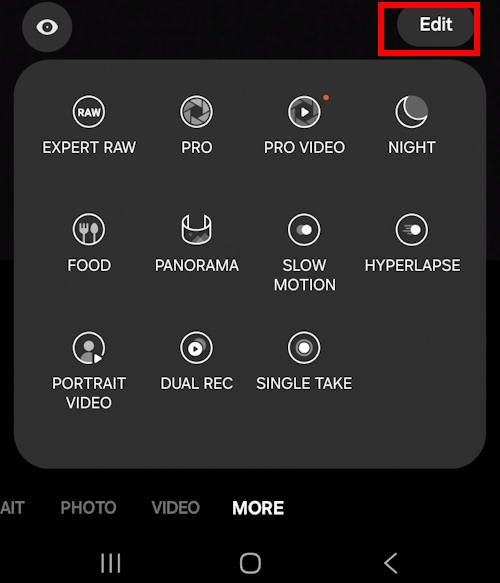
You can tap the More button, as shown below, to access all Galaxy S25 Camera modes.

In the pop-up window, after tapping the More button, you can find all other Galaxy S25 Camera modes, including:
- Expert Raw (Expert Raw is inside the Camera app, and you do not need a separate app for it).
- Pro.
- Pro Video.
- Night (Galaxy S25 improves greatly on night photography).
- Food (some Galaxy AI features are used in this mode).
- Panorama.
- Slow Motion.
- Hyperlapse.
- Portrait Video.
- Dual Rec.
- Single Take.
The available camera modes can be accessed by tapping on them; however, this method may be inconvenient. By placing frequently used Galaxy S25 Camera modes directly within the camera app interface, you can access them swiftly, thereby eliminating the need to navigate through the “More” button.


Step 3: Add camera modes to the Camera app interface
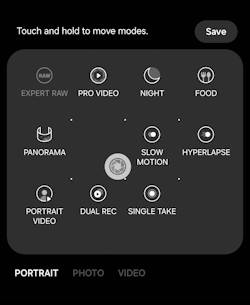
To add the camera modes to the Galaxy S25 Camera app interface, you can tap the Edit button on the pop-up page to enter Edit mode, as shown in the screenshot below.
In the Edit mode, as shown in the screenshot below, you can tap and hold any of the camera modes to relocate them:
- Within the pop-up page.
- To the camera app interface.
For example, you often use the Pro mode and want to put it in the camera app interface.
So, in this case, you can tap and hold the Pro mode, then drag it out of the pop-up page area, as shown below.

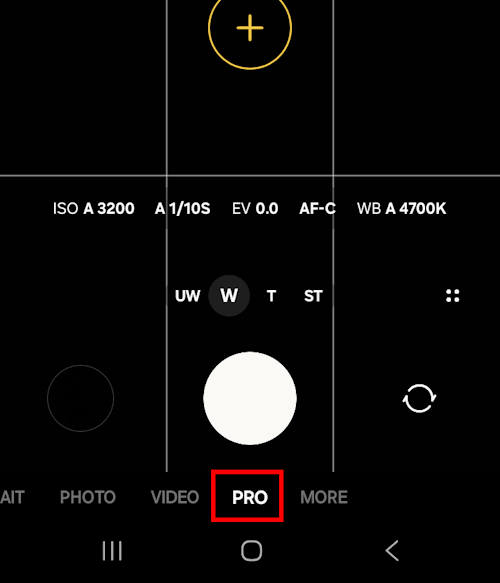
Now, once you release your finger from the screen, the Pro mode will be on the Galaxy S25 Camera app interface, together with the Photo and Video modes, as shown in the screenshot below.
You can continue to relocate and rearrange other Galaxy S25 camera modes.

To save the customization, tap the Save button, as shown in the screenshot above.
Step 4: Test Galaxy S25 camera modes in the Camera app interface
After relocating the Galaxy S25 Camera modes, you can test them.
For example, after adding the Pro mode to the Galaxy S25 Camera app interface, as shown in the screenshot below, you can tap the Pro Mode icon to use this Galaxy S25 mode immediately.
Do you have any questions about managing Galaxy S25 Camera modes?
Please let us know your questions about Galaxy S25 Camera modes in the comment box below. The community will help you.
You may check other sections of Galaxy S25 Guides: Everything about Galaxy S25:

- The Galaxy S25 News and Updates section provides the latest news, updates, and analyses for Samsung Galaxy S25, S25+, S25 Ultra, and S25 Slim. You can find a broad range of topics, including Galaxy S25 specifications, design features, One UI updates, and market dynamics so that Galaxy S25 owners or potential owners can remain well-informed about the latest updates and trends of Galaxy S25.
- The Galaxy S25 New Features Guides deliver an in-depth analysis of the advancements and new capabilities of the Galaxy S25, S25+, and S25 Ultra models compared to their predecessors in the Galaxy S series, as well as other leading Android flagship devices. These guides are an invaluable resource for answering technical questions related to Galaxy S25, while also offering detailed insights and comparative evaluations to facilitate informed decision-making in the purchasing process.
- The Galaxy AI Guides section comprises a thorough collection of resources and tools aimed at assisting users in effectively navigating and using the features of Galaxy AI on Galaxy S25, S25+, and SD25 Ultra. This section includes detailed explanations, comprehensive step-by-step instructions, and expert recommendations. Each guide is specifically designed to address particular functionalities, ensuring that individuals, regardless of their experience level, can enhance their knowledge and efficiency in utilizing Galaxy AI.
- The Galaxy S25 How-to Guides provide an extensive array of resources that deliver comprehensive instructions on using and personalizing the Galaxy S25, S25+, and S25 Ultra. These thorough guides encompass all facets of operating the Galaxy S25 series, including hardware and software features, functionalities of the Android operating system and One UI, as well as procedures for migration and data sharing. By consulting the Galaxy S25 How-to Guides, you can gain an in-depth understanding of both the capabilities and customization options available for your Galaxy S25, S25+, and S25 Ultra.
- The Galaxy S25 Camera Guides section offers a comprehensive compilation of instructional resources designed to assist Galaxy S25 owners in effectively using the Galaxy S25 camera for capturing exceptional photographs and recording high-quality videos. Additionally, it includes guidance on the application of the photo (and video) editor available on the Galaxy S25, S25+, and S25 Ultra.
- The Galaxy S25 Accessories Guides section offers detailed guides on the usage of various accessories specifically designed to enhance functionality and protect the Galaxy S25, S25+, and S25 Ultra. These guides cover a wide range of topics, including protective accessories and feature augmentation accessories. Furthermore, this section provides comprehensive reviews of specific accessories for Galaxy S25, S25+, and S25 Ultra.
- The Galaxy S25 User Manual section comprises the official user manual for the Samsung Galaxy S25, S25+, and S25 Ultra, available in PDF format. These user manuals have been released by Samsung across various regions and are organized according to the respective languages. The content of this material is comprehensive and structured, facilitating easier access to the necessary information for Galaxy S25 owners.
- The Galaxy S25 Reviews section is dedicated to reviews of the Galaxy S25, S25+, and S25 Ultra and their accessories. These reviews are all based on our own usage as consumers. Depending on the objects being reviewed, Galaxy S25 reviews include detailed technology and design evaluations, everyday usage and performance, and comparison to other similar products.
You can also reach us through:
- Our Facebook page.
- Our YouTube channel.
- Contact Us page.
Don't miss out on the latest updates, guides, tips, and tricks for the Samsung Galaxy S25 – sign up for our newsletter now!