Single take mode

How to manage camera modes on Galaxy S25 (and Galaxy S24, S23, S22, and S21 with One UI 7 update)?
Galaxy S25 Camera Guide, Galaxy S25 How-to Guides

How to manage camera modes on Galaxy S25 (and Galaxy S24, S23, S22, and S21 with One UI 7 update)?

How to manage camera modes on Galaxy S25 (and Galaxy S24, S23, S22, and S21 with One UI 7 update)?

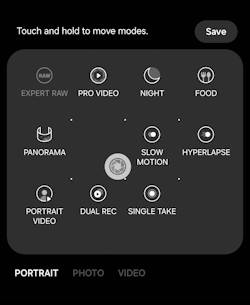
By default, the Galaxy S25 Camera app displays only three camera modes (of a total of 14) below the shutter button. However, you have the option to add additional camera modes and reorganize them according to your preferences, thereby facilitating quicker access to these modes when needed.

This Galaxy S25 camera guide explains and shows you step-by-step how to add more Galaxy S25 camera modes to the app interface and manage them to meet your needs.

This guide applies not only to Galaxy S25, S25+, S25 Ultra, and S25 Edge, but also to other Galaxy phones with the One UI 7 (Android 15) update, including Galaxy S24, S23, S22, and S21. Samsung unified the camera app in all Galaxy S phones with One UI 7.

The One UI 8 (Android 16) update for Galaxy S25, S24, S23, and S22 added additional exposure control for the Pro mode and Pro video model.

To manage Galaxy S25 camera modes on Galaxy S25, you may follow these steps.

Step 1: Open the Camera app

You can open the Camera app on your Galaxy S25 in a few different ways, for example,

  • Tap the Camera app icon on the Home screen.
  • Tap the Camera app icon on the Apps screen.
  • Tap the camera widget on the Home screen
  • Press the Side key twice.
  • Swipe the Camera app shortcut on the Lock screen.

The camera widget also allows you to open the camera app with a pre-defined camera mode.

The camera app shortcut on the lock screen lets you open the camera app without unlocking the phone. But you can only review photos taken in the current session, for security reasons.

Step 2: Access other Galaxy S25 camera modes

As explained in the Galaxy S25 Camera app interface (which is identical to that on Galaxy S24, S23, S22, and S21 after the One UI 7 update), there are only 3 camera modes shown on the camera app interface: Portrait, Photo, and Video.

You can tap the More button, as shown below, to access all Galaxy S25 Camera modes.

Galaxy S25 camera app interface

In the pop-up … Read the rest

Use Galaxy S25 Camera App
Galaxy S25 Camera Guide, Galaxy S25 How-to Guides

How to Use Galaxy S25 Camera App?

Use Galaxy S25 Camera App

The Galaxy S25 Camera app is essential for unlocking the device's outstanding photographic potential. Mastering the Galaxy S25 Camera app is crucial for capturing high-quality photos and videos.

This Galaxy S25 Camera app guide explains the 5 sections of the Galaxy S25 Camera app user interface and their functions. It covers how to use the shutter button in the Camera app, how to switch between the front and rear cameras on the Galaxy S25, and how to manage the various camera modes in the Galaxy S25 Camera app. Additionally, the guide provides a detailed explanation of the meanings and usage of all the settings found in the Galaxy S25 Camera app user interface.

Although Galaxy S25, S25+, and S25 Ultra differ in camera capabilities, the Camera app on these 3 phones is identical. So, this guide applies to all Galaxy S25 phones. Some features that are exclusive to the Galaxy S25 Ultra are highlighted explicitly.

Understand the Galaxy S25 Camera app user interface

The Galaxy S25 Camera App user interface can be divided into 5 sections, as shown in the screenshot below:

  1. Preview screen section.
  2. Zoom and the quick tools section
  3. Functional buttons section.
  4. Camera mode selection section
  5. Current options section.
5 sections of Galaxy S25 Camera app interface

1. Preview screen section

In the Galaxy S25 Camera app, the preview screen section has three functions:

  • Preview the photo or video to be captured. This allows you to preview the scene before capturing it.
  • Enhance your photo-taking experience with exposure adjustment and lock, focus lock, pinch-to-zoom, and swipe-to-switch between front and rear
Read the rest
Scroll to Top