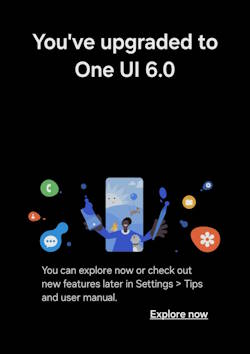
Android 14 (One UI 6) update for Galaxy S22, S21, and S23 has been rolled out in Q4 2023. In most regions, you can now update many supported Galaxy devices to Android 14 (One UI 6).
This Galaxy S22 new features guide explains how to check, install, and update Galaxy S22, S21, S23, and other Galaxy devices to Android 14 (One UI 6). All new features in the One UI 6 update are also discussed.
This guide applies to all Galaxy phones that are eligible for the Android 14 (One UI 6) update. If you have updated your device to One UI 6.1, you may also check the new features of One UI 6.1, especially many Galaxy AI features.
Table of Contents
- List of Galaxy devices that will get the Android 14 (One UI 6) update
- How to update Galaxy S22 and S21 to Android 14 (One UI 6)?
- List of the new features in the Android 14 (One UI 6) update
- 1. Quick panel
- 2. Lock screen
- 3. Home screen
- 4. Multitasking
- 5. Samsung DeX
- 6. Link to Windows
- 7. Samsung Keyboard
- 8. Content sharing
- 9. Camera
- Simple and intuitive design
- Camera widgets customization
- More alignment options for watermarks
- Quick access to resolution settings
- Enhanced video size selection
- Keep your pictures level
- Quality optimization
- New Auto FPS options for videos
- Apply effects more easily
- Turn off swipe up/down to switch cameras
- Easier document scanning
- 10. Gallery
- 11. Photo Editor
- 12. Studio (Video Editor)
- 13. Video Player
- 14. Weather
- 15. Samsung Health
- 16. Calendar
- 17. Reminder
- 18. Samsung Internet
- 19. Smart select
- 20. Bixby text call
- 21. Modes and Routines
- 22. Smart suggestions
- 23. Finder
- 24. My Files
- 25. Samsung Pass
- 26. Settings
- 27. Accessibility
- 28. Digital Wellbeing
List of Galaxy devices that will get the Android 14 (One UI 6) update
In addition to Galaxy S23, S22, and S21, many other Galaxy devices will get the Android 14 (One UI 6) update with many new features.
Please note the last Galaxy Note device, Galaxy Note 20, will not get the Android 14 (One UI 6) update. The update for Galaxy Note 20 stopped at Android 13 (One UI 5.1). Similarly, all Galaxy S20 models also stopped at Android 13 (One UI 5.1).
Here is the list of Galaxy devices that are eligible for the Android 14 (One UI 6) update.
Galaxy S series
- Galaxy S23 (including Galaxy S23 Ultra, Galaxy S23+, Galaxy S23, and Galaxy S23 FE).
- Galaxy S22 (including Galaxy S22 Ultra, Galaxy S22+, and Galaxy S22).
- Galaxy S21 (including Galaxy S21 Ultra, Galaxy S21+, Galaxy S21, and Galaxy S21 FE).
Galaxy Z series
- Galaxy Z Fold 5
- Galaxy Z Flip 5
- Galaxy Z Fold 4
- Galaxy Z Flip 4
- Galaxy Z Fold 3
- Galaxy Z Flip 3
Galaxy A series
- Galaxy A73
- Galaxy A72
- Galaxy A54
- Galaxy A53
- Galaxy A52 (including Galaxy A52, A52 5G, and A52s 5G)
- Galaxy A34
- Galaxy A33
- Galaxy A24
- Galaxy A23
- Galaxy A14 (Including Galaxy A14 Galaxy A14 5G)
- Galaxy A13 (Including Galaxy A13 Galaxy A13 5G)
- Galaxy A04s
- Galaxy A05 and Galaxy A05s
Galaxy M series
- Galaxy M54
- Galaxy M53 5G
- Galaxy M33 5G
- Galaxy M23
Galaxy F series
- Galaxy F54
- Galaxy F23
- Galaxy F14 5G
Galaxy Xcover series
- Galaxy Xcover 5 Pro
- Galaxy Xcover 6 Pro
Galaxy Tab series
- Galaxy Tab S9 (including Galaxy Tab S9 Ultra, Galaxy Tab S9+, Galaxy Tab S9, Galaxy Tab S9 FE, and Galaxy Tab S9 FE+)
- Galaxy Tab S8 (including Galaxy Tab S8 Ultra, Galaxy Tab S8+, and Galaxy Tab S8)
- Galaxy Tab S7 FE
- Galaxy Tab S6 Lite
- Galaxy Tab A9 and Galaxy Tab A9+.
- Galaxy Tab A8
- Galaxy Tab A7 Lite
- Galaxy Tab Active 4 Pro
![Samsung Galaxy Buds FE True Wireless Bluetooth Earbuds, Comfort and Secure in Ear Fit, Auto Switch Audio, Touch Control, Built-in Voice Assistant, Graphite [US Version, 1Yr Manufacturer Warranty]](https://m.media-amazon.com/images/I/31erKeCTbCL._SL160_.jpg)

How to update Galaxy S22 and S21 to Android 14 (One UI 6)?
In most Galaxy devices, you should get a notification automatically when the Android 14 (One UI 6) update is available in your region. You can follow the notification in the notification panel to download and install the update.
You can also manually check the availability of the update and install it by following these steps.
Step 1: Check the software update
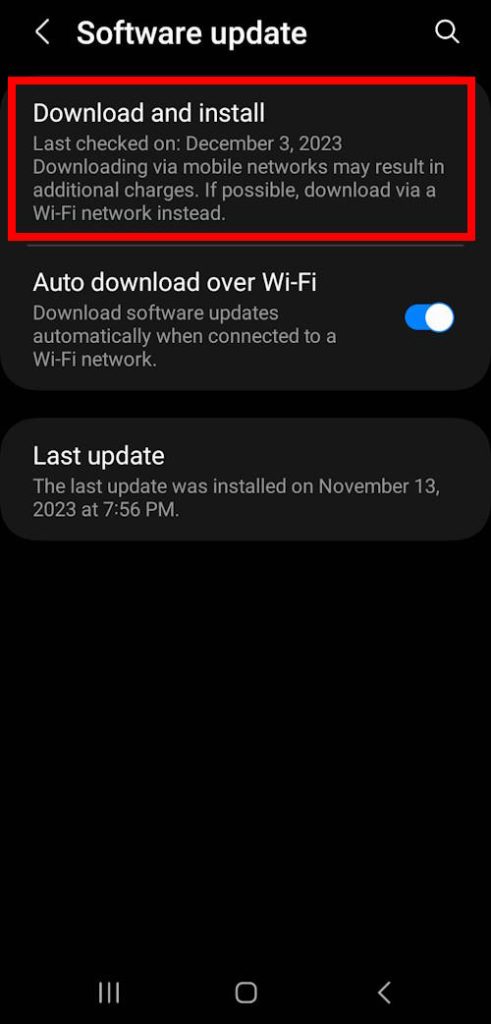
In the Phone settings, as shown in the screenshot below, tap Software Update.
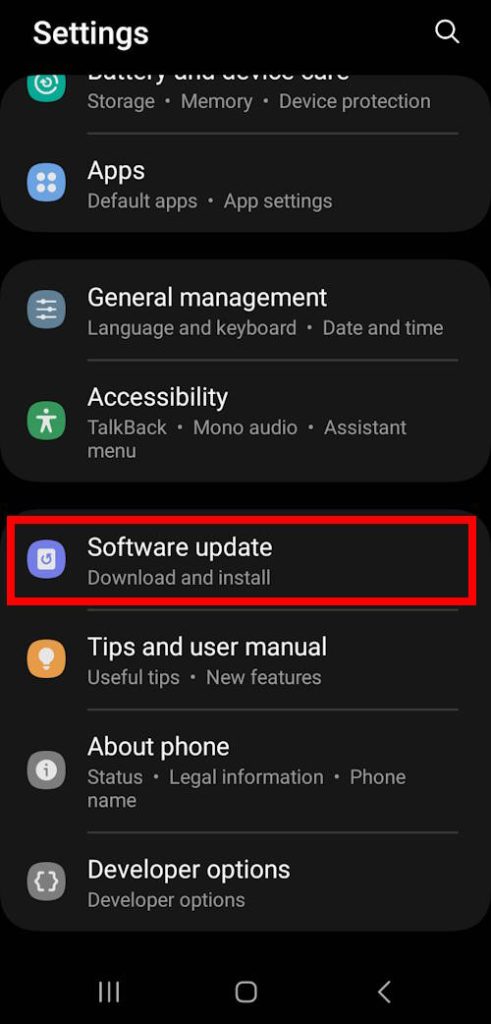
In the Software Update page, as shown below, you can then tap Download and Install to manually check update.
You may also enable the Auto download over Wi-Fi option on this page so that any future updates can be downloaded automatically in the background once they are available.
By default, the update will not be installed automatically unless you enable it in the developer options.
Step 2: Download the Android 14 (One UI 6) update
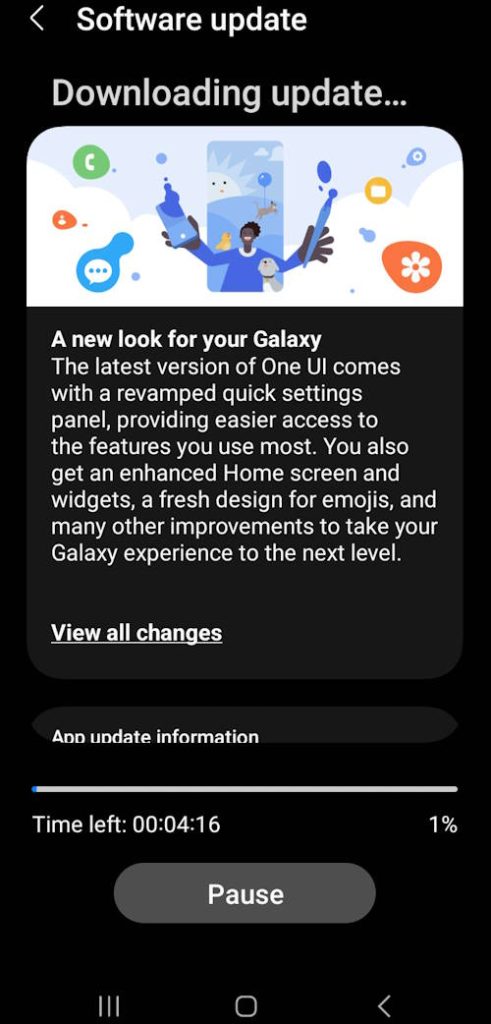
If the Android 14 (One UI 6) update is available for your device in your region, it should be downloaded automatically, as shown below.
The size of the update is usually more than 2GB. So, you may try to download it with WiFi unless you have a sufficient mobile data quota.
Of course, you can pause the download and resume it later.
Step 3: Install Android 14 (One UI 6) update
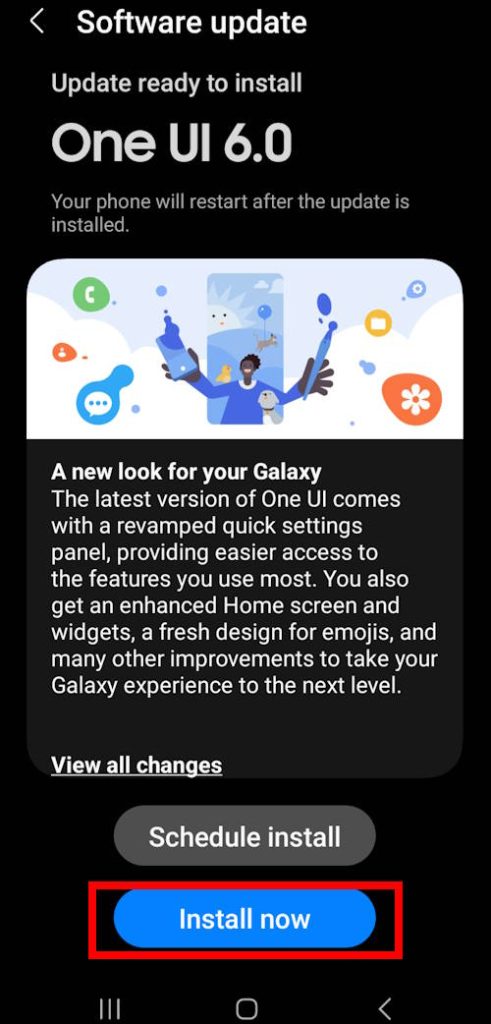
Once the update is downloaded to your device, you can choose to:
- Install the update right now, as shown below, by tapping Install Now.
- Schedule a time for the installation.
The updating process of the Android 14 (One UI 6) update needs about 20~60 mins. You need to make sure you do not need to use the phone during this period.
It also requires a reboot of the phone once. You need to unlock the phone after the reboot so that it can finish the updating process.
List of the new features in the Android 14 (One UI 6) update
Here is the complete list of the new features in the Android 14 (One UI 6) update. You may check the top 20 new features in this update, as well as the new camera features.


1. Quick panel
New button layout
The Android 14 (One UI 6) update has made some changes to the quick settings. The Quick Panel has been redesigned to provide easier access to frequently used features.
You’ll now find dedicated buttons for Wi-Fi and Bluetooth at the top of the screen. Meanwhile, visual features such as Dark mode and Eye comfort shield have been relocated to the bottom. In the middle of the screen, you’ll find a customizable area with other quick settings buttons.
Instantly access the full quick panel
When you swipe down from the top of your phone’s screen, you’ll see a list of notifications. If you swipe down again, the notifications will disappear and you’ll see the full quick settings.
Now, if you have the Quick Settings Instant Access turned on (which is available in the Android 14 (One UI 6) update), you can see the quick settings by swiping once from the right side of the top of the screen (status bar). To see the notifications, swipe down from the left side.
Quickly access the brightness control
By default, the brightness control bar now appears in the compact quick panel upon a single swipe down of the screen, providing users with a more efficient and facile method to adjust brightness levels.
Improved album art display
While playing music or videos, album art will cover the entire media controller in the notification panel if the app playing the music or video provides album art.
Enhanced layout for notifications
Each notification now appears as a separate card, making it easier to recognize individual notifications.
More vivid notification icons
You can use the same full-color icons that are used for each app on the Home and Apps screens. You can turn this on in Settings.
Sort notifications by time
It is now possible to modify your notification settings to display the most recent notifications at the top by sorting them according to time, rather than priority. This feature ensures that your newest notifications are always easily accessible and visible.
2. Lock screen
Clock repositioning
In One UI 5 or One UI 5.1, you can resize the clock on the lock screen. But it is always centered.
With the latest Android 14 (One UI 6) update on your Galaxy devices, you can now enjoy more freedom in customizing the clock position in the Lock screen. This new feature in One UI 6 allows you to reposition the clock anywhere between the status bar and the notification.
3. Home screen
Simplified icon labels
As part of the Android 14 (One UI 6) update, the app icon labels have been optimized to present a cleaner and simpler look. To achieve this, the labels are now constrained to a single line.
Furthermore, some app names have been shortened by removing “Galaxy” and “Samsung” from them. This change is aimed at increasing the scannability of the labels, making it easier for users to find the desired app quickly.
Drag and drop with 2 hands
Android 14 (One UI 6) update introduced a new two-hand gesture. You can drag and drop with two hands.
This new gesture is supported on the Home screen. For example, you can start dragging app icons or widgets on your Home screen with one hand, then use your other hand to navigate to the screen panel where you want to drop them.
4. Multitasking
Keep pop-up windows open
When utilizing the pop-up view multiwindow functionality, it is possible to retain the open application, thanks to this One UI 6 update.
Rather than minimizing the pop-up view window when navigating to the Recents screen, the pop-ups will remain active even after leaving the Recents screen, allowing the user to proceed with their work uninterrupted.
This feature facilitates multitasking and enhances productivity by reducing the need to repeatedly switch between applications.
5. Samsung DeX
Meet the new DeX for tablets in Android 14 (One UI 6) update
The new Samsung DeX lets you switch between DeX mode and tablet mode with the same Home screen layout. All of your usual apps, widgets, and icons are available in DeX.
You can also use DeX in both landscape and portrait orientations if Auto Rotate is turned on for your tablet.
6. Link to Windows
Now available on tablets
With the Android 14 (One UI 6) update, the Link to Windows feature is available on tablets. It has been available for phones for many years.
To enable seamless connectivity and enhance productivity, you can establish a connection between your tablet and Windows PC. This not only allows you to view and handle notifications on your PC but also permits you to run tablet-based applications on your PC, transfer files between your devices, and much more.
7. Samsung Keyboard
New emoji design
In the Android 14 (One UI 6) update, the Samsung Keyboard was updated with a fresh new design of emojis that you can use in your messages, social media posts, and elsewhere on your phone.
8. Content sharing
Picture previews
When you share pictures from any app, preview images will appear at the top of the Share panel to give you one more chance to review them before sharing.
9. Camera
Simple and intuitive design
The overall UI layout of the Camera app has been simplified. Quick settings buttons on the preview screen have been redesigned to be simpler and more intuitive.
Camera widgets customization
Android 14 (One UI 6) update adds the camera widget for the camera app.
With the camera widget, you can launch the camera app directly with any camera mode. You can set each widget to start in a specific shooting mode and save pictures in an album of your choice. This would save you some precious time when you need to use a camera mode other than the default Photo mode.
Similar to other widgets, the battery widget and Gallery widget, you can add multiple camera widgets to the Home screen. You can also stack the widgets.
More alignment options for watermarks
Since the One UI 5 (Android 13) update, you can add watermarks to photos automatically.
In the One UI 6 (Android 14) update, more alignment options for watermarks were added.:
- You can choose whether your watermark appears at the top or bottom of your photos. Previously, the watermark could only be aligned at the bottom.
- Date and time can be separately enabled or disabled in the watermark.
Quick access to resolution settings
A photo resolution button is now available in the quick settings at the top of the screen in Photo and Pro modes so you can quickly change the resolution of photos you take.
Prior to the release of One UI 6, you had to perform two separate taps to change the camera resolution in Photo mode (or Pro mode) – one to display the resolution options and another to select and modify the resolution. Now, with One UI 6, you can change camera resolution in Photo/Pro mode with just a single tap.
Enhanced video size selection
A pop-up now appears when you tap the video size button. You can then see all the options and choose the right combination without navigating to the Camera Settings page.
Keep your pictures level
Enabling grid lines in Camera settings will now display a level line in the center of the screen when using the rear camera in all camera modes, except Panorama. The level line dynamically moves to indicate whether your picture is level with the ground.
Quality optimization
In the One UI 6 (Android 14) update, you can customize the photo quality optimization. This new camera feature is graduated from the Camera Assistant. The Capture speed option in the Camera Assistant allows you to choose the priority for the speed of taking photos and photo quality.
The quality optimization feature is an improved version of the Capture speed.
You can choose between 3 levels of quality optimization for the pictures you take. Choose Maximum to get the highest quality pictures. Choose Minimum to take pictures as quickly as possible. You can also choose Medium to get the best balance of speed and quality.
New Auto FPS options for videos
Auto FPS can help you record brighter videos in low-light conditions. Auto FPS now has 3 options. You can turn it off, use it for 30 fps videos only or use it for both 30 fps and 60 fps videos. In One UI 5.1, you can only turn it on or off.
Apply effects more easily
Filter and face effects now use a dial instead of a slider, making it easier to make precise adjustments with just one hand.
Turn off swipe up/down to switch cameras
In One UI 6 (Android 14) update, swiping up or down to switch between the front and rear cameras is optional. If you’re concerned about accidental swipes, you can turn this off in the Camera Settings.
Please note you can always use the dedicated camera switch button to switch between the front and rear cameras.
Easier document scanning
The Scan Document feature has been separated from Scene Optimizer so you can scan documents even if Scene Optimizer is turned off.
The new Auto Scan in the Android 14 (One UI 6 ) update lets you scan documents automatically whenever you take a picture of a document. After a document is scanned, you’ll be taken to the edit screen, where you can rotate your document to align it the way you want.
10. Gallery
Quick edits in detail view
When you view a picture or video in the Gallery app, you can swipe up from the bottom of the screen to access its detail view. This view now provides quick access to a range of effects and editing features, including remastering, object eraser, Scene Relighting (24-hr time-lapse video), and Portrait effects. You can use this one-tap editing to apply these tools instantly without the need to navigate to the photo editor.
Drag and drop with 2 hands
The Gallery app supports the new drag and drop with 2 hands gesture introduced in this Android 14 (One UI 6) update.
You can touch and hold pictures and videos with one hand, then use your other hand to navigate to the album where you want to drop them.
Save clipped images as stickers
Image Clipper has been available in the Gallery App and Samsung Internet app since the One UI 5.1 update. You can copy the clip to other apps or share it directly.
Android 14 (One UI 6) update allows you to save the clip as a custom sticker. Of course, you can also use Sticker Maker to create custom stickers.
Enhanced story view
While viewing a story in the Gallery app, a thumbnail view appears when you swipe up from the bottom of the screen. In thumbnail view, you can add or remove pictures and videos from your story.
11. Photo Editor
Enhanced layout
The new Tools menu in the Photo Editor makes it easier to find the editing features you need.
Besides, the Straighten and Perspective options have been combined in the Transform menu in this update.
Adjust decorations after saving
You can now make changes to drawings, stickers, and text that you’ve added to a photo even after saving.
This new feature gives you more flexibility to make changes or improvements to the edited photos without having to start from scratch.
Undo and redo
Don’t worry about making mistakes when editing photos. You can now easily undo or redo transformations, filters, and tones.
Draw on custom stickers
When creating custom stickers, you can now use the drawing tools to make your stickers even more personal and unique.
New text backgrounds and styles
When adding text to a photo, you can choose from several new backgrounds and styles to help you get the perfect look for the text.
12. Studio (Video Editor)
More powerful video editing
As one of the prominent new features of the Android 14 (One UI 6) update, Studio, a new project-based video editor, allows you to create video projects and edit videos with more complex and powerful tools.
You can access Studio from the Drawer menu in the Gallery app or add an app icon to your Home screen for quicker access.
Timeline layout
Studio lets you view your entire project as a timeline with multiple video clips. The multi-layered structure lets you add clips, stickers, subtitles, and other objects and easily adjust their position and length.
Save and edit projects
You can also save unfinished movie projects to continue editing later.
13. Video Player
Enhanced layout
Video player controls are now easier with the One UI 6 update.
Buttons with similar functions have been grouped together, and the Play button has been moved to the center of the screen.
Enhanced playback speed controls
You can now choose between several video playback speeds between 0.25x and 2.0x. Speed controls are now easier to access with dedicated buttons instead of a slider.
14. Weather
New Weather widget
The Weather Insights widget provides more information about your local weather conditions.
You can see when severe thunderstorms, snow, rain, and other events are on the forecast.
More information
Information about snowfall, moon phases and times, atmospheric pressure, visibility distance, dew point and wind direction is now available in the Weather app.
Easily check the local weather on the map
Swipe to move around the map and tap a location to view the local weather conditions.
The map can help you find weather information even if you don’t know the name of the city.
Enhanced illustrations
Illustrations in the Weather widget and app have been enhanced to provide better information about the current weather conditions.
Background colors also change depending on the time of the day.
15. Samsung Health
New look for the Home screen
The Samsung Health Home screen has been completely revamped.
With the Android 14 (One UI 6) update, more information is shown in Samsung Health, while bold fonts and colors make it easier to see the information you need most.
Your latest exercise result is now shown at the top of the screen, and more feedback is provided about your sleep score as well as your daily goals for steps, activity, water, and food.
Custom water cup sizes
You can now customize the size of cups in the Samsung Health Water tracker to match the size of the cup you usually drink from.
16. Calendar
Your schedule at a glance
The new schedule view provides your upcoming events, tasks, and reminders all together in chronological order.
Reminders available in Calendar
You can now view and add reminders in the Calendar app without opening the Reminder app.
Move events with 2 hands
The Calendar app now supports the new drag and drop with 2 hands gesture.
In the Day or Week view, touch and hold the event you want to move with one hand, then use your other hand to navigate to the day where you want to move it.
17. Reminder
Refined reminder list view
The main list view of the reminder in the Android 14 (One UI 6) update has been redesigned. You can now manage categories at the top of the screen. Below the categories, your reminders will be shown organized by date.
The layout for reminders containing images and web links has also been enhanced.
New reminder categories
The Place category contains reminders that alert you when you’re in a specific place, and the No Alert category contains reminders that don’t provide any alerts.
More options for creating reminders
When sharing content to the Reminder app, you’ll get full editing options before your reminder is created.
You can also take pictures using the camera when creating a reminder.
All-day reminders
You can now create reminders for an entire day and customize when you want to be alerted about them.
18. Samsung Internet
Videos play in the background
With the Android 14 (One UI 6) update, Samsung Internet can keep playing video sounds even if you leave the current tab or leave the Internet app.
So, you can now use the Samsung Internet to play YouTube videos or music in the background without a subscription.
Enhanced tab list for large screens
When using Samsung Internet on a large screen, such as a tablet in landscape view or Samsung DeX, the tab list view will be shown in 2 columns so you can see more information on the screen at the same time.
Move bookmarks and tabs with 2 hands
You can also use the 2-hand gesture, drag and drop with two hands, in Samsung Internet to manage tabs and bookmarks.
19. Smart select
Resize and extract text from pinned content
When you pin an image to the screen, you can now resize it or extract text from it, as explained here.
Magnified view
When selecting an area of the screen, a magnified view will appear so you can start and end your selection at the perfect spot.
20. Bixby text call
Switch to Bixby during a call
You can switch to the Bixby text call at any time, even if the call is already in progress.
21. Modes and Routines
Unique Lock screens depending on your mode
Set up different Lock screens with their own wallpaper and clock style for when you’re driving, working, exercising, and more. Try a dark wallpaper for Sleep mode or a calming wallpaper for the Relax mode.
When you edit the Lock screen for a mode, you’ll see that wallpaper whenever that mode is turned on.
New conditions
You can now start a routine when an app is playing media.
New actions
Your routines can now do more than ever before, such as changing your Samsung Keyboard settings.
22. Smart suggestions
New look and feel
The Smart Suggestions widget has been redesigned with a layout that better aligns with other icons on your Home screen.
More customization
You can now adjust transparency and choose between a white or black background. You can also set apps to exclude from suggestions.
23. Finder
Quick actions for apps
When an app appears in your search results, you can touch and hold the app to get quick access to actions you can perform using the app. For example, if you search for the Calendar app, buttons for adding an event or searching your calendar will appear.
App actions will also appear in search results on their own if you search for the name of the action instead of the app.
24. My Files
Free up storage space
After updating to Android 14 (One UI 6), recommendation cards will appear to help you free up storage space. My Files will recommend deleting unnecessary files, give you tips for setting up cloud storage, and let you know which apps on your phone use the most storage space.
Integrated Trash with Gallery and Voice Recorder
My Files, Gallery, and Voice Recorder Trash features have been combined into one. When you open the Trash in My Files, you’ll be able to see all the files, pictures, videos, and voice recordings you’ve deleted together, along with options for restoring or permanently deleting.
Copy files with 2 hands
My Files now also supports the drag and drop with two hands gesture for copying files.
Touch and hold the file you want to copy with one hand, then use your other hand to navigate to the folder where you want to copy it.
25. Samsung Pass
Safer sign-ins with passkeys
The Android 14 (One UI 6) update allows you to use passkeys to sign in to supported apps and websites.
Unlike passwords, your passkey is only stored on your phone and can’t be leaked through a website security breach.
Passkeys also protect you from phishing attacks because they only work on the website or app where they were registered.
26. Settings
Smarter Airplane mode
If you turn on Wi-Fi or Bluetooth while Airplane mode is on, your phone will remember. The next time you use Airplane mode, Wi-Fi or Bluetooth will remain on instead of turning off, thanks to the new Smarter Airplane mode.
Easier access to battery settings
Battery settings now have their own top-level settings menu, so you can easily check your battery usage and manage battery settings.
Block security threats
Android 14 (One UI 6) updated introduced Auto Blocker to offer you an extra level of protection for your apps and data.
Auto Blocker prevents unknown apps from being installed, checks for malware, and blocks malicious commands from being sent to your phone using a USB cable.
27. Accessibility
Vision enhancements easier to find
In One UI 6, the Spoken Assistance and Visibility Enhancements menus have been merged into a single Vision Enhancements menu for faster and more convenient access. This integration is aimed at streamlining the accessibility features and allowing users to easily customize and fine-tune their device’s visual and auditory settings.
New magnification options
You can now customize how your magnification window appears. You can choose full screen or partial screen or allow switching between the two.
Cursor thickness customization
You can now increase the thickness of the cursor that appears while editing text so that it’s easier to see.
Learn more about accessibility
A link to the Samsung Accessibility web page has been added to Accessibility settings so you can learn more about accessibility features and our efforts to make our products accessible to everyone.
28. Digital Wellbeing
Enhanced layout
The main screen of Digital Wellbeing has been redesigned, making it easier to find the information you need.
More content in your weekly report
Your weekly usage report now lets you know about unusual usage patterns, your peak usage times, and how you balance your screen time.


Have you updated your Galaxy S22, S21, S23, or other Galaxy devices to Android 14 (One UI 6) update?
If you have any questions about the new features in the Android 14 (One UI 6) update or need help updating your device to One UI 6, please let us know in the comment box below.
The community will help you.

You may check other Galaxy S22 guides:
- Galaxy S22 new features guides, including Android 13 (One UI 5.0 and One UI 5.1) update and Android 14 (One UI 6) update.
- Galaxy S22 how-to guides.
- Galaxy S22 camera guides.
- Galaxy S22 accessories guide.
- Official Galaxy S22 user manuals (in PDF).
If you want to discuss any issues privately, you can reach us through:
- Facebook page.
- WhatsApp (coming soon).
- Contact form.
Please do not forget to subscribe to our newsletter to get the latest updates, guides, tips, and tricks for Galaxy S22, S22+, and S22 Ultra.


Anonymous says
thanks for the good info on update to android 14. i have it on my samsung s 22 ultra. but it is strange it is not available on samsung tab s7. why?
simon says
Galaxy Tab S7 (except S7 FE) will not get the Android 14 (One UI 6) update. Galaxy S7 FE could be updated to Android 14 in January/February 2024 in most regions.
Samsung promised 3 major updates for the Galaxy Tab S7, which was released with Android 10 in 2020. So, Galaxy Tab S7 stopped at Android 13 (One UI 5.1). Galaxy Tab S7 FE was released in 2021 with Android 11. Android 14 (One UI 6) update will be the last major OS update for Galaxy Tab S7 FE.
Please note in some regions the update may arrive later. But in most regions, it should be available in Q1 2024.
-- Our Facebook page || Galaxy S6 Guides || Galaxy S7 Guides || Android Guides || Galaxy S8 Guides || Galaxy S9 Guides || Google Home Guides || Headphone Guides || Galaxy Note Guides || Fire tablet guide || Moto G Guides || Chromecast Guides || Moto E Guides || Galaxy S10 Guides || Galaxy S20 Guides || Samsung Galaxy S21 Guides || Samsung Galaxy S22 Guides || Samsung Galaxy S23 Guides