• Skip to primary navigation
  • Skip to main content
  • Skip to primary sidebar
  • Skip to footer

Android Guides

  • Android 101
    • A Complete Guide to Android ADB Wireless Debugging
    • Dual SIM Android phones: Dual standby vs dual active
    • How to make two SIM cards always available in dual SIM dual standby Android phones?
    • How to auto rotate home screen in Android phones (use home screen in landscape mode)
    • Understanding Android battery usage
    • How to check version of Android in your phone or tablet?
  • L
    • How to enable Flash Player on Android Lollipop?
    • How to use quick settings in Android Lollipop?
    • How to use screen pinning in Android Lollipop?
    • How to use Android Lollipop’s notification and interruption?
    • How to use smart lock in Android Lollipop?
    • What’s battery saver in Android Lollipop?
    • How to use Android Lollipop guest user mode and multiple users?
    • Top 5 new features in Android Lollipop 5.1
    • How to bypass device protection in Android Lollipop 5.1 when you do a factory data reset?
  • M
    • Top 12 new features in Android Marshmallow 6.0 for users
    • How to use system UI tuner in Android Marshmallow?
    • How to get Android Marshmallow 6.0 update for your device?
    • How to use micro SD card in Android Marshmallow?
    • How to use micro SD card as internal storage in Android Marshmallow?
    • How to use micro SD card as portable storage in Android Marshmallow?
    • USB options in Android Marshmallow
    • How to use Now on tap in Android Marshmallow?
    • How to manage app permissions in Android Marshmallow?
    • How to use Android Marshmallow text selection?
    • How to use redo and undo features in Android Marshmallow?
    • How to silence Android Marshmallow phones?
    • How to use Do Not Disturb (DnD) in Android Marshmallow?
    • How to manage app notifications in Android Marshmallow?
    • How to use Android Marshmallow RAM manager?
    • How to use application manager in Android Marshmallow?
    • How to manage, use and reset default apps in Android Marshmallow?
    • How to use Android Marshmallow battery optimization?
  • N
    • Android Nougat 7.0 New Features
    • New features in Android Nougat 7.1
    • How to use split-screen mode (multi window) in Android Nougat 7.0/7.1?
    • How to use Android Nougat quick settings bar?
    • How to change display size in Android Nougat?
    • How to use data saver in Android Nougat?
    • Use Android Nougat call blocking to block unwanted calls and SMS without using any apps
    • How to customize quick settings panel in Android Nougat?
    • How to get Android Nougat update for my device? and when?
    • How to use new features of Android Nougat notification panel: bundled notifications, directly reply and notification control?
    • How to set up Android Nougat lock screen wallpaper?
  • O
    • Top 10 New Features of Android Oreo 8.0
    • What’s new in Android Oreo 8.1: Android Oreo 8.1 vs Android Oreo 8.0
    • How to use picture-in-picture (PIP) mode in Android Oreo 8.0 and 8.1?
    • How to use notification dots (notification badges) in Android Oreo?
    • How to use notification snooze in Android Oreo?
    • How to use and manage notification channels in Android Oreo?
    • How to use smart text selection in Android Oreo?
    • How to play Android Oreo Easter egg game?
  • P
    • Top 20 new features of Android Pie (Android 9)
    • How to use the Android Pie navigation gestures?
    • How to use the screenshot shortcut to take a screenshot on Android Pie?
    • How to use overview selection in Android Pie?
  • 10
    • Top 10 new features of Android 10
    • How to use Android 10 dark mode (dark theme)?
    • How to use the Android 10 Emergency button?
    • How to Use Location Access Control in Android 10?
    • How to use navigation gestures in Android 10?
    • How to share Wi-Fi using QR codes in Android 10?
  • 11
    • Top 11 new features of Android 11
    • How To Use Live Caption in Android 10 and Android 11
    • How to play Android 11 Easter Egg game (Android Neko Cat game)?
    • How to use dark theme scheduling in Android 11?
    • How to use native screen recorder in Android 11?
    • How to use notification history and notification logs in Android 11?
  • 12
    • Top 12 new features of Android 12 you should know
    • How to quickly snooze notifications in Android 12?
    • Extra Dim in Android 12: The Definite Guide
    • How to update to Android 12?
  • 13
    • Top 10 New Features of Android 13
  • 14
    • Top 14 new features of Android 14
  • 15
    • New Features and Improvements of Android 15
    • Master Android 15 Easter Egg Game: Landroid
  • 16
    • Android 16: the definitive guide on new features and changes

Master Android 15 Easter Egg Game: Landroid

Last updated on: August 3, 2025, first published on: August 3, 2025 Leave a Comment

Master Android 15 Easter Egg Game: Landroid

The Android 15 Easter egg is an iterative enhancement of the space-themed mini-game introduced in Android 14, a game of exploration now widely referred to as “Landroid.”

This Android 15 guide explains what Android Easter Eggs are, the Android 15 Easter Egg Game (Landroid), how to unlock the Android 15 Easter Egg to claim the Landroid autopilot screensaver, and how to play the Landdroid game. This post also covers some advanced strategies, tips, and tricks for playing the Landroid game.

The Android 15 Easter Egg game is identical on all Android devices with Android 15, regardless of the manufacturer.

Table of Contents hide
1) What are Easter Eggs in Android 15?
2) How to unlock the Android 15 Easter Egg game?
2.1) Step 1: Navigate to the phone Settings page.
2.2) Step 2: Scroll down and select the About phone menu.
2.3) Step 3: Tap on the Android version field
2.4) Step 4: Unlock the Android 15 Easter egg logo
2.5) Step 5: Unlock the Android 15 Easter Egg Game: Landroid
3) How to claim the hidden reward: Landroid autopilot screensaver?
3.1) Step 1: Navigate to Settings > Display & touch > Screen saver.
3.2) Step 2: Enable screen saver
3.3) Step 3: Preview the screen save
3.4) Step 4: Enjoy the Landroid in autopilot mode
4) How to play Android 15 Easter Egg Game: Landroid?
4.1) The Cockpit: Interface and On-Screen Data
4.2) Flight and Physics: Mastering Your Spacecraft
4.3) The Mission Objective: Exploration and Flag Planting
5) Advanced strategy, tips, and tricks for playing the Landroid game
5.1) Navigational Strategy: How to Find Planets?
5.2) Planetary Classification and Landing Protocols
5.3) Understanding the Universe
6) My Landroid screensaver does not appear on my Pixel phone even after I enabled it. Why?

What are Easter Eggs in Android 15?

For over a decade, Google has maintained a playful tradition of embedding hidden features, colloquially known as “Easter eggs,” within each major release of the Android operating system. These secrets, ranging from simple animations to full-fledged mini-games (for example, Octopus in Android Oreo and Neko Cat in Android 11), serve as a delightful reward for the platform’s most curious and dedicated users.

With the arrival of Android 15, internally codenamed “Vanilla Ice Cream,” this tradition continues, though not with the revolutionary leap some had anticipated. The Android 15 Easter egg is an iterative enhancement of the space-themed mini-game introduced in Android 14, a game of exploration now widely referred to as “Landroid”.

While the core gameplay remains familiar, the Android 15 version introduces two key differentiators that refine the experience.

  • The ability for the player’s spacecraft to plant a yellow flag on any celestial body they successfully land on, providing a tangible marker of their exploratory achievements.
  • An unlockable reward: a hidden “Landroid” autopilot screensaver. Once the primary mini-game is activated, this new screensaver becomes available in the system settings, allowing the game to play itself as a dynamic, ambient display while the device is charging or docked.

The Android 15 Easter egg is a two-part discovery. The first is the interactive mini-game itself, and the second is a persistent screensaver that is unlocked only after the game has been found. Accessing both requires a specific sequence of actions within the device’s settings menu.

How to unlock the Android 15 Easter Egg game?

The method for unlocking the main Easter egg has been standardized across recent Android versions, providing a familiar ritual for long-time users. The process is straightforward and consistent on stock Android devices like Google’s Pixel line, though the initial navigation step may vary slightly on devices with manufacturer-specific interfaces like Samsung’s One UI.

You may follow these activation steps for the Android 15 Easter Egg game.

Step 1: Navigate to the phone Settings page.

You can access the Settings page by tapping the Settings app icon.

Alternatively, you may tap the gear icon from the quick settings panel.

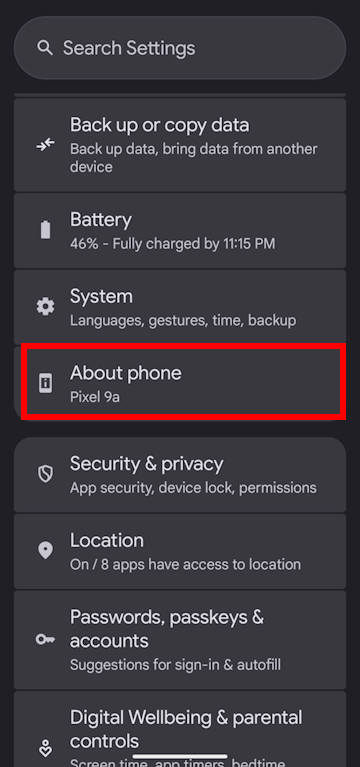
Step 2: Scroll down and select the About phone menu.

Once in the Settings page, you can scroll down and look for the About phone entry, as shown below.

Tap on it to reveal detailed information about the phone.
Android 15 about phone
Android version

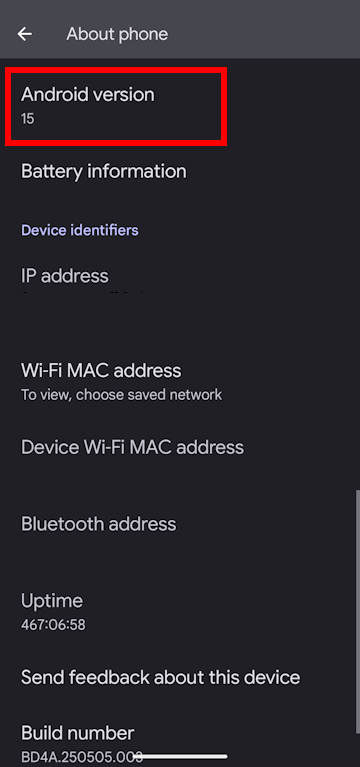
Step 3: Tap on the Android version field

On the subsequent About phone page, tap on the menu item labeled Android version, as shown in the screenshot below.

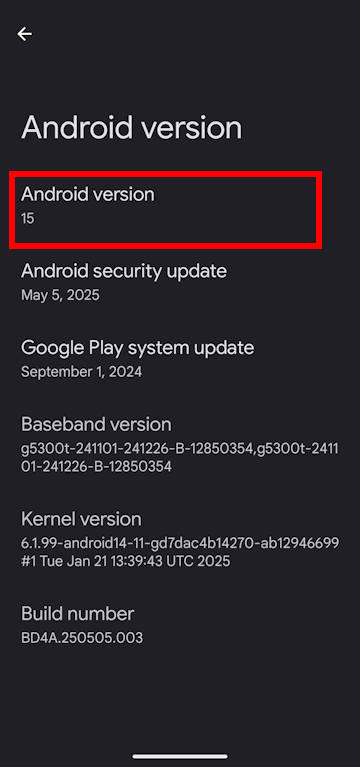
This will display detailed information about the OS, including the version number 15, as shown in the screenshot below.

Please note that on Samsung’s One UI 7 (for example, Galaxy S25), you can access a similar page from Settings — About phone — Software information.
Android 15 version page
unlock Android 15 Easter egg game

Step 4: Unlock the Android 15 Easter egg logo

You need to repeatedly and rapidly tap the Android version field, as shown earlier. After several taps, the standard settings interface will be replaced by the Easter egg’s logo screen, as shown in the screenshot above.

Please note that the logo presented for Android 15 is a distinct departure from the circular, Apollo-mission-inspired badge of Android 14. It features an upside-down, triangle-shaped Bugdroid mascot, rendered in green against a backdrop of stars.

Step 5: Unlock the Android 15 Easter Egg Game: Landroid

To proceed from the logo screen to the mini-game, the final step is to press and hold the logo in the center of the screen for a few seconds.

As you hold your finger down, the phone will begin to vibrate with increasing intensity, and the stars in the background will streak past, creating a “warp speed” or “light speed” visual effect that culminates in the launch of the Landroid game.

Enjoy the game.

Google Pixel 9a with Gemini - Unlocked Android Smartphone with Incredible Camera and AI Photo Editing, All-Day Battery, and Powerful Security - Obsidian - 128 GB
Google Pixel 9a with Gemini – Unlocked Android Smartphone with Incredible Camera and AI Photo Editing, All-Day Battery, and Powerful Security – Obsidian – 128 GB
  • Google Pixel 9a is engineered by Google with more than you expect, for less than you think; like Gemini, your built-in AI assistant[1], the incredible Pixel Camera, and an all-day battery and durable design[2]
  • Take amazing photos and videos with the Pixel Camera, and make them better than you can imagine with Google AI; get great group photos with Add Me and Best Take[4,5]; and use Macro Focus for spectacular images of tiny details like raindrops and flowers
  • Google Pixel’s Adaptive Battery can last over 30 hours[2]; turn on Extreme Battery Saver and it can last up to 100 hours, so your phone has power when you need it most[2]
  • Get more info quickly with Gemini[1]; instead of typing, use Gemini Live; it follows along even if you change the topic[8]; and save time by asking Gemini to find info across your Google apps, like Maps, Calendar, Gmail, and YouTube Music[7]
  • Pixel 9a can handle spills, dust, drops, and dings; and with IP68 water and dust protection and a scratch-resistant display, it’s the most durable Pixel A-Series phone yet[6]
Buy on Amazon

How to claim the hidden reward: Landroid autopilot screensaver?

Perhaps the most compelling addition to the Android 15 Easter egg is not part of the initial discovery but is instead an unlockable reward.

A new “Landroid” screensaver, which runs the game in an automated “autopilot” mode, is not available by default. It only appears in the system’s display settings after the user has successfully launched the Landroid mini-game at least once。

The activation process for this screensaver differs slightly between phones and tablets. On the phones (with stock Android, e.g., Pixel 9a), you may follow these steps:

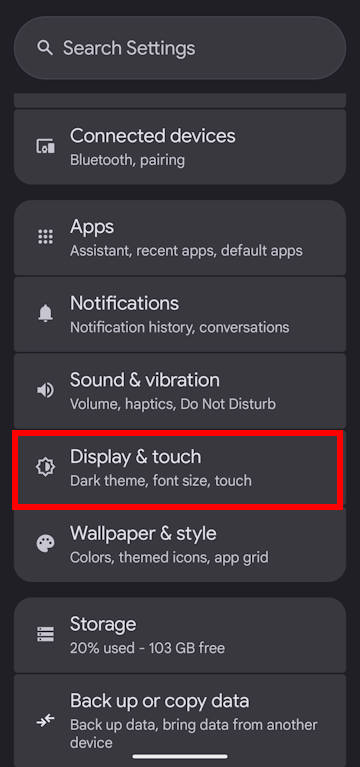
Step 1: Navigate to Settings > Display & touch > Screen saver.

    To enjoy the Landroid autopilot screensaver, you need to enable the screensaver on your phone.

    On your Android 15 phone, go to the Settings page, then tap Display & touch, as shown in the screenshot below.
    Android 15 settings --display and touch
    enable screen saver on Android 15

    Then on the Display & touch page, touch the Screen saver, as shown in the screenshot above.

    Step 2: Enable screen saver

    On the Screen Saver page, as shown in the screenshot below, use the switch to enable Use screen saver.

    Select the newly appeared Landroid option from the list of available screensavers, as shown in the screenshot below.

    Android 15 screen saver settings
    Android 15 landriod easter egg screen saver

    Step 3: Preview the screen save

    After selecting the Landroid screen saver, you can use the preview button to see the screensaver in action before committing.

    Step 4: Enjoy the Landroid in autopilot mode

    Once activated, the screensaver will automatically engage when the device is charging or docked. It displays the Landroid game running on its own, with the on-screen text “AUTOPILOT ENGAGED” confirming the mode.

    The virtual spacecraft will navigate through space, automatically dodge planets, perform landings, and plant flags, as shown in the two screenshots below.
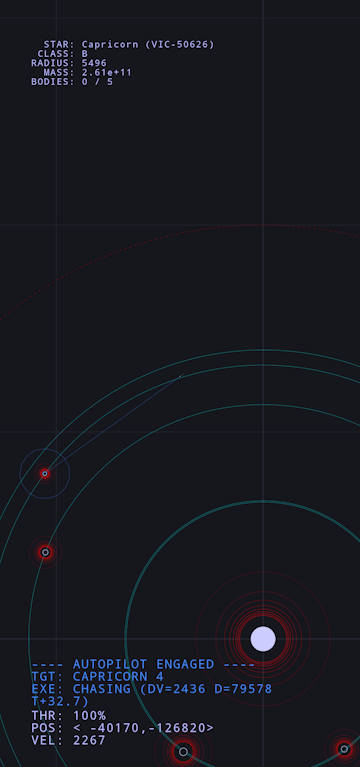
    Landroid autopilot screensaver
    Android 15 EWaster egg: Landroid autopilot screensaver

    How to play Android 15 Easter Egg Game: Landroid?

    The Landroid mini-game is a seemingly simple yet surprisingly nuanced space exploration simulator. Its gameplay is governed by a momentum-based physics engine and a detailed on-screen interface that provides players with all the necessary information to navigate the cosmos.

    The Cockpit: Interface and On-Screen Data

    Upon entering the game, the player is presented with a clean interface that overlays critical data in two corners of the screen, mimicking a spacecraft’s heads-up display (HUD).

    In the bottom-left corner, the player finds their core flight telemetry, essential for controlling the ship:

    • THR: This readout displays the current thruster output as a percentage. It directly corresponds to the amount of force the player is applying to the ship.
    • VEL: This shows the ship’s current velocity. While the units are not explicitly defined, they are presumed to be a measure like meters per second (m/s).
    • (X, Y): These are the ship’s real-time coordinates on a two-dimensional Cartesian plane, allowing for precise navigation within the game’s vast space.

    In the top-left corner, the game provides stellar cartography information related to the nearest star system, which changes as the player travels through space:

    • Name: Each star system is given a unique, procedurally generated name that often includes an Android-related pun, such as “Snow Cone Alpha”.
    • Class: The star’s spectral classification on the Morgan-Keenan scale (e.g., G, K, M) is displayed, adding a touch of astronomical realism.
    • Radius and Mass: The star’s physical properties are listed relative to our own sun.
    • BODIES: This is arguably the most important piece of information for gameplay. It shows a counter of planets found versus the total number of celestial bodies orbiting that star (e.g., “BODIES 2/9”). This serves as the primary progress tracker and objective meter for each system.

    To better understand the strategic importance of this information, the HUD can be deconstructed as follows:

    UI ElementScreen LocationInformation ProvidedStrategic Significance
    THRBottom-LeftThruster output percentage.Indicates the power of your current maneuver. Mastering fine control with low THR values is essential for precise navigation and successful planetary landings.
    VELBottom-LeftShip’s current velocity.Represents speed and direction. Must be carefully managed to avoid overshooting targets and to achieve a safe landing velocity.
    (X, Y)Bottom-LeftShip’s coordinates in 2D space.The primary tool for orientation and navigation. The central star of any system is always located at or near the (0,0) coordinate, which can be used as a reliable anchor point.
    BODIESTop-LeftPlanets found vs. total planets in the system.Your main progress tracker. The goal in each solar system is to explore until the number of bodies found matches the total number available.

    Flight and Physics: Mastering Your Spacecraft

    Control of the Landroid spacecraft is intuitive but requires a degree of finesse. The primary control scheme involves a tap-and-drag motion anywhere on the screen. Tapping and dragging your finger applies thrust in the direction opposite to the drag, simultaneously controlling the ship’s acceleration and its trajectory.

    What sets the game apart from simpler arcade titles is its use of a realistic, momentum-based physics engine. The ship possesses inertia; it does not change direction or stop instantly. Once it builds up velocity, it will continue to drift in that direction even after the player stops applying thrust. To slow down or change course, the player must actively apply counter-thrust by dragging in the opposite direction of their travel. This mechanic adds a layer of challenge and skill, requiring players to anticipate their movements and plan their maneuvers in advance, much like a real spacecraft.

    The game world itself is described as a “nearly Infinite Canvas,” a vast expanse of space to explore. To enhance replayability, the game does not feature a single, static map. Instead, it appears to procedurally generate a new, random solar system periodically. Each new system can have a different number of planets, different orbital configurations, and a unique name, ensuring that each play session offers a fresh exploratory challenge.

    Google Pixel Buds Pro 2 - Wireless Earbuds with Active Noise Cancellation – Bluetooth Headphones - Peony
    Google Pixel Tablet - Android Tablet with 11-Inch Screen and Extra-Long Battery Life - Porcelain - 8 GB RAM - 128 GB
    Google Pixel Buds Pro 2 - Wireless Earbuds with Active Noise Cancellation – Bluetooth Headphones - Peony
    Google Pixel Tablet - Android Tablet with 11-Inch Screen and Extra-Long Battery Life - Porcelain - 8 GB RAM - 128 GB
    Price not available
    Price not available
    -
    -
    Buy on Amazon
    Buy on Amazon
    Google Pixel Buds Pro 2 - Wireless Earbuds with Active Noise Cancellation – Bluetooth Headphones - Peony
    Google Pixel Buds Pro 2 - Wireless Earbuds with Active Noise Cancellation – Bluetooth Headphones - Peony
    Price not available
    -
    Buy on Amazon
    Google Pixel Tablet - Android Tablet with 11-Inch Screen and Extra-Long Battery Life - Porcelain - 8 GB RAM - 128 GB
    Google Pixel Tablet - Android Tablet with 11-Inch Screen and Extra-Long Battery Life - Porcelain - 8 GB RAM - 128 GB
    Price not available
    -
    Buy on Amazon

    The Mission Objective: Exploration and Flag Planting

    The Landroid mini-game is an open-ended experience without a traditional “win” condition, final boss, or concluding cutscene. The sole objective is pure exploration: to navigate the cosmos and successfully find all the celestial bodies orbiting the central star of a given system, as indicated by the “BODIES” counter.

    This represents a subtle but significant evolution from its predecessor. In the Android 14 version of the game, discovering a planet would simply increment the “BODIES” counter.

    Android 15 rectifies this with its signature new mechanic: flag planting. Upon successfully maneuvering the spacecraft to a gentle landing on a planet’s surface, the ship will now automatically plant a small, bright yellow flag. This action provides a persistent visual marker of achievement, giving players a tangible and gratifying sense of progress and conquest.

    Landing itself is a test of skill. It requires the player to carefully manage their velocity, apply reverse thrusters to decelerate, and execute a soft descent onto the planet’s surface. A high-speed impact or “crash” is not punitive; it will simply cause the ship to bounce off the planet and back into space, allowing the player to try again.

    Advanced strategy, tips, and tricks for playing the Landroid game

    While the Landroid game is simple to learn, mastering its nuances to efficiently explore its vast solar systems requires strategy. Over time, the Android community has collectively developed a set of best practices and tips for aspiring cosmic explorers.

    Navigational Strategy: How to Find Planets?

    The single greatest challenge in the game is locating the planets, which are small targets in an enormous, empty space. Several key strategies have emerged to make this process less random and more systematic.

    • Establish a Navigational Beacon: The most fundamental tip is to first locate the central star of the system. This star is always located at or very near the coordinates (0,0). By flying towards this point, players can orient themselves and use the star as a reliable navigational anchor from which to begin their search.
    • Follow the Orbital Hints: The most effective and widely shared community-sourced strategy is to look for faint, blue, curved lines that occasionally appear on the screen. These are “orbital hints” that trace the gravitational paths of the planets around the central star. By aligning the spacecraft with one of these lines and following its trajectory, a player is guaranteed to eventually encounter the planet that created it.
    • Employ Perpendicular Traversal: For a more methodical search, players can use a technique derived from the central star method. After reaching the star at (0,0), the player should choose a direction (e.g., straight up, along the Y-axis) and travel perpendicularly away from the star. Because the planets are in roughly concentric orbits, this straight-line path is the most efficient way to cross multiple orbital paths, maximizing the chance of spotting a planet or its blue orbital hint.
    • Embrace Patience: It is crucial for players to understand that finding planets can be a time-consuming process. The game world is intentionally large, and the planets are constantly in motion along their orbits, meaning a location that was empty a moment ago might soon be occupied. Some users have expressed frustration at being unable to find any planets at all, highlighting the need for a patient and systematic approach.

    Planetary Classification and Landing Protocols

    Not all celestial bodies are created equal. Community experimentation has revealed that different types of planets exist, and landing requires a specific technique.

    • Solid vs. Gaseous Planets: An important discovery is that not all planets are landable. One user has suggested a potential visual cue: planets with red-colored orbits may indicate a solid surface that is safe to land on. Conversely, it is presumed that other planets are impassable gas giants. Attempting to land on these will result in the spacecraft simply phasing through them without effect.
    • Precision Landing Technique: To successfully plant a flag, a soft landing is required. The player must position their ship directly above the target planet’s surface and carefully apply reverse thrust to nullify their velocity and execute a gentle descent. High-velocity impacts will cause the ship to bounce off, requiring another landing attempt.
    • An Absence of Collision Physics: An interesting quirk of the game’s engine was discovered by a user who waited nearly half an hour to witness a planetary collision. The finding was that planets do not interact with each other; they simply pass through one another as if they were ghosts. The game’s physics prioritizes only the interaction between the player’s ship and the celestial bodies, not between the bodies themselves.

    Understanding the Universe

    Setting player expectations is key to enjoying the Landroid experience.

    • The Journey is the Reward: It is important to clarify that finding all the planets in a given solar system does not trigger a special ending, unlock a new game mode, or provide any kind of ultimate reward. This has been a source of minor disappointment for some players who completed the objective and found that nothing happened. The true reward of the game is the process of exploration and the satisfaction of planting a flag on a newly discovered world.
    • A New Galaxy Awaits: Players should be aware that the game is not static. The solar system is procedurally generated and changes over time, with the refresh occurring almost daily. This means that if a player finds all the planets in one system, they can return the next day to a completely new cosmic layout, offering near-endless replayability.

    My Landroid screensaver does not appear on my Pixel phone even after I enabled it. Why?

    On Pixel phones, by default, the screen saver is activated by two conditions:

    • Docked, and
    • Charging.

    But for most Pixel users, the phone is not docked.

    To activate the screen saver when the Pixel phone is charging, you need to change the condition to When charging, as shown in the following two screenshots.
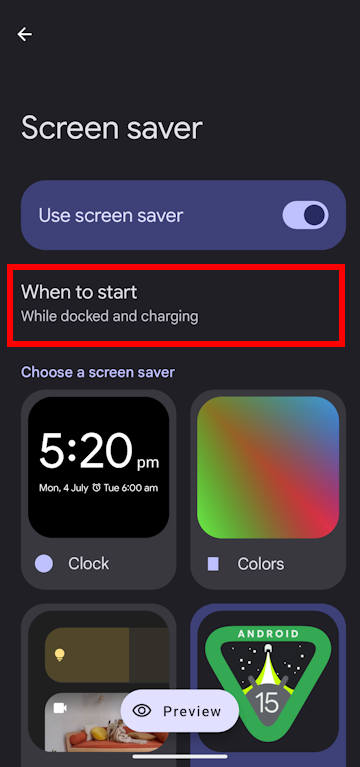
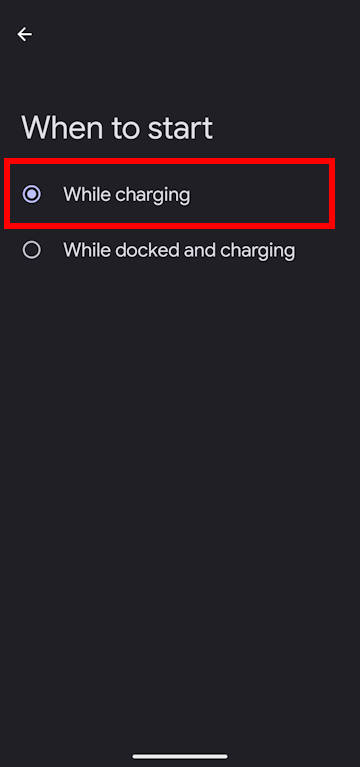
    Android 15: when to start screen saver
    Android 15: start landroid sceen saver  when charging

    Do you have any questions about Android 15 Easter Egg Game: Landroid?

    Please let us know your questions or comments on Android 15 Easter Egg Game: Landroid in the comment box below.

    If you are looking for guides for features introduced in other versions of Android (most of the “new” features in old versions of Android should work in Android 15), you may use the search bar to search or navigate to other sections of this site.

    Amazon Basics 68W Two-Port GaN Wall Charger with 1 USB-C (60W) & 1 USB-A Ports (18W) with PD for Laptops, Tablets & Phones (iPhone 16/15/14/13/12/11/X, iPad, MacPro, Samsung, More), Non-PPS, Black
    Amazon Fire HD 10 tablet (newest model) built for relaxation, 10.1" vibrant Full HD screen, octa-core processor, 3 GB RAM, 32 GB, Ocean
    Amazon Basics 68W Two-Port GaN Wall Charger with 1 USB-C (60W) & 1 USB-A Ports (18W) with PD for Laptops, Tablets & Phones (iPhone 16/15/14/13/12/11/X, iPad, MacPro, Samsung, More), Non-PPS, Black
    Amazon Fire HD 10 tablet (newest model) built for relaxation, 10.1" vibrant Full HD screen, octa-core processor, 3 GB RAM, 32 GB, Ocean
    -
    -
    Price not available
    Price not available
    Buy on Amazon
    Buy on Amazon
    Amazon Basics 68W Two-Port GaN Wall Charger with 1 USB-C (60W) & 1 USB-A Ports (18W) with PD for Laptops, Tablets & Phones (iPhone 16/15/14/13/12/11/X, iPad, MacPro, Samsung, More), Non-PPS, Black
    Amazon Basics 68W Two-Port GaN Wall Charger with 1 USB-C (60W) & 1 USB-A Ports (18W) with PD for Laptops, Tablets & Phones (iPhone 16/15/14/13/12/11/X, iPad, MacPro, Samsung, More), Non-PPS, Black
    -
    Price not available
    Buy on Amazon
    Amazon Fire HD 10 tablet (newest model) built for relaxation, 10.1" vibrant Full HD screen, octa-core processor, 3 GB RAM, 32 GB, Ocean
    Amazon Fire HD 10 tablet (newest model) built for relaxation, 10.1" vibrant Full HD screen, octa-core processor, 3 GB RAM, 32 GB, Ocean
    -
    Price not available
    Buy on Amazon

    If you are still on other versions of Android, you may check these guides:

    • For Android 14, please check the Android 14 guides page.
    • For Android 13, please check the Android 13 guides page.
    • For Android 12, please check the Android 12 guides page.
    • For Android 11, please check the Android 11 guides page.
    • For Android 10, please check the Android 10 guides page.
    • For Android Pie (Android 9), please check the Android Pie guides page.
    • For Android Oreo (Android 8.0 and 8.1), please check the Android Oreo guides page.
    • For Android Nougat (Android 7.0 and 7.1), please check the Android Nougat guides page.
    • For Android Marshmallow (Android 6.0), please check the Android Marshmallow guide page.
    • For Android Lollipop (Android 5.0 and 5.1), please check the Android Lollipop guide page.
    • For other general Android questions or problems, please check the Android 101 page.

    You may also reach us through:

    • Our Facebook page.
    • Contact Us page.

    Enjoy your Android 15.

    Filed Under: Android 15 Guides Tagged With: Android 14, Android 15, Android Easter egg, easter egg, Landroid, One UI 7, Pixel, screen saver

    Reader Interactions

    Leave a ReplyCancel reply

    Primary Sidebar

    Search the site

    RSS Galaxy S25 Guides

    • All New Features of One UI 8 (Android 16) Update for Galaxy S25, S24, S23, and S22
    • One UI 8 Update Highlights for Galaxy S25, S24, S23, and S22
    • How to manage camera modes on Galaxy S25 (and Galaxy S24, S23, S22, and S21 with One UI 7 update)?
    • How to Use Galaxy S25 Camera App?
    • A Definite Guide to Galaxy S25 Flipsuit Case
    • How to Access and Customize Now Brief on Galaxy S25?
    • Meaning of Galaxy S25 Status Icons and Notification Icons
    • Layout of Galaxy S25, S25+, and S25 Ultra

    RSS Galaxy S24 Guides

    • The definitive guide to One UI 7 (Android 15) update for Galaxy S24, S23, S22, and S21
    • The Definitive Guide to Galaxy AI on Galaxy S24, S23, S22, Fold 6, Fold 5, Flip 6, and Flip 5
    • Use the Light Performance Profile to Extend Battery Life and Reduce Heat on Galaxy S24, S23, S22, and S21 (all Samsung Galaxy Phones with Android 14/One UI 6.0)
    • How to adjust lock screen timeout on Galaxy S24, S23, S22, and other Galaxy devices?
    • How to use Circle to Search on Galaxy S24?

    RSS Galaxy S23 Guides

    • Explanation of all One UI 6.1 features for Galaxy S23, S23+, S23 Ultra, and other Galaxy devices
    • How to use One-Tap Editing in the Android 14 (One UI 6) update?
    • How to enable and use Auto Scan to scan documents automatically on Galaxy S23, S22, and S21?
    • New camera features in One UI 6 (Android 14) update for Galaxy S23, S22, and S21

    RSS Galaxy S22 Guides

    • A Complete Guide for Android 14 (One UI 6) Update on Samsung Galaxy Devices
    • How to touch and hold to customize Lock Screen on Galaxy S22, S21, and S20 with the Android 13 update?
    • How to use Maintenance Mode on Galaxy S23, S22, S21, and S20 with Android 13 (One UI 5)?

    RSS Samsung Galaxy S21 Guides

    • Top 12 new features in Android 12 update for Galaxy S21, S20 and S10
    • Android 12 update vs One UI 4.0 vs One UI 4.1: update Galaxy S21, S20 and S10 to Android 12
    • How to set and resize photo size on Samsung Galaxy S21, S20, S10, and S9 without using any third-party apps?

    RSS Galaxy S20 Guides

    • The End of the Road: No Android 14 Update for the Galaxy S20
    • How to Use Enhanced Processing on Galaxy S20 with Android 11 update?
    • How to access, use, and customise widgets on Galaxy S20 lock screen and AOD screen with Android 11 update for Galaxy S20?

    RSS Galaxy S10 Guides

    • End of security update for Galaxy S10, S10+ and S10e
    • Top 10 new features in Android 10 update for Galaxy S10
    • Top 5 new features added in Galaxy S10 September Update

    RSS Galaxy S9 Guides

    • How to use Bixby quick commands on Galaxy S9, S9+, S8, S8+, Note 8, and Note 9 with the Android Pie update?
    • How to remap Bixby button on Galaxy S9 and S9+ after updating to Android Pie?
    • How to use the updated camera app in Android Pie update for Galaxy S9 and S9 Plus?

    RSS Galaxy S8 Guides

    • How to use the new features in Android Pie update for Galaxy S8 and S8+?
    • How to use app shortcuts in Galaxy S8 Home screen in Android Oreo update for Galaxy S8 and S8+?
    • Use notification dots/notification number badge in Galaxy S8 Android Oreo update

    RSS Galaxy S7 Guides

    • How to use Galaxy S7 multi window new features in Android Nougat udpate for Galaxy S7 and Galaxy S7 edge?
    • How to customize Galaxy S7 quick setting buttons after Android Nougat update?
    • Galaxy S7 performance mode in Android Nougat update for Galaxy S7 and Galaxy S7 edge

    RSS Galaxy Note Guides

    • Top 11 disappointments of Galaxy Note 20 and Galaxy Note 20 Ultra
    • How to use the Dynamic Lock screen on Galaxy Note 10?
    • Galaxy Note 10 LED View Cover Guide and Review
    • Install S Note app and Extension pack on Galaxy Note 10
    • How to Use Galaxy Note 10 Camera App?
    • Galaxy Note 10 SIM Card Guide

    RSS Google Home Guides

    • How to Use Quick Gestures on Nest Hub 2nd Gen and Nest Hub Max?
    • Understand the layout of Nest Hub (including Nest Hub 2nd Gen, Google Home Hub)
    • How to control Nest Audio?
    • Nest Audio Guides
    • Layout of Google Nest Mini (Google Home Mini 2nd Gen)

    RSS Moto G Guides

    • Stylus features on Moto G Stylus (all models)
    • What’s new in Moto G 2024? Moto G 5G 2024 vs Moto G Power 2024 vs Moto G Play 2024
    • Understand Moto G Model Names

    RSS Samsung Galaxy S5 Guide

    • How to enter Galaxy S5 recovery mode?
    • How to set Galaxy S5 photo size and video size?
    • How to use Galaxy S5 camera voice control?

    RSS Moto X Owners Community

    • Welcome on board, Motorola Razr!
    • Official Moto X4 User manual (User guide for Moto X 4th Gen , Moto X 2017)
    • What’s new in Android Marshmallow update for Moto X (Moto X 2015, Moto X 2014, Moto X Style and Moto X Pure edition)?

    RSS Moto E Guides

    • How to use Moto E6 camera?
    • How to use SIM cards on Moto E6, E6 Plus, E6 Play, and E6s 2020?
    • Official user manual for Moto E6, Moto E6 Plus, Moto E6 Play, and Moto E6s
    • Moto E6 vs Moto E6 Plus vs Moto E6 Play vs Moto E6s: what are the major differences?

    RSS Galaxy S4 Guides

    • Samsung Galaxy S4 Manual for Verizon
    • Galaxy S4 User Manual and Handbook in English

    RSS Galaxy S6 Guide

    • Android Nougat Update Guide for Galaxy S6, Galaxy S6 edge and Galaxy S6 edge+
    • Official Galaxy S6 user manual with Android Nougat update
    • Top 10 new features in Android Marshmallow update for Galaxy S6, Galaxy S6 edge and S6 edge+

    RSS Guides for Fire Tablet

    • Fire Tablet Buyer’s Guide 2025
    • How to use Writing Assist on Fire Tablet?
    • How to use Wallpaper Creator on your Fire tablet?
    • How to Use Webpage Summaries on Your Fire Tablet?
    • What’s new in Fire HD 8 2024 (12th Gen)?

    Footer

    RSS Drive In Singapore

    • Singapore ERP (Electronic Road Pricing): 6 Facts You Need to Know
    • Car Insurance in Singapore Explained
    • Top 5 rules of driving in Singapore safely and legally during COVID-19 Circuit Breaker period
    • Understand COE Price by 10 Simple Questions
    • How to convert a foreign driving license to a Singapore driving license?
    • How to get a Touch ‘n Go card as a Singapore driver?
    • What is covered in the car warranty in Singapore? What is not?
    • What is the Singapore Road Speed Limit?
    • How to register, collect and use Malaysia Vehicle Entry Permit (VEP)?
    • Why are cars in Singapore so expensive?

    RSS All About Chromecast

    • How to enable developer options in Chromecast with Google TV and Google TV Streamer?
    • Meaning of LED light on voice remote for Chromecast with Google TV and Google TV Streamer
    • What’s new in Chromecast 2018 (3rd gen of Chromecast)?
    • How to use VLC media player on PC to stream music and video to Chromecast and Chromecast Audio?
    • How to use Chromecast Ultra to stream 4K content?
    • How to disable Google Home and Chromecast casting notification?
    • How to launch Videostream (and other Chrome apps as well)?
    • A Guide to Chromecast Offers
    • Chromecast guest mode guide
    • Screen mirroring with Chromecast

    RSS Headphone Guides

    • Surviving the 9-to-5: AirPods Pro 3 for Commuting and Open Offices
    • AirPods Pro 3 Heart Rate Monitor Accuracy: Tested Against a Chest Strap
    • The Ultimate Student Setup: Maximizing AirPods Pro 3 for Focus and Study
    • Ditch the Watch: How to Track Workouts Using Only Your AirPods Pro 3
    • Beyond Audio: The Hidden Features of the AirPods Pro 3
    • Can You Take a Meeting in a Coffee Shop? Sony WF-1000XM6 Microphone & AI Test (Call Quality)
    • Are the WF-1000XM6 High-Fidelity? Testing LDAC & 32-Bit Processing
    • Sony WF-1000XM6 vs. Bose QC Ultra Earbuds Gen 2: The Battle for Silence
    • The Evolution — What’s New in Galaxy Buds 4 and Galaxy Buds 4 Pro?
    • AirPods Pro 3 vs. Audiophile Earbuds: Does Apple Finally Compete?

    © 2015–2026 · GadgetGuideOnline.com is a online community for Gadget Owners! · Hosted by PTRHosting
    Android Guide, Android tips, tricks and hacks. Everything you need know about Android. These guides will teach you how to use your Android phones and other Android gadgets.
    Powered by Genesis framework for WordPress
    Disclaimer: Android is a trademark of Google. This website is NOT affiliated with Google in any way. All the information provided on this website is provided on an "as is" and "as available" basis and you agree that you use such information entirely at your own risk.

    Add Android Guides to your Homescreen!

    Add
    We use cookies to give you the best online experience. By using our website you agree to our use of cookies in accordance with our cookie policy.