• Skip to primary navigation
  • Skip to main content
  • Skip to primary sidebar
  • Skip to footer

Android Guides

  • Android 101
    • A Complete Guide to Android ADB Wireless Debugging
    • Dual SIM Android phones: Dual standby vs dual active
    • How to make two SIM cards always available in dual SIM dual standby Android phones?
    • How to auto rotate home screen in Android phones (use home screen in landscape mode)
    • Understanding Android battery usage
    • How to check version of Android in your phone or tablet?
  • L
    • How to enable Flash Player on Android Lollipop?
    • How to use quick settings in Android Lollipop?
    • How to use screen pinning in Android Lollipop?
    • How to use Android Lollipop’s notification and interruption?
    • How to use smart lock in Android Lollipop?
    • What’s battery saver in Android Lollipop?
    • How to use Android Lollipop guest user mode and multiple users?
    • Top 5 new features in Android Lollipop 5.1
    • How to bypass device protection in Android Lollipop 5.1 when you do a factory data reset?
  • M
    • Top 12 new features in Android Marshmallow 6.0 for users
    • How to use system UI tuner in Android Marshmallow?
    • How to get Android Marshmallow 6.0 update for your device?
    • How to use micro SD card in Android Marshmallow?
    • How to use micro SD card as internal storage in Android Marshmallow?
    • How to use micro SD card as portable storage in Android Marshmallow?
    • USB options in Android Marshmallow
    • How to use Now on tap in Android Marshmallow?
    • How to manage app permissions in Android Marshmallow?
    • How to use Android Marshmallow text selection?
    • How to use redo and undo features in Android Marshmallow?
    • How to silence Android Marshmallow phones?
    • How to use Do Not Disturb (DnD) in Android Marshmallow?
    • How to manage app notifications in Android Marshmallow?
    • How to use Android Marshmallow RAM manager?
    • How to use application manager in Android Marshmallow?
    • How to manage, use and reset default apps in Android Marshmallow?
    • How to use Android Marshmallow battery optimization?
  • N
    • Android Nougat 7.0 New Features
    • New features in Android Nougat 7.1
    • How to use split-screen mode (multi window) in Android Nougat 7.0/7.1?
    • How to use Android Nougat quick settings bar?
    • How to change display size in Android Nougat?
    • How to use data saver in Android Nougat?
    • Use Android Nougat call blocking to block unwanted calls and SMS without using any apps
    • How to customize quick settings panel in Android Nougat?
    • How to get Android Nougat update for my device? and when?
    • How to use new features of Android Nougat notification panel: bundled notifications, directly reply and notification control?
    • How to set up Android Nougat lock screen wallpaper?
  • O
    • Top 10 New Features of Android Oreo 8.0
    • What’s new in Android Oreo 8.1: Android Oreo 8.1 vs Android Oreo 8.0
    • How to use picture-in-picture (PIP) mode in Android Oreo 8.0 and 8.1?
    • How to use notification dots (notification badges) in Android Oreo?
    • How to use notification snooze in Android Oreo?
    • How to use and manage notification channels in Android Oreo?
    • How to use smart text selection in Android Oreo?
    • How to play Android Oreo Easter egg game?
  • P
    • Top 20 new features of Android Pie (Android 9)
    • How to use the Android Pie navigation gestures?
    • How to use the screenshot shortcut to take a screenshot on Android Pie?
    • How to use overview selection in Android Pie?
  • 10
    • Top 10 new features of Android 10
    • How to use Android 10 dark mode (dark theme)?
    • How to use the Android 10 Emergency button?
    • How to Use Location Access Control in Android 10?
    • How to use navigation gestures in Android 10?
    • How to share Wi-Fi using QR codes in Android 10?
  • 11
    • Top 11 new features of Android 11
    • How To Use Live Caption in Android 10 and Android 11
    • How to play Android 11 Easter Egg game (Android Neko Cat game)?
    • How to use dark theme scheduling in Android 11?
    • How to use native screen recorder in Android 11?
    • How to use notification history and notification logs in Android 11?
  • 12
    • Top 12 new features of Android 12 you should know
    • How to quickly snooze notifications in Android 12?
    • Extra Dim in Android 12: The Definite Guide
    • How to update to Android 12?
  • 13
    • Top 10 New Features of Android 13
  • 14
    • Top 14 new features of Android 14
  • 15
    • New Features and Improvements of Android 15
    • Master Android 15 Easter Egg Game: Landroid
  • 16
    • Android 16: the definitive guide on new features and changes

How to use Android Marshmallow RAM manager?

Android Marshmallow introduced a RAM manager for you to check the memory usage of Android devices. In addition to giving info on memory usage of the phone and individual apps, you can also quickly stop apps within in Android marshmallow RAM manager.

Table of Contents hide
1) What is Android Marshmallow RAM manager?
2) How to use Android Marshmallow RAM manager?
2.1) Method 1: access Android Marshmallow RAM manager directly
2.2) Method 2: access Android Marshmallow RAM manager from application manager

What is Android Marshmallow RAM manager?

Android Marshmallow RAM manager allows you to check memory (RAM) of the system and individual apps. This may help you understand and diagnosis some performance issues you may encounter for you phone or tablet.

You can then also Android Marshmallow RAM manager to force stop apps that use memory excessively. But rarely, you have to manually force stop an app. Android has a good resource manager already.

This means it is not necessary to install task manager apps or memory optimization apps in Android Marshmallow. Most of the third-party task manger apps actually do not improve the performance of your Android devices.

Please note, although Android Marshmallow RAM manager is offered in vanilla Android and most other Android devices with Marshmallow or later versions,   some vendors, e.g., Samsung, may offer RAM manager through applications manager only.

Some Android vendors may offer their own task manager, including RAM manager.

How to use Android Marshmallow RAM manager?

There are two ways to access Android Marshmallow RAM manager.

Method 1: access Android Marshmallow RAM manager directly

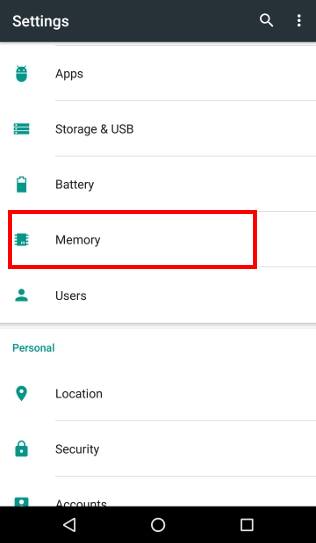
For most Android devices, you can access RAM manager in Android marshmallow from Settings —Memory as shown below. Some vendors may just name it as RAM, or RAM manager.

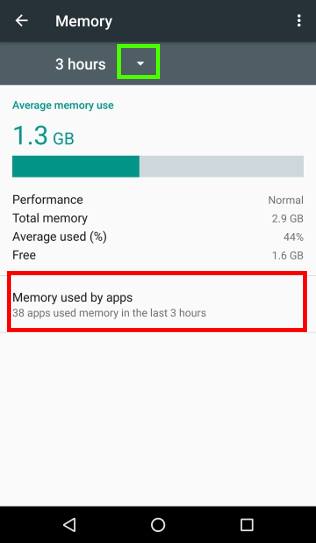
After tapping Memory, you can find memory usage as shown below.

By default, the memory usage report is for last 3 hours. You can tap the arrow button next to 3 hours as shown below to change the report for:

  • 3  hours
  • 6 hours
  • 12 hours
  • 1 day

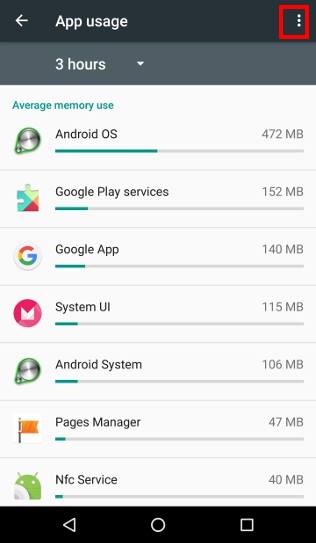
To check RAM usage by individual apps, tap “Memory used by apps” as shown below.
How to use Android Marshmallow RAM manager How to use Android Marshmallow RAM manager

How to use Android Marshmallow RAM manager How to use Android Marshmallow RAM manager

All apps that were active in last 3 hours will then be listed. The amount of RAM used by individual apps is of course listed.

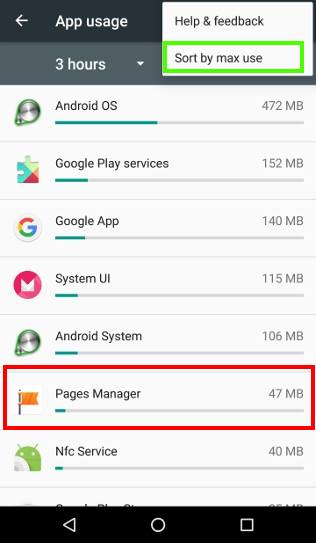
By default, the memory reported is average value in immediately last 3 hours. Sometimes, you may be interested in the maximum (peak) memory usage of some apps.

You can tap the menu key (3 vertical dots) as shown above. Then tap  sort by max use as shown above to check the peak memory usage of these apps. The memory usage reported now is the peak (maximum) usage.

After sorting the apps either based on average RAM usage or max usage, you can then further work on individual apps.

For example, in this guide, I want to check RAM usage of Pages manager app.

Tap the app (Pages manager) as shown above.

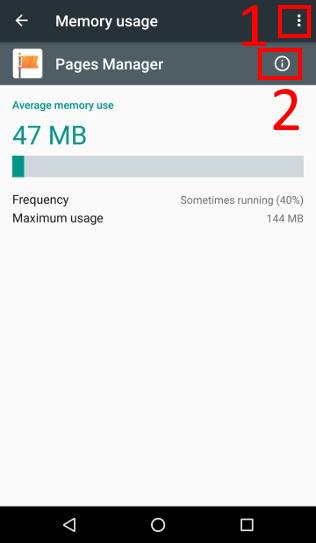
The average memory usage and  maximum memory usage will be listed as shown below.

Another important info you can get from memory usage is the running frequency of the app. For some apps with heavy background processes, the frequency can be close to 100% and therefore the app may drain a lot of battery juice.

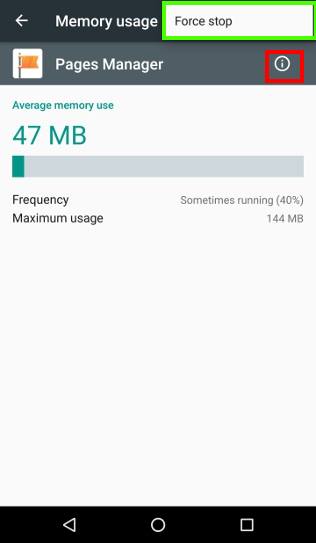
You can tap the menu key (3 vertical dots, marked as 1) as shown below, then tap Force stop to stop this app. Please note some apps may restart automatically after you force  stop it. By default, Android does not allow you to control auto-start feature of apps without rooting the phone.

You can also tap the info button (marked as 2) as shown below to get detailed app info for this app.
How to use Android Marshmallow RAM manager How to use Android Marshmallow RAM manager

How to use Android Marshmallow RAM manager How to use Android Marshmallow RAM manager

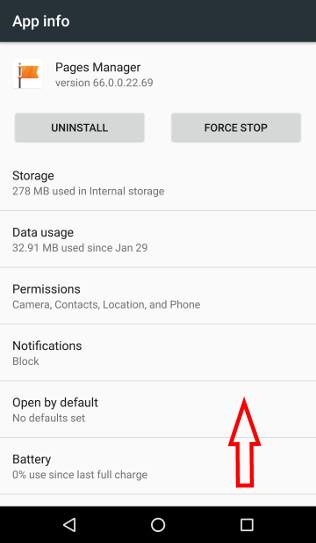
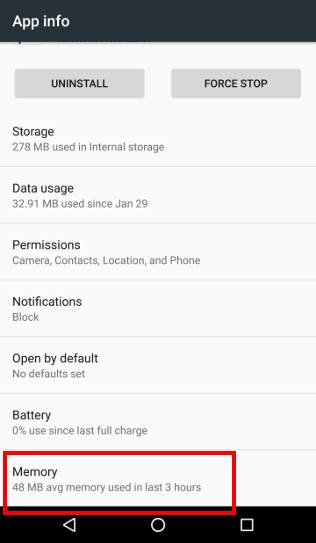
The app info as shown above is actually identical to what you get from application manager.

But in Android Marshmallow, if you scroll down, you can find one more entry for Memory.  Memory usage (3-hour average) of this app is reported.

Tap Memory as shown above to go back to the memory usage page shown earlier.

Method 2:  access Android Marshmallow RAM manager from application manager

A few Android vendors (e.g., Samsung) do not include Settings– Memory in their Android phones settings because they offer own task managers.

But such task managers may not be even good. For example, in Galaxy S6, S7 and Note 5, Samsung bundled Smart Manager, which is definitely not a good alternative.

So, in such devices, the alternative way to access Android Marshmallow RAM manager is from application manager, which is universal on all Android phones and tablets.

You can access application manager from Settings— Apps (some vendors may name it as Application Manager).

In Application manager, you can tap individual apps. As shown above, in the app info for individual apps, you can find the Memory entry in Android Marshmallow. Tap it to enter memory usage page for this app.

Do you know how to use Android Marshmallow RAM manager?

If you have any questions or encounter any problems on using Android Marshmallow RAM manager, please let us know them in the comment box below.

The community will help you.

For any questions or problems with Android Marshmallow, please check our Android Marshmallow Guide page.

If your question is about Android Lollipop, please check out Android Lollipop Guide page.

For other Android guides, please check our Android 101 page.

Reader Interactions

Comments

  1. JEFF says

    May 3, 2017 at 5:11 am

    Plz help my ram is .89 GB but I’m using mb only because of android os he use a lot ram plz help ASAP…

    Reply
    • simon says

      May 3, 2017 at 10:00 am

      What’s the problem got are facing?


      Our Facebook page || Galaxy S6 Guides || Galaxy S7 Guides || Android Guides || Galaxy S8 Guides || Galaxy S9 Guides || Google Home Guides || Headphone Guides || Galaxy Note Guides || Fire tablet guide || Moto G Guides || Chromecast Guides || Moto E Guides || Galaxy S10 Guides || Galaxy S20 Guides || Samsung Galaxy S21 Guides || Samsung Galaxy S22 Guides || Samsung Galaxy S23 Guides

      Reply
  2. neal says

    May 23, 2017 at 1:35 pm

    Hello. I have an S7 with updated software. On those apps that allow one to disable, I cannot. The disable command does not respond (i.e. should then result in an “enable” command option on he screen if the disable successfully done). For example, I like to periodically go into such apps as google map (don’t use that often) and hit disable. I do buy the BK disabler app but I still should able to do the previously described step and disable it…. Please advise

    Reply
    • simon says

      May 24, 2017 at 12:41 am

      What do you want to disable? Why do you need the BK disabler app?


      Our Facebook page || Galaxy S6 Guides || Galaxy S7 Guides || Android Guides || Galaxy S8 Guides || Galaxy S9 Guides || Google Home Guides || Headphone Guides || Galaxy Note Guides || Fire tablet guide || Moto G Guides || Chromecast Guides || Moto E Guides || Galaxy S10 Guides || Galaxy S20 Guides || Samsung Galaxy S21 Guides || Samsung Galaxy S22 Guides || Samsung Galaxy S23 Guides

      Reply
      • Neal says

        May 25, 2017 at 3:16 pm

        What do you want to disable? Chrome, Google maps, etc. I just don’t want them running in the background until I need them …for battery and data usage issues. I could block them via BK but I don’t…thought it better to manage them outside of the BK disabler app…that way I don’t have to search for them on the BK app listing and enable ah time I need them….Another example: Gear VR app…it offer a Disable and Force Stop option. Neither do anything

        Why do you need the BK disabler app? same as above

        Clear as mud?

        Reply
        • simon says

          May 25, 2017 at 11:41 pm

          It’s not necessary.

          Android Marshmallow and Nougat can manage background jobs effectively with Doze feature. You don’t need to do anything.

          Data saver in Nougat or restrict background data on Marshmallow can do a better job.

          If you want to manage them manually or with such apps, good luck.

          Personally, I am against such apps. They cause more problems without solving any real problems.

          Anyway, if the app is not working, you may check the app developer.

          For memory management, I believe Android system does a better job than any apps.


          Our Facebook page || Galaxy S6 Guides || Galaxy S7 Guides || Android Guides || Galaxy S8 Guides || Galaxy S9 Guides || Google Home Guides || Headphone Guides || Galaxy Note Guides || Fire tablet guide || Moto G Guides || Chromecast Guides || Moto E Guides || Galaxy S10 Guides || Galaxy S20 Guides || Samsung Galaxy S21 Guides || Samsung Galaxy S22 Guides || Samsung Galaxy S23 Guides

          Reply
          • Neal says

            May 26, 2017 at 7:43 pm

            Thanks a lot. I will take your advice to heart. Turns out after I disabled the BK disabler he issue disappeared.

            Reply
            • simon says

              May 27, 2017 at 1:01 am

              Glad to know the phone works as expected.


              Our Facebook page || Galaxy S6 Guides || Galaxy S7 Guides || Android Guides || Galaxy S8 Guides || Galaxy S9 Guides || Google Home Guides || Headphone Guides || Galaxy Note Guides || Fire tablet guide || Moto G Guides || Chromecast Guides || Moto E Guides || Galaxy S10 Guides || Galaxy S20 Guides || Samsung Galaxy S21 Guides || Samsung Galaxy S22 Guides || Samsung Galaxy S23 Guides

Leave a ReplyCancel reply

Primary Sidebar

Search the site

RSS Galaxy S25 Guides

  • All New Features of One UI 8 (Android 16) Update for Galaxy S25, S24, S23, and S22
  • One UI 8 Update Highlights for Galaxy S25, S24, S23, and S22
  • How to manage camera modes on Galaxy S25 (and Galaxy S24, S23, S22, and S21 with One UI 7 update)?
  • How to Use Galaxy S25 Camera App?
  • A Definite Guide to Galaxy S25 Flipsuit Case
  • How to Access and Customize Now Brief on Galaxy S25?
  • Meaning of Galaxy S25 Status Icons and Notification Icons
  • Layout of Galaxy S25, S25+, and S25 Ultra

RSS Galaxy S24 Guides

  • The definitive guide to One UI 7 (Android 15) update for Galaxy S24, S23, S22, and S21
  • The Definitive Guide to Galaxy AI on Galaxy S24, S23, S22, Fold 6, Fold 5, Flip 6, and Flip 5
  • Use the Light Performance Profile to Extend Battery Life and Reduce Heat on Galaxy S24, S23, S22, and S21 (all Samsung Galaxy Phones with Android 14/One UI 6.0)
  • How to adjust lock screen timeout on Galaxy S24, S23, S22, and other Galaxy devices?
  • How to use Circle to Search on Galaxy S24?

RSS Galaxy S23 Guides

  • Explanation of all One UI 6.1 features for Galaxy S23, S23+, S23 Ultra, and other Galaxy devices
  • How to use One-Tap Editing in the Android 14 (One UI 6) update?
  • How to enable and use Auto Scan to scan documents automatically on Galaxy S23, S22, and S21?
  • New camera features in One UI 6 (Android 14) update for Galaxy S23, S22, and S21

RSS Galaxy S22 Guides

  • A Complete Guide for Android 14 (One UI 6) Update on Samsung Galaxy Devices
  • How to touch and hold to customize Lock Screen on Galaxy S22, S21, and S20 with the Android 13 update?
  • How to use Maintenance Mode on Galaxy S23, S22, S21, and S20 with Android 13 (One UI 5)?

RSS Samsung Galaxy S21 Guides

  • Top 12 new features in Android 12 update for Galaxy S21, S20 and S10
  • Android 12 update vs One UI 4.0 vs One UI 4.1: update Galaxy S21, S20 and S10 to Android 12
  • How to set and resize photo size on Samsung Galaxy S21, S20, S10, and S9 without using any third-party apps?

RSS Galaxy S20 Guides

  • The End of the Road: No Android 14 Update for the Galaxy S20
  • How to Use Enhanced Processing on Galaxy S20 with Android 11 update?
  • How to access, use, and customise widgets on Galaxy S20 lock screen and AOD screen with Android 11 update for Galaxy S20?

RSS Galaxy S10 Guides

  • End of security update for Galaxy S10, S10+ and S10e
  • Top 10 new features in Android 10 update for Galaxy S10
  • Top 5 new features added in Galaxy S10 September Update

RSS Galaxy S9 Guides

  • How to use Bixby quick commands on Galaxy S9, S9+, S8, S8+, Note 8, and Note 9 with the Android Pie update?
  • How to remap Bixby button on Galaxy S9 and S9+ after updating to Android Pie?
  • How to use the updated camera app in Android Pie update for Galaxy S9 and S9 Plus?

RSS Galaxy S8 Guides

  • How to use the new features in Android Pie update for Galaxy S8 and S8+?
  • How to use app shortcuts in Galaxy S8 Home screen in Android Oreo update for Galaxy S8 and S8+?
  • Use notification dots/notification number badge in Galaxy S8 Android Oreo update

RSS Galaxy S7 Guides

  • How to use Galaxy S7 multi window new features in Android Nougat udpate for Galaxy S7 and Galaxy S7 edge?
  • How to customize Galaxy S7 quick setting buttons after Android Nougat update?
  • Galaxy S7 performance mode in Android Nougat update for Galaxy S7 and Galaxy S7 edge

RSS Galaxy Note Guides

  • Top 11 disappointments of Galaxy Note 20 and Galaxy Note 20 Ultra
  • How to use the Dynamic Lock screen on Galaxy Note 10?
  • Galaxy Note 10 LED View Cover Guide and Review
  • Install S Note app and Extension pack on Galaxy Note 10
  • How to Use Galaxy Note 10 Camera App?
  • Galaxy Note 10 SIM Card Guide

RSS Google Home Guides

  • How to Use Quick Gestures on Nest Hub 2nd Gen and Nest Hub Max?
  • Understand the layout of Nest Hub (including Nest Hub 2nd Gen, Google Home Hub)
  • How to control Nest Audio?
  • Nest Audio Guides
  • Layout of Google Nest Mini (Google Home Mini 2nd Gen)

RSS Moto G Guides

  • Stylus features on Moto G Stylus (all models)
  • What’s new in Moto G 2024? Moto G 5G 2024 vs Moto G Power 2024 vs Moto G Play 2024
  • Understand Moto G Model Names

RSS Samsung Galaxy S5 Guide

  • How to enter Galaxy S5 recovery mode?
  • How to set Galaxy S5 photo size and video size?
  • How to use Galaxy S5 camera voice control?

RSS Moto X Owners Community

  • Welcome on board, Motorola Razr!
  • Official Moto X4 User manual (User guide for Moto X 4th Gen , Moto X 2017)
  • What’s new in Android Marshmallow update for Moto X (Moto X 2015, Moto X 2014, Moto X Style and Moto X Pure edition)?

RSS Moto E Guides

  • How to use Moto E6 camera?
  • How to use SIM cards on Moto E6, E6 Plus, E6 Play, and E6s 2020?
  • Official user manual for Moto E6, Moto E6 Plus, Moto E6 Play, and Moto E6s
  • Moto E6 vs Moto E6 Plus vs Moto E6 Play vs Moto E6s: what are the major differences?

RSS Galaxy S4 Guides

  • Samsung Galaxy S4 Manual for Verizon
  • Galaxy S4 User Manual and Handbook in English

RSS Galaxy S6 Guide

  • Android Nougat Update Guide for Galaxy S6, Galaxy S6 edge and Galaxy S6 edge+
  • Official Galaxy S6 user manual with Android Nougat update
  • Top 10 new features in Android Marshmallow update for Galaxy S6, Galaxy S6 edge and S6 edge+

RSS Guides for Fire Tablet

  • Fire Tablet Buyer’s Guide 2025
  • How to use Writing Assist on Fire Tablet?
  • How to use Wallpaper Creator on your Fire tablet?
  • How to Use Webpage Summaries on Your Fire Tablet?
  • What’s new in Fire HD 8 2024 (12th Gen)?

Footer

RSS Drive In Singapore

  • Singapore ERP (Electronic Road Pricing): 6 Facts You Need to Know
  • Car Insurance in Singapore Explained
  • Top 5 rules of driving in Singapore safely and legally during COVID-19 Circuit Breaker period
  • Understand COE Price by 10 Simple Questions
  • How to convert a foreign driving license to a Singapore driving license?
  • How to get a Touch ‘n Go card as a Singapore driver?
  • What is covered in the car warranty in Singapore? What is not?
  • What is the Singapore Road Speed Limit?
  • How to register, collect and use Malaysia Vehicle Entry Permit (VEP)?
  • Why are cars in Singapore so expensive?

RSS All About Chromecast

  • How to enable developer options in Chromecast with Google TV and Google TV Streamer?
  • Meaning of LED light on voice remote for Chromecast with Google TV and Google TV Streamer
  • What’s new in Chromecast 2018 (3rd gen of Chromecast)?
  • How to use VLC media player on PC to stream music and video to Chromecast and Chromecast Audio?
  • How to use Chromecast Ultra to stream 4K content?
  • How to disable Google Home and Chromecast casting notification?
  • How to launch Videostream (and other Chrome apps as well)?
  • A Guide to Chromecast Offers
  • Chromecast guest mode guide
  • Screen mirroring with Chromecast

RSS Headphone Guides

  • Surviving the 9-to-5: AirPods Pro 3 for Commuting and Open Offices
  • AirPods Pro 3 Heart Rate Monitor Accuracy: Tested Against a Chest Strap
  • The Ultimate Student Setup: Maximizing AirPods Pro 3 for Focus and Study
  • Ditch the Watch: How to Track Workouts Using Only Your AirPods Pro 3
  • Beyond Audio: The Hidden Features of the AirPods Pro 3
  • Can You Take a Meeting in a Coffee Shop? Sony WF-1000XM6 Microphone & AI Test (Call Quality)
  • Are the WF-1000XM6 High-Fidelity? Testing LDAC & 32-Bit Processing
  • Sony WF-1000XM6 vs. Bose QC Ultra Earbuds Gen 2: The Battle for Silence
  • The Evolution — What’s New in Galaxy Buds 4 and Galaxy Buds 4 Pro?
  • AirPods Pro 3 vs. Audiophile Earbuds: Does Apple Finally Compete?

© 2015–2026 · GadgetGuideOnline.com is a online community for Gadget Owners! · Hosted by PTRHosting
Android Guide, Android tips, tricks and hacks. Everything you need know about Android. These guides will teach you how to use your Android phones and other Android gadgets.
Powered by Genesis framework for WordPress
Disclaimer: Android is a trademark of Google. This website is NOT affiliated with Google in any way. All the information provided on this website is provided on an "as is" and "as available" basis and you agree that you use such information entirely at your own risk.

Add Android Guides to your Homescreen!

Add
We use cookies to give you the best online experience. By using our website you agree to our use of cookies in accordance with our cookie policy.