• Skip to main content
  • Skip to primary sidebar

Galaxy S8 Guides

A Community for owners of Galaxy S8 and Galaxy S8+

  • Home
    • About
    • Contact Us
  • New features
    • How to use the new features in Android Pie update for Galaxy S8 and S8+?
    • How to disable Bixby button in Galaxy S8 and Galaxy S8+?
      • How to remove Bixby Home page in Galaxy S8 and S8+ home screen?
    • How to use Secure Folder on Galaxy S8, S9, S10, and S20?
    • How to customize Galaxy S8 navigation buttons and navigation bar?
      • How to show and hide Galaxy S8 navigation bar?
    • How to set up and use Galaxy S8 iris scanner to unlock Galaxy S8 and S8+?
    • Top 10 new features of Samsung Galaxy S8 and S8+
      • Top 10 new features of Android Oreo update for Galaxy S8 and S8+
      • Top 8 missing features of Galaxy S8 and S8+ that may annoy you
      • Samsung Galaxy S8 specs and Galaxy S8+ specs
    • How to use Galaxy S8 apps screen, and how to hide and show apps screen button in Galaxy S8 and S8+?
    • How to use Galaxy S8 floating camera button in Galaxy S8 and S8+?
    • How to use context menu in Galaxy S8 Home screen?
  • How-to guides
    • How to use the new features in Android Pie update for Galaxy S8 and S8+?
    • Galaxy S8 Android Oreo update guides
      • Top 10 new features of Android Oreo update for Galaxy S8 and S8+
      • New status icons in Android Oreo update for Galaxy S8 and S8+
      • Use notification dots/notification number badge in Galaxy S8 Android Oreo update
      • How to use app shortcuts in Galaxy S8 Home screen in Android Oreo update for Galaxy S8 and S8+?
      • How to Install Galaxy S8 Android Oreo Update for Galaxy S8 and S8+?
    • Meaning of Galaxy S8 status icons and notification icons in Samsung Galaxy S8 and S8+
      • How to use and customize Galaxy S8 lock screen?
      • Hot to use Galaxy S8 always-on display (AOD) in Galaxy S8 and S8+?
      • How to set up and use Galaxy S8 iris scanner to unlock Galaxy S8 and S8+?
    • Charge Galaxy S8 battery
      • How to fix Galaxy S8 moisture problem?
      • How to power on, power off and reboot Galaxy S8 and S8+ even when phone hangs?
      • How to wipe Galaxy S8 cache partition?
      • How to use Galaxy S8 safe mode?
      • How to enter Galaxy S8 recovery mode in Galaxy S8 and S8+?
    • Galaxy S8 SIM card guide
      • How to use two SIM cards in Galaxy S8 and S8+?
      • Two ways to block spammers and unwanted callers in Galaxy S8 and S8+ without using any apps?
      • Use micro SD card in Galaxy S8 and Galaxy S8+
      • How to move apps to SD card in Galaxy S8 and S8+?
    • Migrate to Galaxy S8: how to transfer data from old device to Galaxy S8 and S8+?
      • How to take screenshot on Galaxy S8 and S8+ without using any apps?
      • Galaxy S8 touchscreen gestures
      • Package contents in Galaxy S8 box
      • How to customize Galaxy S8 navigation buttons and navigation bar?
      • How to show and hide Galaxy S8 navigation bar?
    • How to use Galaxy S8 Settings to customize Samsung Galaxy S8 and S8+?
      • How to use device maintenance in Galaxy S8 and Galaxy S8+?
      • How to use Galaxy S8 quick settings in Galaxy S8 and S8+?
      • How to use Secure Folder on Galaxy S8, S9, S10, and S20?
      • How to use Galaxy S8 screen zoom ?
      • How to move Galaxy S8 brightness control bar to notification panel?
      • How to set screen resolution in Galaxy S8 and S8+?
    • How to use and customize Galaxy S8 Home screen?
      • How to use Galaxy S8 themes to customize Galaxy S8 and S8+?
      • How to use context menu in Galaxy S8 Home screen?
      • How to create, use and manage app folders in Galaxy S8 Home screen?
      • How to remove Bixby Home page in Galaxy S8 and S8+ home screen?
      • How to disable Bixby button in Galaxy S8 and Galaxy S8+?
      • How to access and use Galaxy S8 Home screen edit mode?
      • Galaxy S8 layout and Galaxy S8+ layout
    • Galaxy S8 apps screen guide
      • How to use Galaxy S8 apps screen, and how to hide and show apps screen button in Galaxy S8 and S8+?
      • How to hide apps screen in Galaxy S8 and Galaxy S8+?
  • Accessories
    • Everything about Galaxy S8 Alcantara Cover
    • Galaxy S8 LED wallet cover guide
    • Galaxy S8 clear view standing cover guide
    • Package contents in Galaxy S8 box
  • Camera guides
    • How to use Galaxy S8 camera app?
    • How to use Galaxy S8 floating camera button in Galaxy S8 and S8+?
    • How to use Galaxy S8 camera quick launch?
    • Galaxy S8 camera settings
    • How to use Galaxy S8 camera modes?
    • Galaxy S8 camera effects and camera decorations (stamps and stickers): access, download and manage them
    • How to use Galaxy S8 camera timer in Galaxy S8 and S8+?
  • User manuals
  • Home
    • About
    • Contact Us
  • New features
    • How to use the new features in Android Pie update for Galaxy S8 and S8+?
    • How to disable Bixby button in Galaxy S8 and Galaxy S8+?
      • How to remove Bixby Home page in Galaxy S8 and S8+ home screen?
    • How to use Secure Folder on Galaxy S8, S9, S10, and S20?
    • How to customize Galaxy S8 navigation buttons and navigation bar?
      • How to show and hide Galaxy S8 navigation bar?
    • How to set up and use Galaxy S8 iris scanner to unlock Galaxy S8 and S8+?
    • Top 10 new features of Samsung Galaxy S8 and S8+
      • Top 10 new features of Android Oreo update for Galaxy S8 and S8+
      • Top 8 missing features of Galaxy S8 and S8+ that may annoy you
      • Samsung Galaxy S8 specs and Galaxy S8+ specs
    • How to use Galaxy S8 apps screen, and how to hide and show apps screen button in Galaxy S8 and S8+?
    • How to use Galaxy S8 floating camera button in Galaxy S8 and S8+?
    • How to use context menu in Galaxy S8 Home screen?
  • How-to guides
    • How to use the new features in Android Pie update for Galaxy S8 and S8+?
    • Galaxy S8 Android Oreo update guides
      • Top 10 new features of Android Oreo update for Galaxy S8 and S8+
      • New status icons in Android Oreo update for Galaxy S8 and S8+
      • Use notification dots/notification number badge in Galaxy S8 Android Oreo update
      • How to use app shortcuts in Galaxy S8 Home screen in Android Oreo update for Galaxy S8 and S8+?
      • How to Install Galaxy S8 Android Oreo Update for Galaxy S8 and S8+?
    • Meaning of Galaxy S8 status icons and notification icons in Samsung Galaxy S8 and S8+
      • How to use and customize Galaxy S8 lock screen?
      • Hot to use Galaxy S8 always-on display (AOD) in Galaxy S8 and S8+?
      • How to set up and use Galaxy S8 iris scanner to unlock Galaxy S8 and S8+?
    • Charge Galaxy S8 battery
      • How to fix Galaxy S8 moisture problem?
      • How to power on, power off and reboot Galaxy S8 and S8+ even when phone hangs?
      • How to wipe Galaxy S8 cache partition?
      • How to use Galaxy S8 safe mode?
      • How to enter Galaxy S8 recovery mode in Galaxy S8 and S8+?
    • Galaxy S8 SIM card guide
      • How to use two SIM cards in Galaxy S8 and S8+?
      • Two ways to block spammers and unwanted callers in Galaxy S8 and S8+ without using any apps?
      • Use micro SD card in Galaxy S8 and Galaxy S8+
      • How to move apps to SD card in Galaxy S8 and S8+?
    • Migrate to Galaxy S8: how to transfer data from old device to Galaxy S8 and S8+?
      • How to take screenshot on Galaxy S8 and S8+ without using any apps?
      • Galaxy S8 touchscreen gestures
      • Package contents in Galaxy S8 box
      • How to customize Galaxy S8 navigation buttons and navigation bar?
      • How to show and hide Galaxy S8 navigation bar?
    • How to use Galaxy S8 Settings to customize Samsung Galaxy S8 and S8+?
      • How to use device maintenance in Galaxy S8 and Galaxy S8+?
      • How to use Galaxy S8 quick settings in Galaxy S8 and S8+?
      • How to use Secure Folder on Galaxy S8, S9, S10, and S20?
      • How to use Galaxy S8 screen zoom ?
      • How to move Galaxy S8 brightness control bar to notification panel?
      • How to set screen resolution in Galaxy S8 and S8+?
    • How to use and customize Galaxy S8 Home screen?
      • How to use Galaxy S8 themes to customize Galaxy S8 and S8+?
      • How to use context menu in Galaxy S8 Home screen?
      • How to create, use and manage app folders in Galaxy S8 Home screen?
      • How to remove Bixby Home page in Galaxy S8 and S8+ home screen?
      • How to disable Bixby button in Galaxy S8 and Galaxy S8+?
      • How to access and use Galaxy S8 Home screen edit mode?
      • Galaxy S8 layout and Galaxy S8+ layout
    • Galaxy S8 apps screen guide
      • How to use Galaxy S8 apps screen, and how to hide and show apps screen button in Galaxy S8 and S8+?
      • How to hide apps screen in Galaxy S8 and Galaxy S8+?
  • Accessories
    • Everything about Galaxy S8 Alcantara Cover
    • Galaxy S8 LED wallet cover guide
    • Galaxy S8 clear view standing cover guide
    • Package contents in Galaxy S8 box
  • Camera guides
    • How to use Galaxy S8 camera app?
    • How to use Galaxy S8 floating camera button in Galaxy S8 and S8+?
    • How to use Galaxy S8 camera quick launch?
    • Galaxy S8 camera settings
    • How to use Galaxy S8 camera modes?
    • Galaxy S8 camera effects and camera decorations (stamps and stickers): access, download and manage them
    • How to use Galaxy S8 camera timer in Galaxy S8 and S8+?
  • User manuals
You are here: Home / Archives for Galaxy S8 buttons

Galaxy S8 buttons

How to use Galaxy S8 apps screen, and how to hide and show apps screen button in Galaxy S8 and S8+?

Last updated on: August 4, 2017 · First published on: April 12, 2017 Leave a Comment

By default, Galaxy S8 apps screen button in Galaxy S8 and S8+ is hidden. Samsung expects you you to use touchscreen gestures to access Galaxy S8 apps screen.

This is actually a new feature in Galaxy S8 and S8+.

This Galaxy S8 guide first shows you how to use Galaxy S8 apps screen with gesture. Then the guide explains to you how to show apps button and how to hide apps screen button in Galaxy S8 and S8+.

How to use gestures to access Galaxy S8 apps screen?

When you get you Samsung Galaxy S8 or Galaxy S8+, you will find there is no apps screen button (app drawer button).

Then you may wonder how to access Galaxy S8 apps screen (apps drawer).

The quick answer is that you can use touchscreen gestures to access Galaxy S8 apps screen directly in home screen of Galaxy S8 and S8+.

Of course, the apps screen button is just hidden. You can enable the setting to show apps button (read on).

The gestures you can use to access Galaxy S8 apps screen include is just a swipe.

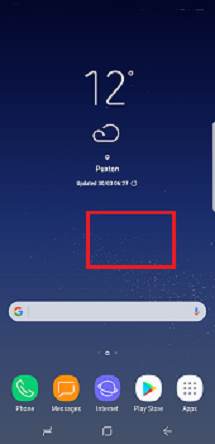
Swipe upwards from bottom part of the home screen as shown below.

This will bring up the apps screen (app drawer) in Galaxy S8 and S8+.

Once in apps screen of Galaxy S8 or S8+, you can swipe left and right to scroll apps screen panels as you did in previous Galaxy phones.

If you swipe up again in the apps screen, you will be brought back to home screen.

In other words, the swipe up gesture will cycle you through Home screen –> Apps screen –> Home screen –> Apps screen—>.

Another way to return to Home screen is to press Home button or Back button.

 use gestures to access Galaxy S8 apps screen

How to show and

… Read the rest

Filed Under: Galaxy S8 How-to Guides, Galaxy S8 new features Tagged With: Gaalxy S8 Apps button, Galaxy S8 Apps screen, Galaxy S8 buttons, Galaxy S8 home screen, Galaxy S8 home screen edit mode, Galaxy S8 layout, navigation buttons, new features of Galaxy S8, touch screen gesture

How to take screenshot on Galaxy S8 and S8+ without using any apps?

Last updated on: April 9, 2017 · First published on: April 11, 2017 7 Comments

This Galaxy S8 how-to guide shows you three different methods to take screenshot on Galaxy S8 and S8+ without using any apps: physical buttons (Volume  down+Power), palm swipe,  and Assistant menu.

All these 3 methods work on all models of Galaxy S8 and S8+.

And of course, it is NOT necessary to install any apps.

Use physical buttons to take screenshot on Galaxy S8 and S8+?

Samsung ditched the physical Home button in Galaxy S8 and S8+, and switched to on-screen navigation buttons as explained in new features of Galaxy S8 and S8+.

You can even change the location of the Recents and Back buttons.

But missing physical Home button means the old method of using Home button and Power button to take screenshot will not work on Galaxy S8 and S8+.

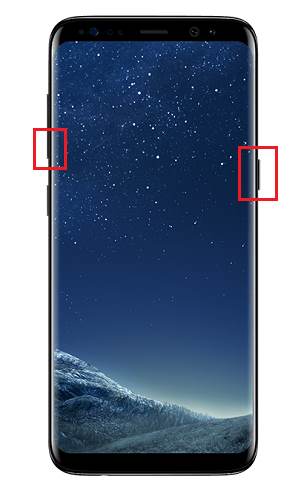
Now, Samsung gives you a new button combination to take screenshot on Galaxy S8 and S8+:  Volume down button and  Power button.

You may check Galaxy S8 layout page if you are not familiar with the location of these buttons.

So, to take a screenshot on Samsung Galaxy S8 or S8+, you just need to hold down both the  Volume down button and  Power button simultaneously as shown below.

How to take screenshot on Galaxy S8 and S8+ without using any apps?\

This method actually is from stock Android. Most other Android vendors already implemented this method in their Android devices.

In the past, because of the physical Home button, Samsung did not implement this method for taking screenshots in Galaxy phones.

Use palm swipe to take screenshot on Galaxy S8 and Galaxy S8+

The second method to take screenshot on Galaxy S8 and S8+ (and all other Samsung Galaxy devices as well) is to use the side of your palm to swipe across the screen as shown below.

You may need to enable this feature … Read the rest

Filed Under: Galaxy S8 How-to Guides Tagged With: accessibility, advanced features, assistant menu, Galaxy S8 buttons, Galaxy S8 hardware, Galaxy S8 layout, navigation buttons, new features of Galaxy S8, palm swipe to capture, take screenshot

How to remove Bixby Home page in Galaxy S8 and S8+ home screen?

Last updated on: October 6, 2017 · First published on: April 10, 2017 49 Comments

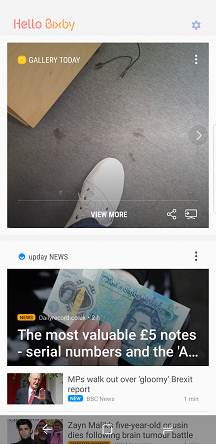
How to remove Bixby Home page in Galaxy S8 and S8+ home screen?In Galaxy S8 and S8+ home screen, the leftmost panel is reserved for Bixby Home page (Hello Bixby), which is part of Samsung Bixby. But many owners want to remove Bixby Home page in Galaxy S8 and S8+ home screen.

This guide shows you how to easily turn off or remove Bixby Home page in Galaxy S8 and S8+ home screen.

If you want to disable Bixby button in Galaxy S8 and S8+, you may follow this guide.

What is Bixby Home page in Galaxy S8 and S8+ home screen?

Prior to Galaxy S8 and S8+, Samsung added Flipboard briefing to the leftmost panel of home screen.

This is one of the least popular features. It seems nobody except Samsung likes this annoying feature.  Luckily, you can disable flipboard briefing in all previous Galaxy phones.

Now, in Galaxy S8 and S8+, Samsung replaced the Briefing page with Bixby Home page as shown below.

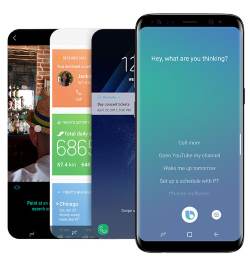
Samsung Bixby is actually a good new feature in Galaxy S8 and S8+ and it works mainly locally on the phone.

But Samsung wants to stuff you with Bixby everywhere in Galaxy S8 and S8+.

Bixby Home (Hello Bixby) is Bixby’s claimed territory in Galaxy S8 home screen.

The Bixby Home page is very similar to Google Now page comes with Google Now launcher or Pixel launcher. You can personalize Bixby Home page to show your preferred apps, news and reminders.

It sounds great.

But what disturbs many owners is that the Bixby Home page occupy a dedicated panel in Galaxy S8 home screen.

remove Bixby Home page in Galaxy S8 and S8+ home screen remove Bixby Home page in Galaxy S8 and S8+ home screen

Can I remove Bixby Home page in Galaxy S8 and S8+ home screen?

Yes, you can remove Bixby Home page from Galaxy S8 and S8+ home screen, just like what you can do with Briefing page in previous Galaxy phones… Read the rest

Filed Under: Galaxy S8 How-to Guides, Galaxy S8 new features Tagged With: Bixby button, Bixby Home page, Galaxy S8 buttons, Galaxy S8 home screen, Galaxy S8 home screen edit mode, Galaxy S8 layout, Hello Bixby, new features of Galaxy S8, remove Bixby Home page, Samsung Bixby

How to customize Galaxy S8 navigation buttons and navigation bar?

Last updated on: May 30, 2021 · First published on: April 8, 2017 41 Comments

Samsung ditched the “signature” capacitive (hardware) navigation buttons (Back, Recents, and Home)  in Galaxy S8 and S8+ as explained in Galaxy S8 layout page and new features of Galaxy S8 page, and embraced the modern software-based on-screen navigation buttons which can be found in almost all other Android devices.

But Samsung did one step further to allow you to customize Galaxy S8 navigation buttons and navigation bar.

Update 1: You can now even choose to hide or show the navigation bar in any apps in Galaxy S8 and S8+.!

This Galaxy S8 new feature guide will show you how to use and customize the on-screen Galaxy S8 navigation buttons, and the Galaxy S8 navigation bar.

What can you do to customize Galaxy S8 navigation buttons and navigation bar?

In stock Android, the on-screen navigation buttons are fixed, although a few vendors, for example, LG, may allow you to add more buttons in the navigation bar.

Samsung used not only different (and a bit confusing as well) icons for the three standard buttons (Recents/Overview, Home and Back), but also made the layout of these navigation buttons customizable in Galaxy S8 and S8+.

For Samsung Galaxy S8 and S8+ on-screen navigation buttons and the navigation bar, you can:

  • switch locations of the Recents and Back button.
  • customize the background colour of Galaxy S8 navigation bar.
  • adjust Galaxy S8 Home button pressure level sensitivity.

Please note, the fingerprint scanner was decoupled from the Home button in Galaxy S8 and S8+, and is now relocated to the back of the phone (next to the main camera) as detailed on Galaxy S8 layout page.

How to customize Galaxy S8 navigation buttons layout?

In stock Android, the Back button is to the left of the Home button and the Recent … Read the rest

Filed Under: Galaxy S8 How-to Guides, Galaxy S8 new features Tagged With: Galaxy S8 buttons, Galaxy S8 layout, Galaxy S8 navigation bar, missing features of Galaxy S8, navigation button layout, navigation buttons, new features of Galaxy S8

Galaxy S8 layout and Galaxy S8+ layout

Last updated on: October 19, 2017 · First published on: April 7, 2017 16 Comments

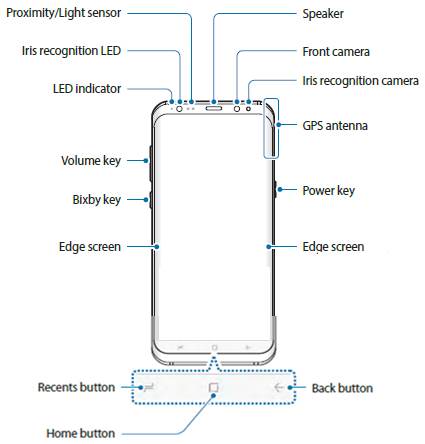
Galaxy S8 layout (and Galaxy S8+ layout) guide shows you the location and explains the functions of the buttons, cameras, sensors, ports, SIM card slot, NFC antenna and other components in Galaxy S8 and S8+.

You should spend a few mins to familiarize yourself with Galaxy S8 layout when you get the phone so that you can use Galaxy S8 and S8+ properly and effectively.

Please note, as explained in Galaxy S8 specs and Galaxy S8+ specs, the only difference between Samsung Galaxy S8 and S8+ is the size of the two phones (Galaxy S8+ is bigger with a bigger battery).

The layout of Galaxy S8 is identical to Galaxy S8+ layout.

Galaxy S8 layout: front view

The front view of Galaxy S8 layout is illustrated below.

Screen and edge screen

Samsung touts the infinity display as one of the major new design features of Galaxy S8 and S8+. This is evidenced by the front view of Galaxy S8 and S8+.

About 85% of the Galaxy S8 and S8+ front is occupied by the screen.

Because curved screen is used in Galaxy S8 (and S8+), edge screens can be found in both sides.

Galaxy S8 layout and Galaxy S8+ layout

Hardware buttons

Power key is still in the right side and volume keys in the left in the front view of Galaxy S8 layout. If you have problems to power on Galaxy S8 or S8+, you may check this guide.

A new Bixby button was added below volume button.

If you often hit the Bixby button inadvertently, you may disable the Bixby button in Galaxy S8 and S8+.

Navigation buttons

There are no capacitive buttons in Galaxy S8 and S8+.

The back and recent buttons are software based as shown above. You can re-order Galaxy S8 navigation buttons.

Home button is embedded … Read the rest

Filed Under: Galaxy S8 How-to Guides Tagged With: edge screen, fingerprint sensor, Galaxy S8 buttons, Galaxy S8 camera, Galaxy S8 hardware, Galaxy S8 layout, Infinity Display, iris scanner, navigation buttons, new features of Galaxy S8, Samsung Bixby, SIM card tray, USB type C

Top 8 missing features of Galaxy S8 and S8+ that may annoy you

Last updated on: October 6, 2017 · First published on: April 4, 2017 11 Comments

Top 8 missing features of Galaxy S8 and S8+ that may annoy youThere are some missing features of Galaxy S8 that may annoy you, although Samsung Galaxy S8 and Galaxy S8+ are surely one of the hottest flagship smartphones in 2017 based on specs and new features.

Actually, the sales number of Samsung Galaxy S8 and S8+ will surely beat all other Android phones. But this does not mean Galaxy S8 and S8+ are perfect  or the best.

You may notice that some important features are missing in Galaxy S8 and S8+.  These missing features of Galaxy S8 may be relevant to some users.

So, we hope this list of the top 8 missing features of Galaxy S8 and S8+ can help you make the decision before pre-ordering the phone.

#1 of top 8 missing features of Galaxy S8: smaller battery

As a reaction to the failure of Galaxy Note 7 battery, Samsung is extremely careful with Galaxy S8 and S8+ battery.

They apparently did not push the design and engineering limit for a bigger battery for S8 and S8+. And if Galaxy S8 battery fails again, Samsung will probably be in the death spiral in smartphone market.

The result is the smaller battery.

It is so small that you should concern about the battery life, although Samsung claimed similar battery life as Galaxy S7.

As a comparison, the 5.8-inch Galaxy S8 has a 3000mAh battery, whose capacity is identical to that of the 5.1-inch Galaxy S7.

And the 6.2-inch Galaxy S8+ has a 3500mAh battery, which is even smaller than that (3600mAh) in the 5.5-inch Galaxy S7 edge.

The new 10nm processor may help save some battery. But the screen, which is bigger now, usually is the major battery drainer. There are no new technologies in the Super AMOLED screen for battery saving.

So, … Read the rest

Filed Under: Galaxy S8 new features Tagged With: Android Nougat 7.0, edge screen, fingerprint sensor, Galaxy S8 battery, Galaxy S8 buttons, Galaxy S8 camera, Galaxy S8 hardware, galaxy s8 specs, Gear VR, missing features of Galaxy S8, new features of Galaxy S8, Samsung Bixby, Samsung DeX

  • « Go to Previous Page
  • Page 1
  • Page 2

Primary Sidebar

Follow Us

  • YouTube
  • Facebook

RSS Galaxy S23 Guides

  • Explanation of all One UI 6.1 features for Galaxy S23, S23+, S23 Ultra, and other Galaxy devices
  • How to use One-Tap Editing in the Android 14 (One UI 6) update?
  • How to enable and use Auto Scan to scan documents automatically on Galaxy S23, S22, and S21?
  • New camera features in One UI 6 (Android 14) update for Galaxy S23, S22, and S21
  • Galaxy S23 User Manual in American English with Android 14 (One UI 6) Update
  • Galaxy S23 User Manual in British English with Android 14 (One UI 6) update
  • How to Use the Drag and Drop with Two Hands Gesture on Galaxy S23, S22, and S21 with Android 14 (One UI 6) update?
  • How to create and use custom stickers on Galaxy S23, S22, S21, and S20?
  • How to use Image Clipper on Galaxy S23, S22, and S21 with Android 14 update (One UI 6)?
  • How to Enable and Use Quick Settings Instant Access on Galaxy S23, S22, and S21 with Android 14 Update?

RSS Galaxy S22 Guides

  • A Complete Guide for Android 14 (One UI 6) Update on Samsung Galaxy Devices
  • How to touch and hold to customize Lock Screen on Galaxy S22, S21, and S20 with the Android 13 update?
  • How to use Maintenance Mode on Galaxy S23, S22, S21, and S20 with Android 13 (One UI 5)?
  • How to extract text from photos and images on Galaxy S22, S21, and S20?
  • A complete list of the new features of One UI 5.1 update for Galaxy S22, S21, and S20
  • How to use multiwindow on Galaxy S22, S21, and S20?
  • How to Use the Help Icon and Histogram for Pro Camera Mode in Android 13 (One UI 5) Update for Galaxy S22, S21, and S20?
  • How to customize the call background on Galaxy S23, S22, S21, and S20 with the Android 13 update (One UI 5)?
  • How to Automatically Add and Customize Watermarks on Photos on Galaxy S22, S21, or S20 with the Android 13 update (One UI 5)?
  • The Definite Guide to Stack Widgets in One UI 5 on Galaxy S23, S22, S21, and S20

RSS Samsung Galaxy S21 Guides

  • Top 12 new features in Android 12 update for Galaxy S21, S20 and S10
  • Android 12 update vs One UI 4.0 vs One UI 4.1: update Galaxy S21, S20 and S10 to Android 12
  • How to set and resize photo size on Samsung Galaxy S21, S20, S10, and S9 without using any third-party apps?
  • How to Customize Galaxy S21 Home Screen?
  • Master Galaxy S21 Lock Screen Settings

RSS Galaxy S20 Guides

  • The End of the Road: No Android 14 Update for the Galaxy S20
  • How to Use Enhanced Processing on Galaxy S20 with Android 11 update?
  • How to access, use, and customise widgets on Galaxy S20 lock screen and AOD screen with Android 11 update for Galaxy S20?
  • How to update Galaxy S20 to Android 11?
  • How to use Galaxy S20 lockdown mode?
  • Top 11 new features in Galaxy S20 Android 11 update

RSS Galaxy S10 Guides

  • End of security update for Galaxy S10, S10+ and S10e
  • Top 10 new features in Android 10 update for Galaxy S10
  • Top 5 new features added in Galaxy S10 September Update
  • How to move apps to the micro SD card to free phone storage on Galaxy S10 ?
  • Galaxy S10 wireless charging guide

RSS Galaxy S9 Guides

  • How to use Bixby quick commands on Galaxy S9, S9+, S8, S8+, Note 8, and Note 9 with the Android Pie update?
  • How to remap Bixby button on Galaxy S9 and S9+ after updating to Android Pie?
  • How to use the updated camera app in Android Pie update for Galaxy S9 and S9 Plus?
  • How to use the rotation toggle to change and lock screen orientation in Android Pie update for Galaxy S9 and S9 Plus?
  • How to lock Galaxy S9 home screen layout on Galaxy S9 and S9+ with Android Pie update?
  • How to use the floating keyboard on Galaxy S9 and S9+ with Android Pie update?

RSS Galaxy S7 Guides

  • How to use Galaxy S7 multi window new features in Android Nougat udpate for Galaxy S7 and Galaxy S7 edge?
  • How to customize Galaxy S7 quick setting buttons after Android Nougat update?
  • Galaxy S7 performance mode in Android Nougat update for Galaxy S7 and Galaxy S7 edge
  • Top 7 new features in Android Nougat update for Galaxy S7 and Galaxy S7 edge

RSS Google Home guides

  • How to Use Quick Gestures on Nest Hub 2nd Gen and Nest Hub Max?
  • Understand the layout of Nest Hub (including Nest Hub 2nd Gen, Google Home Hub)
  • How to control Nest Audio?
  • Nest Audio Guides
  • Layout of Google Nest Mini (Google Home Mini 2nd Gen)
  • How to connect Google Home to a Bluetooth speaker?
  • Meaning of Google Home Mini LED lights and Google Home Max LED lights
  • Google Home Mini Guides
  • Google Home Mini layout and buttons
  • Google Home layout and buttons

RSS Android Guides

  • A Complete Guide to Android ADB Wireless Debugging
  • Android 16: the definitive guide on new features and changes
  • Master Android 15 Easter Egg Game: Landroid
  • New Features and Improvements of Android 15
  • Top 14 new features of Android 14

RSS Chromecast Guides

  • How to enable developer options in Chromecast with Google TV and Google TV Streamer?
  • Meaning of LED light on voice remote for Chromecast with Google TV and Google TV Streamer
  • What’s new in Chromecast 2018 (3rd gen of Chromecast)?
  • How to use VLC media player on PC to stream music and video to Chromecast and Chromecast Audio?

RSS Drive In Singapore

  • Singapore ERP (Electronic Road Pricing): 6 Facts You Need to Know
  • Car Insurance in Singapore Explained
  • Top 5 rules of driving in Singapore safely and legally during COVID-19 Circuit Breaker period
  • Understand COE Price by 10 Simple Questions
  • How to convert a foreign driving license to a Singapore driving license?
  • How to get a Touch ‘n Go card as a Singapore driver?
  • What is covered in the car warranty in Singapore? What is not?
  • What is the Singapore Road Speed Limit?
  • How to register, collect and use Malaysia Vehicle Entry Permit (VEP)?
  • Why are cars in Singapore so expensive?

RSS Galaxy Note Tips & Tricks

  • Top 11 disappointments of Galaxy Note 20 and Galaxy Note 20 Ultra
  • How to use the Dynamic Lock screen on Galaxy Note 10?
  • Galaxy Note 10 LED View Cover Guide and Review
  • Install S Note app and Extension pack on Galaxy Note 10
  • How to Use Galaxy Note 10 Camera App?

RSS Headphone Guides

  • Bone Conduction Audio Technology: A Technical Breakdown
  • Science And Architecture of Bluetooth Auracast
  • Bluetooth LE Audio and the LC3 Codec: A Technical Deep Dive
  • The Physics and Engineering of Super Wide Band (SWB) Voice
  • True Wireless Stereo (TWS) Explained
  • The Complete Technical Guide to the Galaxy Buds 4 & Buds 4 Pro
  • The Right Fit of Galaxy Buds 4 — User Personas & Recommendations
  • Galaxy Buds 4 as an AI Earbud — Tips, Tricks, and Galaxy AI
  • AirPods Pro 3: The Complete Technical Guide and Long-Term Review
  • The Flagship Face-off: Galaxy Buds 4 Pro vs. AirPods Pro 3, Sony WF-1000XM6, and Bose QC Ultra Earbuds II

© 2015–2026 · GadgetGuideOnline.com is an online community for Gadget Owners! · Hosted by PTRHosting · Powered by Genesis framework for WordPress
Samsung Galaxy S8 guide, user manuals and tutorials for Samsung Galaxy S8 and S8 Plus! Everything about how to use Samsung Galaxy S8 and Galaxy S8+.
Disclaimer: Samsung, Galaxy, Galaxy S8, and Galaxy S8+ are trademarks of Samsung. Android is a trademark of Google. This website is NOT affiliated with Samsung or Google in any way. All the information provided on this website is provided on an "as is" and "as available" basis and you agree that you use such information entirely at your own risk.

We use cookies to ensure that we give you the best experience on our website. If you continue to use this site we will assume that you are happy with it.