• Skip to primary navigation
  • Skip to main content
  • Skip to primary sidebar

Galaxy S9 Guides

a community for owners of Samsung Galaxy S9 and S9+

  • Home
    • About Galaxy S9 Guides
    • Contact Us
  • How-to Guides
    • Galaxy S9 Android Pie update guides
      • Official user manuals for Galaxy S9 and S9 Plus with Android Pie update
      • Top 9 new features of Android Pie update for Galaxy S9 and S9+
      • How to use the new navigation gestures in Android Pie update for Galaxy S9 and S9+?
      • How to use the lockdown mode on Galaxy S9 and S9+ with Android Pie update?
      • How to use the night mode on Galaxy S9 and S9+ with Android Pie update?
      • How to remap Bixby button on Galaxy S9 and S9+ after updating to Android Pie?
      • How to use Bixby quick commands on Galaxy S9, S9+, S8, S8+, Note 8, and Note 9 with the Android Pie update?
      • How to update Galaxy S9 or S9 Plus to Android Pie (Android 9)?
      • How to use the lift to wake feature on Galaxy S9 and S9+ with Android Pie update?
      • How to use the new Recents screen in Android Pie update for Galaxy S9 and S9 Plus?
      • How to use the floating keyboard on Galaxy S9 and S9+ with Android Pie update?
      • How to lock Galaxy S9 home screen layout on Galaxy S9 and S9+ with Android Pie update?
      • How to use the rotation toggle to change and lock screen orientation in Android Pie update for Galaxy S9 and S9 Plus?
      • How to use the updated camera app in Android Pie update for Galaxy S9 and S9 Plus?
    • Meaning of Galaxy S9 status icons and notification icons in Samsung Galaxy S9 and S9+
      • How to use Samsung DeX with Galaxy S9 and S9+ and other Samsung phones?
      • How to use Multi Window on Galaxy S9 and S9+?
      • How to use app pair on Galaxy S9 and S9+?
      • Samsung DeX Station vs Samsung DeX Pad vs Samsung DeX cable
      • How to use Samsung DeX Station for Galaxy S9, S9+, S8, S8+, Note 8 and Note 9?
      • How to use Samsung DeX Pad for Galaxy S9, S9+, S8, S8+, Note 8 and Note 9?
      • How to use a USB flash drive on Galaxy S9 and S9+?
    • How to charge Galaxy S9 battery?
    • Galaxy S9 SIM card guide
      • How to use two SIM cards on Galaxy S9, S10, and S20?
      • How to use Galaxy S9 dual messenger to run two accounts of messenger apps simultaneously on Galaxy S9 and S9+?
      • How to use micro SD card on Galaxy S9 and S9+?
      • How to back up Galaxy S9 and S9+?
      • How to use smart switch to transfer and migrate data to Galaxy S9 or S9+?
      • How to reset Galaxy S9 and S9+? What is Galaxy S9 factory data reset?
    • How to disable Bixby button in Galaxy S9 and S9+?
      • How to remove Bixby Home from Galaxy S9 Home screen?
    • Understand and Use Galaxy S9 Home screen
      • How to use Galaxy S9 edge screen on Galaxy S9 and S9+?
      • How to show photos on Galaxy S9 Home screen?
      • How to pin files to Galaxy S9 Home screen (add file shortcuts to Galaxy S9 Home screen)?
      • How to use Galaxy S9 Apps screen on Galaxy S9 and S9+?
      • How to use Galaxy S9 Home screen edit mode to customize Galaxy S9 Home screen?
      • How to use Galaxy S9 home screen landscape mode?
      • How to hide Galaxy S9 apps screen and how to hide Galaxy Apps button?
      • How to use and customize Galaxy S9 navigation bar and navigation buttons?
      • How to manage Galaxy S9 Home screen panels on Galaxy S9 and S9+?
    • How to use and customize Galaxy S9 lock screen?
      • How to use Galaxy S9 always-on display (AOD) on Galaxy S9 and S9+?
    • How to use Galaxy S9 notification panel on Galaxy S9 and S9+?
      • How to use Do Not Disturb on Galaxy S9 and S9+?
      • Understand and use Galaxy S9 notification number badge (notification dots, app icon badge)
      • How to use quick setting buttons on Galaxy S9 and S9+?
      • How to use quick-open notification panel on Galaxy S9 and S9+ to check notifications?
    • Galaxy S9 layout (and layout of Galaxy S9+)
      • How to use adapt sound on Galaxy S9 and S9+?
      • 5 ways to take screenshots on Galaxy S9 and S9+ without using any apps
      • How to use Galaxy S9 touchscreen gestures?
      • How to use wireless printing on Galaxy S9 and S9+?
      • How to use Galaxy S9 themes to customize the look and feel of Galaxy S9 and S9+?
      • Unbox Galaxy S9: understand package contents in Galaxy S9 box and S9+ box
    • How to reboot into Galaxy S9 recovery mode and to clear Galaxy S9 cache partition on Galaxy S9 and S9+?
      • How to reboot Galaxy S9 and S9+ if Galaxy S9 hangs?
      • How to use Galaxy S9 safe mode on Galaxy S9 and S9+?
    • How to use Galaxy S9 camera app?
      • 6 ways to start Galaxy S9 camera app in Galaxy S9 and S9+
      • Understanding and use Galaxy S9 camera settings
      • How to use super slow motion mode (super Slow-mo) on Galaxy S9 and S9+?
      • How to use Galaxy S9 camera Pro Mode on Galaxy S9 and S9+?
  • New features
    • Top 9 new features of Android Pie update for Galaxy S9 and S9+
      • How to use the lockdown mode on Galaxy S9 and S9+ with Android Pie update?
      • How to use the new navigation gestures in Android Pie update for Galaxy S9 and S9+?
      • How to use the night mode on Galaxy S9 and S9+ with Android Pie update?
      • How to remap Bixby button on Galaxy S9 and S9+ after updating to Android Pie?
      • How to update Galaxy S9 or S9 Plus to Android Pie (Android 9)?
      • How to use the lift to wake feature on Galaxy S9 and S9+ with Android Pie update?
      • How to use the new Recents screen in Android Pie update for Galaxy S9 and S9 Plus?
      • How to use the floating keyboard on Galaxy S9 and S9+ with Android Pie update?
      • How to lock Galaxy S9 home screen layout on Galaxy S9 and S9+ with Android Pie update?
      • How to use the rotation toggle to change and lock screen orientation in Android Pie update for Galaxy S9 and S9 Plus?
      • How to use the updated camera app in Android Pie update for Galaxy S9 and S9 Plus?
      • How to use Bixby quick commands on Galaxy S9, S9+, S8, S8+, Note 8, and Note 9 with the Android Pie update?
    • Top 10 new features of Samsung Galaxy S9 and Galaxy S9+
    • How to remove Bixby Home from Galaxy S9 Home screen?
    • How to use and customize Galaxy S9 navigation bar and navigation buttons?
    • How to use super slow motion mode (super Slow-mo) on Galaxy S9 and S9+?
    • Understand and use Galaxy S9 notification number badge (notification dots, app icon badge)
    • How to use Samsung DeX Pad for Galaxy S9, S9+, S8, S8+, Note 8 and Note 9?
    • How to use Galaxy S9 home screen landscape mode?
    • Understanding and use Galaxy S9 camera settings
    • How to use dual aperture to manually switch Galaxy S9 camera aperture in Pro mode?
    • Galaxy S9 layout (and layout of Galaxy S9+)
    • How to use app pair on Galaxy S9 and S9+?
  • Camera
    • How to use Galaxy S9 camera app?
    • How to use the updated camera app in Android Pie update for Galaxy S9 and S9 Plus?
    • Understanding and use Galaxy S9 camera settings
    • 6 ways to start Galaxy S9 camera app in Galaxy S9 and S9+
    • How to use dual aperture to manually switch Galaxy S9 camera aperture in Pro mode?
    • How to use super slow motion mode (super Slow-mo) on Galaxy S9 and S9+?
    • How to use Galaxy S9 camera Pro Mode on Galaxy S9 and S9+?
    • How to show photos on Galaxy S9 Home screen?
  • Official User Guides
    • Official user manuals for Galaxy S9 and S9 Plus with Android Pie update
    • Official Samsung Galaxy S9 user guides (Oreo)
  • Accessories
    • How to use Samsung Galaxy S9 clear view standing cover (S-view cover)?
    • Samsung Galaxy S9 LED wallet cover guide
    • How to use micro SD card on Galaxy S9 and S9+?
    • How to use Samsung DeX with Galaxy S9 and S9+ and other Samsung phones?
      • Samsung DeX Station vs Samsung DeX Pad vs Samsung DeX cable
      • How to use Samsung DeX Station for Galaxy S9, S9+, S8, S8+, Note 8 and Note 9?
      • How to use Samsung DeX Pad for Galaxy S9, S9+, S8, S8+, Note 8 and Note 9?
      • How to use a USB flash drive on Galaxy S9 and S9+?

How to use the floating keyboard on Galaxy S9 and S9+ with Android Pie update?

You can float Samsung keyboard anywhere on the screen.

simon · 4 Comments

 how to enable, use, and customize the floating keyboard on Galaxy S9 and S9+ with Android Pie updateIn Android Pie update for Galaxy S9 and S9+, Samsung keyboard can be in the floating mode, and therefore, you can put the keyboard anywhere on the screen and use the keyboard on Galaxy S9 and S9+ flexibly.

The floating keyboard on Galaxy S9 and S9+ with Android Pie update works on all apps, once enabled.

This Galaxy S9 Android Pie update guide explains how to enable, use, and customize the floating keyboard on Galaxy S9 and S9+ with Android Pie update.

Please note, the Writing Assistant on Samsung Keyboard requires the Android 12 update, which Galaxy S9 will not get. You have to use the third-party keyboard if you need the grammar check (in addition to the spelling check).

Table of Contents hide
1) What is the new resizeable keyboard on Galaxy S9 and S9+ with Android Pie update?
2) How to enable the floating keyboard on Galaxy S9 and S9+ with Android Pie update?
3) How to use and customize the floating keyboard on Galaxy S9 and S9+ with Android Pie update?
4) Which keyboards support the floating mode?

What is the new resizeable keyboard on Galaxy S9 and S9+ with Android Pie update?

By default, the Samsung keyboard or keypad is fixed on the bottom of the Galaxy S9 or S9+ regardless of the orientation (portrait or landscape) of the phone, just like in other Android phones.  The screen area occupied by the keyboard will not be used by the app.

This means the keyboard may waste a lot of screen space for the app.

When you hold the phone is the landscape mode (FYI, Galaxy S9 Home screen supports landscape mode as well), the keyboard will have to stretch a lot and waste even more screen space. So, the screen size is not fully utilized.

The problem has been exacerbated in the last few years because the aspect ratio of smartphones has become larger and larger.

Of course, the solution already exists on some Samsung tablets: using a freely resizable keyboard.

Now, in Android update for Galaxy  S9 and S9+, Samsung brought the resizeable (free form) to Galaxy S9 and S9+ so that you can type easier.

The floating keyboard allows you:

  • To let the keyboard poping over any apps when using it. Therefore you will get more usable screen space when using the keyboard.
  • To put keyboard anywhere you want.
  • To relocate the keyboard when you typing.
  • To resize the keyboard  (subject to minimum and maximum size).
  • To switch back to standard mode (fixed mode) at any time.
  • To switch back to the one-handed keyboard,

Basically, if you feel the keyboard affects your usage of any apps, you should try the floating keyboard after updating Galaxy S9 or S9+ to Android Pie.

How to enable the floating keyboard on Galaxy S9 and S9+ with Android Pie update?

By default, the Samsung keyboard is fixed. If you want to use the resizable keyboard, you need to enable it when the keyboard is shown,

Once enabled, the floating mode will be the default mode for the Samsung keyboard until you change the keyboard mode again.  In other words, you need to enable the floating keyboard only once in any apps. It will then work in all other apps automatically.

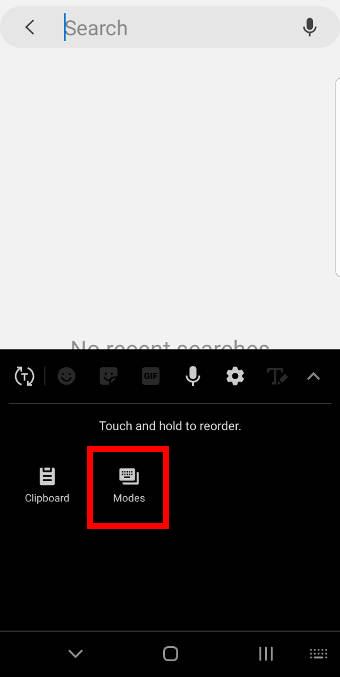
For example, as shown in the screenshot below, in Google search, the keyboard is waiting for your input.

Tap the down arrow (▼) button to open Samsung keyboard options.
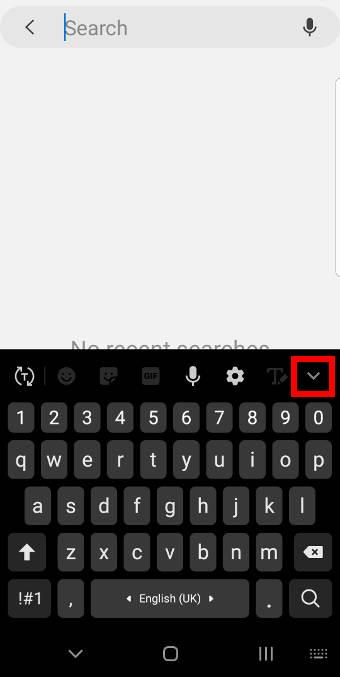
default Samsung keyboards change keyboard mode

In Samsung keyboard options, as shown above, tap Modes.

By default, Samsung Keyboard can work in three modes:

  • Standard keyboard (default, fixed in the screen). In Android Pie update for Galaxy S9 and S9+, you can resize the keyboard as explained in this guide (coming soon).
  • One-handed keyboard.
  • Floating keyboard.

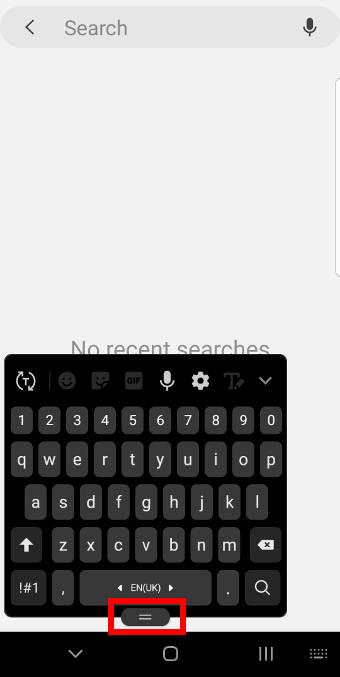
Tap Floating keyboard as shown below.
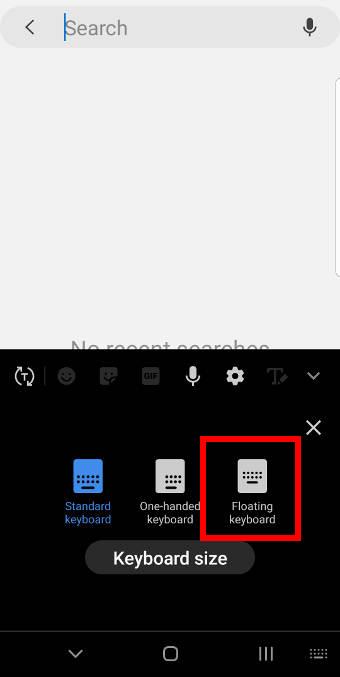
 enable the floating keyboard on Galaxy S9 and S9+ with Android Pie update  enable the floating keyboard on Galaxy S9 and S9+ with Android Pie update

Now, as shown in the screenshot above, the keyboard is detached from the bottom (navigation bar) of the screen with a handle on the bottom.

The keyboard is now poping over the apps you are using.  You can relocate to anywhere on the screen.

Of course, if a keyboard is not needed, the floating keyboard will disappear automatically (just like the standard keyboard).

How to use and customize the floating keyboard on Galaxy S9 and S9+ with Android Pie update?

You can use the handle to move the keyboard on the screen as you want.

You can also customize the floating keyboard on Galaxy S9 and S9+ by:

  • Resizing the Samsung keyboard.
  • Adjusting the transparency of the Samsung keyboard.

In Android Pie update for Galaxy S9 and S9+, you can resize standard keyboard (and the one-handed keyboard) as well. But transparency settings are for floating keyboard only as explained in this guide (coming soon).

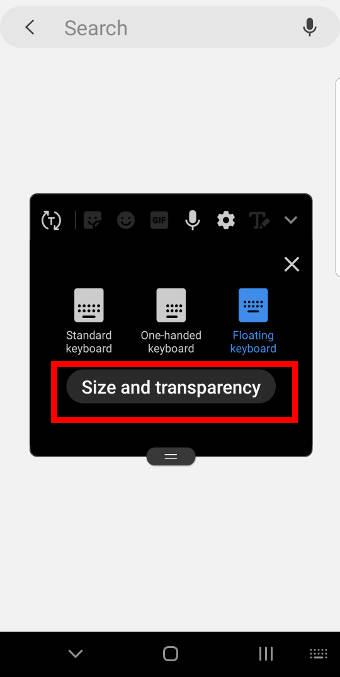
Tap the down arrow (▼) button as shown below.

Then taps mode (not shown here).
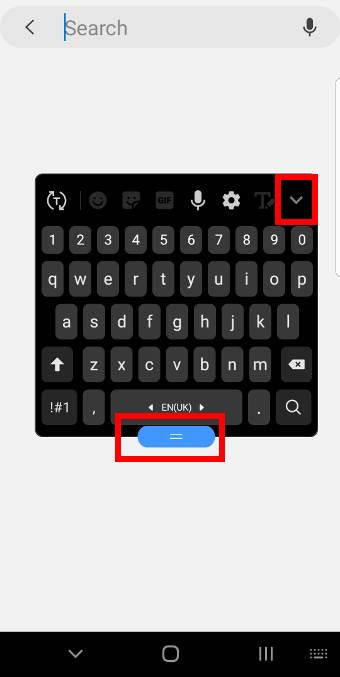
use and customize the floating keyboard on Galaxy S9 and S9+ with Android Pie update use and customize the floating keyboard on Galaxy S9 and S9+ with Android Pie update

Now, you see the floating keyboard is active.

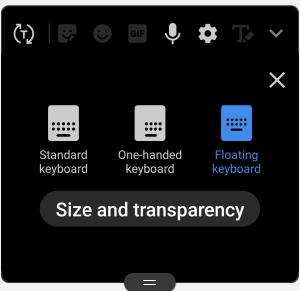
Tap Size and transparency as shown above.

Subsequently, you can find the size and transparency settings as shown below.

The 3 white dots in the blue borderlines are handles for you to change the size.

If you drag then outwards, the keyboard will be enlarged. If you drag them inwards, the size will be smaller.
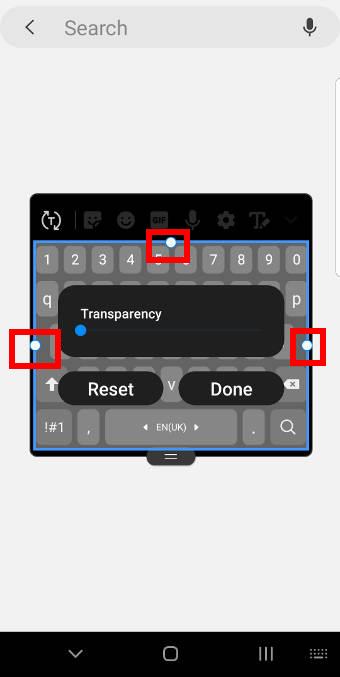
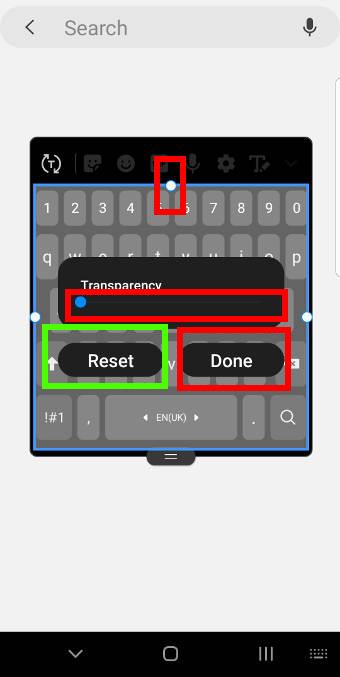
set transparency set size

You can also drag the transparency slider as shown above to adjust the transparency of the floating keyboard.

By default, the transparency of the Samsung keyboard is 0% (opaque). You cannot see the app contents behind the keyboard.

If you drag the slider to the right side, you can see the app content below the floating keyboard.

After customizing the floating keyboard on Galaxy S9 or S9+, you must tap Done to save the customization. Otherwise, the customization will be discarded automatically.

If you mess up the settings for the floating keyboard on Galaxy S9 or S9+ with Android Pie update, you may tap Reset to clear all saved customizations and reset the floating keyboard.

Please note, Samsung keyboard theme is affected by the night mode. Once the night mode is enabled, the background color of the Samsung keyboard will change accordingly.  You cannot disable this feature.

Which keyboards support the floating mode?

Currently, the Samsung keyboard supports the floating mode on Android Pie update for Galaxy S9 and S9+.

Samsung keyboard, in most regions, actually includes two pre-installed keyboards:

  • Standard Samsung keyboard.
  • Samsung Keyboard Neural Beta.

You can use the floating keyboards for both of them.

Actually, the settings for the two keyboards are almost identical.

Third-party keyboards generally do not support the floating mode.

Can you enable the floating keyboard on Galaxy S9 and S9+ with Android Pie update? Do you know how to use and customize the floating keyboard on Galaxy S9 and S9+ with Android Pie update?

If you have any questions on the floating keyboard on Galaxy S9 and S9+ with Android Pie update,  please let us know them in the comment box below.

The community will help you find the answer.

For the user guide for new features of Samsung Galaxy S9 and S9+, please check Galaxy S9 new features guides page.

For using Galaxy S9 and S9+, please check Galaxy S9 how-to guides page.

For using the Galaxy S9 camera, please check Galaxy S9 camera guides page.

For accessories for Galaxy S9 and S9+, please check Galaxy S9 accessories guides page.

For official Samsung Galaxy S9 and S9+ user manuals in your language, you may check this page (if your Galaxy S9 or S(+ is running Android Oreo), or this page (if your Galaxy S9 and S9+ have got the Android Pie update).

Detailed how-to guides for new features of Android Pie update for Galaxy S9 and S9+ be found on this page.

Share this:

  • Share on X (Opens in new window) X
  • Share on Facebook (Opens in new window) Facebook

Filed Under: Galaxy S9 Guides, Galaxy S9 New Features Tagged With: Android Pie, Android Pie update guide, floating keyboard, Galaxy S9 home screen landscape mode, Galaxy S9 navigation bar, keyboard, landscape mode, navigation gestures, night mode, Samsung keyboard, Samsung keyboard floating mode

Reader Interactions

Comments

  1. Bob says

    April 7, 2019 at 2:15 am

    How do minimize or hide the keyboard? It doesn’t hide on messaging apps the way it used to, so I now can’t see half the screen in those apps.

    Reply
    • simon says

      April 7, 2019 at 2:52 am

      When the keyboard is active, the back button should change to ^. You can tap the back button to hide the keyboard as you did in previous versions. This works on the normal keyboard or floating keyboard.

      Actually, all recent Android phones work in this way.


      -- Our Facebook page || Galaxy S6 Guides || Galaxy S7 Guides || Android Guides || Galaxy S8 Guides || Galaxy S9 Guides || Google Home Guides || Headphone Guides || Galaxy Note Guides || Fire tablet guide || Moto G Guides || Chromecast Guides || Moto E Guides || Galaxy S10 Guides || Galaxy S20 Guides || Samsung Galaxy S21 Guides || Samsung Galaxy S22 Guides || Samsung Galaxy S23 Guides

      Reply
  2. TerryZex says

    November 2, 2025 at 10:36 am

    Venture into the epic realm of EVE Online. Shape your destiny today. Trade alongside hundreds of thousands of players worldwide. [url=https://www.eveonline.com/signup?invc=46758c20-63e3-4816-aa0e-f91cff26ade4]Begin your journey[/url]

    Reply
  3. Stevenneish says

    May 5, 2026 at 10:56 pm

    This is my initial post here and I’m glad I came across this community. I’ve already learned a few valuable ideas just from browsing existing posts, which definitely says a lot about the value of the discussions. It’s nice to see people willing to share what’s helped them and break things down in a way that’s simple to follow. I’m looking forward to continuing to learn. I have recently been reading about this recently.

    Reply

Leave a Reply Cancel reply

Your email address will not be published. Required fields are marked *

Primary Sidebar

RSS Samsung Galaxy S24 Guides@GGO

  • The definitive guide to One UI 7 (Android 15) update for Galaxy S24, S23, S22, and S21
  • The Definitive Guide to Galaxy AI on Galaxy S24, S23, S22, Fold 6, Fold 5, Flip 6, and Flip 5
  • Use the Light Performance Profile to Extend Battery Life and Reduce Heat on Galaxy S24, S23, S22, and S21 (all Samsung Galaxy Phones with Android 14/One UI 6.0)
  • How to adjust lock screen timeout on Galaxy S24, S23, S22, and other Galaxy devices?
  • How to use Circle to Search on Galaxy S24?

RSS Galaxy S23 Guides

  • Explanation of all One UI 6.1 features for Galaxy S23, S23+, S23 Ultra, and other Galaxy devices
  • How to use One-Tap Editing in the Android 14 (One UI 6) update?
  • How to enable and use Auto Scan to scan documents automatically on Galaxy S23, S22, and S21?
  • New camera features in One UI 6 (Android 14) update for Galaxy S23, S22, and S21
  • Galaxy S23 User Manual in American English with Android 14 (One UI 6) Update

RSS Galaxy S22 Guides

  • A Complete Guide for Android 14 (One UI 6) Update on Samsung Galaxy Devices
  • How to touch and hold to customize Lock Screen on Galaxy S22, S21, and S20 with the Android 13 update?
  • How to use Maintenance Mode on Galaxy S23, S22, S21, and S20 with Android 13 (One UI 5)?
  • How to extract text from photos and images on Galaxy S22, S21, and S20?
  • A complete list of the new features of One UI 5.1 update for Galaxy S22, S21, and S20

RSS Samsung Galaxy S21 Guides

  • Top 12 new features in Android 12 update for Galaxy S21, S20 and S10
  • Android 12 update vs One UI 4.0 vs One UI 4.1: update Galaxy S21, S20 and S10 to Android 12
  • How to set and resize photo size on Samsung Galaxy S21, S20, S10, and S9 without using any third-party apps?
  • How to Customize Galaxy S21 Home Screen?
  • Master Galaxy S21 Lock Screen Settings

RSS Galaxy S20 Guides

  • The End of the Road: No Android 14 Update for the Galaxy S20
  • How to Use Enhanced Processing on Galaxy S20 with Android 11 update?
  • How to access, use, and customise widgets on Galaxy S20 lock screen and AOD screen with Android 11 update for Galaxy S20?
  • How to update Galaxy S20 to Android 11?
  • How to use Galaxy S20 lockdown mode?

RSS Galaxy Note Guides

  • Top 11 disappointments of Galaxy Note 20 and Galaxy Note 20 Ultra
  • How to use the Dynamic Lock screen on Galaxy Note 10?
  • Galaxy Note 10 LED View Cover Guide and Review
  • Install S Note app and Extension pack on Galaxy Note 10

RSS Drive In Singapore

  • Singapore ERP (Electronic Road Pricing): 6 Facts You Need to Know
  • Car Insurance in Singapore Explained
  • Top 5 rules of driving in Singapore safely and legally during COVID-19 Circuit Breaker period
  • Understand COE Price by 10 Simple Questions
  • How to convert a foreign driving license to a Singapore driving license?

RSS Moto G Guides

  • Stylus features on Moto G Stylus (all models)
  • What’s new in Moto G 2024? Moto G 5G 2024 vs Moto G Power 2024 vs Moto G Play 2024
  • Understand Moto G Model Names
  • Thank You

RSS Galaxy S10 Guides

  • End of security update for Galaxy S10, S10+ and S10e
  • Top 10 new features in Android 10 update for Galaxy S10
  • Top 5 new features added in Galaxy S10 September Update
  • How to move apps to the micro SD card to free phone storage on Galaxy S10 ?

RSS Chromecast Guides

  • How to enable developer options in Chromecast with Google TV and Google TV Streamer?
  • Meaning of LED light on voice remote for Chromecast with Google TV and Google TV Streamer
  • What’s new in Chromecast 2018 (3rd gen of Chromecast)?
  • How to use VLC media player on PC to stream music and video to Chromecast and Chromecast Audio?

RSS Headphone Guide Pro

  • True Wireless Stereo (TWS) Explained
  • The Complete Technical Guide to the Galaxy Buds 4 & Buds 4 Pro
  • The Right Fit of Galaxy Buds 4 — User Personas & Recommendations
  • Galaxy Buds 4 as an AI Earbud — Tips, Tricks, and Galaxy AI
  • AirPods Pro 3: The Complete Technical Guide and Long-Term Review

© 2015–2026 · GadgetGuideOnline.com is an online community for Gadget Owners! · Hosted by PTRHosting
· Powered by Genesis framework for WordPress

Samsung Galaxy S9 how-to guides, user manuals and tutorials! Everything about Samsung Galaxy S9 and Galaxy S9+.
Disclaimer: Samsung, Galaxy, Galaxy S9, and Galaxy S9+ are trademarks of Samsung. Android is a trademark of Google. This website is NOT affiliated with Samsung or Google in any way. All the information provided on this website is provided on an "as is" and "as available" basis and you agree that you use such information entirely at your own risk.