 Samsung revamped the Recents screen in Android Pie update for Galaxy S9 and S9+ to align some features with the stock Android Pie.
However, the difference between the overview screen in the stock Android Pie and the Recents screen in Galaxy S9 and Galaxy S9+ with Android Pie update is significant.
This Galaxy S9 Android Pie update guide explains the new features in the Recents screen in Android Pie update for Galaxy S9 and S9 Plus, how to use the new Recents screen gestures, how to dismiss individual app, and disable suggested apps in the Recents screen.
What's new in the Recents screen in Android Pie update for Galaxy S9 and S9 Plus?
In the Samsung Galaxy phones, the Recents screen is usually called Overview screen in the stock Android. Correspondingly the overview button in the stock Android is Samsung's Recents button.
Basically, the Recents (overview) screen lists all recently used apps. You can quickly re-open them, or open them in the multiwindow mode (both in the split-screen and pop-up views).
Android Pie (Android 9) revamped the Overview screen to stack the list horizontally (instead f vertically as in previous versions of Android) to work better with the new Android Pie navigation gestures.
In Android Pie update for Galaxy S9 and S9+, Samsung adopted its own full-screen navigation gestures and own Overview screen design.
Compared to Galaxy S9 and S9+ with Android Oreo, Android Pie update for Galaxy S9 and S9+ made has a different Recents screen:
- As in the stock Android Pie, the Recents screen stacks apps horizontally.
- A row of suggested apps is added by default on the Overview screen. Of course, you can disable the suggested apps on the Recents screen (read on).
- Some multiwindow features were removed. For example, you cannot find the snap window feature on Galaxy S9 and S9+ with Android Pie update.
- You have to use the gesture (swipe up) to close an app. In S9 or S9+ with Oreo, you can swipe left/right, or use the close button to close individual apps.
- You have to use the app icon to launch the app in a split-screen view or pop-up view.
- There is no list view of apps. You have to use the thumbnail view.
Please note, compared to the Overview screen in the stock Android Pie, the Recents screen in Android Pie update for Galaxy S9 and S9+ lacks two important feature:
- Copying text and image directly.
- Switching to (re-open) the last used apps directly from any screen with a gesture (swipe to the right side). On Galaxy S9 and S9+ with Android Pie, the navigation gesture only supports swiping upwards.
So do not assume the Recents screen in Android Pie update for Galaxy S9 and S9+ is identical to that in the stock Android Pie.
How to access the new Recents screen in Galaxy S9 and S9+?
If you are using the new navigation gestures as the navigation style, then you can swipe up from the left or the right line depending on your navigation button layout settings.
If you are using the navigation bar (navigation buttons), you need to tap the Recents button as shown below.

The Recents button in Android Pie update for Galaxy S9 and S9+ was changed as well.
You can also put the Recents button on the left side (default) or the right side (as in the stock Android) in the button layout settings under Settings —Display –-Navigation bar as explained in this guide.
Component of the new Recents screen in Android Pie update for Galaxy S9 and S9+
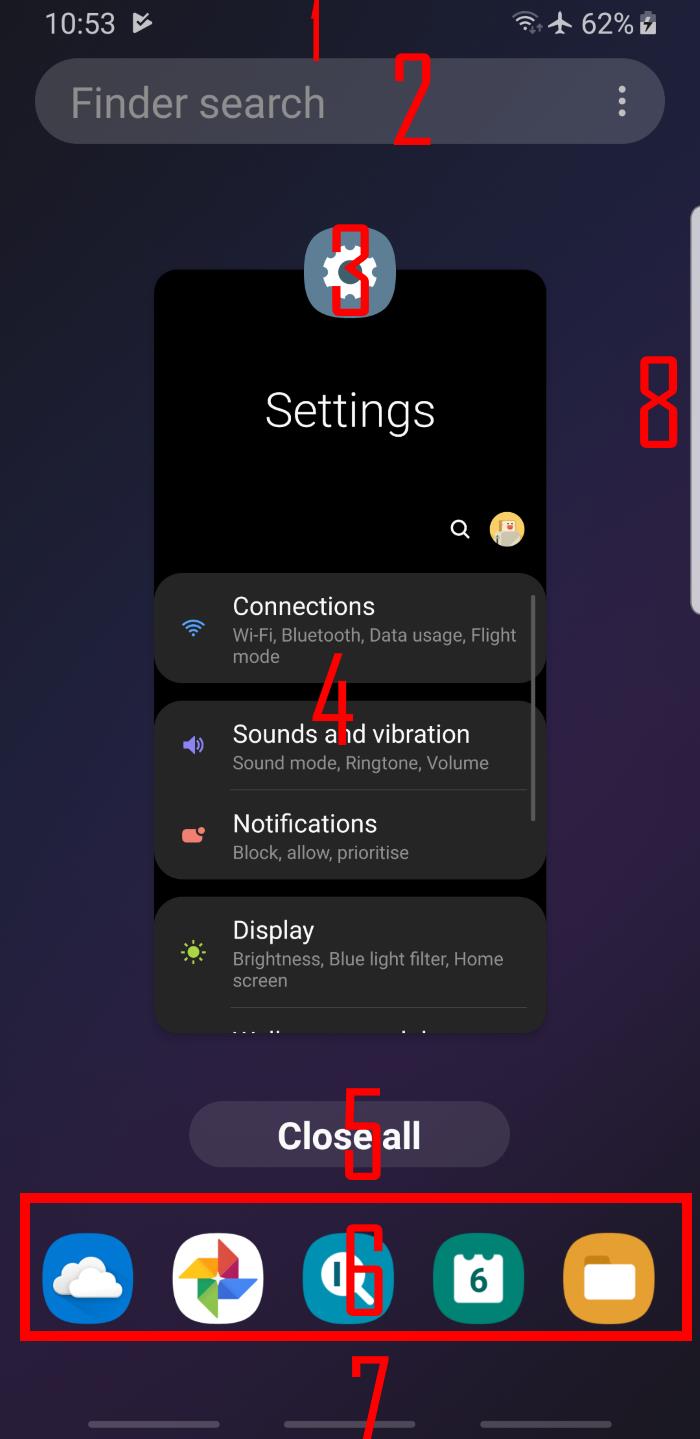
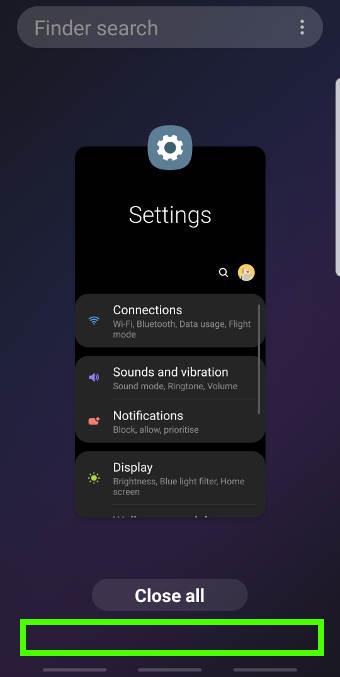
A typical Overview screen in Android Pie update for Galaxy S9 and S9+ is shown below.
There are at least 8 components:
- Ths status bar.
- The search bar (Finder).
- App icon.
- App thumbnail/overview.
- Close all button.
- Suggested apps. You can disable the suggested apps (read on ).
- The navigation bar (or 3 lines for navigation gestures).
- Edge screen handle.
Some of them can be customized. Some can be disabled. Read on.
Using gestures on the new Recents screen in Android Pie update for Galaxy S9 and S9+?
Once you are in the Recents screen of Galaxy S9 or S9+, you can use the following touchscreen gestures:
- Swipe left and right to scroll through the list of recently used apps.
- Swipe up to dismiss an individual app.
- Swipe down to switch to an individual app.
- Tap anywhere inside the thumbnail of the app to switch to this app. This is identical to swipe down.
- Tap the app icon to get more options for the individual app, e.g. launch the app in a split-screen view or pop-up view.
These gestures are consistent with the corresponding gestures in the overview screen of the stock Android.
How to close individual apps on the new Recents screen?
Prior to the Android Pie update, the thumbnails in the Recents screen are stacked vertically, so, you can swipe left or right to dismiss or close the app.
In Android Pie update for Galaxy S9 and S9+, the thumbnails are stacked horizontally. The left swipe (or right swipe) gesture is used to scroll through the list.
To close individual apps on the new Recents screen on Galaxy S9 and S9 Plus with Android Pie update, you need to swipe up.
How to disable the suggested apps on the new Recents screen?
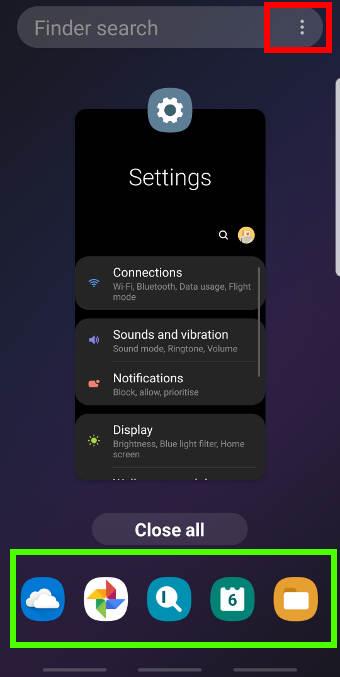
As shown in the screenshot earlier, there is one row of suggested apps below the Close all button.
The apps are suggested to you based on your usage. Some Galaxy S9 and S9+ owners want to hide the suggested apps.
To disable the suggested apps on the new Overview screen in Galaxy S9 and S9+, you need to tap the menu key (3 vertical dots) in the right of the search bar in the Recents screen, as shown below.
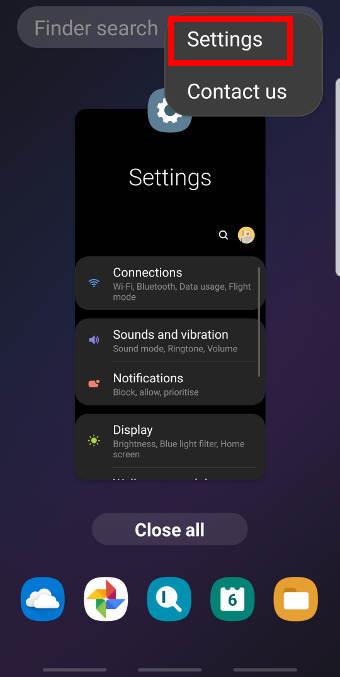
From the menu, tap Settings as shown above.
In the Recents settings page, as shown below, you can tap the switch right to the Suggested apps.
By default, the switch is on (blue background) and one row of suggested apps will be shown.
Once it is turned off, the background of the switch will be white.
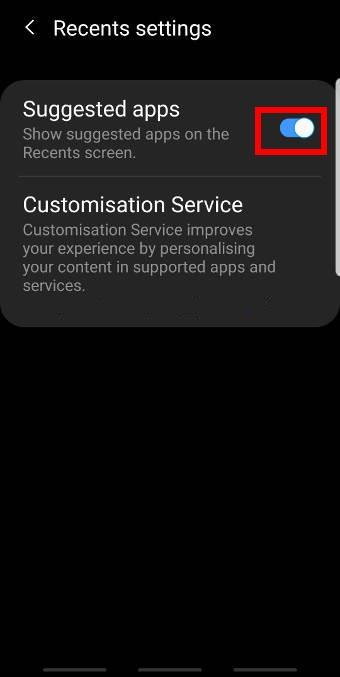
As shown above, after turning off the suggested apps, there will be no more suggested apps ant more.
Unlike in stock Android Pie, the suggested apps in the Recents panel on Galaxy S9 or S9+ with Android Pie update are independent of the suggested apps when you use the finder. The settings for the suggested apps in Finder are under Finder settings.
How to use app icons on the new Recents screen?
Another new feature of the Recents screen on Galaxy S9 and S9 Plus with Android Pie update is the app icons in the Recents page.
Most of the functions for the individual apps in the Recents panel are now put into the icon.
For example, as shown below, you can tap the app icon for Settings in the Recents page.
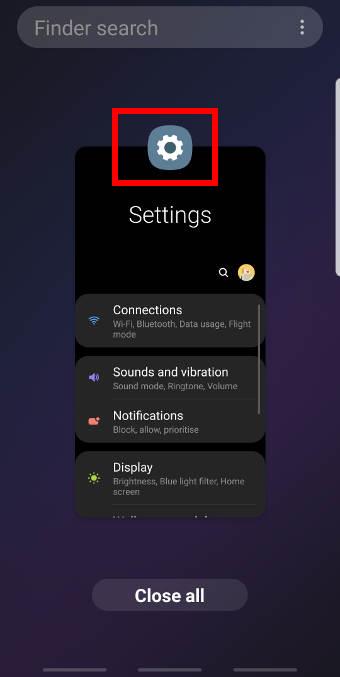
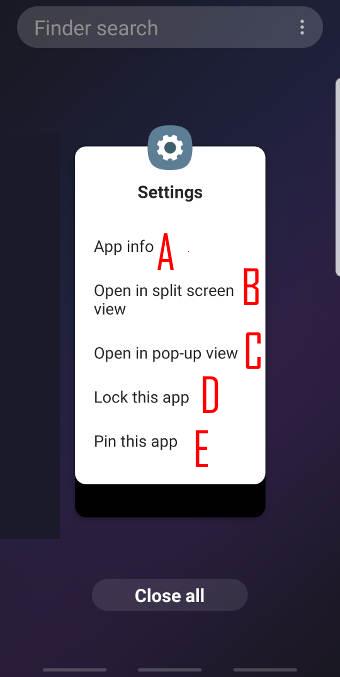
Now, you can find the possible options for this app from the Recents app screen. In other words, you can check what you can do with this app in the Overview screen.
For most apps, you can find the following options in the Recents screen:
A. App info
You will be linked to the app details page for this app.
B. Open in a split-screen view
You can re-launch the app in a split-screen view multiwindow mode.
Of course, you need to select the other app from the Recents app list, or suggested apps, or apps screen.
Please check this guide on how to use Galaxy S9 multi-window feature.
C. Open in the pop-up view
You can re-launch the app as a pop-up window. Please check this guide on using Galaxy S9 multi window after updating to Android Pie (Android 9)
D. Lock this app
You can lock this app in the Recents screen so that it will not be removed if you tap the Close all button.
For a locked app in the Overview screen, you can still swipe up to clear it from the Recents screen. The lock is for close all buttons only.
If there is only one app in the Recents screens, and you choose to lock it, then the close all button will disappear.
E. Pin this app
You can pin this app if you enabled the screen pinning in Settings —Biometric and security —Other security settings—Pin windows.
If you do not get this option, very likely, the screen pinning is not enabled.
You may refer to this guide on how to use screen pinning.
Can you use the new Recents screen in Android Pie update for Galaxy S9 and S9 Plus? Do you know how to dismiss individual apps from the Recents screen, or disable suggested apps?
If you have any questions on the new Recents screen in Android Pie update for Galaxy S9 and S9 Plus, please let us know them in the comment box below.
The community will help you find the answer.
For the user guide for new features of Samsung Galaxy S9 and S9+, please check Galaxy S9 new features guides page.
For using Galaxy S9 and S9+, please check Galaxy S9 how-to guides page.
For using Galaxy S9 camera, please check Galaxy S9 camera guides page.
For accessories for Galaxy S9 and S9+, please check Galaxy S9 accessories guides page.
For official Samsung Galaxy S9 and S9+ user manuals in your language, you may check this page (if your Galaxy S9 or S(+ is running Android Oreo), or this page (if your Galaxy S9 and S9+ have got the Android Pie update).
Detailed how-to guides for new features of Android Pie update for Galaxy S9 and S9+ be found on this page.
Ever since this update, apps have been randomly disappearing from my Recents screen. It seems to be that if I leave an app untouched in the Recents screen for like 12 – 24 hours, it will be gone without me having manually closed it. It’s super frustrating. Is anyone else experiencing this? Is there some obscure setting somewhere that I can change so that my recently used apps stay in the Recents screen indefinitely unless I close them myself, like it used to be?
Not sure about the issue. Does it happen to specific apps or random apps?
-- Our Facebook page || Galaxy S6 Guides || Galaxy S7 Guides || Android Guides || Galaxy S8 Guides || Galaxy S9 Guides || Google Home Guides || Headphone Guides || Galaxy Note Guides || Fire tablet guide || Moto G Guides || Chromecast Guides || Moto E Guides || Galaxy S10 Guides || Galaxy S20 Guides || Samsung Galaxy S21 Guides || Samsung Galaxy S22 Guides || Samsung Galaxy S23 Guides
So far it seems to be any app that I haven’t reopened in a certain amount of time. I’ll go to my Recents screen looking for an app I was using a day earlier, and it will just be gone.
Did you use any third-party device maintenance apps (e.g., battery saver, process cleaner…)? Samsung’s device should not cause such an issue.
Before you find the cause and solution, you can try to lock frequently used apps in the Recents screen.
-- Our Facebook page || Galaxy S6 Guides || Galaxy S7 Guides || Android Guides || Galaxy S8 Guides || Galaxy S9 Guides || Google Home Guides || Headphone Guides || Galaxy Note Guides || Fire tablet guide || Moto G Guides || Chromecast Guides || Moto E Guides || Galaxy S10 Guides || Galaxy S20 Guides || Samsung Galaxy S21 Guides || Samsung Galaxy S22 Guides || Samsung Galaxy S23 Guides
I do not have any third party apps specifically for device maintenance installed, no. I have tried locking the apps, but to no avail.
You may try to clear the cache partition to see whether it helps. https://gadgetguideonline.com/s9/how-to-reboot-into-galaxy-s9-recovery-mode-and-to-clear-galaxy-s9-cache-partition-on-galaxy-s9-and-s9/
-- Our Facebook page || Galaxy S6 Guides || Galaxy S7 Guides || Android Guides || Galaxy S8 Guides || Galaxy S9 Guides || Google Home Guides || Headphone Guides || Galaxy Note Guides || Fire tablet guide || Moto G Guides || Chromecast Guides || Moto E Guides || Galaxy S10 Guides || Galaxy S20 Guides || Samsung Galaxy S21 Guides || Samsung Galaxy S22 Guides || Samsung Galaxy S23 Guides
Ok, just gave it a shot. I guess I’ll see whether or not it worked at some point tomorrow. Thanks for the help 🙂
The new horizontal recents screen is super clunky and hard to navigate, is there any way to go back to the horizontal stack? This is horrible.
Nope, the horizontal stack in the Regents screen is part of Android Pie feature. It’s not a Samsung feature.
-- Our Facebook page || Galaxy S6 Guides || Galaxy S7 Guides || Android Guides || Galaxy S8 Guides || Galaxy S9 Guides || Google Home Guides || Headphone Guides || Galaxy Note Guides || Fire tablet guide || Moto G Guides || Chromecast Guides || Moto E Guides || Galaxy S10 Guides || Galaxy S20 Guides || Samsung Galaxy S21 Guides || Samsung Galaxy S22 Guides || Samsung Galaxy S23 Guides
That was my question as well. Read the whole article to be disappointed in the end, of well.
Unfortunately, all Android Pie phones now use this implementation. Android Q will also follow it. It seems it’s hard to provide customization for this feature because it links to multiwindow feature as well.
-- Our Facebook page || Galaxy S6 Guides || Galaxy S7 Guides || Android Guides || Galaxy S8 Guides || Galaxy S9 Guides || Google Home Guides || Headphone Guides || Galaxy Note Guides || Fire tablet guide || Moto G Guides || Chromecast Guides || Moto E Guides || Galaxy S10 Guides || Galaxy S20 Guides || Samsung Galaxy S21 Guides || Samsung Galaxy S22 Guides || Samsung Galaxy S23 Guides
I watch alot of YouTube for music in while driving. Now when you go to multi screen the music stops, then u have to click icon and select pin, split screen etc. Then go back to app to start playback again. So it seems to me they went backwards with this update as far as a video playing, and then stopping when you go to use split screen. Alot more simple before by just holding a button down and then searching phone with no disruption.
A possible solution: 1). open YouTube in the pop-up view; and 2). when closing apps, or exiting Recents screen, do NOT use Home button, use the Back button instead.
If you use the Home button, apps that do not support background playing (like YouTube) will be stopped. If you use the Back button, apps in the pop-up view will not be affected.
The major cause of the issue is YouTube only allows YouTube Music/Red subscribers to use background playing feature.
-- Our Facebook page || Galaxy S6 Guides || Galaxy S7 Guides || Android Guides || Galaxy S8 Guides || Galaxy S9 Guides || Google Home Guides || Headphone Guides || Galaxy Note Guides || Fire tablet guide || Moto G Guides || Chromecast Guides || Moto E Guides || Galaxy S10 Guides || Galaxy S20 Guides || Samsung Galaxy S21 Guides || Samsung Galaxy S22 Guides || Samsung Galaxy S23 Guides
I have seen this issue too, on my Note 8. Very frustrating.
The new recent screen is closing certain apps that I need to remain open all the time. Thus, there are certain apps that, when closed, must be reopened and reconnect with external devices. I use hearing aids that need to be constantly connected with the app, but either the recents screen or the system itself is closing this app, which forces me, when I realize it is closed, to reopen the app and force a reconnection with the hearing aids. Such arbitrary closing did not occur in oreo. What needs to be done to allow all open apps to REMAIN open?
It actually depends on the app. You should not rely on the Recents screen. For such always connected devices, the app developer need to run a service in background.
Anyway, in S9, you can try to enable background running and disable battery optimisation for the app. You can do this in Settings – device care – battery.
-- Our Facebook page || Galaxy S6 Guides || Galaxy S7 Guides || Android Guides || Galaxy S8 Guides || Galaxy S9 Guides || Google Home Guides || Headphone Guides || Galaxy Note Guides || Fire tablet guide || Moto G Guides || Chromecast Guides || Moto E Guides || Galaxy S10 Guides || Galaxy S20 Guides || Samsung Galaxy S21 Guides || Samsung Galaxy S22 Guides || Samsung Galaxy S23 Guides
I don’t find background running in the battery section. Anywhere else I can look?
On the battery page, tap battery usage (right to the circle, below the estimated remaining time ), find the app you need to use in the background, tap it, then in the use details page, you enable allow background activities, and disable optimise battery usage.
I am not sure whether this will solve the problem. The proper way is the app developer add a service so that you can always connected without using the app. Jabra is a good example.
-- Our Facebook page || Galaxy S6 Guides || Galaxy S7 Guides || Android Guides || Galaxy S8 Guides || Galaxy S9 Guides || Google Home Guides || Headphone Guides || Galaxy Note Guides || Fire tablet guide || Moto G Guides || Chromecast Guides || Moto E Guides || Galaxy S10 Guides || Galaxy S20 Guides || Samsung Galaxy S21 Guides || Samsung Galaxy S22 Guides || Samsung Galaxy S23 Guides
I just did this (will know after a day or so if it worked) – go to the top right of the battery screen and click on the three little vertical dots. Settings should pop up – click on it. From there, you can see various options, one of which is “put unused apps to sleep.” I just turned this off on my phone, and I really hope this fixes the issue. My recents screen has been completely useless ever since this update.
I had already disabled that feature. Didn’t fix the problem.
Was looking for the instructions to disable/hide recommended/suggested apps in overview screen. Found it here. Thanks.
My Samsung Galaxy S8 just updated to Pie yesterday. My issue is that my weather widget keeps disappearing from my home screen, and this happens once I have gone to the recents menu. I haven’t been swiping up to close individual apps, but using the Close All button. Then when I get baack to the home screen, weather widget has goon Poof! Yet when I try to add it in again, the message I get states you cannot have more than one weather widget on the home screen, and it is back. I have no idea what is going on, please help, and thanks.
You can try to clear cache partition first (see this guide on how to clear cache partition on S8), add the widget, tap the widget, now you should be in the weather app, tap menu key (3 vertical dots), tap settings — enable “Add weather”. Now, back to home screen. Now, if you tap the close all, is the widget gone?
-- Our Facebook page || Galaxy S6 Guides || Galaxy S7 Guides || Android Guides || Galaxy S8 Guides || Galaxy S9 Guides || Google Home Guides || Headphone Guides || Galaxy Note Guides || Fire tablet guide || Moto G Guides || Chromecast Guides || Moto E Guides || Galaxy S10 Guides || Galaxy S20 Guides || Samsung Galaxy S21 Guides || Samsung Galaxy S22 Guides || Samsung Galaxy S23 Guides
I am guessing that Android is being very efficient at intuitively putting apps to sleep to save battery. I find that somehow this recents screen is messing with my home screen, too.
Unlikely. Except for the Weather widget you mentioned, how was the home screen altered?
You may try to lock home screen layout in Android Pie update in Settings —display — Home screen— Lock home screen layout.
-- Our Facebook page || Galaxy S6 Guides || Galaxy S7 Guides || Android Guides || Galaxy S8 Guides || Galaxy S9 Guides || Google Home Guides || Headphone Guides || Galaxy Note Guides || Fire tablet guide || Moto G Guides || Chromecast Guides || Moto E Guides || Galaxy S10 Guides || Galaxy S20 Guides || Samsung Galaxy S21 Guides || Samsung Galaxy S22 Guides || Samsung Galaxy S23 Guides
Hi! One thing I realize is that by tap on recent applications button, sometimes the focus appears in the current application and sometimes the focus appears in the previous application. I still can not quite understand this behavior. Can you explain it?
It should be always focused on the “last” used app. It should NOT focus on the currently used app.
So, if you tap the recents button when you are using an app (not exit/close the app), the focus should be on the app you used before the current app.
If you tap the Recents button from the Home screen (not using any apps), the focus should be the app you last used.
-- Our Facebook page || Galaxy S6 Guides || Galaxy S7 Guides || Android Guides || Galaxy S8 Guides || Galaxy S9 Guides || Google Home Guides || Headphone Guides || Galaxy Note Guides || Fire tablet guide || Moto G Guides || Chromecast Guides || Moto E Guides || Galaxy S10 Guides || Galaxy S20 Guides || Samsung Galaxy S21 Guides || Samsung Galaxy S22 Guides || Samsung Galaxy S23 Guides
Hi simon! I can understand this behavior but sometimes I am in an app and when I tap Recents button, the interface put in focus the current app. I can’t realize when this issue happens but I am sure that sometimes it occurs. It is strange.
Next time, when this happens, you can tap back button on thev Recents screen to see whether the app was closed when you navigated away.
-- Our Facebook page || Galaxy S6 Guides || Galaxy S7 Guides || Android Guides || Galaxy S8 Guides || Galaxy S9 Guides || Google Home Guides || Headphone Guides || Galaxy Note Guides || Fire tablet guide || Moto G Guides || Chromecast Guides || Moto E Guides || Galaxy S10 Guides || Galaxy S20 Guides || Samsung Galaxy S21 Guides || Samsung Galaxy S22 Guides || Samsung Galaxy S23 Guides