• Skip to main content
  • Skip to primary sidebar

Galaxy S8 Guides

A Community for owners of Galaxy S8 and Galaxy S8+

  • Home
    • About
    • Contact Us
  • New features
    • How to use the new features in Android Pie update for Galaxy S8 and S8+?
    • How to disable Bixby button in Galaxy S8 and Galaxy S8+?
      • How to remove Bixby Home page in Galaxy S8 and S8+ home screen?
    • How to use Secure Folder on Galaxy S8, S9, S10, and S20?
    • How to customize Galaxy S8 navigation buttons and navigation bar?
      • How to show and hide Galaxy S8 navigation bar?
    • How to set up and use Galaxy S8 iris scanner to unlock Galaxy S8 and S8+?
    • Top 10 new features of Samsung Galaxy S8 and S8+
      • Top 10 new features of Android Oreo update for Galaxy S8 and S8+
      • Top 8 missing features of Galaxy S8 and S8+ that may annoy you
      • Samsung Galaxy S8 specs and Galaxy S8+ specs
    • How to use Galaxy S8 apps screen, and how to hide and show apps screen button in Galaxy S8 and S8+?
    • How to use Galaxy S8 floating camera button in Galaxy S8 and S8+?
    • How to use context menu in Galaxy S8 Home screen?
  • How-to guides
    • How to use the new features in Android Pie update for Galaxy S8 and S8+?
    • Galaxy S8 Android Oreo update guides
      • Top 10 new features of Android Oreo update for Galaxy S8 and S8+
      • New status icons in Android Oreo update for Galaxy S8 and S8+
      • Use notification dots/notification number badge in Galaxy S8 Android Oreo update
      • How to use app shortcuts in Galaxy S8 Home screen in Android Oreo update for Galaxy S8 and S8+?
      • How to Install Galaxy S8 Android Oreo Update for Galaxy S8 and S8+?
    • Meaning of Galaxy S8 status icons and notification icons in Samsung Galaxy S8 and S8+
      • How to use and customize Galaxy S8 lock screen?
      • Hot to use Galaxy S8 always-on display (AOD) in Galaxy S8 and S8+?
      • How to set up and use Galaxy S8 iris scanner to unlock Galaxy S8 and S8+?
    • Charge Galaxy S8 battery
      • How to fix Galaxy S8 moisture problem?
      • How to power on, power off and reboot Galaxy S8 and S8+ even when phone hangs?
      • How to wipe Galaxy S8 cache partition?
      • How to use Galaxy S8 safe mode?
      • How to enter Galaxy S8 recovery mode in Galaxy S8 and S8+?
    • Galaxy S8 SIM card guide
      • How to use two SIM cards in Galaxy S8 and S8+?
      • Two ways to block spammers and unwanted callers in Galaxy S8 and S8+ without using any apps?
      • Use micro SD card in Galaxy S8 and Galaxy S8+
      • How to move apps to SD card in Galaxy S8 and S8+?
    • Migrate to Galaxy S8: how to transfer data from old device to Galaxy S8 and S8+?
      • How to take screenshot on Galaxy S8 and S8+ without using any apps?
      • Galaxy S8 touchscreen gestures
      • Package contents in Galaxy S8 box
      • How to customize Galaxy S8 navigation buttons and navigation bar?
      • How to show and hide Galaxy S8 navigation bar?
    • How to use Galaxy S8 Settings to customize Samsung Galaxy S8 and S8+?
      • How to use device maintenance in Galaxy S8 and Galaxy S8+?
      • How to use Galaxy S8 quick settings in Galaxy S8 and S8+?
      • How to use Secure Folder on Galaxy S8, S9, S10, and S20?
      • How to use Galaxy S8 screen zoom ?
      • How to move Galaxy S8 brightness control bar to notification panel?
      • How to set screen resolution in Galaxy S8 and S8+?
    • How to use and customize Galaxy S8 Home screen?
      • How to use Galaxy S8 themes to customize Galaxy S8 and S8+?
      • How to use context menu in Galaxy S8 Home screen?
      • How to create, use and manage app folders in Galaxy S8 Home screen?
      • How to remove Bixby Home page in Galaxy S8 and S8+ home screen?
      • How to disable Bixby button in Galaxy S8 and Galaxy S8+?
      • How to access and use Galaxy S8 Home screen edit mode?
      • Galaxy S8 layout and Galaxy S8+ layout
    • Galaxy S8 apps screen guide
      • How to use Galaxy S8 apps screen, and how to hide and show apps screen button in Galaxy S8 and S8+?
      • How to hide apps screen in Galaxy S8 and Galaxy S8+?
  • Accessories
    • Everything about Galaxy S8 Alcantara Cover
    • Galaxy S8 LED wallet cover guide
    • Galaxy S8 clear view standing cover guide
    • Package contents in Galaxy S8 box
  • Camera guides
    • How to use Galaxy S8 camera app?
    • How to use Galaxy S8 floating camera button in Galaxy S8 and S8+?
    • How to use Galaxy S8 camera quick launch?
    • Galaxy S8 camera settings
    • How to use Galaxy S8 camera modes?
    • Galaxy S8 camera effects and camera decorations (stamps and stickers): access, download and manage them
    • How to use Galaxy S8 camera timer in Galaxy S8 and S8+?
  • User manuals
  • Home
    • About
    • Contact Us
  • New features
    • How to use the new features in Android Pie update for Galaxy S8 and S8+?
    • How to disable Bixby button in Galaxy S8 and Galaxy S8+?
      • How to remove Bixby Home page in Galaxy S8 and S8+ home screen?
    • How to use Secure Folder on Galaxy S8, S9, S10, and S20?
    • How to customize Galaxy S8 navigation buttons and navigation bar?
      • How to show and hide Galaxy S8 navigation bar?
    • How to set up and use Galaxy S8 iris scanner to unlock Galaxy S8 and S8+?
    • Top 10 new features of Samsung Galaxy S8 and S8+
      • Top 10 new features of Android Oreo update for Galaxy S8 and S8+
      • Top 8 missing features of Galaxy S8 and S8+ that may annoy you
      • Samsung Galaxy S8 specs and Galaxy S8+ specs
    • How to use Galaxy S8 apps screen, and how to hide and show apps screen button in Galaxy S8 and S8+?
    • How to use Galaxy S8 floating camera button in Galaxy S8 and S8+?
    • How to use context menu in Galaxy S8 Home screen?
  • How-to guides
    • How to use the new features in Android Pie update for Galaxy S8 and S8+?
    • Galaxy S8 Android Oreo update guides
      • Top 10 new features of Android Oreo update for Galaxy S8 and S8+
      • New status icons in Android Oreo update for Galaxy S8 and S8+
      • Use notification dots/notification number badge in Galaxy S8 Android Oreo update
      • How to use app shortcuts in Galaxy S8 Home screen in Android Oreo update for Galaxy S8 and S8+?
      • How to Install Galaxy S8 Android Oreo Update for Galaxy S8 and S8+?
    • Meaning of Galaxy S8 status icons and notification icons in Samsung Galaxy S8 and S8+
      • How to use and customize Galaxy S8 lock screen?
      • Hot to use Galaxy S8 always-on display (AOD) in Galaxy S8 and S8+?
      • How to set up and use Galaxy S8 iris scanner to unlock Galaxy S8 and S8+?
    • Charge Galaxy S8 battery
      • How to fix Galaxy S8 moisture problem?
      • How to power on, power off and reboot Galaxy S8 and S8+ even when phone hangs?
      • How to wipe Galaxy S8 cache partition?
      • How to use Galaxy S8 safe mode?
      • How to enter Galaxy S8 recovery mode in Galaxy S8 and S8+?
    • Galaxy S8 SIM card guide
      • How to use two SIM cards in Galaxy S8 and S8+?
      • Two ways to block spammers and unwanted callers in Galaxy S8 and S8+ without using any apps?
      • Use micro SD card in Galaxy S8 and Galaxy S8+
      • How to move apps to SD card in Galaxy S8 and S8+?
    • Migrate to Galaxy S8: how to transfer data from old device to Galaxy S8 and S8+?
      • How to take screenshot on Galaxy S8 and S8+ without using any apps?
      • Galaxy S8 touchscreen gestures
      • Package contents in Galaxy S8 box
      • How to customize Galaxy S8 navigation buttons and navigation bar?
      • How to show and hide Galaxy S8 navigation bar?
    • How to use Galaxy S8 Settings to customize Samsung Galaxy S8 and S8+?
      • How to use device maintenance in Galaxy S8 and Galaxy S8+?
      • How to use Galaxy S8 quick settings in Galaxy S8 and S8+?
      • How to use Secure Folder on Galaxy S8, S9, S10, and S20?
      • How to use Galaxy S8 screen zoom ?
      • How to move Galaxy S8 brightness control bar to notification panel?
      • How to set screen resolution in Galaxy S8 and S8+?
    • How to use and customize Galaxy S8 Home screen?
      • How to use Galaxy S8 themes to customize Galaxy S8 and S8+?
      • How to use context menu in Galaxy S8 Home screen?
      • How to create, use and manage app folders in Galaxy S8 Home screen?
      • How to remove Bixby Home page in Galaxy S8 and S8+ home screen?
      • How to disable Bixby button in Galaxy S8 and Galaxy S8+?
      • How to access and use Galaxy S8 Home screen edit mode?
      • Galaxy S8 layout and Galaxy S8+ layout
    • Galaxy S8 apps screen guide
      • How to use Galaxy S8 apps screen, and how to hide and show apps screen button in Galaxy S8 and S8+?
      • How to hide apps screen in Galaxy S8 and Galaxy S8+?
  • Accessories
    • Everything about Galaxy S8 Alcantara Cover
    • Galaxy S8 LED wallet cover guide
    • Galaxy S8 clear view standing cover guide
    • Package contents in Galaxy S8 box
  • Camera guides
    • How to use Galaxy S8 camera app?
    • How to use Galaxy S8 floating camera button in Galaxy S8 and S8+?
    • How to use Galaxy S8 camera quick launch?
    • Galaxy S8 camera settings
    • How to use Galaxy S8 camera modes?
    • Galaxy S8 camera effects and camera decorations (stamps and stickers): access, download and manage them
    • How to use Galaxy S8 camera timer in Galaxy S8 and S8+?
  • User manuals
You are here: Home / Archives for Galaxy S8 camera shutter button

Galaxy S8 camera shutter button

How to use Galaxy S8 camera timer in Galaxy S8 and S8+?

Last updated on: May 18, 2017 · First published on: May 16, 2017 Leave a Comment

Galaxy S8 camera timer gives you a few seconds delay in taking photos after you tap the shutter button or the floating camera button.

You can also take 3 photos automatically, instead of 1, in a row when camera timer reaches 0.

This Galaxy S8 camera guide shows you how to enable, set up and use Galaxy S8 camera timer in Galaxy S8 and S8+.

What is Galaxy S8 camera timer in Galaxy S8 and S8+?

Galaxy S8 camera timer, aka, camera delay timer, functions just like self timer in normal cameras.

It allows you to take photos automatically with Galaxy S8 or S8+ a few seconds (you set it) after you press the shutter button or the floating camera button.

Within these a few seconds, you can prepare yourself for the photo.

You may want to use Galaxy S8 camera timer:

  • when you want to include yourself in a group photo, but your arm is not long enough to cover all heads.
  • when you want to take a selfie without revealing that it is taken by yourself.

Please note, when Galaxy S8 camera timer is activated, you cannot use the burst mode in Galaxy S8 and S8+.

In addition, a few Galaxy S8 camera modes do not work with Galaxy S8 camera timer (read on)

How to enable and set Galaxy S8 camera timer in Galaxy S8 and S8+?

In previous generations of Galaxy phones, camera timer usually can be accessed as a quick settings icon in the camera preview screen.

But this changed in Galaxy S8 and S8+.

Galaxy S8 camera timer can only be enabled/disabled in camera settings.

To enable and set Galaxy S8 camera timer in Galaxy S8 and S8+, you may follow these steps.

Step 1: Start camera … Read the rest
Filed Under: Galaxy S8 camera guides Tagged With: Galaxy S8 Apps screen, Galaxy S8 camera, Galaxy S8 camera app, Galaxy S8 camera app gestures, Galaxy S8 camera modes, Galaxy S8 camera quick launch, Galaxy S8 camera settings, Galaxy S8 camera shutter button, Galaxy S8 camera timer, Galaxy S8 floating camera button, Galaxy S8 home screen, Galaxy S8 lock screen, take screenshot

Galaxy S8 camera settings

Last updated on: May 18, 2017 · First published on: May 16, 2017 8 Comments

Everything you need to know about Galaxy S8 camera settings are explained.

This Galaxy S8 camera guide explains to you when you need to use use Galaxy S8 camera settings, and the meanings of all entries in Galaxy S8 camera settings.

Why you need to understand Galaxy S8 camera settings?

Most of the time, you may find the default Galaxy S8 camera settings are sufficient. You can just use Auto mode with rear camera or selfie mode with front camera to capture desired photos.

You can also apply Galaxy S8 camera effects to any photos without accessing Galaxy S8 camera settings in Galaxy S8 and S8+.

But sooner or later, you will find you have to change some settings for the camera app in Galaxy S8 and S8+.

For example, when taking selfies, you may want to avoid the mirrored photo, and want to get the photo as previewed..

Or, you may want to use the timer for Galaxy S8 camera.

Or, you may want to use the floating camera button to take photos with Galaxy S8 camera app.

Or, you may want to enable Galaxy S8 camera quick launch to start camera app from any screen by pressing power button twice quickly.

Or, you may just want to change the photos size or photo aspect ratio.

Or,…

For any of these, you need to access and use Galaxy S8 camera settings.

In Galaxy S8 and S8+, Samsung moved some options from camera app interface to camera settings. For example, in previous Galaxy phones timer and photo size can be accessed from the camera interface instantly. But in S8, they can only be accessed in Galaxy S8 camera settings.

Actually, Samsung started this change in Android Nougat update for Galaxy S7 and Galaxy S6.

How to access Galaxy S8

… Read the rest

Filed Under: Galaxy S8 camera guides Tagged With: fingerprint sensor, Galaxy S8 buttons, Galaxy S8 camera, Galaxy S8 camera app, Galaxy S8 camera app gestures, Galaxy S8 camera effects, Galaxy S8 camera modes, Galaxy S8 camera quick launch, Galaxy S8 camera settings, Galaxy S8 camera shutter button, Galaxy S8 camera timer, Galaxy S8 floating camera button, Galaxy S8 layout, Galaxy S8 touchscreen gesture, location tags, voice control

How to use Galaxy S8 floating camera button in Galaxy S8 and S8+?

Last updated on: May 18, 2017 · First published on: April 30, 2017 Leave a Comment

Galaxy S8 floating camera button was introduced in Galaxy S8 and S8+ when it is not convenient for your fingers to tap the camera (shutter) button.

The floating camera button offers an alternative location on the screen for you to tap to take photos.

This Galaxy S8 camera guide shows you how to enable the floating camera button in Galaxy S8 and Galaxy S8+, and how to move it around in the screen to relocate the Galaxy S8 floating camera button.

What is the Galaxy S8 floating camera button? and why you may need it?

Occasionally, you may find it is not convenient to reach the camera shutter button to take a photo.

You may want a hardware button or relocate the camera button to other locations in the screen.

Galaxy S8 or S8+, like other smartphones, does not offer a hardware camera button. The hardware button below volume key is for Samsung Bixby, not for camera.

But Samsung  did offer a new floating camera button, which can be placed anywhere in Galaxy S8 camera app interface, to help you in this situation.

The Galaxy S8 floating camera button is just a duplicate of the camera button with identical size and color as the camera shutter button.

You may want to use Galaxy S8 floating camera button when your fingers have some difficulties to reach the camera button.

How to enable Galaxy S8 floating camera button?

By default, Galaxy S8 floating camera button is NOT enabled in any Galaxy S8 and Galaxy S8+.

You need to enable it if you want to use the floating camera button in Galaxy S8 or S8+.

To enable Galaxy S8 floating camera button, you can tap settings icon in Galaxy S8 camera preview screen as shown below to access Galaxy S8 … Read the rest

Filed Under: Galaxy S8 camera guides Tagged With: Galaxy S8 buttons, Galaxy S8 camera, Galaxy S8 camera app gestures, Galaxy S8 camera button, Galaxy S8 camera effects, Galaxy S8 camera modes, Galaxy S8 camera settings, Galaxy S8 camera shutter button, Galaxy S8 floating camera button

How to use Galaxy S8 camera app?

Last updated on: May 18, 2017 · First published on: April 16, 2017 2 Comments

Samsung used a new Galaxy S8 camera app in Galaxy S8 and S8+ with an revamped interface, Bixby vision integration, and supports for more gestures.

The interface of Galaxy S8 camera app interface looks similar to that in Galaxy S7 with Android Nougat update.

This Galaxy S8 camera guide will explain to you how to use Galaxy S8 camera app, and how to use touchscreen gestures in Galaxy S8 camera app in Galaxy S8 and S8+.

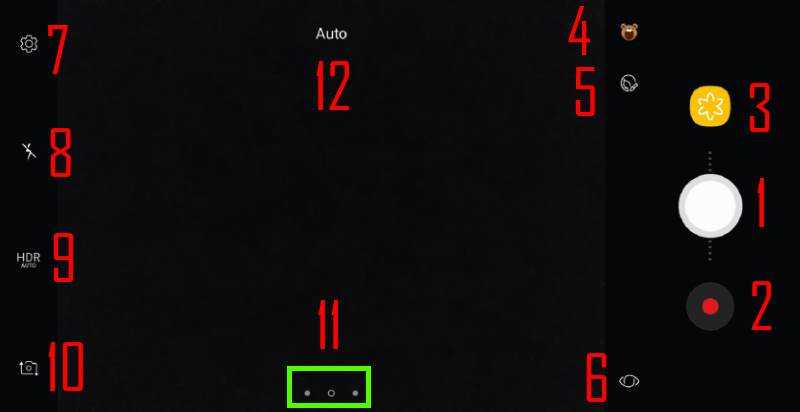
Galaxy S8 camera app preview screen

When you launch Galaxy S8 camera app in Galaxy S8 or S8+, you will first get the Galaxy S8 camera preview screen as shown below.

Please note, you can use Galaxy S8 camera quick launch to get this interface directly without tapping the camera app icon.

Galaxy S8 camera preview screen is the centralized interface for using the camera in Galaxy S8 and Galaxy S8+.

1.  Shutter button

Tap the shutter button (marked as 1 in the screenshot below) to take a picture.

Please note, in Galaxy S8 camera, you can also enable a floating shutter button in addition to this fixed button.

You can also slide (right and left)  the shutter button to zoom in and out.

2. Video recording button

You can start to record a video by tapping the video recording button (marked as 2 in the screenshot below)

Once the recording starts, you can pause or stop.

You can also take photos when recording.

3. Gallery shortcut button

You can access Gallery app directly by tapping this Gallery app shortcut button (marked as 3 in the screenshot below).

By default, the thumbnail of the latest photo will be shown in the preview screen.

Galaxy S8 camera app preview screen

4. Animated filters button

Galaxy S8 camera app allows you to choose from 34 stickers and 50 stamps for your … Read the rest

Filed Under: Galaxy S8 camera guides, Galaxy S8 How-to Guides Tagged With: Bixby button, Bixby vision, Galaxy S8 animated filters, Galaxy S8 buttons, Galaxy S8 camera, Galaxy S8 camera app, Galaxy S8 camera app gestures, Galaxy S8 camera effects, Galaxy S8 camera flash, Galaxy S8 camera modes, Galaxy S8 camera settings, Galaxy S8 camera shutter button, Galaxy S8 camera stickers, Galaxy S8 camera timer, Galaxy S8 floating camera button, Galaxy S8 front camera, Galaxy S8 rear camera, galaxy s8 specs, Galaxy S8 video recording, HDR, new features of Galaxy S8

Primary Sidebar

Follow Us

  • YouTube
  • Facebook

RSS Galaxy S23 Guides

  • Explanation of all One UI 6.1 features for Galaxy S23, S23+, S23 Ultra, and other Galaxy devices
  • How to use One-Tap Editing in the Android 14 (One UI 6) update?
  • How to enable and use Auto Scan to scan documents automatically on Galaxy S23, S22, and S21?
  • New camera features in One UI 6 (Android 14) update for Galaxy S23, S22, and S21
  • Galaxy S23 User Manual in American English with Android 14 (One UI 6) Update
  • Galaxy S23 User Manual in British English with Android 14 (One UI 6) update
  • How to Use the Drag and Drop with Two Hands Gesture on Galaxy S23, S22, and S21 with Android 14 (One UI 6) update?
  • How to create and use custom stickers on Galaxy S23, S22, S21, and S20?
  • How to use Image Clipper on Galaxy S23, S22, and S21 with Android 14 update (One UI 6)?
  • How to Enable and Use Quick Settings Instant Access on Galaxy S23, S22, and S21 with Android 14 Update?

RSS Galaxy S22 Guides

  • A Complete Guide for Android 14 (One UI 6) Update on Samsung Galaxy Devices
  • How to touch and hold to customize Lock Screen on Galaxy S22, S21, and S20 with the Android 13 update?
  • How to use Maintenance Mode on Galaxy S23, S22, S21, and S20 with Android 13 (One UI 5)?
  • How to extract text from photos and images on Galaxy S22, S21, and S20?
  • A complete list of the new features of One UI 5.1 update for Galaxy S22, S21, and S20
  • How to use multiwindow on Galaxy S22, S21, and S20?
  • How to Use the Help Icon and Histogram for Pro Camera Mode in Android 13 (One UI 5) Update for Galaxy S22, S21, and S20?
  • How to customize the call background on Galaxy S23, S22, S21, and S20 with the Android 13 update (One UI 5)?
  • How to Automatically Add and Customize Watermarks on Photos on Galaxy S22, S21, or S20 with the Android 13 update (One UI 5)?
  • The Definite Guide to Stack Widgets in One UI 5 on Galaxy S23, S22, S21, and S20

RSS Samsung Galaxy S21 Guides

  • Top 12 new features in Android 12 update for Galaxy S21, S20 and S10
  • Android 12 update vs One UI 4.0 vs One UI 4.1: update Galaxy S21, S20 and S10 to Android 12
  • How to set and resize photo size on Samsung Galaxy S21, S20, S10, and S9 without using any third-party apps?
  • How to Customize Galaxy S21 Home Screen?
  • Master Galaxy S21 Lock Screen Settings

RSS Galaxy S20 Guides

  • The End of the Road: No Android 14 Update for the Galaxy S20
  • How to Use Enhanced Processing on Galaxy S20 with Android 11 update?
  • How to access, use, and customise widgets on Galaxy S20 lock screen and AOD screen with Android 11 update for Galaxy S20?
  • How to update Galaxy S20 to Android 11?
  • How to use Galaxy S20 lockdown mode?
  • Top 11 new features in Galaxy S20 Android 11 update

RSS Galaxy S10 Guides

  • End of security update for Galaxy S10, S10+ and S10e
  • Top 10 new features in Android 10 update for Galaxy S10
  • Top 5 new features added in Galaxy S10 September Update
  • How to move apps to the micro SD card to free phone storage on Galaxy S10 ?
  • Galaxy S10 wireless charging guide

RSS Galaxy S9 Guides

  • How to use Bixby quick commands on Galaxy S9, S9+, S8, S8+, Note 8, and Note 9 with the Android Pie update?
  • How to remap Bixby button on Galaxy S9 and S9+ after updating to Android Pie?
  • How to use the updated camera app in Android Pie update for Galaxy S9 and S9 Plus?
  • How to use the rotation toggle to change and lock screen orientation in Android Pie update for Galaxy S9 and S9 Plus?
  • How to lock Galaxy S9 home screen layout on Galaxy S9 and S9+ with Android Pie update?
  • How to use the floating keyboard on Galaxy S9 and S9+ with Android Pie update?

RSS Galaxy S7 Guides

  • How to use Galaxy S7 multi window new features in Android Nougat udpate for Galaxy S7 and Galaxy S7 edge?
  • How to customize Galaxy S7 quick setting buttons after Android Nougat update?
  • Galaxy S7 performance mode in Android Nougat update for Galaxy S7 and Galaxy S7 edge
  • Top 7 new features in Android Nougat update for Galaxy S7 and Galaxy S7 edge

RSS Google Home guides

  • How to Use Quick Gestures on Nest Hub 2nd Gen and Nest Hub Max?
  • Understand the layout of Nest Hub (including Nest Hub 2nd Gen, Google Home Hub)
  • How to control Nest Audio?
  • Nest Audio Guides
  • Layout of Google Nest Mini (Google Home Mini 2nd Gen)
  • How to connect Google Home to a Bluetooth speaker?
  • Meaning of Google Home Mini LED lights and Google Home Max LED lights
  • Google Home Mini Guides
  • Google Home Mini layout and buttons
  • Google Home layout and buttons

RSS Android Guides

  • A Complete Guide to Android ADB Wireless Debugging
  • Android 16: the definitive guide on new features and changes
  • Master Android 15 Easter Egg Game: Landroid
  • New Features and Improvements of Android 15
  • Top 14 new features of Android 14

RSS Chromecast Guides

  • How to enable developer options in Chromecast with Google TV and Google TV Streamer?
  • Meaning of LED light on voice remote for Chromecast with Google TV and Google TV Streamer
  • What’s new in Chromecast 2018 (3rd gen of Chromecast)?
  • How to use VLC media player on PC to stream music and video to Chromecast and Chromecast Audio?

RSS Drive In Singapore

  • Singapore ERP (Electronic Road Pricing): 6 Facts You Need to Know
  • Car Insurance in Singapore Explained
  • Top 5 rules of driving in Singapore safely and legally during COVID-19 Circuit Breaker period
  • Understand COE Price by 10 Simple Questions
  • How to convert a foreign driving license to a Singapore driving license?
  • How to get a Touch ‘n Go card as a Singapore driver?
  • What is covered in the car warranty in Singapore? What is not?
  • What is the Singapore Road Speed Limit?
  • How to register, collect and use Malaysia Vehicle Entry Permit (VEP)?
  • Why are cars in Singapore so expensive?

RSS Galaxy Note Tips & Tricks

  • Top 11 disappointments of Galaxy Note 20 and Galaxy Note 20 Ultra
  • How to use the Dynamic Lock screen on Galaxy Note 10?
  • Galaxy Note 10 LED View Cover Guide and Review
  • Install S Note app and Extension pack on Galaxy Note 10
  • How to Use Galaxy Note 10 Camera App?

RSS Headphone Guides

  • Bone Conduction Audio Technology: A Technical Breakdown
  • Science And Architecture of Bluetooth Auracast
  • Bluetooth LE Audio and the LC3 Codec: A Technical Deep Dive
  • The Physics and Engineering of Super Wide Band (SWB) Voice
  • True Wireless Stereo (TWS) Explained
  • The Complete Technical Guide to the Galaxy Buds 4 & Buds 4 Pro
  • The Right Fit of Galaxy Buds 4 — User Personas & Recommendations
  • Galaxy Buds 4 as an AI Earbud — Tips, Tricks, and Galaxy AI
  • AirPods Pro 3: The Complete Technical Guide and Long-Term Review
  • The Flagship Face-off: Galaxy Buds 4 Pro vs. AirPods Pro 3, Sony WF-1000XM6, and Bose QC Ultra Earbuds II

© 2015–2026 · GadgetGuideOnline.com is an online community for Gadget Owners! · Hosted by PTRHosting · Powered by Genesis framework for WordPress
Samsung Galaxy S8 guide, user manuals and tutorials for Samsung Galaxy S8 and S8 Plus! Everything about how to use Samsung Galaxy S8 and Galaxy S8+.
Disclaimer: Samsung, Galaxy, Galaxy S8, and Galaxy S8+ are trademarks of Samsung. Android is a trademark of Google. This website is NOT affiliated with Samsung or Google in any way. All the information provided on this website is provided on an "as is" and "as available" basis and you agree that you use such information entirely at your own risk.

We use cookies to ensure that we give you the best experience on our website. If you continue to use this site we will assume that you are happy with it.