 Samsung Galaxy S6 (and S6 edge) is a good, but not great smartphone.
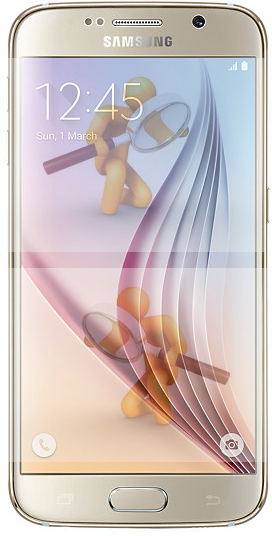 Samsung Galaxy S6 (and S6 edge) is a good, but not great smartphone.
Samsung Galaxy S6 and Galaxy S6 edge are the most beautiful smartphone Samsung has ever designed and manufactured.
The unibody metal design with Corning Gorilla Glass 4 in the back and front makes it standing out among 2015 flagship smartphones.
The curved edge screen in S6 edge makes it very unique, although some may complain on the usability and reduced strength due to the edge screens.
Samsung Galaxy S6 also boosts the performance through their own Exynos SoC, and new storage technology.
The camera in Galaxy S6 is fast and can take decent photos in auto mode.
But if you check the phone carefully, you will easily find the many Samsung Galaxy S6 defects that prevent it from being a great smartphone.
In this post, I share with you the top 6 Samsung Galaxy S6 defects based on my knowledge and hands-on experience.
Samsung Galaxy S6 defects #1: non-removable battery
I would list this as the No.1 Samsung Galaxy S6 defect.
I know many may disagree.
iPhone never has a removable battery.
HTC does not offer removable battery in recent years.
Recent Nexus devices do not have removable battery. T
he list can be very long.
Removable battery still matters for Samsung Galaxy S6 for those:
- who use the phone heavily. This means the battery very likely must be replaced within about one year. Samsung is not Apple: 1). there is no universal and transparent pricing for replacing the battery. Some Galaxy S6 owners may pay several times higher price for replacing it than someone in other regions; and 2). Samsung has so many models of smartphone that they technicians are often confusing on the models. This means the stock can be an issue. and 3). in some regions, Samsung relies on distributors and subcontractors who only care about immediate profit and are not interested in stock batteries for “old models” when Galaxy Note 5 or Galaxy S7 comes out..
- who want to pass the phone to kids after one or two years. Battery shelf life (3-4 years maximum) is the hard limit, even you are not a heavy user. You will face the same problems when you need replace the battery.
- who lives in a region with limited access to official Samsung service center. In some regions, as mentioned, the distributors and contractors have no incentive to stock batteries or train new staff for previous generation phones.
In current smartphone market, only Apple is successful with non-removable battery due to its extensive service network.
Nexus users are feeling the pain (except Nexus 6 users) now or have to throw away the device already. HTC still has no idea why their sales are not proportional to positive reviews.
Samsung and LG used to be the two major smartphone manufactures that give owners the removable battery. And sometimes, this can be a deciding factor for conscious buyers.
Now Samsung decides to use a non-removable battery for Galaxy S6, and S6 edge.
LG is probably a better choice if removable battery matters for you.
Samsung Galaxy S6 defects #2: No USB 3
When Samsung removed USB 3.0 from Galaxy Note 4, I considered lacking of USB 3.0 is a No.1 defect (see this post) of Galaxy Note 4. Both of the previous generation of Note 4 and S6, Galaxy Note 3 and Galaxy S5, have US 3.0 support.
Some owners do not understand why USB 3.0 is important for a smartphone, because most users never connect the phone to the PC and transfer large quantity of files.
If you have thousands of photos to be copied to a PC, or you want to copy a few Gigs movie files for your next trip, you will understand the importance of USB 3.0. With USB 2.0, very frequently, you will get timeout errors and have to transfer again and again.
You may not need USB 3.0 very often. But when you need it, you will feel the pain with USB 2.0.
The only drawback of USB 3.0 is the port size is almost doubled compared to USB 2.0. And USB 3.,0 cable is usually a few percentage more expensive than USB 2.0’s. You can actually use USB 2.0 cables for USB 3.0 port.
Apparently, Samsung decides to cater Samsung Galaxy S6 (and S6 edge) for mass market and believes only a few owners need USB 3,0. They are probably correct. But for some, this can be a big disappointment, and a defect of Galaxy S6.
There are no other well-known smartphone vendors support USB 3.0 yet. So, if you are looking for a smartphone with USB 3.0 support, forget it now.
Samsung Galaxy S6 defects #3: no water resistant
Galaxy S5 is IP67 certified dust and water resistant. This is one of the most welcomed features in Galaxy S5 as explained in this post, although it is not on a par with Sony’s waterproof Xperia phones.
Nowadays, smartphone owners, especially young owners, do not take much care of the phone. Spilling coffees over phones is not news.
Unfortunately, Samsung Galaxy S6 is not water resistant, although the back cover is non-removable (by owner).
Lacking water resistant is obviously one of the Samsung Galaxy S6 defects. Samsung will add water resistant only after iPhone get it.
If you are looking for a smartphone with water resistant, Sony Xperia series should be your choice.
Samsung Galaxy S6 active? Not worth the wait.
Samsung Galaxy S6 defects #4: TouchWiz is still TouchWiz
Samsung is criticized for packing too many useless, half-baked features in the TouchWiz. Galaxy S4 is the milestone of how a phone can be bloated with useless features.
Although Galaxy S4 sold well thanks for Samsung’s deep pocket in marketing, customers started to lose confidence (and patience) on Galaxy phones.
Galaxy S5 is actually a great phone except the camera. But consumers have the perception that Galaxy phones are lagging, bloated and plastic.
Samsung tried hard to re-brand its Galaxy S phones with “premium” materials, iPhone-like (with a bit HTC One elements) design, and a “new” TouchWiz.
If you are a long-term Samsung Galaxy phone user, you will notice the new TouchWiz is less bloated, but:
- many useful features (together with useless features) are removed. For example, in Galaxy S6 app screen or home screen, you cannot cycle though panels. In Galaxy App screen (app drawer), you cannot sort apps.
- quick settings panel is worse than vanilla Android Lollipop, and looks ugly. If you cannot improve it, then you should not change it.
- TouchWiz is still a resource hogger.
Samsung Galaxy S6 defects #5: non-genuine Android Lollipop
Samsung Galaxy S6 or S6 edge comes with Android 5.0.2 (Android Lollipop).
But this is a less sweet Lollipop. Samsung Galaxy S6 and Galaxy S6 edge gives owners a non-genuine Android Lollipop.
Some excellent Android Lollipop features were removed in Samsung Galaxy S6 and Galaxy S6 edge. This is surely a Samsung Galaxy S6 defect.
Here are just a few examples:
- no guest user support. Android Lollipop offers guest user mode and multiple users in smartphones. This makes device sharing easier and safer. But you cannot find these features in Galaxy S6 or S6 edge.
- no multiple user support.
- messed notification and interruption system. Although Android Lollipop notification and interruption system received some negative feedback, it is still the best notification system compared to iOS, Windows phone. In Samsung Galaxy S6, Samsung implemented a hybrid of new notification system and the old one. It simply makes more confusions.
Anyway, non-genuine Android Lollipop is another Samsung Galaxy S6 defect.
If you want to try “genuine” Android Lollipop, you ma consider Nexus 6 or Moto X, or even Moto G.
Samsung Galaxy S6 defects #6: too many options = you cannot get what you want
Because Samsung removed SD card support for Galaxy S6 and Galaxy S6 edge, they offer 3 storage options: 32GB, 64GB and 128GB, for Galaxy S6 and Galaxy S6 edge.
If we consider the 3-color (more is on the way) options. So, you may have 18 options (3 colors* 3 storage size *2 variants) for your Galaxy S6 purchase.
It sounds great. iPhone has been very successful in similar configurations.
But Samsung is NOT Apple. Apple has a tight control of the distribution channel.
In some regions, Samsung still relies on distributors who definitely have no interest to carry 18 inventories for one product. So, it is not strange, some buyers actual have only one or two options.
What do you think about the Samsung Galaxy S6 defects?
Please leave your comments and thoughts in the comment box below.
For other features of Galaxy S6, please check Galaxy S6 online manual page.
For detailed guides on how to use Samsung Galaxy S6, please check Galaxy S6 how-to guides page.

Mike Donahoe says
For me the biggest drawback is the battery issue. The battery drains fast and with no way of changing it out, the phone is on a charger more than I would like. The other issues I understand, but I don’t use the phone for much other than email, texting and general internet surfing. Yet, just for those things, the battery drains way to fast for me. I’ve done all the things to cut down on battery drain, but to go any further would mean turning things off that I like about the phone.
simon says
What is the screen time you can get?
The battery capacity in Galaxy S6 is relatively small. But it should be able to last one day for moderate usage (3-5 hours screen time).
-- Our Facebook page || Galaxy S6 Guides || Galaxy S7 Guides || Android Guides || Galaxy S8 Guides || Galaxy S9 Guides || Google Home Guides || Headphone Guides || Galaxy Note Guides || Fire tablet guide || Moto G Guides || Chromecast Guides || Moto E Guides || Galaxy S10 Guides || Galaxy S20 Guides || Samsung Galaxy S21 Guides || Samsung Galaxy S22 Guides || Samsung Galaxy S23 Guides
Mike Donahoe says
Hi Simon, I have only had the phone a few days but not used to seeing the battery percentage drop as quickly as this. From 100% at 7:00 am to 90% by 8:15 am after one call for 5 minutes, checking email and one text. Seems I can watch the percentage drop every few minutes while I’m using the phone. I’m thankful for the quick charge and hopefully a mophie juice case will help. I’ve charged the phone twice during the day to get it out of the 70% range. Any ideas? Thanks.
simon says
In Settings–Battery, tap battery usage to get a bit details. Probably the battery drain is due to some background apps/processes.
-- Our Facebook page || Galaxy S6 Guides || Galaxy S7 Guides || Android Guides || Galaxy S8 Guides || Galaxy S9 Guides || Google Home Guides || Headphone Guides || Galaxy Note Guides || Fire tablet guide || Moto G Guides || Chromecast Guides || Moto E Guides || Galaxy S10 Guides || Galaxy S20 Guides || Samsung Galaxy S21 Guides || Samsung Galaxy S22 Guides || Samsung Galaxy S23 Guides
Mike Donahoe says
Thank you, I will do that and see what I find.
Prince says
why is that S6 is compared to Apple and people forget how much apple is a defective piece, in apple:- cannot send or share files or photos or videos with another manufacturer, we cannot save word attachments, we cannot transfer files from a computer, battery is a very very major issue, we cannot customize, we cannot save out games into another mobile, we cannot send mp3 files using any social chat applications, what not apple is defective of and still people buy, so samsung S6 also people are buying seeing its better than apple… Guys i know all this becos im using IP6.
simon says
For iPhone, the owners compare new iPhones to old generations. So, they are always happy to get a new one.
For Android, we compare new phone against old generations as well. But we also compare offers from various manufacturers. If one does not like Galaxy S6, he may choose LG G4 (for example, for removable battery), or Sony’s (for example, for water-proof..), or Nexus 6 (if 6″ is the perfect size), or Moto X (if customization is a requirement)….
-- Our Facebook page || Galaxy S6 Guides || Galaxy S7 Guides || Android Guides || Galaxy S8 Guides || Galaxy S9 Guides || Google Home Guides || Headphone Guides || Galaxy Note Guides || Fire tablet guide || Moto G Guides || Chromecast Guides || Moto E Guides || Galaxy S10 Guides || Galaxy S20 Guides || Samsung Galaxy S21 Guides || Samsung Galaxy S22 Guides || Samsung Galaxy S23 Guides
Gregg says
Has anyone noticed that the phone signal strength is weaker than other phones? I just upgraded from Verizon HTC Thunderbolt (great phone btw) to the S6 and the bars displayed are always a bar or two lower that the Thunderbolt had and I now have people telling me the phone signal is breaking up when I never had that problem making calls with the HTC.
simon says
The bar can be misleading. You can check the actual signal in Settings–about device –Signal strength
-- Our Facebook page || Galaxy S6 Guides || Galaxy S7 Guides || Android Guides || Galaxy S8 Guides || Galaxy S9 Guides || Google Home Guides || Headphone Guides || Galaxy Note Guides || Fire tablet guide || Moto G Guides || Chromecast Guides || Moto E Guides || Galaxy S10 Guides || Galaxy S20 Guides || Samsung Galaxy S21 Guides || Samsung Galaxy S22 Guides || Samsung Galaxy S23 Guides
Gregg says
Simon, thanks for the reply. What would be an acceptable signal strength arrange? My current reading is -101dbm / 36asu.
BARBARA FLETCHER says
Not only is the signal strength not as strong, I also completely lose my data Network constantly! Also, I don’t know if it’s just me… But I cannot be on the phone and use my internet at the same time…. Would that be a thing with the s6 phone or is it something I’m doing wrong?
simon says
For mobile network signal, you can check it in settings – about the phone – status.
-- Our Facebook page || Galaxy S6 Guides || Galaxy S7 Guides || Android Guides || Galaxy S8 Guides || Galaxy S9 Guides || Google Home Guides || Headphone Guides || Galaxy Note Guides || Fire tablet guide || Moto G Guides || Chromecast Guides || Moto E Guides || Galaxy S10 Guides || Galaxy S20 Guides || Samsung Galaxy S21 Guides || Samsung Galaxy S22 Guides || Samsung Galaxy S23 Guides
Gregg says
you should be able to use the phone and internet at the same time but if the signal is very bad then you will no longer be on the 4G network and therefore not be able to do both things. Check if you are on 4G, 3G or 1x, if its 1x then you’re stuff doing one thing at a time.
ShenKumar says
Am using Samsung Galaxy Grand Prime But I don’t find guest user mode after lollipop update.
simon says
Samsung did not enable multi user mode (including guest user mode) on any of their phones.
-- Our Facebook page || Galaxy S6 Guides || Galaxy S7 Guides || Android Guides || Galaxy S8 Guides || Galaxy S9 Guides || Google Home Guides || Headphone Guides || Galaxy Note Guides || Fire tablet guide || Moto G Guides || Chromecast Guides || Moto E Guides || Galaxy S10 Guides || Galaxy S20 Guides || Samsung Galaxy S21 Guides || Samsung Galaxy S22 Guides || Samsung Galaxy S23 Guides
Skype: Captain.Techlord | Instagram: TechLord.777 says
We are Power users! We need features! We do not care about design! The S6 was a fail. But it also has it’s own advantages, e.g. Slow Motion with Audio and Torch Flashlight in quick toggles in drop down menu.
Lebo says
Hi Simon
My Galaxy Edge S6 just died. I thought it was battery but I remembered that it was still on 70% so I put it on the charger thinking it could be battery. The screen is blank, there’s a red light on top right hand corner but nothing is happening. Tried to switch it on but there is no response, BLANK, BLANK, BLANK.
PLEASE HELP!
simon says
You may try methods in this guide.
-- Our Facebook page || Galaxy S6 Guides || Galaxy S7 Guides || Android Guides || Galaxy S8 Guides || Galaxy S9 Guides || Google Home Guides || Headphone Guides || Galaxy Note Guides || Fire tablet guide || Moto G Guides || Chromecast Guides || Moto E Guides || Galaxy S10 Guides || Galaxy S20 Guides || Samsung Galaxy S21 Guides || Samsung Galaxy S22 Guides || Samsung Galaxy S23 Guides