Default SIM cards (aka preferred SIM cards) for calls, SMS messages and mobile data will be set up automatically to SIM card 1 by default in dual SIM Android phones. You may want to change the default SIM card for each task individually.
This Android guide explains how default SIM card works, and how to assign and use default SIM cards in dual SIM Android phones.
What is the default SIM card for calls, messages and mobile data in dual SIM Android phones?
When you insert two SIM cards into a dual standby Android phone, by default, the phone will use SIM card 1 as default SIM card for calls, texts and mobile data.
So, the default SIM card, or preferred SIM card, will be used for calls and messages, unless you specify a SIM card explicitly for a call or for a message.
For mobile data, you can use one and only one SIM card for it. But you need to specify the SIM card to be used for mobile data.
The default SIM card for calls can be different from that for messages or for mobile data.
The three default SIM card settings are independent to each other. In other words, the default SIM card for calls can be different from that for text messages.
Some Android vendors (e.g., Samsung) offer two SIM card buttons in phone app and messages app. So, you can use them before placing the call. This would overwrite the default SIM card settings.
But in stock Android, the Phone app does not have such buttons for you to choose SIM card. You have to set up the default one.
If you want to make both SIM cards always available at all times in a dual SIM dual standby Android phone, please check this guide.
How to assign default SIM card for calls, messages and mobile data in dual SIM Android phones?
As mentioned earlier, by default, the dual SIM Android phone will assign the SIM card in SIM card slot 1 as the default SIM card for all: calls, text messages and mobile data.
This may be not what you want.
For example, a lot of dual SIM phone owners use one SIM card for mobile data and the other for calls and messages.
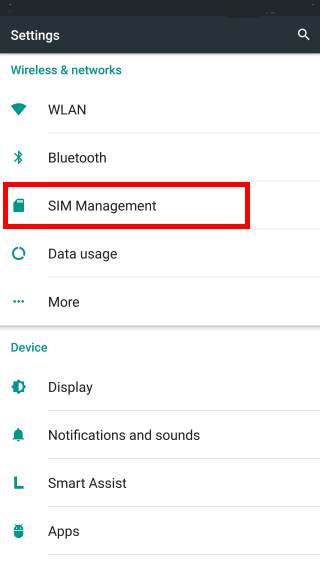
To set up default SIM card for calls, messages and mobile data in a dual standby phone, you may open Settings app first.
In Setting, as shown below, tap SIM management.
In SIM management page, you can find at least two categories as shown below:
- SIM management.
- Preferred SIM for mobile data, calls and SMS messages.
These settings are available in all dual SIM Android phones. You many find some other additional settings added by the phone manufacturers.
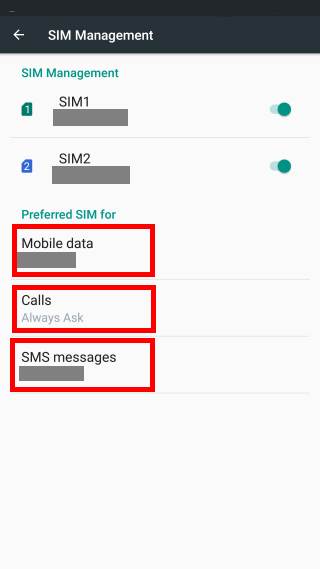
Under SIM card management, you can
- enable and disable individual SIM card. You can temporally disable and enable any of the SIM cards.
- enter phone number for the corresponding SIM card. The phone number entered actually is just for your reference only.
- set color for each SIM card.
Please note, if you disabled the default SIM card, the system will NOT change your default SIM card to the other one. You have to assign it manually.
Under Preferred SIM for mobile data, calls and SMS messages, you can set the default SIM card for the corresponding features.
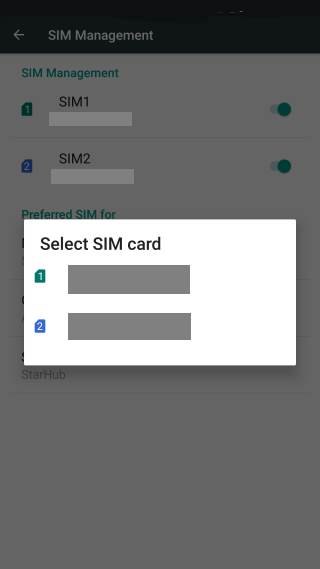
As mentioned earlier, you MUST assign one and only one SIM card for mobile data. If you do not want to use mobile data, you need to disable mobile data in Settings— Data usage to disable mobile data for the system. In almost all Android phones, you can also find the mobile data button in quick settings shade. You can enable and disable mobile data there.
For SMS text messages, in stock Android, you also must specify one SIM card as shown below.
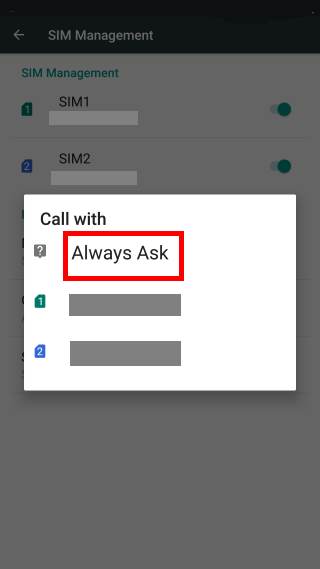
However, for voice calls, in addition to two SIM cards, you have one additional option of “Always ask” to be used as default SIM card for calls as shown below.
If you choose always ask, you will be promoted to choose a SIM card before the outgoing call is placed.
How to use default SIM cards for calls, messages and mobile data in dual SIM Android phones?
The default SIM card for mobile data can only be changed manually. There is no quick switch or switch on-the-fly.
You need to disable mobile data in system settings, not SIM card settings, if you want to halt/pause mobile data usage.
Phone app in most dual SIM Android phones does not have SIM card options. In this case, the default SIM card settings will used.
If you chose Always ask as the preferred SIM card for calls, you have to choose the SIM card whenever you make calls.
Some Android vendors may offer additional options.
For text messages, it is a bit complicated.
As shown earlier, for text messages, you have to choose one of the SIM card as the default SIM card for SMS messages. You do not have the “Always ask” option for preferred SIM card for SMS.
Stock Android has such an arrangement because the stock Android Messages app has the option to specify SIM card for the outgoing text messages.
When you reply a text message, the SIM card will be chosen based on the origin of the original message. If it is to SIM card 2, SIM card 2 will be chosen automatically (you can manually change it if you want. Read on.) even if SIM card 1 was set as the preferred SIM card for SMS messages.
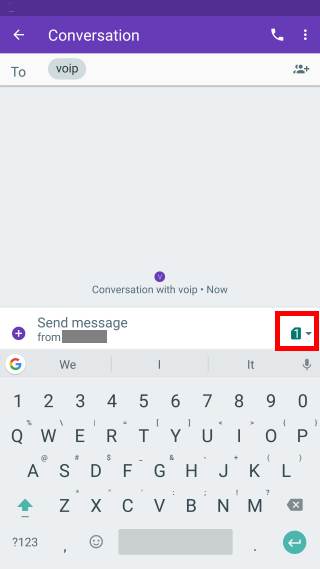
When you start a new text message, the default SIM card will be chosen as shown below.
In this example, it is SIM card 1.
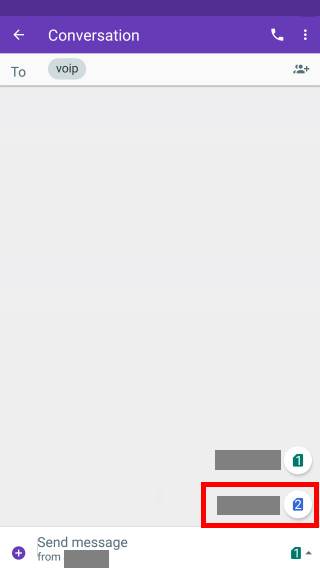
Before typing your message, you can tap SIM card 1 icon to see the options of choose SIM cards as shown below.
For example, you can tap SIM card 2 to use SIM card 2 to send out this message.
In stock Android, you can only select SIM card for a new outgoing text messages:
- after select or type recipient; and
- before tying the message.
This will overwrite the preferred SIM card for text messages.
Can you set and use default SIM card for calls, messages and mobile data in dual SIM Android phones now?
If you have any questions or encounter any issues with the default SIM cards (preferred SIM cards) for calls, SMS messages and mobile data, please let us know in the comment box below.
For questions on Android Nougat (Android 7.0 and 7.1), please check Android Nougat guides page.
For questions on Android Marshmallow (Android 6.0), please check Android Marshmallow guide page.
For question on Android Lollipop (Android 5.0 and 5.1), please check Android Lollipop guide page.
For other Android questions or problems, please check Android 101 page.

Gopichand Akkineni says
Hi,
I’m using Lenovo K8 note and i guess it is stock android. Is it possible to receive messages at a time from both the SIM’s. As of now i haven’t got an option to choose to both SIM’s and not receiving SMS’s from both SIM’s.
simon says
You can always receive SMS for both sim cards if the sim cards are recognized. If you can make calls but cannot receive SMS with one sim card, you can try to send a SMS through it to see whether you have the wrong messaging settings (messaging center) for it.
What’s exactly the problem that you encountered?
Our Facebook page || Galaxy S6 Guides || Galaxy S7 Guides || Android Guides || Galaxy S8 Guides || Galaxy S9 Guides || Google Home Guides || Headphone Guides || Galaxy Note Guides || Fire tablet guide || Moto G Guides || Chromecast Guides || Moto E Guides || Galaxy S10 Guides || Galaxy S20 Guides || Samsung Galaxy S21 Guides || Samsung Galaxy S22 Guides || Samsung Galaxy S23 Guides
Neeta Mathur says
Im unable to send and receive SMS on my default sim
Neeta Mathur says
Im unable to send and receive SMS on my default sim on my Samsung galaxt6note 9.
simon says
Can you make calls? You should test the sim card using one SIM card only. The problem was usually caused by message center settings in the sim card. You should contact your phone company. They will usually send you the correct settings through a special message. You just need to apply it.
Our Facebook page || Galaxy S6 Guides || Galaxy S7 Guides || Android Guides || Galaxy S8 Guides || Galaxy S9 Guides || Google Home Guides || Headphone Guides || Galaxy Note Guides || Fire tablet guide || Moto G Guides || Chromecast Guides || Moto E Guides || Galaxy S10 Guides || Galaxy S20 Guides || Samsung Galaxy S21 Guides || Samsung Galaxy S22 Guides || Samsung Galaxy S23 Guides
Dr. George Kuenzli says
In my SAMSUNG Galaxy J3a, I wish to allocate SIM2 to a new SMS address recipient. This person has not yet sent me a SMS, and I cannot allocate SIM2. Whatever I try, my cellphone wants to send the SMS using SIM1. However, SIM1 is not able to send the SMS, the recipient being in the Philippines.
Is there a way to do this that even I, as a 75year old can understand?.
simon says
1. In messaging app, there are two buttons for sending, one for sim card 1; the other for sim card 2. So you can decide to use which sim card for each text message.
2. You can set sim card 2 as the preferred (default) sim card for messages in Settlings – SIM card manager.
You may check this guide (for Samsung phones) https://gadgetguideonline.com/s9/how-to-use-two-sim-cards-on-galaxy-s9-and-s9/
Our Facebook page || Galaxy S6 Guides || Galaxy S7 Guides || Android Guides || Galaxy S8 Guides || Galaxy S9 Guides || Google Home Guides || Headphone Guides || Galaxy Note Guides || Fire tablet guide || Moto G Guides || Chromecast Guides || Moto E Guides || Galaxy S10 Guides || Galaxy S20 Guides || Samsung Galaxy S21 Guides || Samsung Galaxy S22 Guides || Samsung Galaxy S23 Guides
Elizabeth says
Hi
My phone has dual sim .when I need to write a message it becomes difficult. Even writing a new message also its a problem. When I tap the app messages it doest open .what will I do.
simon says
Is the problem related to dual SIM? It seems not. Can you open other apps? Can you open phone app?
Our Facebook page || Galaxy S6 Guides || Galaxy S7 Guides || Android Guides || Galaxy S8 Guides || Galaxy S9 Guides || Google Home Guides || Headphone Guides || Galaxy Note Guides || Fire tablet guide || Moto G Guides || Chromecast Guides || Moto E Guides || Galaxy S10 Guides || Galaxy S20 Guides || Samsung Galaxy S21 Guides || Samsung Galaxy S22 Guides || Samsung Galaxy S23 Guides
hanzla says
my phone will not show this option in prefferd sim
sms messages
simon says
In the messages app, do you have two send buttons?
Our Facebook page || Galaxy S6 Guides || Galaxy S7 Guides || Android Guides || Galaxy S8 Guides || Galaxy S9 Guides || Google Home Guides || Headphone Guides || Galaxy Note Guides || Fire tablet guide || Moto G Guides || Chromecast Guides || Moto E Guides || Galaxy S10 Guides || Galaxy S20 Guides || Samsung Galaxy S21 Guides || Samsung Galaxy S22 Guides || Samsung Galaxy S23 Guides
Priyanka says
my phone doesnt show on which sim it has received any msg or on which sim it has received call in call log.
No numbers like (1 or 2 indicating sim card) is visible. How do i enable this setting?
simon says
It depends on the phone manufacturer. But normally, there are different icons to indicate the SIM card associated with the messages or calls.
Our Facebook page || Galaxy S6 Guides || Galaxy S7 Guides || Android Guides || Galaxy S8 Guides || Galaxy S9 Guides || Google Home Guides || Headphone Guides || Galaxy Note Guides || Fire tablet guide || Moto G Guides || Chromecast Guides || Moto E Guides || Galaxy S10 Guides || Galaxy S20 Guides || Samsung Galaxy S21 Guides || Samsung Galaxy S22 Guides || Samsung Galaxy S23 Guides
Sebastien says
Hello,
I have a problem of preferred SIM card with MOTO G6 Play model (i’m not alone with this problem).
I ‘ve got 2 SIM (SIM 1 is personnal and SIM 2 is professionnal).
I want to use SIM 1 as preferred to send SMS. It’s well configured in settings.
BUT, when i write a new SMS, it is SIM 2 (pro) used!!!! Tried on another MOTO G6 Play and same problem. I need to select SIM 1 all the time in SMS written because it doesn’t select automaticaly SIM 2 as selected in parameters. All softwares updates and system are ok!
Could you help me please?
Thank you very much
simon says
Not sure about the issue. It can be caused by some “smart” settings. If you send the SMS to contact A with SIM card 1, next time, Moto phone will by default use this SIM card for SMS to this contact. Did you try it?
Anyway, phone calls and mobile data should follow your settings. For SMS, you probably have to choose the SIM card if the settings do not work as expected.
Our Facebook page || Galaxy S6 Guides || Galaxy S7 Guides || Android Guides || Galaxy S8 Guides || Galaxy S9 Guides || Google Home Guides || Headphone Guides || Galaxy Note Guides || Fire tablet guide || Moto G Guides || Chromecast Guides || Moto E Guides || Galaxy S10 Guides || Galaxy S20 Guides || Samsung Galaxy S21 Guides || Samsung Galaxy S22 Guides || Samsung Galaxy S23 Guides
Sebastien says
Hello,
Yes i tried and it is functionnal but when i did it for each contact. So, by default, it doesn’t use default SIM card configured.
I don’t understand why it use another SIM than this configured by default. Even if i invert position, it use by default “Pro” card and not “Perso” card.
Is it a bug or is it normal (maybe because “Work mode” is enabled) ?
simon says
Dual SIM settings for SMS may not work as expected.
Yes, the enterprise features may affect dual SIM. Did you try to turn off work profile temporally to see whether it helps?
Our Facebook page || Galaxy S6 Guides || Galaxy S7 Guides || Android Guides || Galaxy S8 Guides || Galaxy S9 Guides || Google Home Guides || Headphone Guides || Galaxy Note Guides || Fire tablet guide || Moto G Guides || Chromecast Guides || Moto E Guides || Galaxy S10 Guides || Galaxy S20 Guides || Samsung Galaxy S21 Guides || Samsung Galaxy S22 Guides || Samsung Galaxy S23 Guides
Sunil Kumar says
Sim card me to messages h unhe show nhi kar raha h
simon says
What’s your question or problem?
Our Facebook page || Galaxy S6 Guides || Galaxy S7 Guides || Android Guides || Galaxy S8 Guides || Galaxy S9 Guides || Google Home Guides || Headphone Guides || Galaxy Note Guides || Fire tablet guide || Moto G Guides || Chromecast Guides || Moto E Guides || Galaxy S10 Guides || Galaxy S20 Guides || Samsung Galaxy S21 Guides || Samsung Galaxy S22 Guides || Samsung Galaxy S23 Guides
Tron Van Berg says
Good day… i have s9+ duo and it show two send buttons for each network, i cant find in the settings how to dislay only one send button. My wife has s8+ and it shown only one send button but i cant find procedure how to set to two send buttons.
simon says
In the Phone or messages app, yes, there should always two buttons with each for each SIM when two SIM cards are presented. If there is one button, it means only SIM card was inserted or activated.
Our Facebook page || Galaxy S6 Guides || Galaxy S7 Guides || Android Guides || Galaxy S8 Guides || Galaxy S9 Guides || Google Home Guides || Headphone Guides || Galaxy Note Guides || Fire tablet guide || Moto G Guides || Chromecast Guides || Moto E Guides || Galaxy S10 Guides || Galaxy S20 Guides || Samsung Galaxy S21 Guides || Samsung Galaxy S22 Guides || Samsung Galaxy S23 Guides
vimbai mbofana says
hi, my phone is not an android or iPhone, my phone/ simcard is not calling or texting but I did recharge ang I can receive texts and calls but I cant text or call..please help
simon says
Are you using one or two SIM cards? What happens if you use only one?
Our Facebook page || Galaxy S6 Guides || Galaxy S7 Guides || Android Guides || Galaxy S8 Guides || Galaxy S9 Guides || Google Home Guides || Headphone Guides || Galaxy Note Guides || Fire tablet guide || Moto G Guides || Chromecast Guides || Moto E Guides || Galaxy S10 Guides || Galaxy S20 Guides || Samsung Galaxy S21 Guides || Samsung Galaxy S22 Guides || Samsung Galaxy S23 Guides
Billie Pena says
Hi! I’m using redmi note 9s using globe and dito networks. My problem is that i can call both networks but on my Dito sim i cannot send an sms. I check the messaging center number of my Dito network but the saved smsc was for globe. I always try to change it but it can’t be changed. Pls help me how. Thanks!
simon says
I remember in the message centre settings (SMSC), it should ask you to set SIM 1 and SIM 2 separately. I do not have any Xiaomi devices now to test.
In stock Android 10, the settings were actually directly retrieved from the carrier. It is not necessary to set them manually in the Messages app. Anyway, how did you access the settings in your Redmi Note 9s?
Our Facebook page || Galaxy S6 Guides || Galaxy S7 Guides || Android Guides || Galaxy S8 Guides || Galaxy S9 Guides || Google Home Guides || Headphone Guides || Galaxy Note Guides || Fire tablet guide || Moto G Guides || Chromecast Guides || Moto E Guides || Galaxy S10 Guides || Galaxy S20 Guides || Samsung Galaxy S21 Guides || Samsung Galaxy S22 Guides || Samsung Galaxy S23 Guides
yisroel krausz says
I’ve got an honor x6 and although I can set the default mobile data sim and calling sim, the SMS messages seem to always use the data sim with no option for me to change it. If anyone can help please let me know.
simon says
If you can receive SMS from both numbers, it means it works properly. SMS does not use data. MMS always uses its own “data” for each SIM.
On the old Huiwei phones, you actually have to manually choose a SIM card. Not sure about the new software on Huawei phones. But there should be a button for you to switch the SIM card when sending a new message.
Our Facebook page || Galaxy S6 Guides || Galaxy S7 Guides || Android Guides || Galaxy S8 Guides || Galaxy S9 Guides || Google Home Guides || Headphone Guides || Galaxy Note Guides || Fire tablet guide || Moto G Guides || Chromecast Guides || Moto E Guides || Galaxy S10 Guides || Galaxy S20 Guides || Samsung Galaxy S21 Guides || Samsung Galaxy S22 Guides || Samsung Galaxy S23 Guides
John says
I have a Samsung ultra 22 dual sim.
Data is set to sim2 but gprs (waze) is still pulling data through sim 1.
How do I switch waze gprs to sim 2?
simon says
Do you mean the Waze app?
Our Facebook page || Galaxy S6 Guides || Galaxy S7 Guides || Android Guides || Galaxy S8 Guides || Galaxy S9 Guides || Google Home Guides || Headphone Guides || Galaxy Note Guides || Fire tablet guide || Moto G Guides || Chromecast Guides || Moto E Guides || Galaxy S10 Guides || Galaxy S20 Guides || Samsung Galaxy S21 Guides || Samsung Galaxy S22 Guides || Samsung Galaxy S23 Guides