• Skip to primary navigation
  • Skip to main content
  • Skip to primary sidebar
  • Skip to footer

Galaxy S6 Guide

  • Home
    • About
    • Feedback
  • How-to guides
    • Android Nougat Update Guide for Galaxy S6, Galaxy S6 edge and Galaxy S6 edge+
    • Galaxy S6 Android Marshmallow update guide
      • FAQs on Android Marshmallow update for Galaxy S6
      • Top 10 new features in Android Marshmallow update for Galaxy S6, Galaxy S6 edge and S6 edge+
      • Changes on using fingerprint to unlock Galaxy S6 in Android Marshmallow update for Galaxy S6, S6 edge and S6 edge+
      • Galaxy S6 auto factory reset in Android Marshmallow update
      • Changes on waiting time for wrong input on Galaxy S6 lock screen in Android Marshmallow update
      • How to manage app permissions in Android Marshmallow update for Galaxy S6?
      • How to use new quick settings in Android Marshmallow update for Galaxy S6?
    • Galaxy S6 camera guide
      • Samsung Galaxy S6 camera modes guide
      • How to use Samsung Galaxy S6 camera quick launch?
      • How to download and install additional Galaxy S6 camera modes?
      • How to use Galaxy S6 camera voice control?
      • How to use Galaxy S6 camera gesture control?
      • How to use volume key to control Galaxy S6 camera?
      • How to set Galaxy S6 photo size and video size?
      • How to silence Galaxy S6 camera shutter sound?
      • How to turn on/off picture review for Galaxy S6 camera?
      • How to use Galaxy S6 camera burst mode?
      • Galaxy S6 camera interface
      • Galaxy S6 camera effects guide
      • Where is Galaxy S6 camera night mode?
      • Galaxy S6 camera tracking AF (auto focus) guide
      • Add location tag and remove location tag for photos in Galaxy S6
    • How to use edge screen on Galaxy S6 edge?
    • How to take screenshot on Samsung Galaxy S6 and S6 edge?
    • How to create app folders in Galaxy S6 home screen?
    • How to disable Flipboard Briefing on Galaxy S6 home screen?
    • Meaning of status icons and notification icons in Samsung Galaxy S6 and Galaxy S7
    • How to transfer data from your previous device to Samsung Galaxy S6 or Galaxy S6 edge with Samsung Smart Switch
    • How to enable Galaxy S6 developer options (and S6 edge)
    • How to use Samsung Galaxy S6 themes?
    • How to silence Samsung Galaxy S6 and S6 edge?
    • How to customize Samsung Galaxy S6 Ringtone?
    • How to use Samsung Galaxy S6 safe mode?
    • How to unlock Samsung Galaxy S6 and S6 edge, if you forget the screen lock password (and your fingerprint is not accepted either)
    • How to set Galaxy S6 touch key light duration, and how to disable Galaxy S6 touch key light?
    • How to backup Galaxy S6 and Galaxy S6 edge?
    • How to boot into Galaxy S6 recovery mode?
    • How to disable apps and uninstall apps on Galaxy S6 and S6 edge?
    • How to reset Galaxy S6 and Galaxy S6 edge?
    • How to assign and reset default application on Galaxy S6 and S6 edge?
    • How to print from Galaxy S6 and S6 edge?
    • How to change Galaxy S6 wallpapers?
    • How to use Galaxy S6 screen grid (to change app icon size in home screen)?
    • How to use Galaxy S6 notification reminder?
    • How to use apps edge in Galaxy S6 edge plus (S6 edge+)?
    • How to disable multi window in Samsung Galaxy S6, S6 edge and S6 edge+?
    • how to use widgets in Galaxy S6 and Galaxy S6 edge?
  • Online Manual
    • Galaxy S6 layout
    • Samsung Galaxy S6 edge layout
    • Galaxy S6 edge+ layout
    • Galaxy S6 buttons
    • Galaxy S6 SIM card guide
    • Charging Galaxy S6 battery
    • Turn on/off Samsung Galaxy S6
    • How to use edge screen on Galaxy S6 edge?
    • Use Galaxy S6 touchscreen
    • Samsung Galaxy S6 Home screen
    • Samsung Galaxy S6 Apps screen
    • Samsung Galaxy S6 lock screen
    • Samsung Galaxy S6 notification panel
    • Samsung Galaxy S6 Quick Connect
    • Samsung Galaxy S6 Multi Window
    • Samsung Galaxy S6 emergency mode
    • How to use Samsung Galaxy S6 quick settings?
    • Galaxy S6 Smart Manager
    • How to use Galaxy S6 motions and gestures?
    • Use Galaxy S6 phone app to make phone calls (voice calls and video calls)
    • Use Galaxy S6 Gallery app to manage and edit your photos
  • User Manual
    • Official Galaxy S6 user manual with Android Nougat update
    • Official user manual for Galaxy S6 edge and Galaxy S6 edge+ with Android Nougat update
    • Samsung Galaxy S6 User Manual
    • Samsung Galaxy S6 edge user manual
    • Samsung Galaxy S6 edge+ user manual
  • Buyer Guide
    • Samsung Galaxy S6 Case Guide
    • Galaxy S6 vs Galaxy S6 edge

How to use Samsung Galaxy S6 camera quick launch?

Launch Galaxy S6 camera in the fastest way, and take photos faster than your buddies with Galaxy S6

Table of Contents hide
1) What’s Samsung Galaxy S6 camera quick launch?
2) How to enable or disable Samsung Galaxy S6 camera quick launch?
3) How about Samsung Galaxy S6 edge camera quick launch?
4) FAQs on Samsung Galaxy S6 camera quick launch?
4.1) 1. Does Samsung Galaxy S6 camera quick launch drains additional battery?
4.2) 2. I pressed Home button twice, but the camera is not launched in Galaxy S6 (or Galaxy S6 edge). Why?
4.3) 3. Someone told me disabling Samsung Galaxy S6 camera quick launch can make my phone faster?
4.4) 4. Do I need turn on screen to use Samsung Galaxy S6 camera quick launch?
4.5) Can you use Samsung Galaxy S6 camera quick launch on your Galaxy S6 or Galaxy S6 edge? Can you take photos faster then your friends now with Galaxy S6 or S6 edge?

What’s Samsung Galaxy S6 camera quick launch?

Camera is one of the most frequently used features on most smartphones. Many Samsung Galaxy S6 or S6 edge owners may use camera more frequently than using the phone for voice calling.

So, launching the camera app quickly is in the wishlist of many smartphone owners.

In old  Symbian based smartphones, most phones have a dedicated camera button for the users to launch camera quickly.

Unfortunately, almost all smartphones released in last a few years do not have a hardware button dedicated for camera. Actually, Android OS prefers software buttons.

Some Android vendors use some actions (gestures) to launch camera app. For example, Moto X uses double twist gesture to launch camera quickly.  HTC uses motion launch to wake the phone into camera app directly.

In addition, in Android lock screen, camera app (shortcut) can be added. For example, in Galaxy S6 lock screen, you can tap the camera button so that you can use the camera without unlocking the phone.

But, most Galaxy S6 owners probably still prefer a hardware button.

So, in Galaxy S6 and Galaxy S6 edge, Samsung used home button as camera button by double tapping it. This is usually refer to as Samsung Galaxy S6 camera quick launch.

Of course, Samsung Galaxy S6 camera quick launch offers the fastest way to launch camera in your S6 or S6 edge. You can simply double tap home button at any time to launch camera.

How to enable or disable Samsung Galaxy S6 camera quick launch?

By default,  in most regions, Samsung Galaxy S6 camera quick launch is enabled by default.

So, you can try to press the Home button twice quickly (not tap and hold) to see whether you can launch the camera.

You can turn on  or turn off Samsung Galaxy S6 camera quick launch easily from Camera settings.

To enable or disable Samsung Galaxy S6 camera quick launch, you can start Camera app in your Galaxy S6 or S6 edge.

Tap settings icon (gear) as shown below.

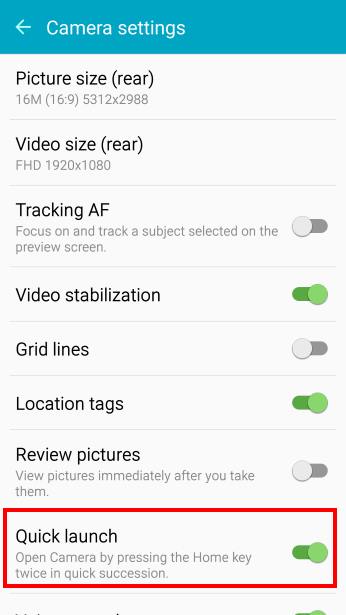
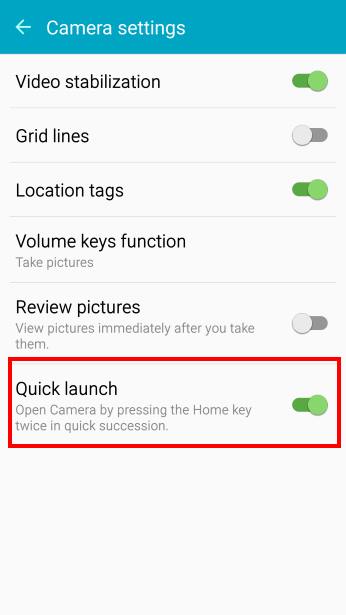
As shown below, you can drag the switch for Quick launch. If the switch is on the right side, it means Samsung Galaxy S6 camera quick launch is on. The color should be green.

If you want to turn off (disable) Samsung Galaxy S6 camera quick launch, drag the switch to left side.
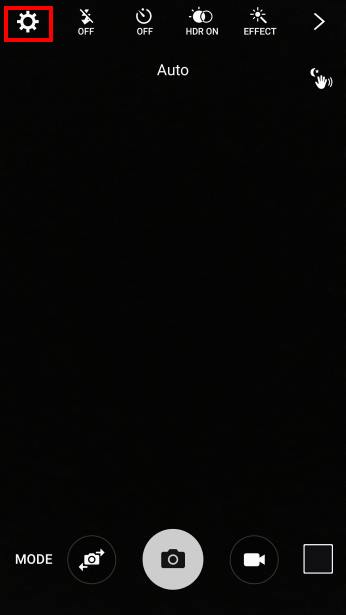
Samsung_Galaxy_S6_camera_quick_launch_1_camera_settings Samsung_Galaxy_S6_camera_quick_launch_2_enable_quick_launch


There is an alternative way to access Galaxy S6 camera (general) settings in Settings.

In Settings app, or tapping Settings icon in Galaxy S6 notification panel, you can then tap Applications.

In Settings – Applications page, under Application settings, tap Camera as shown below.

You now can change the general settings for Galaxy S6 camera, including enabling/disabling Samsung Galaxy S6 camera quick launch as shown below.
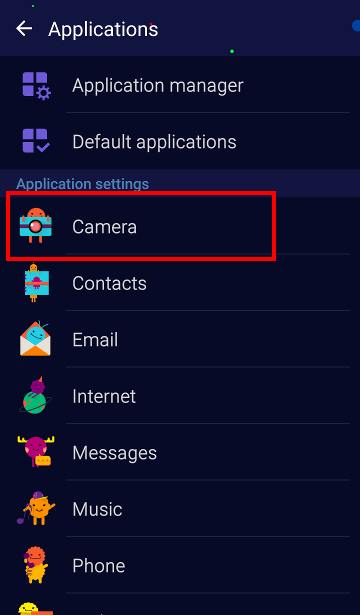
Samsung_Galaxy_S6_camera_quick_launch_4_camera_app_settingsSamsung_Galaxy_S6_camera_quick_launch_5_camera_quick_launch

How about Samsung Galaxy S6 edge camera quick launch?

The camera settings for Samsung Galaxy S6 edge is identical to those for Galaxy S6. So, you can use  Samsung Galaxy S6 edge camera quick launch, just like in Galaxy S6.

FAQs on Samsung Galaxy S6 camera quick launch?

1. Does Samsung Galaxy S6 camera quick launch drains additional battery?

No, Samsung Galaxy S6 edge camera quick launch should not drain additional battery.  Because it is based on hardware button (home button), it does not need additional running processes to continuously monitor sensors or to listen to your voice. This is the advantage of hardware button based solutions over sensor or voice based solutions.

2. I pressed Home button twice, but the camera is not launched in Galaxy S6 (or Galaxy S6 edge). Why?

First, you need check whether the Samsung Galaxy S6 camera quick launch is enabled or not. Make sure it is enabled.

When pressing the home button twice, you need press them normally, not too fast, not too slow.

3. Someone told me disabling Samsung Galaxy S6 camera quick launch can make my phone faster?

Unlikely. As Samsung Galaxy S6 camera quick launch is hardware button based, it should not slow down the phone.

Of course, Samsung Galaxy S6 camera quick launch is triggered by double pressing home button. You may feel the slight delay when you press home button to return to home screen. This is normal, because Galaxy S6 need wait until timeout for second tap. But for most users, it should not be noticeable.

4. Do I need turn on screen to use Samsung Galaxy S6 camera quick launch?

No, you can use Samsung Galaxy S6 camera quick launch when screen is  off and even locked.

Can you use Samsung Galaxy S6 camera quick launch on your Galaxy S6 or Galaxy S6 edge? Can you take photos faster then your friends now with Galaxy S6 or S6 edge?

Please let us know in the comment box below, if you have any questions or encounter any problems on using Samsung Galaxy S6 camera quick launch on your Galaxy S6 or Galaxy S6 edge.

We will try to help you.

For other features of Galaxy S6, please check Galaxy S6 online manual page.

For detailed guides on how to use Samsung Galaxy S6, please check Galaxy S6 how-to guides page.

For detailed guides on how to use Galaxy S6 camera, please check Galaxy S6 camera guide page.

Reader Interactions

Comments

  1. juan says

    May 10, 2015 at 10:05 pm

    For some reason the quick.launch is enabled and it works most of the time but once in a while it when it will just unlock the phone and not open the camera.

    Reply
    • simon says

      May 11, 2015 at 12:43 am

      I guess it’s probably due to the duration of your tap.


      -- Our Facebook page || Galaxy S6 Guides || Galaxy S7 Guides || Android Guides || Galaxy S8 Guides || Galaxy S9 Guides || Google Home Guides || Headphone Guides || Galaxy Note Guides || Fire tablet guide || Moto G Guides || Chromecast Guides || Moto E Guides || Galaxy S10 Guides || Galaxy S20 Guides || Samsung Galaxy S21 Guides || Samsung Galaxy S22 Guides || Samsung Galaxy S23 Guides

      Reply
      • jyan says

        May 11, 2015 at 1:22 am

        I tried it faster slower and Normal but it only worked if if I disabled the setting and reanabled it

        Reply
  2. Robert Fontanilla says

    June 19, 2015 at 3:37 am

    I have had quick launch on and off. Whenever I press the home or power button and shake the phone the camera launches from motion. Can I turn this off or is this a defect? ( I’ve deleted a lot of pocket pics already, just a nuisance and a battery drain if I don’t catch it.)

    Reply
    • simon says

      June 19, 2015 at 8:42 am

      You can turn off quick off by following this guide https://gadgetguideonline.com/galaxys6/samsung-galaxy-s6-guides/how-to-use-samsung-galaxy-s6-camera-quick-launch/


      -- Our Facebook page || Galaxy S6 Guides || Galaxy S7 Guides || Android Guides || Galaxy S8 Guides || Galaxy S9 Guides || Google Home Guides || Headphone Guides || Galaxy Note Guides || Fire tablet guide || Moto G Guides || Chromecast Guides || Moto E Guides || Galaxy S10 Guides || Galaxy S20 Guides || Samsung Galaxy S21 Guides || Samsung Galaxy S22 Guides || Samsung Galaxy S23 Guides

      Reply
      • Thomas Wadley says

        June 27, 2016 at 8:07 pm

        This does not work. i have the same problem. quick launch is turned off.

        Reply
        • simon says

          June 28, 2016 at 12:44 pm

          Very likely, you tapped the icon accidentally. You can also remove camera shortcut from lock screen (if you update S6 to Marshmallow) in Settings–lock screen and security –info and app shortcuts –app shortcuts.


          -- Our Facebook page || Galaxy S6 Guides || Galaxy S7 Guides || Android Guides || Galaxy S8 Guides || Galaxy S9 Guides || Google Home Guides || Headphone Guides || Galaxy Note Guides || Fire tablet guide || Moto G Guides || Chromecast Guides || Moto E Guides || Galaxy S10 Guides || Galaxy S20 Guides || Samsung Galaxy S21 Guides || Samsung Galaxy S22 Guides || Samsung Galaxy S23 Guides

          Reply
          • Brent says

            September 11, 2016 at 2:29 pm

            Too bad that marshmallow screwed this up by making sure an ugly notification pops up in the middle if your screen if you quick launch from a screen off state. “What, you want to take a picture as quickly as possible? Let me give you a notification too close first”

  3. Robert Fontanilla says

    June 19, 2015 at 3:31 pm

    I’ve been through all of the manuals and guides. There is nothing about a motion launch for the camera. Thanks for responding.

    Reply
  4. Mike says

    August 17, 2015 at 3:56 pm

    How can I change default camera to ZoomFx with the ability to launch when pressing home key twice

    Reply
    • simon says

      August 17, 2015 at 10:38 pm

      No, you cannot. Quick launch only works for Samsung camera.


      -- Our Facebook page || Galaxy S6 Guides || Galaxy S7 Guides || Android Guides || Galaxy S8 Guides || Galaxy S9 Guides || Google Home Guides || Headphone Guides || Galaxy Note Guides || Fire tablet guide || Moto G Guides || Chromecast Guides || Moto E Guides || Galaxy S10 Guides || Galaxy S20 Guides || Samsung Galaxy S21 Guides || Samsung Galaxy S22 Guides || Samsung Galaxy S23 Guides

      Reply
  5. Gurpreet Singh says

    March 6, 2016 at 8:26 am

    Can you change the double-tap camera shortcut to open some other app?

    Reply
    • simon says

      March 6, 2016 at 9:17 am

      No, you can only use it for camera app.

      Of course some launchers or some other apps may allow such customization.


      -- Our Facebook page || Galaxy S6 Guides || Galaxy S7 Guides || Android Guides || Galaxy S8 Guides || Galaxy S9 Guides || Google Home Guides || Headphone Guides || Galaxy Note Guides || Fire tablet guide || Moto G Guides || Chromecast Guides || Moto E Guides || Galaxy S10 Guides || Galaxy S20 Guides || Samsung Galaxy S21 Guides || Samsung Galaxy S22 Guides || Samsung Galaxy S23 Guides

      Reply
  6. Matias says

    April 16, 2016 at 12:27 pm

    When I use quick launch when phone is blocked, and then I press the back botton, it unlocks the phone!!! Do you know how to solve this? Thanks

    Reply
    • simon says

      April 16, 2016 at 2:07 pm

      It should not unlock the phone. Are you in Lollipop or Marshmallow?

      if you are using fingerprint to unlock the phone, you may unlock the phone accidentally with fingerprint already.

      Anyway, I am not aware of this issue.


      -- Our Facebook page || Galaxy S6 Guides || Galaxy S7 Guides || Android Guides || Galaxy S8 Guides || Galaxy S9 Guides || Google Home Guides || Headphone Guides || Galaxy Note Guides || Fire tablet guide || Moto G Guides || Chromecast Guides || Moto E Guides || Galaxy S10 Guides || Galaxy S20 Guides || Samsung Galaxy S21 Guides || Samsung Galaxy S22 Guides || Samsung Galaxy S23 Guides

      Reply
  7. Bob says

    June 6, 2017 at 6:41 am

    Gr8!! Thnx!

    Reply

Leave a ReplyCancel reply

Primary Sidebar

Site Search

Follow Us

  • View GalaxyS6Owners’s profile on Facebook
  • View MadeBySimonMa’s profile on YouTube
  • View +SimonMaSg’s profile on Google+

RSS Galaxy S23 Guides

  • Explanation of all One UI 6.1 features for Galaxy S23, S23+, S23 Ultra, and other Galaxy devices
  • How to use One-Tap Editing in the Android 14 (One UI 6) update?
  • How to enable and use Auto Scan to scan documents automatically on Galaxy S23, S22, and S21?
  • New camera features in One UI 6 (Android 14) update for Galaxy S23, S22, and S21
  • Galaxy S23 User Manual in American English with Android 14 (One UI 6) Update
  • Galaxy S23 User Manual in British English with Android 14 (One UI 6) update
  • How to Use the Drag and Drop with Two Hands Gesture on Galaxy S23, S22, and S21 with Android 14 (One UI 6) update?
  • How to create and use custom stickers on Galaxy S23, S22, S21, and S20?
  • How to use Image Clipper on Galaxy S23, S22, and S21 with Android 14 update (One UI 6)?
  • How to Enable and Use Quick Settings Instant Access on Galaxy S23, S22, and S21 with Android 14 Update?
  • How to use the camera widget on Galaxy S23, S22, and S21 with the Android 14 update?

RSS Galaxy S22 Guides

  • A Complete Guide for Android 14 (One UI 6) Update on Samsung Galaxy Devices
  • How to touch and hold to customize Lock Screen on Galaxy S22, S21, and S20 with the Android 13 update?
  • How to use Maintenance Mode on Galaxy S23, S22, S21, and S20 with Android 13 (One UI 5)?
  • How to extract text from photos and images on Galaxy S22, S21, and S20?
  • A complete list of the new features of One UI 5.1 update for Galaxy S22, S21, and S20
  • How to use multiwindow on Galaxy S22, S21, and S20?
  • How to Use the Help Icon and Histogram for Pro Camera Mode in Android 13 (One UI 5) Update for Galaxy S22, S21, and S20?
  • How to customize the call background on Galaxy S23, S22, S21, and S20 with the Android 13 update (One UI 5)?
  • How to Automatically Add and Customize Watermarks on Photos on Galaxy S22, S21, or S20 with the Android 13 update (One UI 5)?
  • The Definite Guide to Stack Widgets in One UI 5 on Galaxy S23, S22, S21, and S20

RSS Galaxy S21 Guides

  • Top 12 new features in Android 12 update for Galaxy S21, S20 and S10
  • Android 12 update vs One UI 4.0 vs One UI 4.1: update Galaxy S21, S20 and S10 to Android 12
  • How to set and resize photo size on Samsung Galaxy S21, S20, S10, and S9 without using any third-party apps?
  • How to Customize Galaxy S21 Home Screen?
  • Master Galaxy S21 Lock Screen Settings
  • How to use widgets on Galaxy S21?

RSS Galaxy S20 Guides

  • The End of the Road: No Android 14 Update for the Galaxy S20
  • How to Use Enhanced Processing on Galaxy S20 with Android 11 update?
  • How to access, use, and customise widgets on Galaxy S20 lock screen and AOD screen with Android 11 update for Galaxy S20?
  • How to update Galaxy S20 to Android 11?
  • How to use Galaxy S20 lockdown mode?
  • Top 11 new features in Galaxy S20 Android 11 update

RSS Galaxy Note Tips & Tricks

  • Top 11 disappointments of Galaxy Note 20 and Galaxy Note 20 Ultra
  • How to use the Dynamic Lock screen on Galaxy Note 10?
  • Galaxy Note 10 LED View Cover Guide and Review
  • Install S Note app and Extension pack on Galaxy Note 10
  • How to Use Galaxy Note 10 Camera App?
  • Galaxy Note 10 SIM Card Guide

RSS All About Chromecast

  • How to enable developer options in Chromecast with Google TV and Google TV Streamer?
  • Meaning of LED light on voice remote for Chromecast with Google TV and Google TV Streamer
  • What’s new in Chromecast 2018 (3rd gen of Chromecast)?
  • How to use VLC media player on PC to stream music and video to Chromecast and Chromecast Audio?
  • How to use Chromecast Ultra to stream 4K content?
  • How to disable Google Home and Chromecast casting notification?

RSS Fire Tablet Guides

  • Fire Tablet Buyer’s Guide 2025
  • How to use Writing Assist on Fire Tablet?
  • How to use Wallpaper Creator on your Fire tablet?
  • How to Use Webpage Summaries on Your Fire Tablet?
  • What’s new in Fire HD 8 2024 (12th Gen)?
  • Fire Tablet Buyer’s Guide 2024
  • Limitations and Missing Features of Amazon Fire Max 11
  • Amazon Fire Max 11 Keyboard Case: Everything You Need to Know

RSS Drive in Singapore

  • Singapore ERP (Electronic Road Pricing): 6 Facts You Need to Know
  • Car Insurance in Singapore Explained
  • Top 5 rules of driving in Singapore safely and legally during COVID-19 Circuit Breaker period
  • Understand COE Price by 10 Simple Questions
  • How to convert a foreign driving license to a Singapore driving license?
  • How to get a Touch ‘n Go card as a Singapore driver?
  • What is covered in the car warranty in Singapore? What is not?
  • What is the Singapore Road Speed Limit?
  • How to register, collect and use Malaysia Vehicle Entry Permit (VEP)?
  • Why are cars in Singapore so expensive?

RSS Headphone & Earbuds Guide

  • Bone Conduction Audio Technology: A Technical Breakdown
  • Science And Architecture of Bluetooth Auracast
  • Bluetooth LE Audio and the LC3 Codec: A Technical Deep Dive
  • The Physics and Engineering of Super Wide Band (SWB) Voice
  • True Wireless Stereo (TWS) Explained
  • The Complete Technical Guide to the Galaxy Buds 4 & Buds 4 Pro
  • The Right Fit of Galaxy Buds 4 — User Personas & Recommendations
  • Galaxy Buds 4 as an AI Earbud — Tips, Tricks, and Galaxy AI

RSS Google Home Guides

  • How to Use Quick Gestures on Nest Hub 2nd Gen and Nest Hub Max?
  • Understand the layout of Nest Hub (including Nest Hub 2nd Gen, Google Home Hub)
  • How to control Nest Audio?
  • Nest Audio Guides
  • Layout of Google Nest Mini (Google Home Mini 2nd Gen)
  • How to connect Google Home to a Bluetooth speaker?
  • Meaning of Google Home Mini LED lights and Google Home Max LED lights
  • Google Home Mini Guides

RSS Galaxy S4 Guides

  • Samsung Galaxy S4 Manual for Verizon
  • Galaxy S4 User Manual and Handbook in English
  • Samsung Galaxy S4 User Manual and Handbook in Italian (Italiano)

RSS Samsung Galaxy S5 Guide

  • How to enter Galaxy S5 recovery mode?
  • How to set Galaxy S5 photo size and video size?
  • How to use Galaxy S5 camera voice control?

Top Galaxy S6 Guides

  • Meaning of status icons and notification icons in Samsung Galaxy S6 and Galaxy S7
  • Changes on using fingerprint to unlock Galaxy S6 in Android Marshmallow update for Galaxy S6, S6 edge and S6 edge+
  • How to use Samsung Galaxy S6 safe mode?
  • How to unlock Samsung Galaxy S6 and S6 edge, if you forget the screen lock password (and your fingerprint is not accepted either)
  • Galaxy S6 buttons
  • Charging Galaxy S6 battery
  • How to disable multi window in Samsung Galaxy S6, S6 edge and S6 edge+?

Footer

RSS Moto G Guides

  • Stylus features on Moto G Stylus (all models)
  • What’s new in Moto G 2024? Moto G 5G 2024 vs Moto G Power 2024 vs Moto G Play 2024
  • Understand Moto G Model Names
  • Thank You
  • Moto G8 vs Moto G8 Power vs Moto G8 Power Lite vs Moto G Power vs Moto G Stylus vs Moto G Pro vs Moto G fast: What are the differences?
  • Moto G8 User Manual for Moto G8 Plus and Moto G8 Play
  • Moto G8 Plus vs Moto G8 Play: Differences and common features
  • Official Moto G7 user manual
  • Moto G7 vs Moto G7 Play vs Moto G7 Plus vs Moto G7 Power: what are the differences?
  • Official Moto G6 user manuals, Moto G6 Play user manuals and Moto G6 Plus user manuals

RSS Moto E Guide

  • How to remove Moto E6 back cover (including Moto E6, Moto E6 Plus, Moto E6 Play)?
  • Moto E6 vs Moto E6 Plus vs Moto E6 Play vs Moto E6s: what are the major differences?
  • How to use alarm and customize alarm tones on Moto E, Moto G and Moto X?
  • How to move apps to SD card in Moto E?
  • How to customize Moto E ringtones?
  • How to take a screenshot on Moto E?
  • Moto E How-to Guides
  • Moto E User Manual
  • About Moto E Guide
  • Contact Us

RSS Just Jokey: The best collection of jokes

  • What Happened In Texas
  • Who Are Einstein and Picasso?
  • He’s Too Far In
  • An Unhappy Guy
  • Don’t Be Silly

RSS Chinese Classical Music

  • How to Cast Chinese Music Radio to Chromecast or Google Home?
  • 十面埋伏 (Ambushed,Pipa,琵琶曲,Shi Mian Mai Fu)
  • Meet in Yurt(敖包相会, Ao Bao Xiang Hui,Folk song,民歌)
  • Purple Bamboo Melody(紫竹调, Zi Zhu Diao,Yangqin,扬琴)
  • Solitary Orchid (幽兰, You Lan, Guqin, 古琴)
  • Birds in the Shade(荫中鸟, Yin Zhong Niao, Dizi, 笛子)

© 2015–2026 · GadgetGuideOnline.com is a online community for Gadget Owners! · Hosted by PTRHosting
Samsung Galaxy S6 guide, user manual and tutorials! Everything about how to use Samsung Galaxy S6, Galaxy S6 Edge, and Galaxy S6 Edge+.
· Powered by Genesis framework for WordPress
Disclaimer: Samsung, Galaxy, Galaxy S6, Galaxy S6 Edge, and Galaxy S6 Edge+ are trademarks of Samsung. Android is a trademark of Google. This website is NOT affiliated with Samsung or Google in any way. All the information provided on this website is provided on an "as is" and "as available" basis and you agree that you use such information entirely at your own risk.

We use cookies to give you the best online experience. By using our website you agree to our use of cookies in accordance with our cookie policy.