• Skip to primary navigation
  • Skip to main content
  • Skip to primary sidebar

Galaxy S9 Guides

a community for owners of Samsung Galaxy S9 and S9+

  • Home
    • About Galaxy S9 Guides
    • Contact Us
  • How-to Guides
    • Galaxy S9 Android Pie update guides
      • Official user manuals for Galaxy S9 and S9 Plus with Android Pie update
      • Top 9 new features of Android Pie update for Galaxy S9 and S9+
      • How to use the new navigation gestures in Android Pie update for Galaxy S9 and S9+?
      • How to use the lockdown mode on Galaxy S9 and S9+ with Android Pie update?
      • How to use the night mode on Galaxy S9 and S9+ with Android Pie update?
      • How to remap Bixby button on Galaxy S9 and S9+ after updating to Android Pie?
      • How to use Bixby quick commands on Galaxy S9, S9+, S8, S8+, Note 8, and Note 9 with the Android Pie update?
      • How to update Galaxy S9 or S9 Plus to Android Pie (Android 9)?
      • How to use the lift to wake feature on Galaxy S9 and S9+ with Android Pie update?
      • How to use the new Recents screen in Android Pie update for Galaxy S9 and S9 Plus?
      • How to use the floating keyboard on Galaxy S9 and S9+ with Android Pie update?
      • How to lock Galaxy S9 home screen layout on Galaxy S9 and S9+ with Android Pie update?
      • How to use the rotation toggle to change and lock screen orientation in Android Pie update for Galaxy S9 and S9 Plus?
      • How to use the updated camera app in Android Pie update for Galaxy S9 and S9 Plus?
    • Meaning of Galaxy S9 status icons and notification icons in Samsung Galaxy S9 and S9+
      • How to use Samsung DeX with Galaxy S9 and S9+ and other Samsung phones?
      • How to use Multi Window on Galaxy S9 and S9+?
      • How to use app pair on Galaxy S9 and S9+?
      • Samsung DeX Station vs Samsung DeX Pad vs Samsung DeX cable
      • How to use Samsung DeX Station for Galaxy S9, S9+, S8, S8+, Note 8 and Note 9?
      • How to use Samsung DeX Pad for Galaxy S9, S9+, S8, S8+, Note 8 and Note 9?
      • How to use a USB flash drive on Galaxy S9 and S9+?
    • How to charge Galaxy S9 battery?
    • Galaxy S9 SIM card guide
      • How to use two SIM cards on Galaxy S9, S10, and S20?
      • How to use Galaxy S9 dual messenger to run two accounts of messenger apps simultaneously on Galaxy S9 and S9+?
      • How to use micro SD card on Galaxy S9 and S9+?
      • How to back up Galaxy S9 and S9+?
      • How to use smart switch to transfer and migrate data to Galaxy S9 or S9+?
      • How to reset Galaxy S9 and S9+? What is Galaxy S9 factory data reset?
    • How to disable Bixby button in Galaxy S9 and S9+?
      • How to remove Bixby Home from Galaxy S9 Home screen?
    • Understand and Use Galaxy S9 Home screen
      • How to use Galaxy S9 edge screen on Galaxy S9 and S9+?
      • How to show photos on Galaxy S9 Home screen?
      • How to pin files to Galaxy S9 Home screen (add file shortcuts to Galaxy S9 Home screen)?
      • How to use Galaxy S9 Apps screen on Galaxy S9 and S9+?
      • How to use Galaxy S9 Home screen edit mode to customize Galaxy S9 Home screen?
      • How to use Galaxy S9 home screen landscape mode?
      • How to hide Galaxy S9 apps screen and how to hide Galaxy Apps button?
      • How to use and customize Galaxy S9 navigation bar and navigation buttons?
      • How to manage Galaxy S9 Home screen panels on Galaxy S9 and S9+?
    • How to use and customize Galaxy S9 lock screen?
      • How to use Galaxy S9 always-on display (AOD) on Galaxy S9 and S9+?
    • How to use Galaxy S9 notification panel on Galaxy S9 and S9+?
      • How to use Do Not Disturb on Galaxy S9 and S9+?
      • Understand and use Galaxy S9 notification number badge (notification dots, app icon badge)
      • How to use quick setting buttons on Galaxy S9 and S9+?
      • How to use quick-open notification panel on Galaxy S9 and S9+ to check notifications?
    • Galaxy S9 layout (and layout of Galaxy S9+)
      • How to use adapt sound on Galaxy S9 and S9+?
      • 5 ways to take screenshots on Galaxy S9 and S9+ without using any apps
      • How to use Galaxy S9 touchscreen gestures?
      • How to use wireless printing on Galaxy S9 and S9+?
      • How to use Galaxy S9 themes to customize the look and feel of Galaxy S9 and S9+?
      • Unbox Galaxy S9: understand package contents in Galaxy S9 box and S9+ box
    • How to reboot into Galaxy S9 recovery mode and to clear Galaxy S9 cache partition on Galaxy S9 and S9+?
      • How to reboot Galaxy S9 and S9+ if Galaxy S9 hangs?
      • How to use Galaxy S9 safe mode on Galaxy S9 and S9+?
    • How to use Galaxy S9 camera app?
      • 6 ways to start Galaxy S9 camera app in Galaxy S9 and S9+
      • Understanding and use Galaxy S9 camera settings
      • How to use super slow motion mode (super Slow-mo) on Galaxy S9 and S9+?
      • How to use Galaxy S9 camera Pro Mode on Galaxy S9 and S9+?
  • New features
    • Top 9 new features of Android Pie update for Galaxy S9 and S9+
      • How to use the lockdown mode on Galaxy S9 and S9+ with Android Pie update?
      • How to use the new navigation gestures in Android Pie update for Galaxy S9 and S9+?
      • How to use the night mode on Galaxy S9 and S9+ with Android Pie update?
      • How to remap Bixby button on Galaxy S9 and S9+ after updating to Android Pie?
      • How to update Galaxy S9 or S9 Plus to Android Pie (Android 9)?
      • How to use the lift to wake feature on Galaxy S9 and S9+ with Android Pie update?
      • How to use the new Recents screen in Android Pie update for Galaxy S9 and S9 Plus?
      • How to use the floating keyboard on Galaxy S9 and S9+ with Android Pie update?
      • How to lock Galaxy S9 home screen layout on Galaxy S9 and S9+ with Android Pie update?
      • How to use the rotation toggle to change and lock screen orientation in Android Pie update for Galaxy S9 and S9 Plus?
      • How to use the updated camera app in Android Pie update for Galaxy S9 and S9 Plus?
      • How to use Bixby quick commands on Galaxy S9, S9+, S8, S8+, Note 8, and Note 9 with the Android Pie update?
    • Top 10 new features of Samsung Galaxy S9 and Galaxy S9+
    • How to remove Bixby Home from Galaxy S9 Home screen?
    • How to use and customize Galaxy S9 navigation bar and navigation buttons?
    • How to use super slow motion mode (super Slow-mo) on Galaxy S9 and S9+?
    • Understand and use Galaxy S9 notification number badge (notification dots, app icon badge)
    • How to use Samsung DeX Pad for Galaxy S9, S9+, S8, S8+, Note 8 and Note 9?
    • How to use Galaxy S9 home screen landscape mode?
    • Understanding and use Galaxy S9 camera settings
    • How to use dual aperture to manually switch Galaxy S9 camera aperture in Pro mode?
    • Galaxy S9 layout (and layout of Galaxy S9+)
    • How to use app pair on Galaxy S9 and S9+?
  • Camera
    • How to use Galaxy S9 camera app?
    • How to use the updated camera app in Android Pie update for Galaxy S9 and S9 Plus?
    • Understanding and use Galaxy S9 camera settings
    • 6 ways to start Galaxy S9 camera app in Galaxy S9 and S9+
    • How to use dual aperture to manually switch Galaxy S9 camera aperture in Pro mode?
    • How to use super slow motion mode (super Slow-mo) on Galaxy S9 and S9+?
    • How to use Galaxy S9 camera Pro Mode on Galaxy S9 and S9+?
    • How to show photos on Galaxy S9 Home screen?
  • Official User Guides
    • Official user manuals for Galaxy S9 and S9 Plus with Android Pie update
    • Official Samsung Galaxy S9 user guides (Oreo)
  • Accessories
    • How to use Samsung Galaxy S9 clear view standing cover (S-view cover)?
    • Samsung Galaxy S9 LED wallet cover guide
    • How to use micro SD card on Galaxy S9 and S9+?
    • How to use Samsung DeX with Galaxy S9 and S9+ and other Samsung phones?
      • Samsung DeX Station vs Samsung DeX Pad vs Samsung DeX cable
      • How to use Samsung DeX Station for Galaxy S9, S9+, S8, S8+, Note 8 and Note 9?
      • How to use Samsung DeX Pad for Galaxy S9, S9+, S8, S8+, Note 8 and Note 9?
      • How to use a USB flash drive on Galaxy S9 and S9+?

Galaxy S9 New Features

How to use Galaxy S9 camera app?

Get to know the new Galaxy S9 camera app interface

simon · 9 Comments

use Galaxy S9 camera appAs explained in the new features of Galaxy S9 and S9+, the camera in both phones was significantly improved with an updated Galaxy S9 camera app.

Samsung revamped the user interface of Galaxy S9 camera app to make it more user-friendly (arguably) with different ways to access Galaxy S9 camera modes and effects. This new Galaxy S9 camera app interface is different from that in Galaxy S8.

This Galaxy S9 camera guide explains the items in Galaxy S9 camera app user interface (UI) and how to use them.

This guide is based on Galaxy S9 with Android 8 (Oreo).  You may check this guide on the Android 9 (Pie) update for Galaxy S9, and this guide for Android 1o update for Galaxy S9 and S10. So, if you are on Android 10, your camera app should look like this.

How to access Galaxy S9 camera app?

There are at least 6 different ways to access Galaxy S9 camera app in Galaxy S9 and S9+:

  1. Galaxy S9 camera quick launch;
  2. App icon in Galaxy S9 lock screen;
  3. App icon in Galaxy S9 Home screen;
  4. App icon in Galaxy S9 Apps screen;
  5. Bixby voice command;
  6. Google Assistant voice command.

You can also access the camera app from Galaxy S9 edge screen.

Although the identical Galaxy S9 camera app will be used, there are some restrictions if you access the camera without unlocking Galaxy S9 or S9+.

How to use Galaxy S9 camera app?

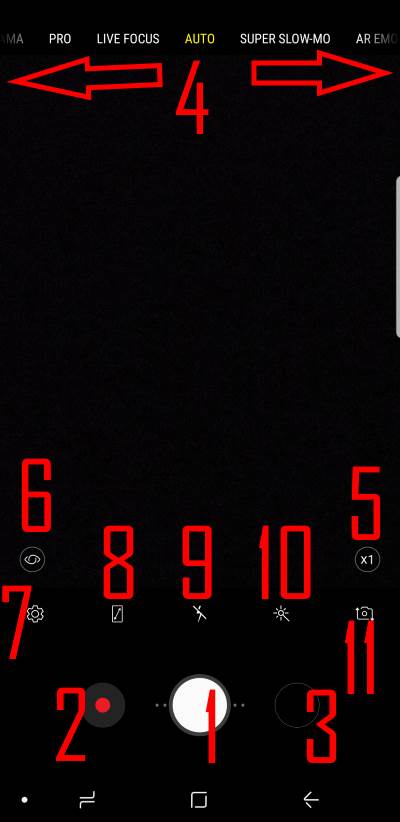
By default, when you start the Galaxy S9 camera, the Auto mode is activated, as shown below.

In Auto mode, in addition to the navigation bar at the bottom, you can find at least 11 items, as marked in the screenshot:

  1. Shutter button.
  2. Video recording button.
  3. Shortcut to Gallery app.
  4. Galaxy S9 camera modes.
  5. Switch between two rear cameras  (Galaxy S9+ only).
  6. Bixby vision.
  7. Galaxy S9 camera settings.
  8. Full-screen view.
  9. Turn on/off the flash.
  10. Galaxy S9 camera effects.
  11. Switch between front and rear cameras.
use Galaxy S9 camera app

1. Galaxy S9 camera spp Shutter button

You can press this shutter button to take photos immediately.

If you tap and hold (long tap) the shutter button, the camera will take photos in burst mode.

Photos taken in Galaxy S9 burst mode will always be saved in the internal storage even if you set the photo location in the micro SD card.
2. Video

… Read the rest

Filed Under: Galaxy S9 Camera Guides, Galaxy S9 Guides, Galaxy S9 New Features Tagged With: Android 10, Android Oreo, Android Pie, Android Pie update guide, Bixby Home, Bixby vision, dual aperture, Galaxy S9 burst mode, Galaxy S9 camera, Galaxy S9 camera app, Galaxy S9 camera effects, Galaxy S9 camera modes, Galaxy S9 camera settings, Galaxy S9 lock screen, Galaxy S9 shutter button, super slow-motion

How to use and customize Galaxy S9 navigation bar and navigation buttons?

Learn to hide and unhide Galaxy S9 navigation bar, to customize Galaxy S9 navigation button layout, and to use Galaxy S9 Home button when the screen is off.

simon · 37 Comments

Similar to Galaxy S8, Galaxy S9 features software navigation buttons. And Samsung allows you to hide and customize the Galaxy S9 navigation bar and navigation buttons in Galaxy S9 and S9+.

You can also use the software home button even when the screen is off.

This Galaxy S9 guide shows you how to hide and unhide Galaxy S9 navigation bar, customize the background colour of Galaxy S9 navigation bar, customize the Galaxy S9 navigation button layout, and how to use Galaxy S9 Home button when the screen is off.

Update: after updating Galaxy S9 or S9 Plus to Android Pie, you will get the new navigation gestures. You can choose to use the navigation bar with navigation buttons (Home, Back, and  Recents) or use the new navigation gesture.  But you will not be able to hide the navigation bar if you choose to use the navigation bar/buttons.  If you want to use these features and other navigation button customizations, you can use the NavStar app to customize the Galaxy S9 navigation bar and navigation buttons.

Please check this guide for the details about the navigation gestures on Galaxy S9 and S9+ with Android Pie update.

How to use and customize Galaxy S9 navigation bar and navigation buttons?

How to lock Galaxy S9 navigation bar?

By default, when you get the new Galaxy S9 or S9+, the navigation bar is shown, but not locked.

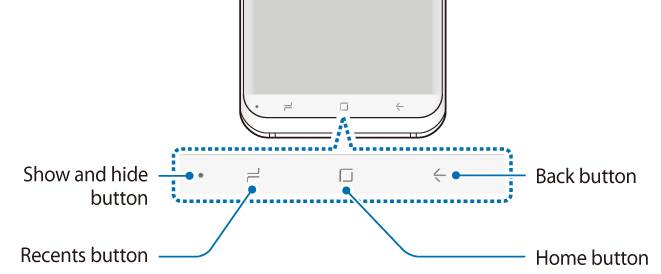
The dot (official name: show and hide button) on the left side of the Galaxy S9  navigation bar indicates you can hide the status bar if you want.

Sometimes, you may not want to use the feature of hiding and unhiding the navigation bar, i.e., you may want to lock Galaxy S9 navigation bar.

Please note, when using an app in the split screen view, the Recents button changes to the multiwindow button. You may refer to this guide on how to use apps in Multi Window mode on Galaxy S9 and S9+.

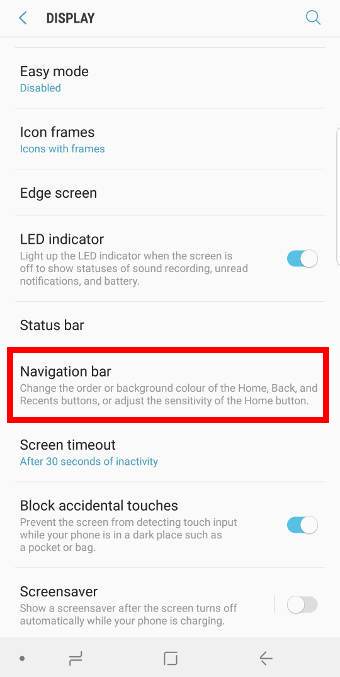
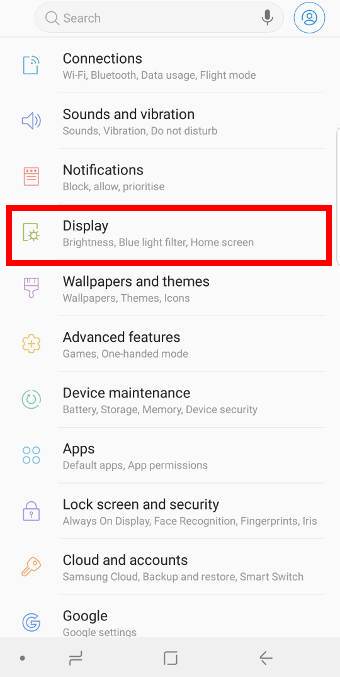
To lock the Galaxy S9 navigation bar, you may go to Galaxy S9 Setting, tap Display as shown below.

How to hide Galaxy S9 navigation bar? And how to access Galaxy S9 navigation bar when it is hidden? How to hide Galaxy S9 navigation bar? And how to access Galaxy S9 navigation bar when it is hidden?

Then in the Display settings page,  tap the Navigation bar as shown above.

In the Navigation bar settings page, tap the Show and hide button (marked as 1 in the screenshot below).

After you hide the button, then you lock the navigation bar in Galaxy S9 and S9+.

If you want to hide Galaxy S9 navigation bar, then you need to enable … Read the rest

Filed Under: Galaxy S9 Guides, Galaxy S9 New Features Tagged With: Android Pie, Galaxy S9, Galaxy S9 always-on display, Galaxy S9 always-on display (AOD), Galaxy S9 Home button, Galaxy S9 home screen, Galaxy S9 layout, Galaxy S9 lock screen, Galaxy S9 multiwindow, Galaxy S9 navigation bar, Galaxy S9 navigation button, lift to wake, Multi Window, navigation gestures, night mode

Galaxy S9 layout (and layout of Galaxy S9+)

get to know the layout of Galaxy S9 and S9+

simon · 9 Comments

To effectively use your new phone, you need to know and understand the Galaxy S9 layout and Galaxy S9+ layout.

Sometimes, common sense works; sometimes it may not.

This Galaxy S9 how-to guide explains the layout of Galaxy S9 and S9+, the difference between the Galaxy S9 layout and Galaxy S9+ layout, and the meaning of essential parts in the layouts of Galaxy S9 and S9+.

Why do you need to know Galaxy S9 layout and Galaxy S9+ layout?

Although Galaxy S9 and S9+ are not a revolutionary product, the layout of Galaxy S9 and S9+ is substantially different from Android phones from other Android manufacturers.

Even compared to Galaxy S8 and S8+ layout, there are a few changes in the Galaxy S9 layout and Galaxy S9+ layout.

You need to know and understand Galaxy S9 layout when you want to know the functions of all buttons in Galaxy S9 and S9+.

The Galaxy S9 and S9+ layout can also help you find the locations of some parts. For example, a few Galaxy S9 and S9+ owners accidentally inserted the SIM card ejection pin into the top microphone hole. They may spoil the microphone.  Had they known the layout of Galaxy S9 and S9+, they wouldn't have made this mistake.

Besides,  it is also beneficial to know the location of antennas and wireless charging coils when using some Galaxy S9 accessories.

Anyway, before using your Galaxy S9 or Galaxy S9+, you should spend a few minutes to learn and understand the layout of S9 and S9+ even if you are a seasoned Samsung phone user.

The difference between Galaxy S9 layout and Galaxy S9+ layout

Unlike Galaxy S8 and S8+, which differ only in size, Galaxy S9 and S9+ have a few considerable differences in the hardware configuration.

Due to dual rear camera configuration in Galaxy S9+, the back of Galaxy S9+ layout is different from that of Galaxy S9.

The second rear camera is the only difference between Galaxy S9 layout and Galaxy S9+ layout.

Galaxy S9 and S9+ layout: front view

The front view of Galaxy S9 layout is illustrated in the picture below. The front view of Galaxy S9+ is identical except the screen size.

As shown below, you can find in the front of Galaxy S9 and S9+:

  • touchscreen;
  • edge screens;
  • front camera;
  • LED indicator;
  • top speaker (earpiece);
  • proximity/light sensor;
  • iris recognition camera;
… Read the rest

Filed Under: Galaxy S9 Guides, Galaxy S9 New Features Tagged With: Android Pie, Bixby button, charge Galaxy S9 battery, Galaxy S9 edge screen, Galaxy S9 Home button, Galaxy S9 home screen, Galaxy S9 layout, Galaxy S9 lock screen, Galaxy S9 navigation bar, Galaxy S9 navigation button, Galaxy S9 new features, Galaxy S9 recovery mode, lift to wake, lock Galaxy S9 home screen layout, lockdown mode, navigation gestures, night mode, power button, rotation toggle, SIM card ejection

Unbox Galaxy S9: understand package contents in Galaxy S9 box and S9+ box

simon · 10 Comments

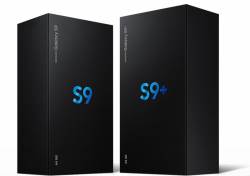
Unbox Galaxy S9: understand package contents in Galaxy S9 box and S9+ boxAfter unboxing Galaxy S9 or S9+, you need to understand the package contents in your Galaxy S9 box or S9+ box so that you can properly use them when needed.
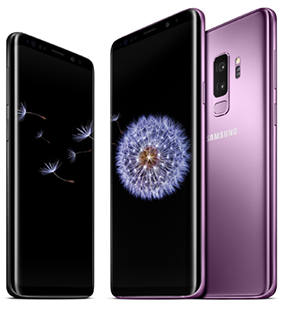
The package contents in Galaxy S9 box, and in Galaxy S9+ box are identical except the phone.

Also, the Galaxy S9 package contents may slightly vary in different regions.

This Galaxy S9 guide shows you the contents of Galaxy S9 box and Galaxy S9+ box. It also explains how to use these items in the Galaxy S9 box.

What are the Galaxy S9 package contents in Galaxy S9 box and S9+ box?

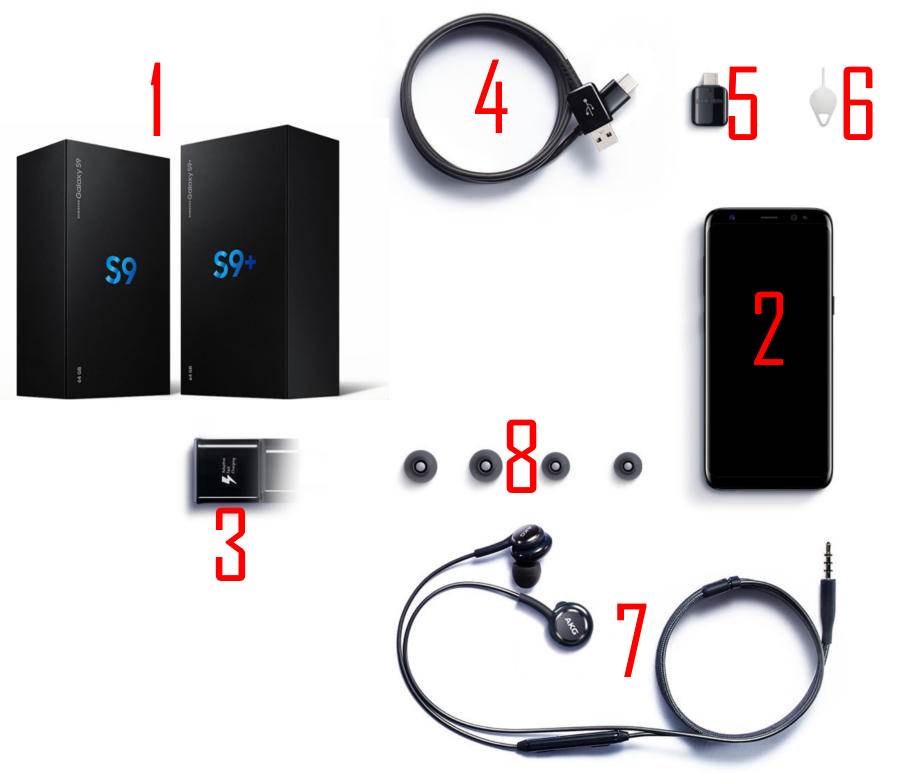
You can find Galaxy S9 package contents in Galaxy S9 box and S9+ box as shown in the picture below.

They include (corresponding to the numbers  marked in the picture):

  1. The sealed box.
  2. The phone.
  3. Wall charger (adaptive charger, aka fast charger).
  4. USB cable (USB-A to USB-C).
  5. USB connector.
  6. SIM card ejection pin.
  7. AKG earphone.
  8. Additional earbud cups (large and small).

There is also a getting-started booklet (leaflet) together with a safety manual (not shown in the picture below).

In some regions, printed stickers with IMEI number and serial number may also be included in the box.

For the official Galaxy S9 user manual, you may check and download it in your language in the official Samsung Galaxy S9 user guides page.

You can also get the online version of the user manual from Settings – User manual. This service may be unavailable in some regions.

Galaxy S9 package contents in Galaxy S9 box and S9+ box

How to use the items included in Galaxy S9 package contents?

Galaxy S9 box (or Galaxy S9+ box)

Everything is in the box.

Some vendors in some regions may offer additional free accessories. But they should be not in the box.

You need to check and make sure the seal is not broken.

Galaxy S9 phone or S9+ phone

The phone should have some protective plastic films on all sides. You should remove them before using the phone.

In almost all regions, the camera lenses are also covered by the plastic film, which must be removed before you take any photos.

In some regions, Samsung does not offer a 1-to-1 exchange if the new phone has any problems.  They only offer repair services under warranty.

If this is the case in your region, you should power on the phone to test it before leaving the counter.

The … Read the rest

Filed Under: Galaxy S9 Accessories Guides, Galaxy S9 Guides, Galaxy S9 New Features Tagged With: adaptive charger, charge Galaxy S9 battery, fast charger, Galaxy S9, Galaxy S9 package contents, Galaxy S9 SIM card, micro SD card, Samsung DeX, SIM card ejection, USB connector, USB storage, wall charger

Top 10 new features of Samsung Galaxy S9 and Galaxy S9+

New features of Galaxy S9: Android Oreo, dual aperture camera, intelligent scan, positioning of fingerprint scanner, 960p slow motion, stereo speakers, latest processor, 64/128/256GB storage, new DeX pad, and AR emoji

simon · Leave a Comment

Top 10 new features of Samsung Galaxy S9 and Galaxy S9+Samsung announced Galaxy S9 and Galaxy S9+, the 9th generation of Galaxy S phones, on February 25, 2018, in Barcelona, Spain, immediately ahead of  MWC 2018. You may want to know the new features of Samsung Galaxy S9.

As in previous Galaxy S phones, Samsung staffed some new features of Samsung Galaxy S9 and Galaxy S9+ to lure new customers and keep existing customers.

This post details the top 10 new features of Galaxy S9 and S9+ to help you decide whether Galaxy S9 or S9+ is the right phone for you.

#1. Android Oreo

Android Oreo is the latest Android OS.

Samsung packed Galaxy S9 and S9+ with Android Oreo 8.0 out of the box.

You can enjoy many new features and improvements of Android 8.0 in Galaxy S9 and S9+, although Samsung tweaks a lot of the stock Android.

For Galaxy S9 notification dots (notification number badge, app icon badges) on Galaxy S9 and S9+, you may check this guide.

#2. Dual-aperture in the main camera: one of the most welcomed new features of Samsung Galaxy S9

Samsung tried to direct your attention to one of the best new features in Galaxy S9 and S9+: the camera.

And the most prominent features of the Galaxy S9 camera is dual-aperture.

In Auto mode, the Galaxy S9 and S9+ main camera can switch between two apertures of f/2.4 (under normal lighting conditions) and f/1.5 (in low-light conditions) automatically.

In Pro mode, you can set the two apertures manually. Unfortunately, you cannot set anything in between.

Essentially, the dual-aperture camera makes it easier to capture good photos in low-light conditions.

Galaxy S9 and S9+ are the only smartphones in the market with such a feature.

You may check this guide on how to use the two apertures in Galaxy S9 and S9+.

#3.  Intelligent scan

Iris scanner and face recognition is not new in Galaxy phones.  You can enable either of them to unlock the phone in your Galaxy S8, S8+ or Note 8.

Both methods work well in contrast conditions: iris scanner does not work well under the sun ( or under intense light), and face recognition refuses to work in darkness.

In Galaxy S8 and Note 8, these two methods are mutually exclusive: you can only enable one of them.

As another one of the top new features of Galaxy S9 and S9+,  these two methods … Read the rest

Filed Under: Galaxy S9 New Features, Galaxy S9 News Tagged With: Android Oreo, app pair, AR emoji, DeX, dual aperture, Galaxy S9, Galaxy S9 edge screen, Galaxy S9 layout, Galaxy S9 multiwindow, Galaxy S9 navigation bar, Galaxy S9 new features, Galaxy S9 slow-mo mode, intelligent scan, Pro mode, Samsung DeX, Samsung DeX Pad, Samsung DeX station, super slow-motion

About Galaxy S9 Guides

Everything about this Galaxy S9 guides community

simon · 6 Comments

About Galaxy S9 GuidesWhat is Galaxy S9 guides community?

Galaxy S9 guides is an online community for owners of Galaxy S9 or S9+ to help fellow owners.

If you have any questions on or encounter any problems with Samsung Galaxy S9 and S9+, you can get answers and solutions quickly from the community.

Galaxy S9 guides community is not affiliated with Samsung in any means.  It is simply an owner-help-owner community.

If you need any “official” technical support or need to contact Samsung for warranty or sales related issues,  please approach the local distributor or local Samsung office directly.

We are not able to relay any messages to Samsung.

What does Galaxy S9 guides community offer?

Galaxy S9 guides community offers various how-to guides to help you use Galaxy S9 and S9+.

These Galaxy S9 guides are organized into the following five sections:

  1.  Galaxy S9 new features guide.  The section covers detailed guides for all new features and functions in Galaxy S9 and S9+.
  2. Galaxy S9 how-to guides.  This section is a collection of high-quality how-to guides on how to efficiently use Samsung Galaxy S9 and S9+,
  3. Galaxy S9 camera guides. There are many improvements and new features in Galaxy S9 (especially S9+) camera. This section has all the guides you need to use major features of Galaxy S9 camera properly.
  4. Galaxy S9 accessories guides. This section shows you the useful and affordable Galaxy S9 accessories to help you use and improve Galaxy S9 and S9+.
  5. Galaxy S9 user guides. This section is a collection of the official Samsung Galaxy S9 user guides in various languages. You can read and download the official user guide in PDF format in your local language.

Besides, comments are open on all pages.  So, everyone can ask questions if they are not addressed in the guides,  The community will and help them get the answer or solution.

In a nutshell, Galaxy S9 guides community offers a platform for all owners of Galaxy S9 and S9+ to discuss and share the usage and experiences of the phone.

How can you contribute to the Galaxy S9 guides community?

There is no join button in Galaxy S9 guides.  There are no signup forms either.

All Galaxy S9 guides are open to the public.

And of course, it is free.

We do not collect any of your personal info.  You can post your Galaxy S9 … Read the rest

Filed Under: Galaxy S9 Accessories Guides, Galaxy S9 Camera Guides, Galaxy S9 Guides, Galaxy S9 New Features, Galaxy S9 News Tagged With: Galaxy S9, Galaxy S9 guides

  • « Go to Previous Page
  • Page 1
  • Page 2

Primary Sidebar

RSS Samsung Galaxy S24 Guides@GGO

  • The definitive guide to One UI 7 (Android 15) update for Galaxy S24, S23, S22, and S21
  • The Definitive Guide to Galaxy AI on Galaxy S24, S23, S22, Fold 6, Fold 5, Flip 6, and Flip 5
  • Use the Light Performance Profile to Extend Battery Life and Reduce Heat on Galaxy S24, S23, S22, and S21 (all Samsung Galaxy Phones with Android 14/One UI 6.0)
  • How to adjust lock screen timeout on Galaxy S24, S23, S22, and other Galaxy devices?
  • How to use Circle to Search on Galaxy S24?

RSS Galaxy S23 Guides

  • Explanation of all One UI 6.1 features for Galaxy S23, S23+, S23 Ultra, and other Galaxy devices
  • How to use One-Tap Editing in the Android 14 (One UI 6) update?
  • How to enable and use Auto Scan to scan documents automatically on Galaxy S23, S22, and S21?
  • New camera features in One UI 6 (Android 14) update for Galaxy S23, S22, and S21
  • Galaxy S23 User Manual in American English with Android 14 (One UI 6) Update

RSS Galaxy S22 Guides

  • A Complete Guide for Android 14 (One UI 6) Update on Samsung Galaxy Devices
  • How to touch and hold to customize Lock Screen on Galaxy S22, S21, and S20 with the Android 13 update?
  • How to use Maintenance Mode on Galaxy S23, S22, S21, and S20 with Android 13 (One UI 5)?
  • How to extract text from photos and images on Galaxy S22, S21, and S20?
  • A complete list of the new features of One UI 5.1 update for Galaxy S22, S21, and S20

RSS Samsung Galaxy S21 Guides

  • Top 12 new features in Android 12 update for Galaxy S21, S20 and S10
  • Android 12 update vs One UI 4.0 vs One UI 4.1: update Galaxy S21, S20 and S10 to Android 12
  • How to set and resize photo size on Samsung Galaxy S21, S20, S10, and S9 without using any third-party apps?
  • How to Customize Galaxy S21 Home Screen?
  • Master Galaxy S21 Lock Screen Settings

RSS Galaxy S20 Guides

  • The End of the Road: No Android 14 Update for the Galaxy S20
  • How to Use Enhanced Processing on Galaxy S20 with Android 11 update?
  • How to access, use, and customise widgets on Galaxy S20 lock screen and AOD screen with Android 11 update for Galaxy S20?
  • How to update Galaxy S20 to Android 11?
  • How to use Galaxy S20 lockdown mode?

RSS Galaxy Note Guides

  • Top 11 disappointments of Galaxy Note 20 and Galaxy Note 20 Ultra
  • How to use the Dynamic Lock screen on Galaxy Note 10?
  • Galaxy Note 10 LED View Cover Guide and Review
  • Install S Note app and Extension pack on Galaxy Note 10

RSS Drive In Singapore

  • Singapore ERP (Electronic Road Pricing): 6 Facts You Need to Know
  • Car Insurance in Singapore Explained
  • Top 5 rules of driving in Singapore safely and legally during COVID-19 Circuit Breaker period
  • Understand COE Price by 10 Simple Questions
  • How to convert a foreign driving license to a Singapore driving license?

RSS Moto G Guides

  • Stylus features on Moto G Stylus (all models)
  • What’s new in Moto G 2024? Moto G 5G 2024 vs Moto G Power 2024 vs Moto G Play 2024
  • Understand Moto G Model Names
  • Thank You

RSS Galaxy S10 Guides

  • End of security update for Galaxy S10, S10+ and S10e
  • Top 10 new features in Android 10 update for Galaxy S10
  • Top 5 new features added in Galaxy S10 September Update
  • How to move apps to the micro SD card to free phone storage on Galaxy S10 ?

RSS Chromecast Guides

  • How to enable developer options in Chromecast with Google TV and Google TV Streamer?
  • Meaning of LED light on voice remote for Chromecast with Google TV and Google TV Streamer
  • What’s new in Chromecast 2018 (3rd gen of Chromecast)?
  • How to use VLC media player on PC to stream music and video to Chromecast and Chromecast Audio?

RSS Headphone Guide Pro

  • Bone Conduction Audio Technology: A Technical Breakdown
  • Science And Architecture of Bluetooth Auracast
  • Bluetooth LE Audio and the LC3 Codec: A Technical Deep Dive
  • The Physics and Engineering of Super Wide Band (SWB) Voice
  • True Wireless Stereo (TWS) Explained

© 2015–2026 · GadgetGuideOnline.com is an online community for Gadget Owners! · Hosted by PTRHosting
· Powered by Genesis framework for WordPress

Samsung Galaxy S9 how-to guides, user manuals and tutorials! Everything about Samsung Galaxy S9 and Galaxy S9+.
Disclaimer: Samsung, Galaxy, Galaxy S9, and Galaxy S9+ are trademarks of Samsung. Android is a trademark of Google. This website is NOT affiliated with Samsung or Google in any way. All the information provided on this website is provided on an "as is" and "as available" basis and you agree that you use such information entirely at your own risk.