• Skip to main content
  • Skip to primary sidebar
  • Home
    • About Galaxy S20 Guides
    • Privacy Policy
    • Contact Us
  • New Features
    • The End of the Road: No Android 14 Update for the Galaxy S20
    • Top 13 new features in One UI 5 update (Android 13 update) for Galaxy S22, S21, and S20
    • Top 12 new features in Android 12 update for Galaxy S21, S20 and S10
    • Top 11 new features in Galaxy S20 Android 11 update
    • Everything about eSIM support and use eSIM on Galaxy S20 and Galaxy S21
    • How to use single take camera mode on Galaxy S20?
    • What is Galaxy S20 Hybrid Optic Zoom and Super Resolution Zoom?
    • How to customize icon shape on Galaxy S20 and S10?
    • Top 10 differences among Galaxy S20, S20+, and S20 Ultra
    • Top 5 new features of Galaxy S20, S20+, and S20 Ultra
    • 5 worst features of Galaxy S20, S20+, and S20 Ultra
  • How-to
    • The End of the Road: No Android 14 Update for the Galaxy S20
    • Top 11 new features in Galaxy S20 Android 11 update
      • How to update Galaxy S20 to Android 11?
      • How to access, use, and customise widgets on Galaxy S20 lock screen and AOD screen with Android 11 update for Galaxy S20?
      • How to Use Enhanced Processing on Galaxy S20 with Android 11 update?
    • Meaning of status icons and notification icons on Galaxy S20
      • How to customize notification icon style in Galaxy S20 status bar?
      • How to enable and use Galaxy S20 developer options?
      • How to use and force Galaxy S20 dark mode?
      • A Complete Guide Of Galaxy S20 Assistant Menu
    • How to use and manage SIM card on Galaxy S20?
      • Everything about eSIM support and use eSIM on Galaxy S20 and Galaxy S21
      • How to use a micro SD card on Galaxy S20?
      • Master Mobile Networks Settings on Galaxy S20
      • How to customize Galaxy S20 ringtone quickly without using any third-party apps?
    • How to charge Galaxy S20 battery?
      • What is fast charging, super-fast charging, fast wireless charging and fast wireless charging 2.0?
      • How to use and customize power mode on Galaxy S20?
      • How to set battery limit for Wireless PowerShare on Galaxy S20, Note 10, and S10?
    • How to unlock Galaxy S20 when you forget the password or PIN (without resetting the phone)?
      • How to hide password on Galaxy S20 when typing it to boost security of your phone?
      • How to confirm PIN without tapping OK on Galaxy S20 (and other Galaxy phones)?
      • How to unlock Galaxy S20 to Home screen directly (without swiping on Galaxy S20 lock screen) with face recognition?
      • How to use Galaxy S20 face recognition (face unlock)?
      • How to manage location services on Galaxy S20 to protect your privacy?
    • Unbox Galaxy S20: Understand Items in Galaxy S20 Box
      • How to use Galaxy S20 recovery mode?
      • How to power on, power off, and restart Galaxy S20?
      • How to enter, use, and exit Galaxy S20 safe mode?
      • How to migrate data to Galaxy S20 from Android and iOS devices?
    • Galaxy S20 layout
      • How to customize and use Galaxy S20 Quick Settings?
      • How to easily take a screenshot on Galaxy S20 without using any third-party apps?
      • How to remap and use Galaxy S20 Side key?
      • The Ultimate Guide of Galaxy S20 Touchscreen Gestures
      • How to adjust volume for media, ringtones, notifications and alarm tones on Galaxy S20?
    • How to use and customize Galaxy S20 lock screen?
      • How to use Galaxy S20 lockdown mode?
      • How to use Galaxy S20 always-on display (AOD) effectively?
      • Master Galaxy S20 lock screen settings
      • Use advanced features of Galaxy S20 wallpapers on the lock screen and home screen
      • How to use faceWidgets on Galaxy S20 lock screen and Always-on display screen?
      • How to use app shortcuts on Galaxy S20 lock screen?
      • How to use in-display fingerprint reader to unlock Galaxy S20?
    • How to use Galaxy S20 navigation gestures?
      • How to use and customize Galaxy S20 navigation buttons?
      • How to use the Galaxy S20 Recents screen on Galaxy S20, S20+, and S20 Ultra?
    • Master Galaxy S20 Home screen
      • How to hide Samsung Daily (Bixby Home) on Galaxy S20?
      • How to lock the Galaxy S20 Home screen layout to prevent unintentional changes?
      • How to customize icon shape on Galaxy S20 and S10?
      • Use Galaxy S20 Home screen edit mode to customize Galaxy S20 Home screen
  • Camera
    • How to use, manage and master Galaxy S20 camera modes?
    • How to use 5 different shooting methods for Galaxy S20 camera?
    • How to avoid mirrored photos (selfies) on Galaxy S20?
    • What is Galaxy S20 Hybrid Optic Zoom and Super Resolution Zoom?
    • How to use different camera lens to zoom in and zoom out on Galaxy S20?
    • How to use Galaxy S20 camera app?
    • Understand and use Galaxy S20 Camera Settings
    • How to take burst shot photos with Galaxy S20 burst mode like a pro?
    • How to use single take camera mode on Galaxy S20?
  • User Manuals
  • Accessories
    • Galaxy S20 LED View Cover (LED Wallet Cover)
    • How to use Galaxy S20 Clear View Cover (S View cover)?
    • How to use Galaxy S20 LED back cover?
    • How to use SanDisk Ultra Dual Drive USB Type-C on Galaxy S20, S10, S9 and S8?
Galaxy S20 Guides

Samsung Galaxy S20 Guides

Everything about Samsung Galaxy S20, S20+, and S20 Ultra

How to use Galaxy S20 camera app?

Last updated on: November 5, 2021 · First published on: March 5, 2020 Leave a Comment

How to use Galaxy S20 camera app?The camera is probably the only reason why many Galaxy S10 or S9 owners choose to upgrade to Galaxy S20 as explained in the Galaxy S20 new features page.

But you need to familiarize yourself with the Galaxy S20 camera app first to realize the full potential of Galaxy S20 camera.

This Galaxy S20 guide explains each item on the Galaxy S20 camera app interface, shows you how to use gestures in the camera app, and how to use Galaxy S20 camera quick launch.

Please note, the camera app on Galaxy S20, S20+, and S20 Ultra is identical, although the camera systems on these 3 models differ significantly (as explained in the differences among Galaxy S20, S20+, and S20 Ultra). So, this guide applies to all Galaxy S20, S20+, S20FE, and S20 Ultra.

Table of Contents hide
1. Understand items on Galaxy S20 Camera app interface
1.1. #1. Preview screen
1.2. #2. Shortcut to Gallery
1.3. #3. Shutter (capture) button
1.4. #4. Rear/front camera switch
1.5. #5. Galaxy S20 Camera modes (shooting modes)
1.6. #6. Zoom control
1.7. #7. Scene optimizer
1.8. #8. Camera settings
1.9. #9. Flash
1.10. #10. Timer
1.11. #11. Photo size
1.12. #12. Motion photo
1.13. #13. Camera effects (filters)
2. Additional buttons in Galaxy S20 video mode
2.1. #14. Super Steady
2.2. #15. AR Doodle
3. Galaxy S20 camera app gestures
4. How to use Galaxy S20 camera quick launch?
4.1. Related

Understand items on Galaxy S20 Camera app interface

By default, when you start the camera app on Galaxy S20, it is in the Photo mode, as shown in the screenshot below.

In this mode, you can find the following items:

  1. Preview screen.
  2. Shortcut to Gallery
  3. Shutter (capture) button
  4. Rear/front camera switch
  5. Camera modes (shooting modes)
  6. Zoom control
  7. Scene optimizer
  8. Camera settings
  9. Flash
  10. Timer
  11. Photo size
  12. Motion photo
  13. Camera effects

Now, let's go through them one by one.
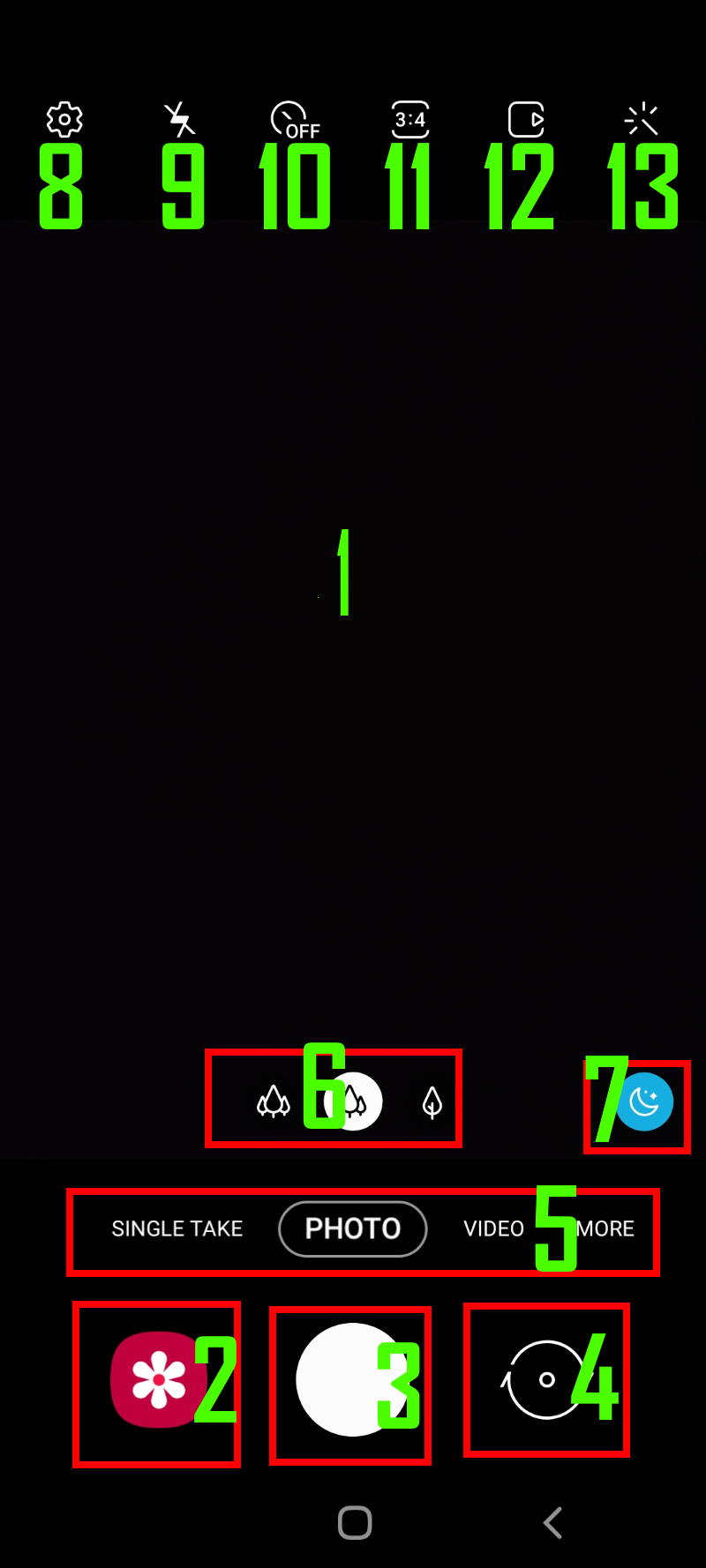
Galaxy S20 Camera app interface

#1. Preview screen

You can preview the photo before tapping the shutter button.

The size of the preview screen depends on the photo aspect ration chosen (read on).

Please note, you can tap and hold anywhere on the preview screen to lock the autofocus (AF) and exposure.

You may pinch or spread on the preview screen to zoom in or zoom out. You can switch front and rear cameras by swiping upwards or downwards on the preview screen

#2. Shortcut to Gallery

By default, the thumbnail of the latest photo is shown. It is a shortcut to the Gallery app.

Once in the Gallery app, if you tap the Back button to exit the Gallery app, then you can return to the camera app.

Please note, if you are using the Assistant Menu, you can use Assistant Plus to add the shortcut to Gallery.

#3. Shutter (capture) button

Normally, you need to tap the shutter button to take a photo with Galaxy S20 camera.

Of course, you can also use the volume key, floating shutter button, voice control, or gestures (show palm) to take photos on Galaxy S20.

On Galaxy S20 camera app, you can hold the shutter button to take a quick video.

You may swipe down the shutter button to the bottom to use the burst mode, or create GIF animations.

Please refer to this guide for more details and features of the shutter button.

#4. Rear/front camera switch

You can tap the button to switch between the rear and front camera.

As mentioned earlier, you can also swipe up or down to switch the front/rear cameras.

Please note, when you want to change the camera settings, you need to switch to the desired cameras because some camera settings appear only when the corresponding camera is selected. For example, if you want to enable/disable mirrored photos or mirrored videos when using the front camera, you need to switch to the front camera first, then tap the gear icon.

#5. Galaxy S20 Camera modes (shooting modes)

You can tap the corresponding buttons to choose Photo (Auto Mode), Video, and single-take mode.

Other Galaxy S20 camera modes can be accessed and managed by tapping the More button.  Other Galaxy S20 camera modes include Pro mode, panorama, food, night, live focus, live focus video, pro video, super slo-mo, slow motion, and hyperelapse. You can also add/pin any of the camera modes in the preview screen so that you can access them without tapping the Morte button.

You may swipe left and right on the preview screen to change camera modes.

Please refer to Galaxy S20 camera modes guide for details.

#6. Zoom control

Galaxy S20 supports hybrid optical zoom and super-resolution zoom as explained in this guide.

Galaxy S20 and S20+ support up to 3X hybrid optical zoom and up to 30X super-resolution zoom. Galaxy S20 Ultra supports up to 10X hybrid optical zoom and 100X super-resolution zoom.

By default, there are 3 buttons for 3 levels: 0.5x, 1x (default), and 5x (on Galaxy S20 Ultra, 3x on Galaxy S20 and S20+). These zoom levels correspond to different camera lenses usage.

If you tap any of the three buttons, more zoom levels will appear, as shown below.
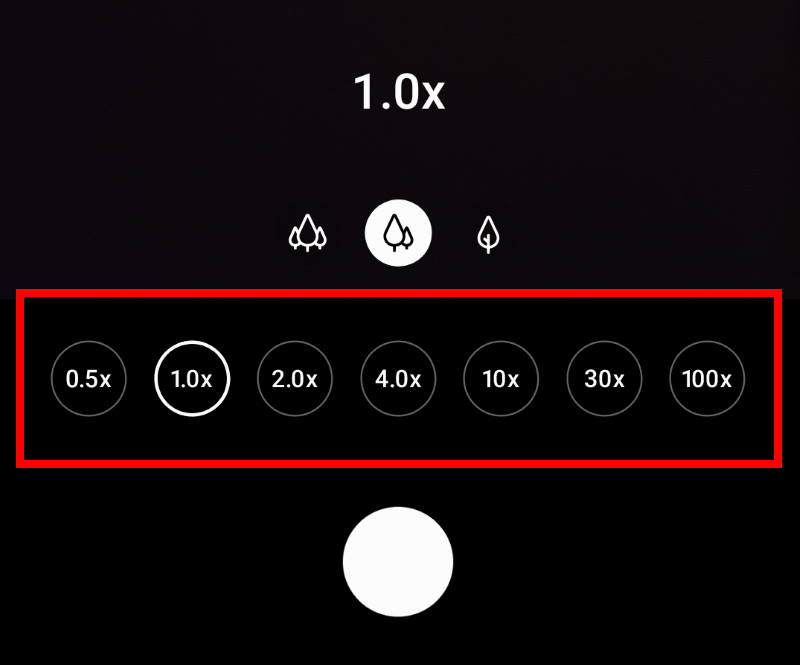
Zoom control

These are pre-set zoom levels. You can pinch or spread on the preview screen to get any zoom levels.

Please refer to this guide on how to zoom in and zoom out with proper camera lenses.

If you choose not to use the volume key to take photos, you can use the volume key to zoom in and zoom out.

#7. Scene optimizer

By default, in the Photo mode (auto mode)  the scene optimizer choose the best settings based on the previewed objects.

Galaxy S20 camera can recognize up to 30 different scenarios/subjects including Face, Baby, Person, Dog, Cat, Food, People, Beaches, Sky, Mountain, Sunset, Sunrise, City, Snow, Waterfall, Watersides, Scenery, Stage, Vehicles, Drinks, Flowers, Trees, Greenery, Animal, Shoes, Backlit, Indoor, Text, Clothes, Night view.

You can turn it on/off by tapping the button. In Galaxy S20 camera settings, you can also turn it on/off.

#8. Camera settings

The button links to Galaxy S20 camera settings.

Please refer to Galaxy S20 camera settings guide on how to use camera settings.

#9. Flash

You can set the flash mode to on, odd, or auto.

In the Auto flash mode, Galaxy S20 camera system will enable or disable flash automatically based on light conditions.

The LED flash is on the back of the phone (see Galaxy S20 layout).  It is recommended to avoid it if possible.

#10. Timer

You can set 2, 5, or 10 seconds timer for Galaxy S20 camera.

The default setting for the timer is off.

You can show rear camera timer countdown on the cover if you are using a Galaxy S20 LED back cover.

#11. Photo size

Galaxy S20 does not allow you to set photo size manually.

Instead, you can only set the aspect ratio (4:3, 16:9, 1:1, and  20:9). For each aspect ratio, the photo size is fixed.

For the 4:3 aspect ratio, on Galaxy S20 Ultra,  you can choose the maximum resolution (108MP)  or the default resolution (12MP). Normally, the 12MP one gives better photo quality and less noise. You may consider the 108MP when the lighting is really good.

You may check this photo size guide.

If you want to resize the photos (reduce the resolution and therefore make the file size smaller), you may use the Photo Editor in the Gallery app to resize photos on Galaxy S20.

#12. Motion photo

Galaxy S20 motion photo allows you to capture a few seconds of action leading up to when the shutter button is released.

You can extract different moments, or share the motion photo as a video.

By default, motion photo is off on Galaxy S20.

#13. Camera effects (filters)

You can add camera effects to your photos.

Galaxy S20 also allows you to create your own filters.

Additional buttons in Galaxy S20 video mode

If you are in the Video mode, you may see two additional buttons, as shown below.
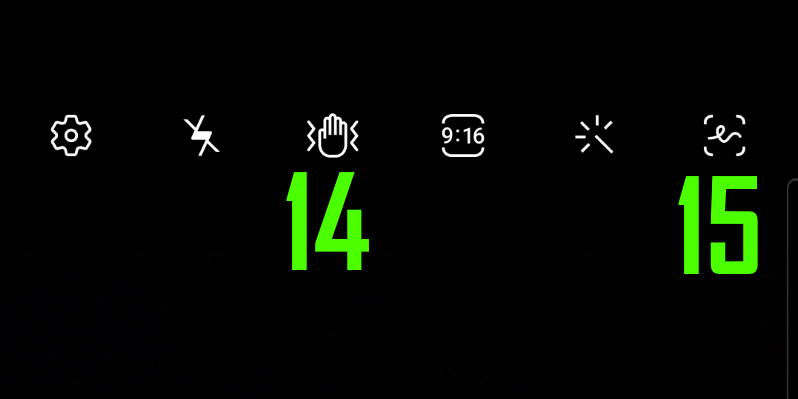
Galaxy S20 camera app: video mode

#14. Super Steady

Super steady is a video stabilizer.  It helps you record the moment with less blur and shake, even if you and the subject are both on the move.

This feature was first introduced on Galaxy Note 10.

#15. AR Doodle

The button is a shortcut to AR Doodle, which uses augmented reality (AR) technology to insert 3D objects into your video.

Please refer to this guide (coming soon) on how to use AR Doodle on Galaxy S10 and Galaxy Note 10.

Galaxy S20 camera app gestures

As mentioned above, you can use various touchscreen gestures on Galaxy S20 camera app including:

  • Swipe up/down on the preview screen to switch front/rear camera.
  • Swipe left/right ton the preview screen o choose shooting modes.
  • Tap on the preview screen to change focus.
  • Tap and hold (long tap) on the preview screen to lock AF/AE.
  • Pinch or spread on the preview screen to zoom in/out.
  • Tap and hold the shutter button to record video.
  • Swipe from the shutter button to the bottom edge to take burst shot photos (or create GIF animations). You can configure the functions of this gesture in Galaxy S20 camera settings.

How to use Galaxy S20 camera quick launch?

Instead of tapping the camera app icon, or using voice command, you can use the Galaxy S20 camera quick launch.

Quickly press the side key twice to launch Galaxy S20 camera app. It is called Galaxy S20 camera quick launch.

On Galaxy S20, S20+, and S20 Ultra,  Side key replaces the Power key. It is located on the right side of the phone.

In most regions, Galaxy S20 camera quick launch is enabled by default.  You can disable it by remapping the Side key functions in Settings—Advanced features —Side key.

Please note, by default, the camera app shortcut is added to Galaxy S20 lock screen. You can also use the camera app without unlocking Galaxy S20.

Do you have any questions on Galaxy S20 camera app on Galaxy S20, S20+, and S20 Ultra?

If you have any questions or encounter any problems on using Galaxy S20 camera app on Galaxy S20, S20+, and S20 Ultra, please let us know in the comment box below.

The community will help you get the answer.

If you have any questions on Galaxy S20, you may check other Galaxy S20 guides:

  • Galaxy S20 new features guides.
  • Galaxy S20 how-to guides.
  • Galaxy S20 camera guides.
  • Galaxy S20 accessories guides.
  • Official Galaxy S20 user manual in your local language.

You can also join us on our  Facebook page. 

Related

Filed Under: Camera guides, How to guides Tagged With: AR Doodle, burst shot photos, camera effects, digital zoom, Galaxy S20 camera, Galaxy S20 camera app, Galaxy S20 camera burst mode, Galaxy S20 camera modes, Galaxy S20 camera quick launch, Galaxy S20 camera settings, Galaxy S20 LED back cover, hybrid optical zoom, lock screen, mirrored photos, motion photo, photo size, scene optimizer, shooting modes, Side key, super resolution zoom, super steady, touchscreen gesture

Reader Interactions

Leave a ReplyCancel reply

Primary Sidebar

The ultimate collection of narrative humor

Stop Telling Boring One-Liners. Start Telling Unforgettable Stories

Follow Us

  • Facebook
  • YouTube
  • RSS Feed

RSS Galaxy S24 Guides

  • The definitive guide to One UI 7 (Android 15) update for Galaxy S24, S23, S22, and S21
  • The Definitive Guide to Galaxy AI on Galaxy S24, S23, S22, Fold 6, Fold 5, Flip 6, and Flip 5
  • Use the Light Performance Profile to Extend Battery Life and Reduce Heat on Galaxy S24, S23, S22, and S21 (all Samsung Galaxy Phones with Android 14/One UI 6.0)
  • How to adjust lock screen timeout on Galaxy S24, S23, S22, and other Galaxy devices?
  • How to use Circle to Search on Galaxy S24?
  • Meaning of Galaxy S24 status icons and notification icons on Galaxy S24, S24+, and S24 Ultra
  • Samsung Galaxy S24 Smart View Wallet Case: A Definite Guide

RSS Galaxy S23 Guides

  • Explanation of all One UI 6.1 features for Galaxy S23, S23+, S23 Ultra, and other Galaxy devices
  • How to use One-Tap Editing in the Android 14 (One UI 6) update?
  • How to enable and use Auto Scan to scan documents automatically on Galaxy S23, S22, and S21?
  • New camera features in One UI 6 (Android 14) update for Galaxy S23, S22, and S21
  • Galaxy S23 User Manual in American English with Android 14 (One UI 6) Update
  • Galaxy S23 User Manual in British English with Android 14 (One UI 6) update

RSS Galaxy S21 Guides

  • Top 12 new features in Android 12 update for Galaxy S21, S20 and S10
  • Android 12 update vs One UI 4.0 vs One UI 4.1: update Galaxy S21, S20 and S10 to Android 12
  • How to set and resize photo size on Samsung Galaxy S21, S20, S10, and S9 without using any third-party apps?
  • How to Customize Galaxy S21 Home Screen?
  • Master Galaxy S21 Lock Screen Settings

RSS Headphone & Earbuds

  • Bluetooth LE Audio and the LC3 Codec: A Technical Deep Dive
  • The Physics and Engineering of Super Wide Band (SWB) Voice
  • True Wireless Stereo (TWS) Explained
  • The Complete Technical Guide to the Galaxy Buds 4 & Buds 4 Pro
  • The Right Fit of Galaxy Buds 4 — User Personas & Recommendations
  • Galaxy Buds 4 as an AI Earbud — Tips, Tricks, and Galaxy AI
  • AirPods Pro 3: The Complete Technical Guide and Long-Term Review
  • The Flagship Face-off: Galaxy Buds 4 Pro vs. AirPods Pro 3, Sony WF-1000XM6, and Bose QC Ultra Earbuds II
  • Sony 1000X Headphones and Earbuds Guides
  • The Ultimate Guide to the Sony WF-1000XM6: Everything You Need to Know

RSS Chromecast Guides

  • How to enable developer options in Chromecast with Google TV and Google TV Streamer?
  • Meaning of LED light on voice remote for Chromecast with Google TV and Google TV Streamer
  • What’s new in Chromecast 2018 (3rd gen of Chromecast)?
  • How to use VLC media player on PC to stream music and video to Chromecast and Chromecast Audio?
  • How to use Chromecast Ultra to stream 4K content?
  • How to disable Google Home and Chromecast casting notification?
  • How to launch Videostream (and other Chrome apps as well)?
  • A Guide to Chromecast Offers
  • Chromecast guest mode guide
  • Screen mirroring with Chromecast

RSS Moto G Guide

  • Stylus features on Moto G Stylus (all models)
  • What’s new in Moto G 2024? Moto G 5G 2024 vs Moto G Power 2024 vs Moto G Play 2024
  • Understand Moto G Model Names
  • Thank You
  • Moto G8 vs Moto G8 Power vs Moto G8 Power Lite vs Moto G Power vs Moto G Stylus vs Moto G Pro vs Moto G fast: What are the differences?
  • Moto G8 User Manual for Moto G8 Plus and Moto G8 Play
  • Moto G8 Plus vs Moto G8 Play: Differences and common features
  • Official Moto G7 user manual
  • Moto G7 vs Moto G7 Play vs Moto G7 Plus vs Moto G7 Power: what are the differences?
  • Official Moto G6 user manuals, Moto G6 Play user manuals and Moto G6 Plus user manuals

RSS Galaxy S21 Guides

  • Top 12 new features in Android 12 update for Galaxy S21, S20 and S10
  • Android 12 update vs One UI 4.0 vs One UI 4.1: update Galaxy S21, S20 and S10 to Android 12
  • How to set and resize photo size on Samsung Galaxy S21, S20, S10, and S9 without using any third-party apps?
  • How to Customize Galaxy S21 Home Screen?
  • Master Galaxy S21 Lock Screen Settings

RSS Moto G Guide

  • Stylus features on Moto G Stylus (all models)
  • What’s new in Moto G 2024? Moto G 5G 2024 vs Moto G Power 2024 vs Moto G Play 2024
  • Understand Moto G Model Names
  • Thank You
  • Moto G8 vs Moto G8 Power vs Moto G8 Power Lite vs Moto G Power vs Moto G Stylus vs Moto G Pro vs Moto G fast: What are the differences?
  • Moto G8 User Manual for Moto G8 Plus and Moto G8 Play
  • Moto G8 Plus vs Moto G8 Play: Differences and common features
  • Official Moto G7 user manual
  • Moto G7 vs Moto G7 Play vs Moto G7 Plus vs Moto G7 Power: what are the differences?
  • Official Moto G6 user manuals, Moto G6 Play user manuals and Moto G6 Plus user manuals

Copyright © 2026 · Galaxy S20 [email protected] · Powered by WordPress with Genesis Framework · Hosted by PTRhosting
Samsung Galaxy S20 how-to guides, user manuals, tips and tricks for Samsung Galaxy S20, Galaxy S20+, and Galaxy S20 Ultra owners.
Disclaimer: Samsung, Galaxy, Galaxy S20, Galaxy S20+ (S20 Plus) and Galaxy S20 Ultra are trademarks of Samsung. Android is a trademark of Google. This website is NOT affiliated with Samsung or Google in any way. All the information provided on this website is provided on an "as is" and "as available" basis and you agree that you use such information entirely at your own risk.
Galaxy S20 Guides@GadgetGuideOnline is a member site of GadgetGuideOnline.com : Guides for your Gadgets.

Add Samsung Galaxy S20 Guides to your Homescreen!

Add