• Skip to main content
  • Skip to primary sidebar
  • Home
    • About Galaxy S20 Guides
    • Privacy Policy
    • Contact Us
  • New Features
    • The End of the Road: No Android 14 Update for the Galaxy S20
    • Top 13 new features in One UI 5 update (Android 13 update) for Galaxy S22, S21, and S20
    • Top 12 new features in Android 12 update for Galaxy S21, S20 and S10
    • Top 11 new features in Galaxy S20 Android 11 update
    • Everything about eSIM support and use eSIM on Galaxy S20 and Galaxy S21
    • How to use single take camera mode on Galaxy S20?
    • What is Galaxy S20 Hybrid Optic Zoom and Super Resolution Zoom?
    • How to customize icon shape on Galaxy S20 and S10?
    • Top 10 differences among Galaxy S20, S20+, and S20 Ultra
    • Top 5 new features of Galaxy S20, S20+, and S20 Ultra
    • 5 worst features of Galaxy S20, S20+, and S20 Ultra
  • How-to
    • The End of the Road: No Android 14 Update for the Galaxy S20
    • Top 11 new features in Galaxy S20 Android 11 update
      • How to update Galaxy S20 to Android 11?
      • How to access, use, and customise widgets on Galaxy S20 lock screen and AOD screen with Android 11 update for Galaxy S20?
      • How to Use Enhanced Processing on Galaxy S20 with Android 11 update?
    • Meaning of status icons and notification icons on Galaxy S20
      • How to customize notification icon style in Galaxy S20 status bar?
      • How to enable and use Galaxy S20 developer options?
      • How to use and force Galaxy S20 dark mode?
      • A Complete Guide Of Galaxy S20 Assistant Menu
    • How to use and manage SIM card on Galaxy S20?
      • Everything about eSIM support and use eSIM on Galaxy S20 and Galaxy S21
      • How to use a micro SD card on Galaxy S20?
      • Master Mobile Networks Settings on Galaxy S20
      • How to customize Galaxy S20 ringtone quickly without using any third-party apps?
    • How to charge Galaxy S20 battery?
      • What is fast charging, super-fast charging, fast wireless charging and fast wireless charging 2.0?
      • How to use and customize power mode on Galaxy S20?
      • How to set battery limit for Wireless PowerShare on Galaxy S20, Note 10, and S10?
    • How to unlock Galaxy S20 when you forget the password or PIN (without resetting the phone)?
      • How to hide password on Galaxy S20 when typing it to boost security of your phone?
      • How to confirm PIN without tapping OK on Galaxy S20 (and other Galaxy phones)?
      • How to unlock Galaxy S20 to Home screen directly (without swiping on Galaxy S20 lock screen) with face recognition?
      • How to use Galaxy S20 face recognition (face unlock)?
      • How to manage location services on Galaxy S20 to protect your privacy?
    • Unbox Galaxy S20: Understand Items in Galaxy S20 Box
      • How to use Galaxy S20 recovery mode?
      • How to power on, power off, and restart Galaxy S20?
      • How to enter, use, and exit Galaxy S20 safe mode?
      • How to migrate data to Galaxy S20 from Android and iOS devices?
    • Galaxy S20 layout
      • How to customize and use Galaxy S20 Quick Settings?
      • How to easily take a screenshot on Galaxy S20 without using any third-party apps?
      • How to remap and use Galaxy S20 Side key?
      • The Ultimate Guide of Galaxy S20 Touchscreen Gestures
      • How to adjust volume for media, ringtones, notifications and alarm tones on Galaxy S20?
    • How to use and customize Galaxy S20 lock screen?
      • How to use Galaxy S20 lockdown mode?
      • How to use Galaxy S20 always-on display (AOD) effectively?
      • Master Galaxy S20 lock screen settings
      • Use advanced features of Galaxy S20 wallpapers on the lock screen and home screen
      • How to use faceWidgets on Galaxy S20 lock screen and Always-on display screen?
      • How to use app shortcuts on Galaxy S20 lock screen?
      • How to use in-display fingerprint reader to unlock Galaxy S20?
    • How to use Galaxy S20 navigation gestures?
      • How to use and customize Galaxy S20 navigation buttons?
      • How to use the Galaxy S20 Recents screen on Galaxy S20, S20+, and S20 Ultra?
    • Master Galaxy S20 Home screen
      • How to hide Samsung Daily (Bixby Home) on Galaxy S20?
      • How to lock the Galaxy S20 Home screen layout to prevent unintentional changes?
      • How to customize icon shape on Galaxy S20 and S10?
      • Use Galaxy S20 Home screen edit mode to customize Galaxy S20 Home screen
  • Camera
    • How to use, manage and master Galaxy S20 camera modes?
    • How to use 5 different shooting methods for Galaxy S20 camera?
    • How to avoid mirrored photos (selfies) on Galaxy S20?
    • What is Galaxy S20 Hybrid Optic Zoom and Super Resolution Zoom?
    • How to use different camera lens to zoom in and zoom out on Galaxy S20?
    • How to use Galaxy S20 camera app?
    • Understand and use Galaxy S20 Camera Settings
    • How to take burst shot photos with Galaxy S20 burst mode like a pro?
    • How to use single take camera mode on Galaxy S20?
  • User Manuals
  • Accessories
    • Galaxy S20 LED View Cover (LED Wallet Cover)
    • How to use Galaxy S20 Clear View Cover (S View cover)?
    • How to use Galaxy S20 LED back cover?
    • How to use SanDisk Ultra Dual Drive USB Type-C on Galaxy S20, S10, S9 and S8?
Galaxy S20 Guides

Samsung Galaxy S20 Guides

Everything about Samsung Galaxy S20, S20+, and S20 Ultra

How to unlock Galaxy S20 when you forget the password or PIN (without resetting the phone)?

Last updated on: June 12, 2021 · First published on: May 22, 2020 2 Comments

unlock Galaxy S20 when you forget the password or PINYou can unlock Galaxy S20 in Samsung Find My Mobile if you forget the password or PIN for Galaxy S20, S20+, or S20 Ultra, or any other Samsung Galaxy phones.

This Galaxy S20 how-to guide explains the requirements for you to unlock Galaxy S20 without a password or PIN, steps to unlock Galaxy S20 if you forget the password or PIN using Samsung FGind My Mobile, and how to remotely lock and secure your phone with Samsung Find My Mobile services.

In most regions, you can unlock Samsung Galaxy phones if you forget the password or PIN using Samsung Find My Mobile service.  So, this guide applies to most Samsung Galaxy phones, including Galaxy S21, Galaxy S20, S10, Note 20, Note 10, S9, Note 9, S8, Note 8, and other popular Samsung Galaxy phones.

Table of Contents hide
1. Can I reset the password (unlock Galaxy S20) on Google Find My Device (Android Device Manager) if I forget the password or PIN on Galaxy S20?
2. The requirements to unlock Galaxy S20 when you forget the password or PIN
3. Steps to unlock Galaxy S20 when you forget the password or PIN
3.1. Step 1: Access Samsung Find My Mobile page
3.2. Step 2: Locate the phone you want to unlock
3.3. Step 3: Unlock Galaxy S20 remotely without a password/PIN
3.4. Step 4: Set up a new password or PIN on Galaxy S20
4. How to enable Find My Mobile and Remote Unlock on Galaxy S20?
5. Why I cannot unlock Galaxy S20 (and any Android phones) with Google's Find My Device (Android device manager)?
6. Why I cannot use face recognition or fingerprint and Galaxy S20 demands PIN/password/pattern?
6.1. Related

Can I reset the password (unlock Galaxy S20) on Google Find My Device (Android Device Manager) if I forget the password or PIN on Galaxy S20?

No, Google removed the remote unlock and password reset features from Android Device Manager (now, Find My Device) in 2016.

So, if you forget the password or PIN on Galaxy S20, Google Find My Device can only help you erase (reset) the phone, i.e., factory data reset (FDR), or lock up the phone.

Google Find My Device will never unlock Galaxy S20, or reset the password/PIN. It can lock the phone (if it is unlocked) remotely. Some users confuse the “lock” and “unlock” feature in Google Find My Device.

Please note, the factory data reset will erase all of your data and settings. This is only useful if your phone is lost or stolen. You can reset Galaxy S20 in the recovery mode as well.

If your Galaxy S20 is still in your hands and you only forget the password or PIN for the lock screen, then probably it is not necessary to reset the phone.

Currently, for Galaxy S20 and other Samsung Galaxy phones, only Samsung Find My Mobile can unlock Galaxy S20 without a password or PIN.

The requirements to unlock Galaxy S20 when you forget the password or PIN

If you need to unlock Galaxy S20 and you forget the password or PIN,  you need to meet the following requirements:

  1. The phone is online.
  2. You added your Samsung account to the phone.
  3. You enabled  Find My Mobile on the phone. By default, it is enabled when you add your Samsung account.
  4. You did NOT disable Remote unlock on the phone. It is enabled unless you manually disable it when you enable Find My Mobile.

When you add your Samsung account to the phone, by default, Find My Mobile  (and remote unlock) will be enabled automatically unless you manually disable them.

Anyway, if you never use a Samsung account, you can stop reading now. In this case, if you forget the password or PIN on Galaxy phones, you have to factory data reset the phone.

Steps to unlock Galaxy S20 when you forget the password or PIN

If you have a Samsung account, you can try the following steps to try to unlock Galaxy S20 and reset the password or PIN.

Step 1:  Access Samsung Find My Mobile page

You can access Samsung's Find My Mobile website (https://findmymobile.samsung.com/) from a PC, or a tablet or a mobile phone.

It is recommended to use the Chrome browser or Samsung's Internet to access it.

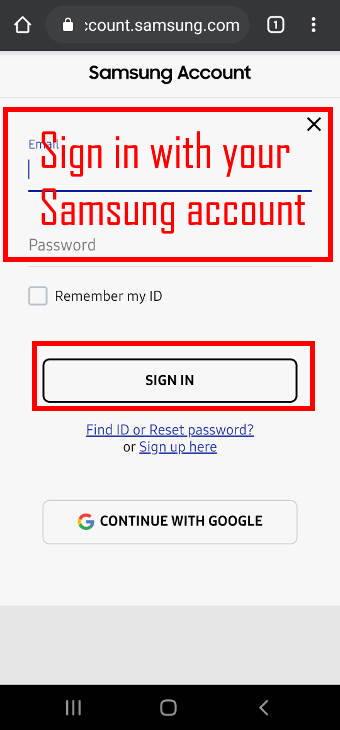
As shown in the screenshot below, you need to tap Sign in to proceed.
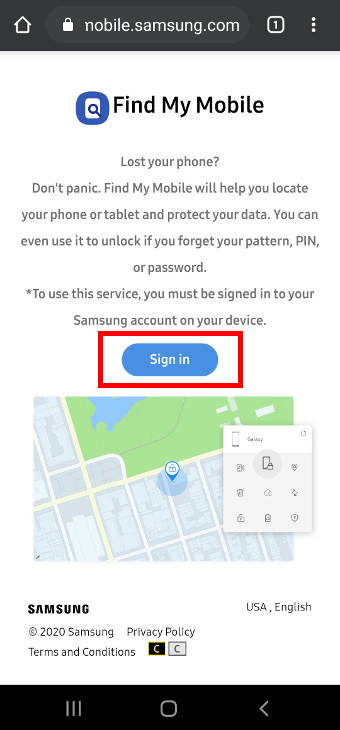
Samsung Find My Mobile sign in with your Samsung account

You need to sign in with your Samsung account, not a Google account (unless you linked them).

If you have multiple Samsung accounts, you must use the one that you used on the phone to be unlocked.

Step 2: Locate the phone you want to unlock

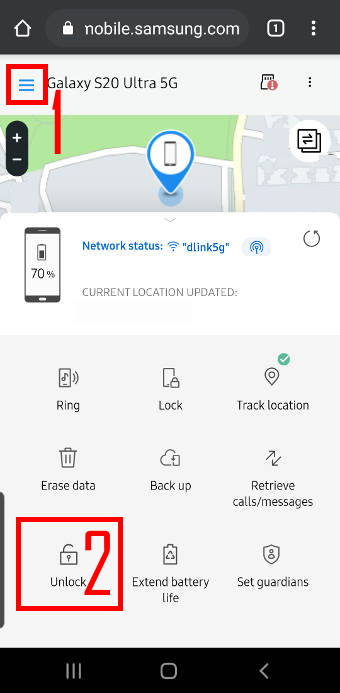
Once you log in on the Find My Mobile page, by default, the latest phone that added your Samsung account (or that was located by Find My Mobile recently) will be shown as shown in the screenshot below.

Samsung Find My Mobile will get location info (from GPS, mobile network and WiFi) and some other info of the phone (e.g., battery status, WiFi network status).

For example, Galaxy S20 Ultra is listed on the page. There are many functions and features in Samsung Find My Mobile.

The following two features are related to unlocking Galaxy S20 without a password or PIN and reset Galaxy S20 lock screen password/PIN.

  1. The navigation menu to switch to other phones.
  2. Unlock the current phone.

Locate the phone you want to unlock Steps to unlock Galaxy S20 when you forget the password or PIN

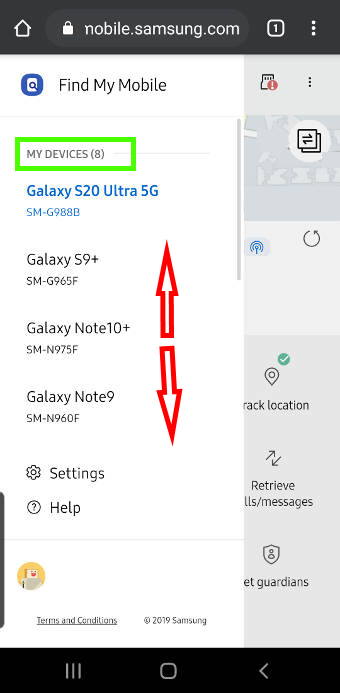
As shown above, after tapping the navigation menu (hamburger menu, makes as 1), you can find all of your devices with the Samsung account.

In this example, the Samsung account was added to eight devices.

You can switch to any of these devices if you need to unlock them.

Step 3: Unlock Galaxy S20 remotely without a password/PIN

In this example, we want to unlock Galaxy S20 Ultra because we assume we forget the password.

So, on the Galaxy S20 Ultra page shown above, tap Unlock (marked as 2) to unlock Galaxy S20.

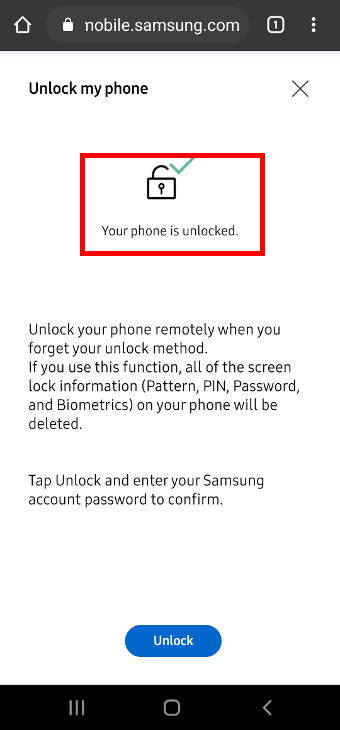
As shown below, you now need to confirm that you want to unlock the phone.

There is a warning about remote unlocking Galaxy S20 with the Find My Mobile:

If you use this function, all of the screen lock information (Pattern, PIN, Password, and Biometrics) on your phone will be deleted.

So, essentially, the lock screen security will be reset.  Not only the PIN and password but also all your fingerprints and face data will be erased after unlocking Galaxy S20 in this way.

You need to sign in with your Samsung account again to proceed.
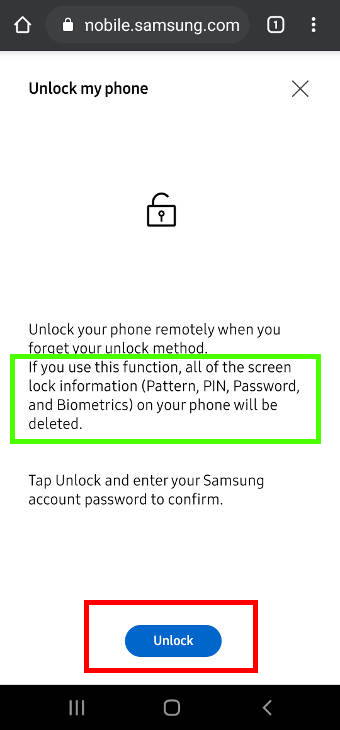
Unlock Galaxy S20 remotely without a password/PINUnlock Galaxy S20 remotely without a password/PIN

After a few seconds, the Galaxy S20 should be unlocked.

On the Samsung Find My Mobile page, as shown above, it should tell you the phone is unlocked.

Now, you can swipe to unlock Galaxy S20.

On the Galaxy S20 notification panel, you should find some notifications from Find My Mobile. The notification icon should also be shown in the status bar.

As shown in the screenshot below, it indicates that the phone is tracked by Samsung Find My Mobile and the screen lock was reset.
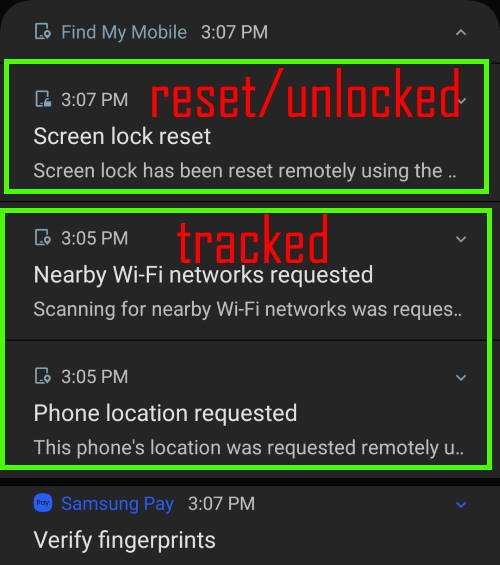
unlock Galaxy S20 when you forget the password or PIN

Step 4: Set up a new password or PIN on Galaxy S20

The  Galaxy S20 lock screen security on the phone is reset as Swipe to unlock. All facial recognition and fingerprints data are removed as well.

You should set up the lock screen security based on your needs.

If you set up a fingerprint for Samsung Pay, you need to re-register your fingerprint again.

Actually, in the notification panel, you should also get a notification like the one shown below.
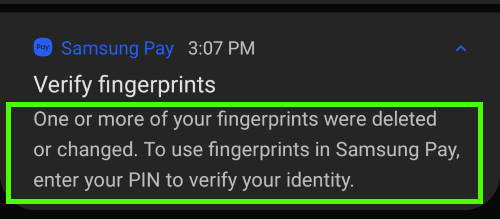
Set up a new password or PIN on Galaxy S20

How to enable Find My Mobile and Remote Unlock on Galaxy S20?

You need to add a Samsung account on Galaxy S20 first in Settings — Accounts and backup —Accounts — Add account.

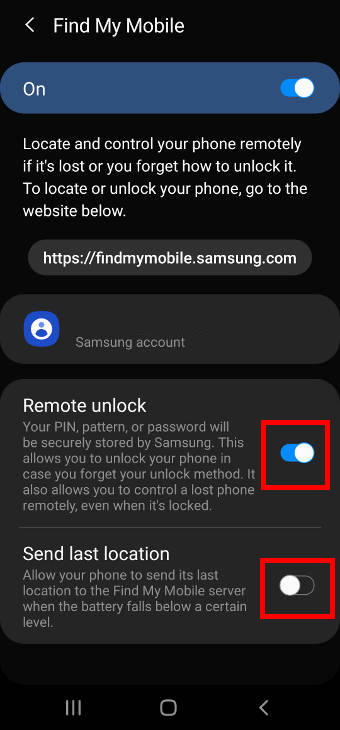
After adding the Samsung account, you can enable the Fine My Mobile in Settings — Biometrics and security — Find My Mobile, as shown below.

You can use the switch to enable it directly.

By default, the Remote unlock will be enabled once you enable Find My Mobile.

You can also tap the text filed of Find My Mobile to customize some features.
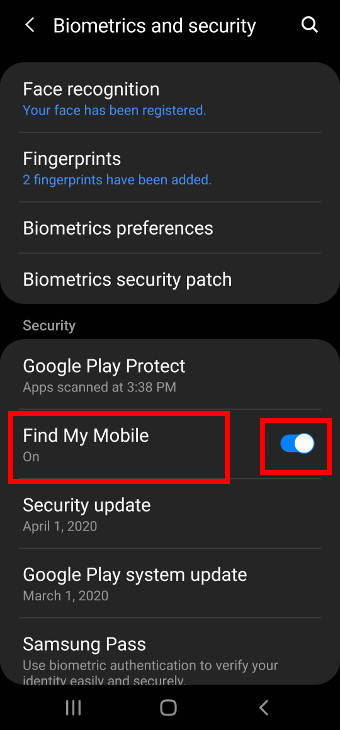
enable Find My Mobile and Remote Unlock on Galaxy S20 enable Find My Mobile and Remote Unlock on Galaxy S20

As shown above, you can enable or disable:

  • Remote unlock.
  • Send the last location.

It is safe to turn off send the last location if you do not want to receive so many notifications.

It is recommended to enable remote unlock.

Why I cannot unlock Galaxy S20 (and any Android phones) with Google's Find My Device (Android device manager)?

As mentioned earlier, Google removed the feature in 2016 due to possible legal responsibilities.

So, you cannot unlock any Android phones with your Google account. You cannot reset the lock screen security with Google's Find My Device service.

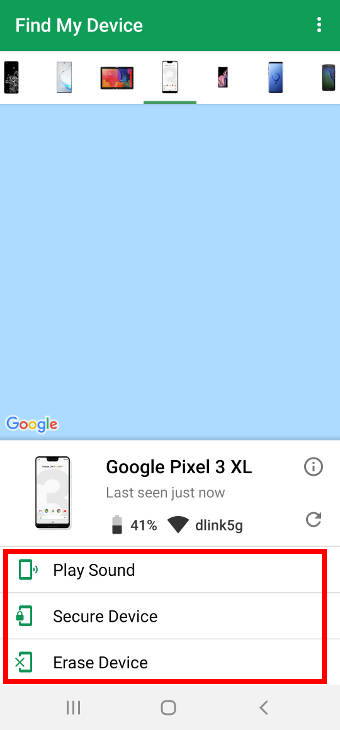
As shown in the screenshot below, in the Find My Device page, you can:

  • Locate the phone.
  • Ring the phone (Play sound).
  • Secure the phone. It can lock the phone remotely if it is unlocked (e.g., unlocked by smart lock, or you did not set up lock screen security). But it can NOT unlock the phone remotely. You can also display some messages on the lock screen if you forget the phone somewhere.
  • Erase the phone (factory data reset).

Why I cannot unlock Galaxy S20 (and any Android phones) with Google's Find My Device (Android device manager)

If you forget the password or PIN, and you are not using Samsung account on the phone, the only option is to reset (factory data reset) the phone.

Factory data reset can be done locally by rebooting Galaxy S20 into the recovery mode.

You can also factory reset Galaxy S20 with Samsung Find My Mobile and Google Find My Device (Android Device Manager) if the phone is connected to the internet.

Please note, after factory data reset, you must use the Google account existed on the phone (before the FDR) to set up the device. You cannot use other Google accounts to set up the device.

Why I cannot use face recognition or fingerprint and Galaxy S20 demands PIN/password/pattern?

In some cases, PIN (or password or pattern) is required, for example

  • After you reboot Galaxy S20. All your personal data including your fingerprint and facial data are encrypted with the PIN (password/pattern). So, you cannot unlock Galaxy S20 with face recognition or fingerprint before the PIN is used to access the facial features and fingerprints. This is due to how biometric data are saved (and secured) on the phone. For the same reason, if you set lock screen security as none or swipe, all facial feature and fingerprint data will be erased.
  • When you want to change lock screen security settings. Because the PIN/password/pattern is considered more secure than biometrics, you will be asked to use them when you want to change security or privacy-related settings on the phone.
  • Every 24 hours.  Samsung asks you to use the PIN (or password or pattern) at least once every 24 hours.  The 24-hour is purely artificial. Its intention is to let you remember your PIN/password/pattern. At the same time, it makes sure the phone is unlocked by a real person. Facial features and fingerprint may be spoofed.
  • After the phone is locked (idle) for more than 6 hours.  Samsung thinks it should be a fresh session.

Anyway, it is clear that the PIN/password/pattern is the first tier for phone security. You have to use it often.

Do you have any questions on how to unlock Galaxy S20 when you forget the password or PIN? Can you use Samsung Find Mobile to unlock Galaxy phones without resorting to factory data reset?

If you have any questions on unlocking Galaxy S20  (any other Galaxy phones) when you forget the password or PIN, please let us know in the comment box below.

The community will help you get the answer.

If you have any questions on Galaxy S20, you may check other Galaxy S20 guides:

  • Galaxy S20 new features guides.
  • Galaxy S20 how-to guides.
  • Galaxy S20 camera guides.
  • Galaxy S20 accessories guides.
  • Official Galaxy S20 user manual in your local language.

You can also join us on our  Facebook page. 

Related

Filed Under: New Features Tagged With: Android Device Manager, biometrics, confirm PIN without tapping OK, face recognition, factory data reset, fingerprint sensor, forget the password, Galaxy S20 battery, Galaxy S20 lock screen, Galaxy S20 lock screen settings, Galaxy S20 notification icons, Galaxy S20 recovery mode, Galaxy S20 Settings, Google Find My Device, hide password, notification panel, recovery mode, remote unlock, reset password, reset PIN, Samsung account, Samsung Find My Mobile, screen lock type, smart lock, unlock Galaxy S20

Reader Interactions

Comments

  1. Maria Light says

    August 28, 2020 at 4:18 am

    Purchased an unlocked S20 5G through Amazon. Used Smart Switch to transfer data from old to new cell. Unable to call anyone on my contacts? Saw message “out of net” don’t understand what that means. Anyway now I’m locked out because it wants my password. Never set up for password, instead chose fingerprint to unlock. How to I open my phone when I never made a password????

    Reply
    • simon says

      August 27, 2020 at 11:38 pm

      If you chose fingerprint, it always asks you to set up the PIN/password/pattern. Otherwise, Galaxy S20 will NOT register your fingerprint at all. So, on Galaxy S20, there is no way to use fingerprint without setting the PIN/password/pattern.

      When you use biometrics to unlock Galaxy S20, you will be asked to use PIN/password/pattern at least every 48 hours. Also, after you reboot the phone, you always have to use the PIN/password to unlock Galaxy S20.

      If you did not set up a Samsung account and forgot the PIN/password, you have to reset the phone. Please note, after the factory data reset, you must use the Google account existing on the phone before the reset.

      To make calls, you need a working SIM card. If you cannot make calls, you need to check whether your SIM card is recognized or placed wrongly. There are some icons in the status bar indicating the status.


      -- Our Facebook page || Galaxy S6 Guides || Galaxy S7 Guides || Android Guides || Galaxy S8 Guides || Galaxy S9 Guides || Google Home Guides || Headphone Guides || Galaxy Note Guides || Fire tablet guide || Moto G Guides || Chromecast Guides || Moto E Guides || Galaxy S10 Guides || Galaxy S20 Guides || Samsung Galaxy S21 Guides || Samsung Galaxy S22 Guides || Samsung Galaxy S23 Guides

      Reply

Leave a ReplyCancel reply

Primary Sidebar

The ultimate collection of narrative humor

Stop Telling Boring One-Liners. Start Telling Unforgettable Stories

Follow Us

  • Facebook
  • YouTube
  • RSS Feed

RSS Galaxy S24 Guides

  • The definitive guide to One UI 7 (Android 15) update for Galaxy S24, S23, S22, and S21
  • The Definitive Guide to Galaxy AI on Galaxy S24, S23, S22, Fold 6, Fold 5, Flip 6, and Flip 5
  • Use the Light Performance Profile to Extend Battery Life and Reduce Heat on Galaxy S24, S23, S22, and S21 (all Samsung Galaxy Phones with Android 14/One UI 6.0)
  • How to adjust lock screen timeout on Galaxy S24, S23, S22, and other Galaxy devices?
  • How to use Circle to Search on Galaxy S24?
  • Meaning of Galaxy S24 status icons and notification icons on Galaxy S24, S24+, and S24 Ultra
  • Samsung Galaxy S24 Smart View Wallet Case: A Definite Guide

RSS Galaxy S23 Guides

  • Explanation of all One UI 6.1 features for Galaxy S23, S23+, S23 Ultra, and other Galaxy devices
  • How to use One-Tap Editing in the Android 14 (One UI 6) update?
  • How to enable and use Auto Scan to scan documents automatically on Galaxy S23, S22, and S21?
  • New camera features in One UI 6 (Android 14) update for Galaxy S23, S22, and S21
  • Galaxy S23 User Manual in American English with Android 14 (One UI 6) Update
  • Galaxy S23 User Manual in British English with Android 14 (One UI 6) update

RSS Galaxy S21 Guides

  • Top 12 new features in Android 12 update for Galaxy S21, S20 and S10
  • Android 12 update vs One UI 4.0 vs One UI 4.1: update Galaxy S21, S20 and S10 to Android 12
  • How to set and resize photo size on Samsung Galaxy S21, S20, S10, and S9 without using any third-party apps?
  • How to Customize Galaxy S21 Home Screen?
  • Master Galaxy S21 Lock Screen Settings

RSS Headphone & Earbuds

  • Bluetooth LE Audio and the LC3 Codec: A Technical Deep Dive
  • The Physics and Engineering of Super Wide Band (SWB) Voice
  • True Wireless Stereo (TWS) Explained
  • The Complete Technical Guide to the Galaxy Buds 4 & Buds 4 Pro
  • The Right Fit of Galaxy Buds 4 — User Personas & Recommendations
  • Galaxy Buds 4 as an AI Earbud — Tips, Tricks, and Galaxy AI
  • AirPods Pro 3: The Complete Technical Guide and Long-Term Review
  • The Flagship Face-off: Galaxy Buds 4 Pro vs. AirPods Pro 3, Sony WF-1000XM6, and Bose QC Ultra Earbuds II
  • Sony 1000X Headphones and Earbuds Guides
  • The Ultimate Guide to the Sony WF-1000XM6: Everything You Need to Know

RSS Chromecast Guides

  • How to enable developer options in Chromecast with Google TV and Google TV Streamer?
  • Meaning of LED light on voice remote for Chromecast with Google TV and Google TV Streamer
  • What’s new in Chromecast 2018 (3rd gen of Chromecast)?
  • How to use VLC media player on PC to stream music and video to Chromecast and Chromecast Audio?
  • How to use Chromecast Ultra to stream 4K content?
  • How to disable Google Home and Chromecast casting notification?
  • How to launch Videostream (and other Chrome apps as well)?
  • A Guide to Chromecast Offers
  • Chromecast guest mode guide
  • Screen mirroring with Chromecast

RSS Moto G Guide

  • Stylus features on Moto G Stylus (all models)
  • What’s new in Moto G 2024? Moto G 5G 2024 vs Moto G Power 2024 vs Moto G Play 2024
  • Understand Moto G Model Names
  • Thank You
  • Moto G8 vs Moto G8 Power vs Moto G8 Power Lite vs Moto G Power vs Moto G Stylus vs Moto G Pro vs Moto G fast: What are the differences?
  • Moto G8 User Manual for Moto G8 Plus and Moto G8 Play
  • Moto G8 Plus vs Moto G8 Play: Differences and common features
  • Official Moto G7 user manual
  • Moto G7 vs Moto G7 Play vs Moto G7 Plus vs Moto G7 Power: what are the differences?
  • Official Moto G6 user manuals, Moto G6 Play user manuals and Moto G6 Plus user manuals

RSS Galaxy S21 Guides

  • Top 12 new features in Android 12 update for Galaxy S21, S20 and S10
  • Android 12 update vs One UI 4.0 vs One UI 4.1: update Galaxy S21, S20 and S10 to Android 12
  • How to set and resize photo size on Samsung Galaxy S21, S20, S10, and S9 without using any third-party apps?
  • How to Customize Galaxy S21 Home Screen?
  • Master Galaxy S21 Lock Screen Settings

RSS Moto G Guide

  • Stylus features on Moto G Stylus (all models)
  • What’s new in Moto G 2024? Moto G 5G 2024 vs Moto G Power 2024 vs Moto G Play 2024
  • Understand Moto G Model Names
  • Thank You
  • Moto G8 vs Moto G8 Power vs Moto G8 Power Lite vs Moto G Power vs Moto G Stylus vs Moto G Pro vs Moto G fast: What are the differences?
  • Moto G8 User Manual for Moto G8 Plus and Moto G8 Play
  • Moto G8 Plus vs Moto G8 Play: Differences and common features
  • Official Moto G7 user manual
  • Moto G7 vs Moto G7 Play vs Moto G7 Plus vs Moto G7 Power: what are the differences?
  • Official Moto G6 user manuals, Moto G6 Play user manuals and Moto G6 Plus user manuals

Copyright © 2026 · Galaxy S20 [email protected] · Powered by WordPress with Genesis Framework · Hosted by PTRhosting
Samsung Galaxy S20 how-to guides, user manuals, tips and tricks for Samsung Galaxy S20, Galaxy S20+, and Galaxy S20 Ultra owners.
Disclaimer: Samsung, Galaxy, Galaxy S20, Galaxy S20+ (S20 Plus) and Galaxy S20 Ultra are trademarks of Samsung. Android is a trademark of Google. This website is NOT affiliated with Samsung or Google in any way. All the information provided on this website is provided on an "as is" and "as available" basis and you agree that you use such information entirely at your own risk.
Galaxy S20 Guides@GadgetGuideOnline is a member site of GadgetGuideOnline.com : Guides for your Gadgets.

Add Samsung Galaxy S20 Guides to your Homescreen!

Add