About GadgetGuideOnline
 About GadgetGuideOnline
GadgetGuideOnline is a community for gadget owners. The detailed how-to guides will help you use your gadgets effectively.
Currently, the community covers Android, smartphone, tablet, smart watch, wearables, VR, fitness tracker, Amazon Echo, Chromebook and casting/streaming gadgets.
If you have any questions on these gadgets, please leave a comment in related pages. The community will try to help you
If you want to contribute any gadget guides, tips and tricks, please contact us through this page.
You can jump to the following sections directly:
- Galaxy S6 Guide section
- Android Guide section
- Galaxy S7 Guides section
- Amazon echo guides section (coming soon)
- Chromecast guides section
- Galaxy Note Tips and tricks section
- Amazon Fire tablet guides section
- Moto G guides section

Galaxy S6 camera interface
simonTo take photos or record videos with Galaxy S6 or S6 edge, you first need access Galaxy S6 camera interface (launch the Galaxy S6 camera). It is important to understand and familiarize yourself with the camera app interface so that you can take the best photos or videos with Galaxy S6 camera or S6 edge camera.
How to access Galaxy S6 camera interface?
There are at least 4 different ways to launch Galaxy S6 camera so that you can access the Galaxy S6 camera interface.
Method 1: launch Galaxy S6 camera from Home screen
You can tap the Camera app icon in the favorite tray in Galaxy S6 home screen. This will launch Galaxy S6 camera app and you are directed to the camera app interface.
Method 2: launch Galaxy S6 camera from Apps screen
You can tap the Camera app icon in Galaxy S6 Apps screen (aka App drawer, All Apps) to launch Galaxy S6 camera.
Recommended! Method 3: launch Galaxy S6 camera with Galaxy S6 camera quick launch
You can press home buttons twice to use Galaxy S6 camera quick launch (even when Galaxy S6 is locked. Please refer to this guide on Galaxy S6 camera quick launch) to launch Galaxy S6 camera.
Method 4: launch Galaxy S6 camera with your voice
You can use your voice to launch Galaxy S6 camera. You can use Google Now voice command (e.g., “Start camera”) or S Voice command (“Open Camera app”)on Galaxy S6 or S6 edge to launch Galaxy S6 camera.
How to use Galaxy S6 camera interface?
When the Galaxy S6 camera app is launched, the camera interface is defaulted to preview screen as shown below.
Please note the location of the icons in Galaxy S6 camera interface (preview screen) depends on the orientation of the phone. Items 1-5 should be close to the Home button (bottom in portrait mode, see this page for Galaxy S6 layout.) and 6-11 close to Samsung logo (top in portrait orientation)
Items 7-10 are often referred as Galaxy S6 camera quick settings. Please do not confuse this with Galaxy S6 quick settings in the notification panel.
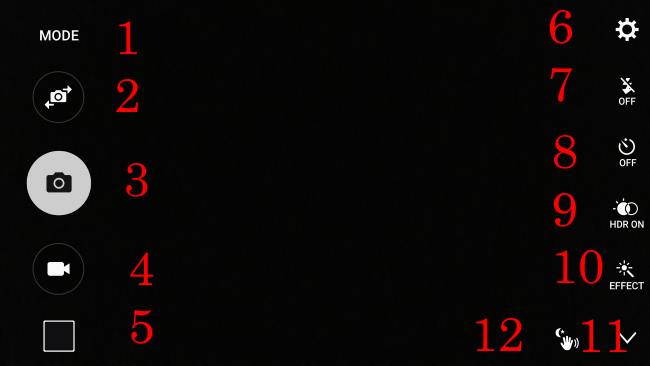
The meaning of these numbered items shown above is:
- Camera mode button. Tap this icon to change Galaxy S6 camera modes or download additional Galaxy S6 camera modes.
- front-rear camera switch. Tap this button will switch the active camera. For example, if rear camera is active (by default), you can tap it once to switch to front camera.
The post Galaxy S6 camera interface appeared first on Galaxy S6 Guide.
Top 6 Samsung Galaxy S6 defects
simon Samsung Galaxy S6 (and S6 edge) is a good, but not great smartphone.
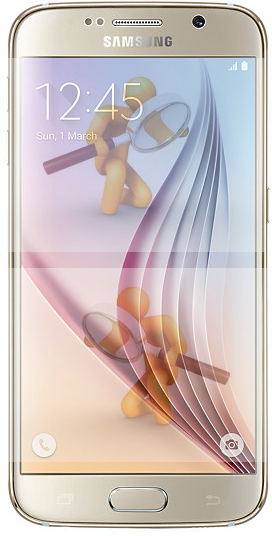 Samsung Galaxy S6 (and S6 edge) is a good, but not great smartphone.
Samsung Galaxy S6 and Galaxy S6 edge are the most beautiful smartphone Samsung has ever designed and manufactured.
The unibody metal design with Corning Gorilla Glass 4 in the back and front makes it standing out among 2015 flagship smartphones.
The curved edge screen in S6 edge makes it very unique, although some may complain on the usability and reduced strength due to the edge screens.
Samsung Galaxy S6 also boosts the performance through their own Exynos SoC, and new storage technology.
The camera in Galaxy S6 is fast and can take decent photos in auto mode.
But if you check the phone carefully, you will easily find the many Samsung Galaxy S6 defects that prevent it from being a great smartphone.
In this post, I share with you the top 6 Samsung Galaxy S6 defects based on my knowledge and hands-on experience.
Samsung Galaxy S6 defects #1: non-removable battery
I would list this as the No.1 Samsung Galaxy S6 defect.
I know many may disagree.
iPhone never has a removable battery.
HTC does not offer removable battery in recent years.
Recent Nexus devices do not have removable battery. T
he list can be very long.
Removable battery still matters for Samsung Galaxy S6 for those:
- who use the phone heavily. This means the battery very likely must be replaced within about one year. Samsung is not Apple: 1). there is no universal and transparent pricing for replacing the battery. Some Galaxy S6 owners may pay several times higher price for replacing it than someone in other regions; and 2). Samsung has so many models of smartphone that they technicians are often confusing on the models. This means the stock can be an issue. and 3). in some regions, Samsung relies on distributors and subcontractors who only care about immediate profit and are not interested in stock batteries for “old models” when Galaxy Note 5 or Galaxy S7 comes out..
- who want to pass the phone to kids after one or two years. Battery shelf life (3-4 years maximum) is the hard limit, even you are not a heavy user. You will face the same problems when you need replace the battery.
- who lives in a region with limited access to official Samsung service center. In some regions, as mentioned, the distributors and contractors have no incentive to stock batteries or train new staff for previous generation phones.
The post Top 6 Samsung Galaxy S6 defects appeared first on Galaxy S6 Guide.
Official Galaxy S6 user manual with Android Nougat update
simonThe official Galaxy S6 user manual with Android Nougat update is now available in multiple languages.
Android Nougat update for Galaxy S6, Galaxy S6 edge and Galaxy S6 edge+ has been available in more and more and more regions. This is probably the last major udpate (Marshmallow update is previous one) for Galaxy S6, S6 edge and S6 edge+ because Samsung typically releases 2 major Android updates for flagship phones.
The user guides in this page are for Galaxy S6 (without edge screen). The official user guide for Galaxy S6 edge and Galaxy S6 edge+ with Android Nougat update are available in this page.
The official Galaxy S6 user manual with Android Nougat update in this page is in PDF format (You can get Adobe PDF Reader here).
You can read these official Galaxy S6 user manuals with Android Nougat update by opening the link. As the user manual is quite long, you may consider to download and save a copy in your PC or phone. To download user manual for Galaxy S6 with Android Nougat update, you can tap and hold (i.e. long tap) the link, then choose to save as.
1. Samsung Galaxy S6 User Manual with Android Nougat update in English language for International versions (Android Nougat 7.0, Europe, Latin America, Middle East, Africa and Asia, SM-G920)
 This English version of Galaxy S6 User Manual is for Samsung Galaxy S6 sold in Europe, Latin America, Middle East, Africa, and Southeast Asia with Android Nougat 7.0. The model number of the corresponding Galaxy S6 includes SM-G920, SM-G920F, SM-G920I and SM-G920FQ.
If you cannot find the Galaxy S6 User Manual with Android Nougat udpate for your Galaxy S6, you can try this user guide.
Download link (in PDF): Samsung Galaxy S6 User Manual with Android Nougat update in English for International versions (Android Nougat 7.0, Europe, Latin America, Middle East, Africa and Asia)
2. Samsung Galaxy S6 User Manual with Android Nougat update in Czech language (čeština, český jazyk) (SM-G920, Android Nougat 7.0, Czech Republic)
 This Czech language (čeština, český jazyk) version of Samsung Galaxy S6 User Manual is for Galaxy S6 sold in Czech Republic with Android Nougat update. The corresponding model number is SM-G920F.
If your Samsung Galaxy S6 was not bought in Czech Republic, the features (especially the pre-installed apps) describe in this Czech language (čeština, český jazyk) version of Samsung Galaxy S6 user guide may be different from those in your Galaxy S6.… Read the rest
The post Official Galaxy S6 user manual with Android Nougat update appeared first on Galaxy S6 Guide.
Add location tag and remove location tag for photos in Galaxy S6
simonLocation tag on your photos can help you organize photos neatly. You can also recall the location, not just time, of the photo after many years.
The new Google Photos can also use location tag of the photos to create albums, stories and collections for you automatically.
What’s is location tag for Galaxy S6 photos?
Location tag for photos is simply a tag with GPS info embedded in the photo file.
Galaxy S6 camera can add location tag to photos automatically if you enable this Galaxy S6 camera feature.
In other words, the location info is saved in the photo file in your Galaxy S6 or S6 edge. When you copy the photo, or backup the photo, the location info will also copied automatically.
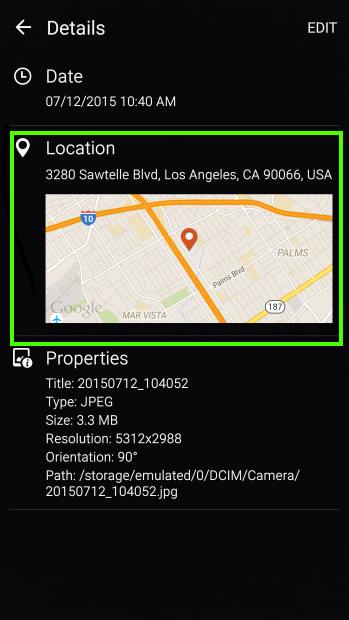
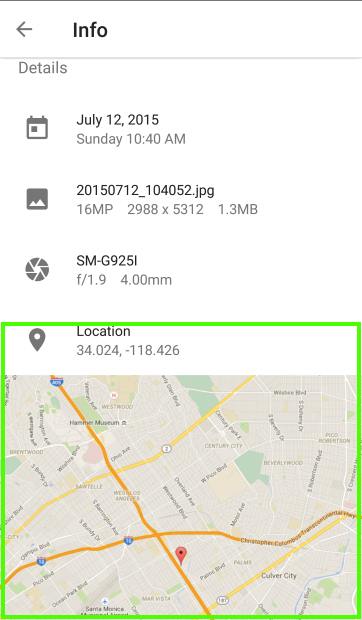
If location tag was added into a photo, when you check the details of the photo in Gallery app or Google Photos app, it will look like below respectively.
Please note, map is NOT embedded in the photo. Only the GPS info of latitude and longitude is saved in the file. The map is loaded by the apps on the fly. If your Galaxy S6 is not connected to internet, the map will not be shown or will be shown as an empty map.
Is it a privacy concern if I add location tag to Galaxy S6 photos?
Location tag in the photos will reveal the location where the photo was taken, not your home address or other personal info.
Of course, if you take photos at home or on the bed, such an address will be added through the location tag.
The main usage of location tag is for you to organize your photos. Sometimes, it can help you remember where the photo was taken.
Nowadays, taking photos is so easy. The result is that we have piles of photos. Location tag can help you sort them.
Privacy concern arises when you share some sensitive photos on the internet. You may want to share photos without revealing the location tag.
This is not a big issue. There are two solutions at least:
- You can automatically remove location tag when sharing photos through links in Google photos (read on).
- Manually remove location tag from photos or edit location tags on Galaxy S6 (read on)
How to enable/disable location tag to Galaxy S6 photos?
By default, location tag is disabled in Galaxy S6 camera. You need enable it in Galaxy S6 camera settings.… Read the rest
The post Add location tag and remove location tag for photos in Galaxy S6 appeared first on Galaxy S6 Guide.
Samsung Galaxy S6 Quick Connect
simonWhat is Samsung Galaxy S6 Quick connect?
Samsung Galaxy S6 Quick connect allows you to search for nearby devices and quickly connect to them without going through the detailed Bluetooth or WiFi Direct settings. The connection can be through Bluetooth or WiFi direct (including screen mirroring through Miracast).
Actually, if you are a long-term Samsung Galaxy devices user, you probably noticed Quick connect in a few devices already, for example, Galaxy S5, Galaxy Note 4. Unfortunately, many owners have no idea on how to use it.
Many smartphone users, especially new Android users, may have problems to connect two devices through Bluetooth or WiFi direct. Samsung Galaxy S6 Quick connect can make the job easier for many Galaxy S6 owners.
Please note, Galaxy S6 and Galaxy S6 edge has the identical Quick connect. This guide applies to both Galaxy S6 and Galaxy S6 edge, although in the text, I used Galaxy S6 only most of the time.
Where can I find Samsung Galaxy S6 Quick connect?
Samsung Galaxy S6 Quick connect is part of the notification panel. Actually, you can only access Samsung Galaxy S6 Quick connect from the notification panel.
To access Quick connect in Galaxy S6, you need swipe down (see this page on gestures on Galaxy S6 touchscreen) from the status bar (top of the screen, please see this page on status bar) with one finger to open notification panel.
Use Samsung Galaxy S6 Quick Connect to connect to other devices, and share contents
If the other device does not support Quick connect, you need turn on Bluetooth or WiFi Direct on these devices manually.
If the other device supports Quick connect, you just need turn on Quick connect on that device. Quick connect will enable necessary settings automatically for you.
Step 1: Open the notification panel and tap Quick Connect.
Swipe down from the status bar to open Galaxy S6 notification panel.
Tap Quick connect as shown below.
If you are using this feature for the first time, select a visibility option and tap TURN ON QUICK CONNECT as shown below.
For security reasons, you should set the visibility of Galaxy S6 as Only when Quick connect turned on, as shown below.
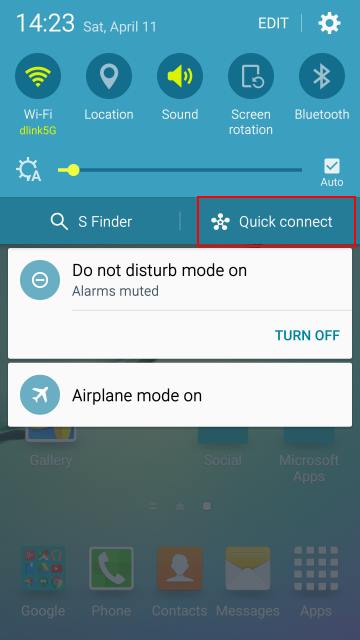
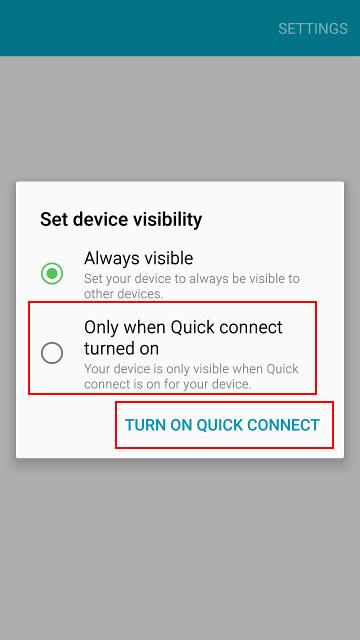
You can modify the Galaxy S6 visibility later by tapping Settings on top right.
You can also set the privacy for Samsung Galaxy S6 Quick connect as shown above so that Galaxy S6 is visible to contacts only.… Read the rest
The post Samsung Galaxy S6 Quick Connect appeared first on Galaxy S6 Guide.
How to download and install additional Galaxy S6 camera modes?
simonGalaxy S6 has an incredible camera. It is actually hailed as the best smartphone camera in 2015.
The new camera app is easy to use, yet with almost all features you need.
When you need take some special photos, you can always use different camera modes in Galaxy S6, including the Pro mode, together with other options.
If you find the 10 pre-installed Samsung Galaxy S6 camera modes are not sufficient, you can always download and install additional Galaxy S6 camera modes from Galaxy Apps. All of them are free (currently).
To download and install additional Galaxy S6 camera modes, please follow these steps.
Step 1: Start Camera app.
You can start Galaxy S6 camera by tapping the Camera app icon in the favorite tray in Galaxy S6 home screen.
You can also use Galaxy S6 camera quick launch as detailed in this guide.
Please note, you can launch Galaxy S6 camera app without unlocking the phone with quick launch or using the camera shortcut in Galaxy S6 lock screen.
Step 2. Tap Mode.
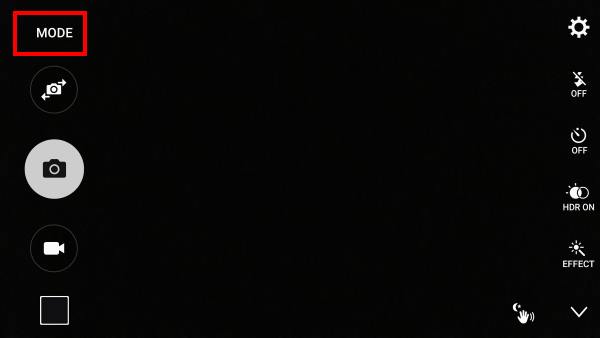
Step 3. Tap download.
You can find the pre-installed Galaxy S6 camera modes for the rear camera. Please check this guide on how to use and when to use pre-installed Galaxy S6 camera modes.
To download and install additional Galaxy S6 camera modes, you need tap Download as shown below.
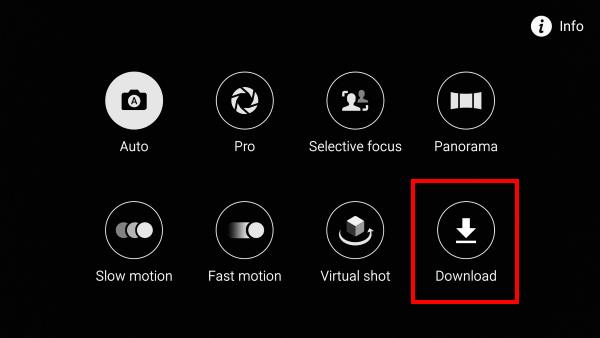
Step 4: Find additional Galaxy S6 camera modes.
After tapping the Download, you will be directed to a hidden page of Galaxy apps.
You cannot access this page directly in Galaxy apps. You must access it from the Download link in Camera app.
Please note, although a Samsung account is NOT required to install additional Galaxy S6 camera modes, it is better to create a Samsung account or add one to Galaxy S6. Samsung account is needed if you want to unlock Galaxy S6 through Find My Mobile (see this guide on how to unlock Galaxy S6 using FMM) when you forget the lock screen password or fingerprint is not recognized.
In the list of available additional Galaxy S6 camera modes, you can find many interesting ones. Some were pre-installed in old Galaxy devices. Samsung now moved them to Galaxy apps for Galaxy S6 owners who really need them. In this way, the Camera app becomes more agile and faster.
You can tap any of these additional Galaxy S6 camera modes to read the details of each mode.… Read the rest
The post How to download and install additional Galaxy S6 camera modes? appeared first on Galaxy S6 Guide.
Top 10 new features in Android Marshmallow update for Galaxy S6, Galaxy S6 edge and S6 edge+
simonAndroid marshmallow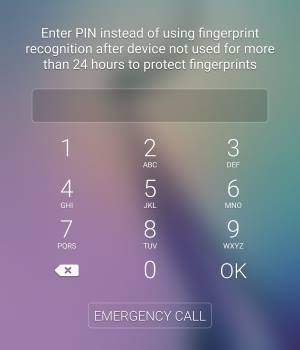 update for Galaxy S6 is a major update for Galaxy S6 and S6 edge. The new features in Android Marshmallow update for Galaxy S6, Galaxy S6 edge and S6 edge+ will add significant value to most owners.
This post will highlight top 10 new features in Android Marshmallow update for Galaxy S6, Galaxy S6 edge and S6 edge+. The detailed how-to guides for these new features will be available in individual Galaxy S6 How-to guides page, and Galaxy S6 Android Marshmallow update guide page (new!!)
1. Fingerprint as a backup security measure
In Lollipop, you can set lock screen security as fingerprint.
This means you can unlock the phone with your fingerprint at any times. If your fingerprint is not recognized, you can use the backup password, which is setup when you register fingerprint.
Some owners have problems with this arrangement: fingerprint is not recognized, and they don’t remember backup password. You can read all comments on this issue in this page.
One common cause of the issue is that owners tend to forget the backup password if it is not used for long time (although some may swear Galaxy S6 forgets it).
In Android Marshmallow update for Galaxy S6 (S6 edge and S6 edge+), Samsung made the following changes on using fingerprint to unlock the phone:
- Fingerprint cannot be a standalone security measure. You must set pattern/PIN/password as lock screen security before you can set fingerprint.
- If you reboot the phone, you must first use pattern/PIN/password to unlock the phone. You can use fingerprint for subsequent screen unlock.
- If you don’t use the phone for more than 24 hours, you must first use pattern/PIN/password to unlock the phone. You can use fingerprint for subsequent screen unlock.
Please refer to this guide on how to use fingerprint to unlock Galaxy S6, S6 edge and S6 edge+ after Android Marshmallow update.
2. Customizable lock screen
After applying Android Marshmallow update for Galaxy S6, Galaxy S6 edge and S6 edge+, you can now customize the two app shortcuts in the bottom of the lock screen.
By default, they are Phone app and Camera app in the left and right side respectively.
For example, you can use quick lunch to start Camera app even when the screen is off. So, it is probably not necessary to put camera app there.
If you want, you can specify any apps on the phone to be used.… Read the rest
The post Top 10 new features in Android Marshmallow update for Galaxy S6, Galaxy S6 edge and S6 edge+ appeared first on Galaxy S6 Guide.
Samsung Galaxy S6 notification panel
simonAs in all Android devices, Samsung Galaxy S6 and galaxy S6 edge has a notification center where you can access all notifications, reminders and alerts.
But you can do more in Samsung Galaxy S6 notification panel. As Galaxy S6 edge notification panel is identical to that of Galaxy S6, this guide also applies to Galaxy S6 edge. For notifications on the edge screen, please check this guide.
What’s Samsung Galaxy S6 notification panel?
As shown below, Samsung Galaxy S6 notification panel provides lots of functions of features.
It is surely not just for you to access notifications.
You can use Samsung Galaxy S6 notification panel to:
- Read notifications, reminders and alerts.
- Take actions on notifications, reminders and alerts, including dismissing notifications, snoozing/stopping alarms and reminders. Some apps allow you take further actions depending on the nature of the notification.
- Access Quick Setting buttons to toggle on/off some features.
- Rearrange Quick Settings buttons so that frequently used buttons appear first.
- Launch Settings for your Samsung Galaxy S6.
- Adjust brightness of the screen.
- Launch S Finder to search contents in Galaxy S6.
- Launch Quick Connect for sharing with nearby devices.
- Clear all notifications.
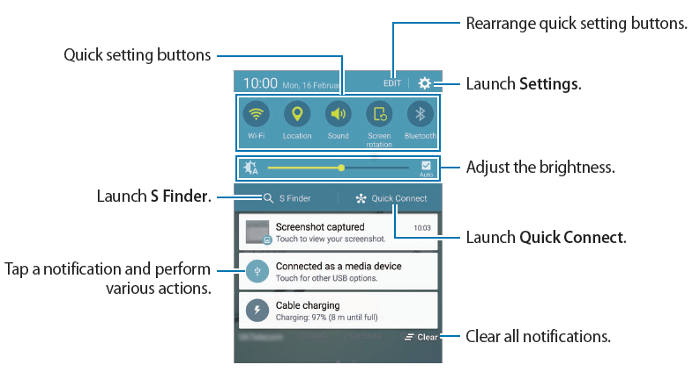
Please note, Samsung Galaxy S6 notification panel is slightly different from previous Galaxy devices:
- EDIT button replaced quick settings panel. There is no quick settings panel any more.
- Two finger swiping is no longer supported.
Samsung Galaxy S6 notification panel is also different from vanilla Android Lollipop as you can find in Nexus devices or Motorola Moto devices:
- Galaxy S6 does not support swipe down twice as shown in this guide.
- Galaxy S6 does not support Android Lollipop multiple users (for example guest users). So, there are no user-related settings in the notification panel.
How to access Samsung Galaxy S6 notification panel
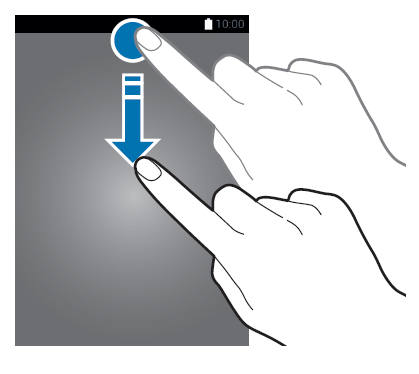
To access Samsung Galaxy S6 notification panel, you can swipe down (please refer to this guide on using gestures in Galaxy S6) from the status bar (i.e. top of the screen if status bar is hidden in some apps) at any time from any apps, home screen or apps screen, as shown below.
When you receive new notifications, such as messages or missed calls, indicator icons appear on the status bar in your Galaxy S6. To read the notifications, open the notification panel and read the details.
For the meaning of the notifications icons and status icons in Galaxy S6, please check this guide.… Read the rest
The post Samsung Galaxy S6 notification panel appeared first on Galaxy S6 Guide.
Charging Galaxy S6 battery
simonUpdate 1: Added section FAQs on Galaxy S6 Fast charging to address some questions you may have.
Unlike Galaxy S5, Galaxy S6 battery and Galaxy S6 edge battery are non-removable for customers. You have to visit local Samsung service center if you need change the Galaxy S6 battery or Galaxy S6 edge battery.
This means proper maintenance for Galaxy S6 battery or Galaxy S6 edge battery is extremely important. Replacing Galaxy S6 battery will be surely more expensive than replacing a Galaxy S5 battery.
Normally, Galaxy S6 battery and Galaxy S6 edge battery can last 2-3 years. If you charge the Galaxy S6 battery or Galaxy S6 edge battery improperly, the lifespan of the battery can be shortened significantly.
Charging Galaxy S6 battery
You need charge Galaxy S6 battery before using Galaxy S6 for the first time or when it has been unused for extended periods.
Before charging Galaxy S6 battery
You should only use Samsung-approved chargers, batteries, and cables. Low quality chargers or cables can cause the battery to explode or damage your Galaxy S6.
When the Galaxy S6 battery level is low, the battery icon in the stats bar (top of the screen) appears empty.
If Galaxy S6 battery is completely discharged, Galaxy S6 cannot be turned on immediately when the charger is connected. Allow a depleted Galaxy S6 battery to charge for a few minutes before turning on the phone.
If you use multiple apps at once, network apps, or apps that need a connection to another device, the battery will drain quickly. To avoid disconnecting from the network or losing power during a data transfer, always use these apps after fully charging the battery.
Using a power source other than the USB power adapter, such as a computer, may result in a slower charging speed due to a lower output current.
Charging Galaxy S6 battery
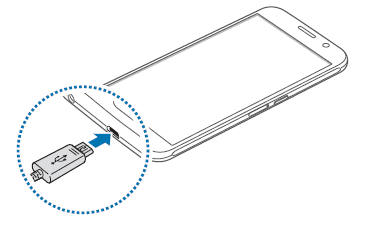
To charge Galaxy S6 battery, connect the USB cable to the USB power adapter, then plug the end of the USB cable into the multipurpose jack of Galaxy S6 or Galaxy S6 edge.
While charging Galaxy S6 battery
Galaxy S6 can be used while it is charging, but it may take longer to fully charge Galaxy S6 battery.
If Galaxy S6 receives an unstable power supply while charging, the touch screen may not function. If this happens, unplug the charger from Galaxy S6.
While charging Galaxy S6 battery, Galaxy S6 and the charger may heat up.… Read the rest
The post Charging Galaxy S6 battery appeared first on Galaxy S6 Guide.
Samsung Galaxy S6 User Manual
simonSamsung Galaxy S6 user manual is for all Galaxy S6 owners: new or experienced.
For Samsung Galaxy S6 edge user manual, please check this page.
For Samsung Galaxy S6 edge+ user manuals, they are located in this page.
Samsung made significant change in Galaxy S6, so even some long-time Galaxy phone users may get confused on how to use some features. The official Samsung Galaxy S6 user manual shows you how to use some features in Samsung Galaxy S6. It can save your time to visit the service center if you can follow the user guide.
This page is dedicated to official Samsung Galaxy S6 User Manual in all languages! You can find the Samsung Galaxy user guide in your own language easily in this page.
All of the Galaxy S6 user manuals in this page are in PDF format (You can get Adobe PDF Reader here). You can download it (just choose save as) to your devices (PC, smartphone, tablet) to read it later or read it online in your browser now. It is up to you.
In different regions or countries, or even for different carriers in the same country, Galaxy S6 may offer slightly different features. Some carriers may bundle some special apps. So, please try to download and use the Galaxy S6 user manual for your region and for your Galaxy S6 model.
If you want to read the Galaxy S6 online user manual, please follow this page.
For Samsung Galaxy S6 how-to guides (with all detailed steps), please check our Galaxy S6 how-to guides page.
If you cannot find the user manual for your Galaxy S6 in your language, please let us know in the comment box below.
1. Samsung Galaxy S6 User Manual in English for International versions (SM-G920, Android Lollipop 5.0, Europe, Latin America, Middle East, Africa and Asia)
This English version of Galaxy S6 User Manual is for Galaxy S6 sold in Europe, Latin America, Middle East, Africa, and Southeast Asia. The corresponding model number is SM-G920F, SM-G920FQ and SM-G920I.
If you cannot find the Galaxy S6 User Manual for your Galaxy S6, you can try this user guide.
Download link (in PDF): Samsung Galaxy S6 User Manual in English for International versions (SM-G920, Android Lollipop 5.0, Europe, Latin America, Middle East, Africa and Asia)
2. Samsung Galaxy S6 User Manual in Dutch language (Nederlands) (SM-G920, Android Lollipop 5.0, Netherlands)
 This Dutch language (Nederlands) version of Galaxy S6 User Manual is for Galaxy S6 sold in Netherlands.… Read the rest
The post Samsung Galaxy S6 User Manual appeared first on Galaxy S6 Guide.
Galaxy S6 camera effects guide
simonWhat are the differences between Galaxy S6 camera effects and camera modes?
As detailed in Galaxy S6 camera modes guide, you can choose different camera modes for different scenarios to get the best photos. In addition to the pre-installed camera modes, you can even install more camera modes for Galaxy S6 or S6 edge.
In a nutshell camera modes most of the time change the settings of the camera before you take the photos. In other words, Galaxy S6 camera modes applies a set of pre-defined settings to the camera.
But Galaxy S6 camera effects work on the photos after the photos are taken.
You can imagine Galaxy S6 camera effects is like the Photoshop which edits your photo. But this editing will be done automatically once the photo is taken. Of course, the identical results can be achieved in any photo editors manually.
Please note, when Galaxy S6 camera effects are applied, the original photo will NOT be saved. The saved photo is the edited version.
Galaxy S6 camera effects can save you some time compared to manually apply effects later.
How to apply Galaxy S6 camera effects?
Galaxy S6 camera effects are applied immediately after photo is taken.
In Galaxy S6 camera interface, tap the Effects button as shown below.
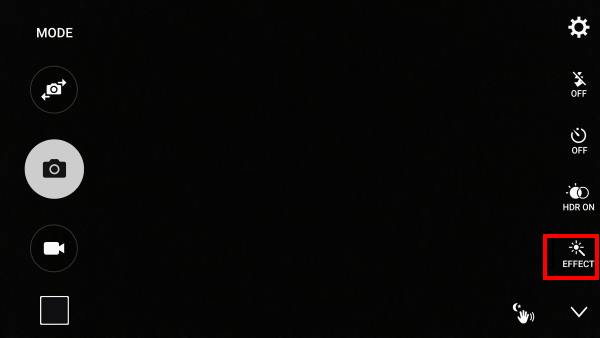
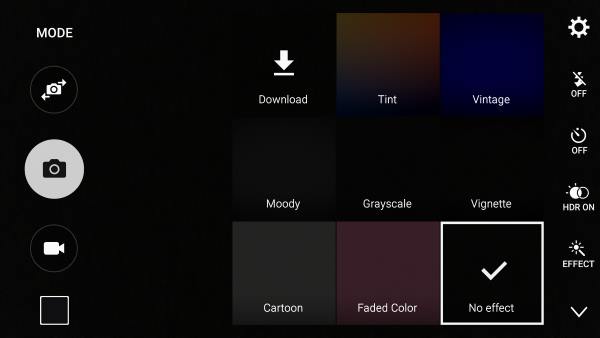
In the Galaxy S6 camera effects page, the available effects are listed as shown below.
By default, “No effect” is applied. This means the photo will be saved without applying any Galaxy S6 camera effects.
Galaxy S6 camera offers live preview of the final photo to help you decide which one is what you want.
Tap any one of the effects will use it and return to preview screen with effects applied.
Now tap the shutter button (or use your voice, or use your gesture) to take the photo. The photo will be taken with the selected effects applied automatically.
How to download and install additional Galaxy S6 camera effects?
By default, Galaxy S6 and Galaxy S6 edge offer 7 pre-installed Galaxy S6 camera effects including:
- Tint
- Vintage
- Moody
- Grayscale
- Vignette
- Cartoon
- Faded color
If you need other camera effects, you can download and install more Galaxy S6 camera effects from Galaxy Apps, similar to Galaxy S6 camera modes.
To install additional camera effects, please follow these steps.
Step 1: Start camera app
You can start Galaxy S6 camera (or S6 edge camera) with any of the following methods:
- Tapping the Camera app icon in the favorite tray in Galaxy S6 home screen.
The post Galaxy S6 camera effects guide appeared first on Galaxy S6 Guide.
Galaxy S6 layout
simonAfter getting your Galaxy S6, you should familiar with the Galaxy S6 layout: the location of the buttons, the functions of each accessible part.
For Galaxy S6 edge layout, please check this page.
For Galaxy S6 edge+ layout, please check this page.
The official Samsung Galaxy S6 user manuals in different languages can be found here.
The front view of Galaxy S6 layout
As shwon below, in the front of Galaxy S6, you can find
- LED indicator
- Proximity/light sensor
- Touch screen
- Home button with fingerprint sensor
- Recent Apps button
- Back button
- Front camera
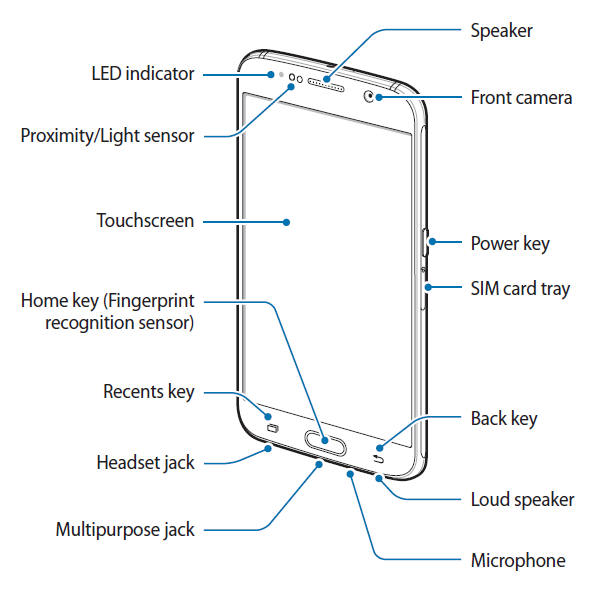
In the bottom of Galaxy S6, you can find:
- Headset jack
- Microphone
- Loud speaker
- MicroUSB port (multipurpose jack)
In the right side of your Galaxy S6, you can find:
Rear view of Galaxy S6 layout
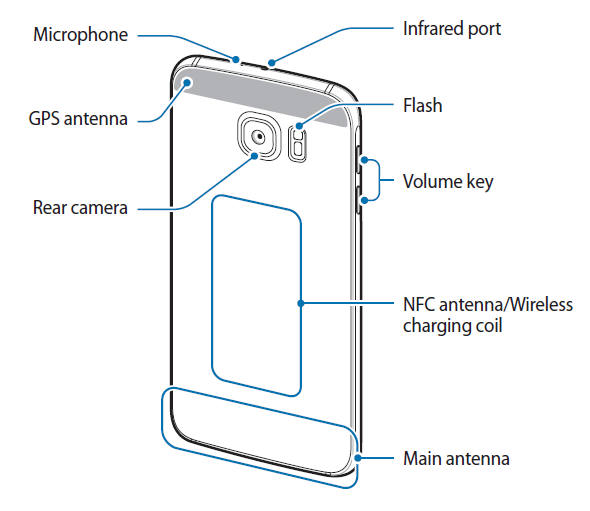
In the back of Galaxy S6, you can find:
- Rear camera (main camera)
- LED flash for main camera
The location of the GPS antenna, main antenna, wireless charging coil, and NFC antenna are also illustrated.
In the left side of Galaxy S6, you can find the volume button (volume up and down).
In the top of Galaxy S6, you can find:
- Microphone
- Infrared port (which you use to control your TV).
After knowing the Galaxy S6 layout, you need pay attention to the location of antenna area. You should not cover the antenna area with your hands or other objects. This may cause connectivity problems or drain the battery in Galaxy S6.
If you want to use a screen protector for Galaxy S6, using a Samsung-approved screen protector is recommended. Unapproved screen protectors may cause the sensors to malfunction.
Unlike Galaxy S5, Galaxy S6 is NOT water resistant. So, you should not allow water to contact the Galaxy S6 touchscreen. The touchscreen may malfunction in humid conditions or when exposed to water. in most regions, water damage to Galaxy S6 is not covered by standard warranty.
Do you know Galaxy S6 layout now?
If you have any questions on Galaxy S6 layout, please let us know in the comment box below.
For other features of Galaxy S6, please check Galaxy S6 online manual page.
For detailed how-to guides on using Galaxy S6, please check Galaxy S6 how-to guides page.… Read the rest
The post Galaxy S6 layout appeared first on Galaxy S6 Guide.
How to silence Samsung Galaxy S6 and S6 edge?
simonSometimes, unexpected sound or vibration from your Galaxy S6 may be annoying or embarrassing, e.g., when in an important meeting. This guide will show you how to silence Samsung Galaxy S6 or Galaxy S6 edge.
This guide works for both Galaxy S6 and Galaxy S6 edge, although in the text, we often just use Galaxy S6.
1. What are the 3 sound modes in Samsung Galaxy S6?
Unlike other Android Lollipop devices, Samsung Galaxy S6 still uses the old 3 sound modes, instead of the new Android Lollipop notification and interruption system.
Some Galaxy S6 owners may like it; some may hate it.
The 3 sound modes are:
- Sound mode. This is the default. All sounds will be played. All vibrate will be allowed.
- Vibrate mode. System sound is turned off. Vibrate is allowed.
- Mute mode (aka silent mode). Sound and vibrate are all turned off except for alarms. But some settings or apps do not follow this setting.
There are two ways to change the sound modes in Samsung Galaxy S6: from Settings or from Galaxy S6 Notification panel (quick settings).
Method 1: from Settings app.
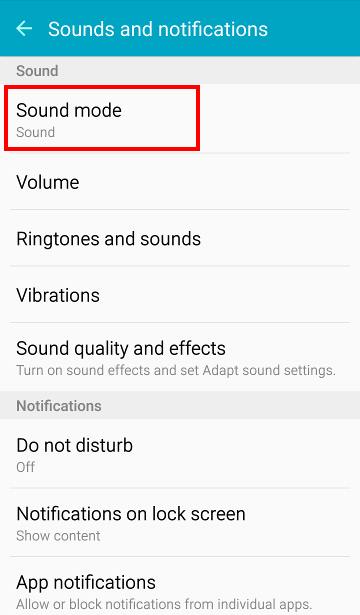
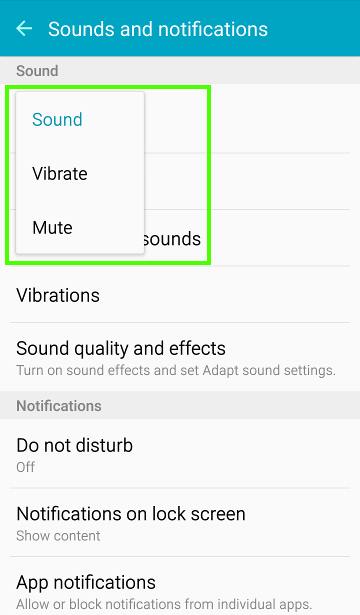
In Settings—Sound and notifications, tap Sound mode as shown below.
Then you can choose from the three galaxy S6 sound modes: sound, vibrate or mute as shown below.
Method 2: from notification panel (quick settings)
Another way to access and change Galaxy S6 sound mode is from Quick settings in the notification panel.
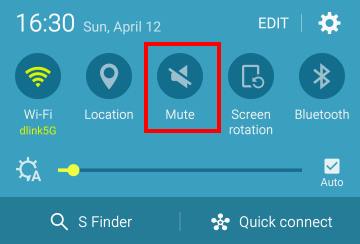
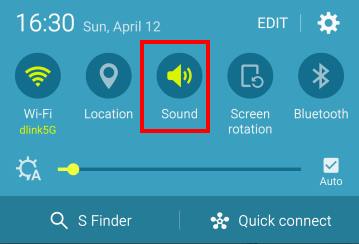
Swipe down from the top of the screen (status bar) to get notification panel. In the quick setting part, you can tap the icon as shown below to cycle through the 3 modes: Mute–>Sound–>Vibrate–>Mute.
2. How to silence annoying tapping sound and vibrate on Samsung Galaxy S6?
By default, when you tap the screen, there is a tapping sound. Haptic feedback (vibrate) is also turned on by default in Samsung Galaxy S6.
You can silence these annoying tapping sound and haptic feedback without going into mute mode or vibrate mode.
In Settings—Sound and notifications, tap Ringtones and sounds. In the Ringtones and sounds page as shown below, you can drag the switch to left to silence the following sounds in Galaxy S6 individually:
- Touch sounds;
- Dialing keypad tone;
- Screen lock sounds;
- Keyboard sound.
Similarly, to turn off or silence the vibrate on Galaxy S6, you can go to Settings—Sound and notifications —Vibrations.… Read the rest
The post How to silence Samsung Galaxy S6 and S6 edge? appeared first on Galaxy S6 Guide.
About Galaxy S6 Guide
simonWelcome to the magic land of Galaxy S6 Guide.
Galaxy S6 Guide@GadgetGuideOnline is a dedicated technical community for Samsung Galaxy S6 and S6 edge users.
Mission
To help every Galaxy S6 and S6 edge owners.
Approach
We produce and share the best guides for you to use galaxy S6 and S6 edge properly, and effectively.
Logo
Our logo is simple. S6 indicates the community is on Galaxy S6. GGO indicates that we are part of the GadgetGuideOnline network.

Community
You can find the detailed user guides to power up your experience with your Galaxy S6 or S6 edge.
As a technical community, you are welcomed to participate in all discussions. Share your thoughts and comments in corresponding pages. Comments are open in all pages.
Galaxy S6 Guide@GadgetGuideOnline does NOT cover all topics. The focus is how to use Galaxy S6 and S6 edge effectively.
Contents
The contents are organized through various sections on the website. You can navigate the site through the menu on top of the site.
You may also navigate from this page.
Galaxy S6 User Guide (PDF) in your own language
- For S6: Samsung Galaxy S6 User Manual (PDF) in different languages.
- For S6 edge: Samsung Galaxy S6 edge User Manual (PDF) in different languages
Galaxy S6 online user manual or How-to guides
- Galaxy S6 How-to guides. Galaxy S6 how-to guides show you detailed steps to use certain features, or solve specific problems on Galaxy S6 or S6 edge. These Galaxy S6 how-to guides are updated regularly. The guides are for both Galaxy S6 and S6 edge.
- Galaxy S6 online manual. The Galaxy S6 online manual shows you how to use Galaxy S6 and Galaxy S6 edge.
- Galaxy S6 camera guide. How to use the best smartphone camera in your Galaxy S6 and S6 edge? We have some guides for you.
Galaxy S6 buyer guide
- Galaxy S6 buyer guides. Galaxy S6 buyer guides show you how to maximize the value of your money to get most suitable gadgets for you. For example, whether Galaxy S6 is for you, whether you should get Galaxy S6 edge or S6. Of course, you can also find the Galaxy S6 case guide to help you find a suitable case within your badget, and guides for other accessories.
- Galaxy S6 reviews. The reviews of Galaxy S6 will be posted on the website regularly to hep you better understand the pros and cons of Galaxy S6 and S6 edge.
The post About Galaxy S6 Guide appeared first on Galaxy S6 Guide.
Samsung Galaxy S6 How-to Guides
simon Samsung Galaxy S6 has so many features. These Samsung Galaxy S6 How-to Guides will help you to explore and better use your latest gadget: Galaxy S6.
This is a live page and will be updated regularly. In other words, more and more Samsung Galaxy S6 guides will be added.
You may also check Galaxy S6 online user manual page for using Galaxy S6 and Galaxy S6 edge.
If you want to download the official Galaxy S6 user guide (in PDF), you may check this page for Galaxy S6, and this page for Galaxy S6 edge.
If you cannot find the Galaxy S6 guides you are looking for, please feel free to leave you questions or problems in the comment box below. The community will try to find a solution or an answer for you.
We also put camera related guides in the Galaxy S6 camera guide page.
-
How to use edge screen on Galaxy S6 edge? (for Galaxy S6 edge and Galaxy S6 edge+)
Edge screen is the unique feature of Galaxy S6 edge. You actually paid about additional $100 for the two curved edges. This guide shows you what edge screen can do for you and how to set configure and use the edge screen. Read on…
-
How to use apps edge in Galaxy S6 edge plus (S6 edge+)? (for Galaxy S6 edge+ only)
Apps edge is one of the unique features in Galaxy S6 edge+. It adds more functions to the existing edge screen in Galaxy S6 edge. This Galaxy S6 guide answers all questions you may have on the unique apps edge feature in Galaxy S6 edge+: what’s apps edge in Galaxy S6 edge+? How to enable and access Galaxy S6 edge+ apps edge? How to add, order and delete apps in apps edge? Read on…
-
How to disable Flipboard Briefing on Galaxy S6 home screen? (for Galaxy S6, Galaxy S6 edge and Galaxy S6 edge+)
If you are annoyed by the Flipboard Briefing on Galaxy S6 home screen, I will show you how to disable it in this guide.
-
How to change Galaxy S6 wallpapers? (for Galaxy S6, Galaxy S6 edge and Galaxy S6 edge+)
Galaxy S6 theme is a great feature in Galaxy S6. You can customize the look (home screen, lock screen, apps screen and some apps as well) of Galaxy S6 and S6 edge easily with the free Galaxy S6 themes.
The post Samsung Galaxy S6 How-to Guides appeared first on Galaxy S6 Guide.
How to turn on/off picture review for Galaxy S6 camera?
simonWhat is picture review for Galaxy S6 camera?
Because Galaxy S6 and Galaxy S6 edge do not have a physical shutter button for the camera, it is hard to determine whether the photo is taken after tapping the on-screen shutter button if the shutter sound is silenced (please read this guide on how to silence Galaxy S6 camera shutter sound).
Sometimes, you may want to make sure the photos taken have decent quality.
In both scenarios, you can review the picture automatically after it is taken.
This feature is called picture review for Galaxy S6 camera. This feature works identically on both Galaxy S6 and Galaxy S6 edge.
Of course, it you turn on picture review for Galaxy S6 camera, you have to review the picture after it is taken.
So, some Galaxy S6 owners may want to turn off picture review for Galaxy S6 camera so that they can take more photos for critical moments.
Actually, you can turn on (and off) picture review feature in the camera app or in Settings without launching galaxy S6 camera app.
How to turn on/off picture review for Galaxy S6 camera without launching camera app?
You can turn on or off picture review for Galaxy S6 camera without launching camera app.
In Galaxy S6 and S6 edge, settings for some stock Samsung apps can be accessed directly in Settings page. Camera app is in the list.
You can access Galaxy S6 settings in one of the following methods.
- In Galaxy S6 App screen, tap Settings.
- In Galaxy S6 quick settings panel (swipe down from status bar, or top of the screen if status bar is hidden), tap gear icon.
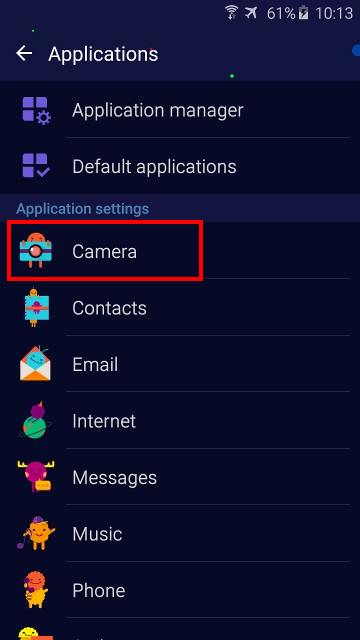
Once in Settings page, tap Applications to enter Applications page as shown below.
Tap Camera (under Application settings) as shown below.
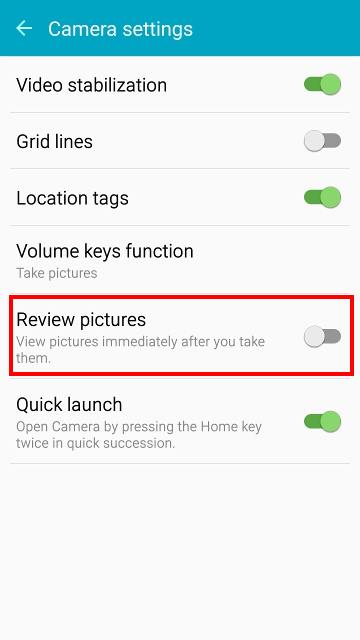
In Camera settings page, tap the switch to turn on/off Review pictures as shown below.
How to turn on/off picture review for Galaxy S6 camera in camera app?
You can also turn on/off picture review for Galaxy S6 camera in camera app.
Step 1: Start Galaxy S6 camera app.
You can start Galaxy S6 camera with one of the following 4 methods:
- Tapping the Camera app icon in the favorite tray in Galaxy S6 home screen.
- Tapping the Camera app icon in Galaxy S6 Apps screen (aka App drawer, All Apps).
- Pressing home buttons twice to use Galaxy S6 camera quick launch (even when Galaxy S6 is locked.
The post How to turn on/off picture review for Galaxy S6 camera? appeared first on Galaxy S6 Guide.
How to silence Galaxy S6 camera shutter sound?
simonWhy do you want to silence Galaxy S6 camera shutter sound?
Galaxy S6 camera shutter sound serves as a notification sound when a photo is taken. This is very common in almost all current smartphones (not just Android phones) in which a physical shutter button is not available.
Without the Galaxy S6 camera shutter sound, some users may get confused whether the on-screen button is registered.
As most Galaxy S6 owners turned off the picture review, there is no immediate feedback on whether the photo is taken or not if the shutter sound is silenced.
But Galaxy S6 camera shutter sound can be disturbing or embarrassing when you want to take photos in a quiet environment, e.g., in a library or a museum. Or you want to silently film the activities in the office or during a meeting.
In such scenarios, you may want to silence Galaxy S6 camera shutter sound.
How to silence Galaxy S6 camera shutter sound?
Camera app in Galaxy S6 camera or Galaxy S6 edge does NOT have the options to turn on or turn off Galaxy S6 camera shutter sound.
Actually, Galaxy S6 camera shutter sound is controlled by Galaxy S6 sound mode.
As detailed in this guide, Galaxy S6 has 3 sound modes: sound, vibrate and mute. Galaxy S6 camera shutter sound is activated only in sound mode.
In other words, you can silence Galaxy S6 camera shutter sound by entering vibrate mode or mute mode. Once your phone is in either vibrate or mute mode, the camera shutter sound will be silenced.
There are several different methods to silence Galaxy S6 camera shutter sound.
Method 1: Pressing and holding volume down buttons
This method works only when Galaxy S6 camera app is not active. When Camera app is active, the volume button may be assigned other functions to control Galaxy S6 camera as detailed in this guide.
So, before launching Galaxy S6 camera app, you can press and hold volume down button (you may check Galaxy S6 layout or Galaxy S6 edge layout for the location of volume down buttons) to enter vibrate mode. In this mode, you essentially silence Galaxy S6 camera shutter sound.
When pressing volume down button, volume level will be shown on the screen as shown below.
Once the volume level decreases to minimum (slider in leftmost), Galaxy S6 enters vibrate mode automatically. This will silence Galaxy S6 camera shutter sound immediately.… Read the rest
The post How to silence Galaxy S6 camera shutter sound? appeared first on Galaxy S6 Guide.
Feedback
simonYou can reach us with the contact us form below.
Please note, this community is NOT affiliated to Samsung in any way. If you have any warranty issues, please contact local Samsung service center.
If you have any specific problems with Galaxy S6, please check our Galaxy S6 how-to guides and Galaxy S6 online manual. Your problem probably has been addressed in the guides or in the comments. If not, posting your questions in the comments usually get faster reply from other members.
You can also post your questions in our Facebook page to get faster reply.
We will try to answer your email as early as we can.
Please note, our email messages cannot reach following email providers: Microsoft (Outlook, hotmail) and AOL.
Please try to use Google Mail (GMail).
We will only reply to GMail address.
For features of Galaxy S6, please check Galaxy S6 online manual page.
For detailed guides on how to use Samsung Galaxy S6, please check Galaxy S6 how-to guides page.
For official Samsung Galaxy S6 user manual in your own languages (user guide, in PDF), please check this page.
For official Samsung Galaxy S6 edge user manual in your own languages (user guide, in PDF), please check this page.
For official Samsung Galaxy S6 edge+ user manuals in your own languages (user guide, in PDF), they are located in this page.
Please check Galaxy S6 Android Marshmallow update guide for more on new features in Android Marshmallow update for Galaxy S6, Galaxy S6 edge and S6 edge+.… Read the rest
The post Feedback appeared first on Galaxy S6 Guide.
How to use Galaxy S6 camera gesture control?
simonWhat is Galaxy S6 camera gesture control?
Samsung really wants you to take photos for yourself (selfie) with the incredible front camera in Galaxy S6.
But for most Galaxy S6 owners, one of the most common problems is to reach the shutter button when you are stretching your hands to take a selfie.
Of course, you can use voice control to take photos on Galaxy S6 or S6 edge as explained in this guide.
If you are shy, you may hesitate to use voice control in public area.
So, Samsung lets you use Galaxy S6 camera gesture control to take selfies easily.
When the front camera is activated, you can show your palm to the camera once you are ready. If your palm is detected, your selfie will be taken automatically after 2 seconds.
This is called Galaxy S6 camera gesture control.
How to enable Galaxy S6 camera gesture control?
In most regions, Galaxy S6 camera gesture control, by default, is not enabled.
To use this feature, you need enable Galaxy S6 camera gesture control in camera settings.
Step 1: Start camera app.
You can start Galaxy S6 camera with one of the following methods:
- Tapping the Camera app icon in the favorite tray in Galaxy S6 home screen.
- Pressing home buttons twice to use Galaxy S6 camera quick launch (even when galaxy S6 is locked).
- Using Google Now voice command (e.g., “Start camera”) or S Voice command (“Open Camera app”).
Step 2: Switch to front camera.
Galaxy S6 camera gesture control is a feature for front camera only (check this page for Galaxy S6 layout, or this page for Galaxy S6 edge layout). So, the settings appears only if you switch the camera to the front one.
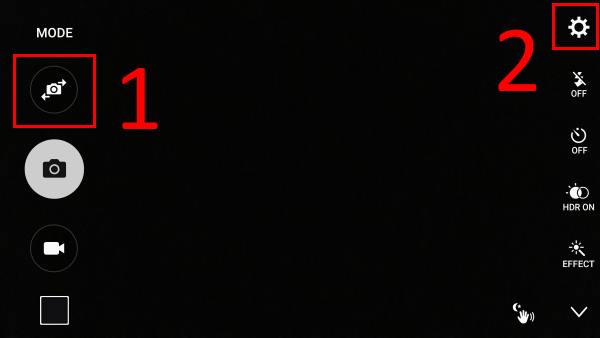
You can tap the camera switch icon as shown below (1) to switch between front and rear cameras.
Step 3: Go to Camera Settings.
After switching the camera to the front camera, tap Settings icon(gear icon) as shown below (2).
Step 4: Enable Galaxy S6 camera gesture control
Under Camera Settings, you can find the Gesture control as shown below.
Drag the switch to right to turn on this feature. The color should also change to green.
If you are using other Galaxy S6 themes (see this guide if you want to know how to use Galaxy S6 themes to customize Galaxy S6 appearance), the color may be different.
In case you don’t like gesture control, you can drag the switch to left side to turn this feature off.… Read the rest
The post How to use Galaxy S6 camera gesture control? appeared first on Galaxy S6 Guide.
How to set Galaxy S6 touch key light duration, and how to disable Galaxy S6 touch key light?
simonWhere is the setting for Galaxy S6 touch key light duration?
Samsung Galaxy S6 and Galaxy S6 edge, like its predecessors, have two capacitive touch buttons in the left and right side of the home button.
As detailed in Galaxy S6 layout and Galaxy S6 edge layout, the left button is called Recent Apps key (also can be used as multi window button), and the right one is called Back key. You may check the detailed functions of these buttons keys in this page.
Once any of these two keys is touched, it lights up automatically for a short duration. This is a useful visual feedback.
But sometimes, you may:
- want to disable Galaxy S6 touch key light, e.g., when you are in a theater.
- want to increase of decrease the Galaxy S6 touch key light duration.
In the predecessors of Galaxy S6, you can change such settings easily in the Settings. For example, in Galaxy Note 4, you have full control over this touch key light as shown in this page.
But in your Galaxy S6 or Galaxy S6 edge, you will NOT be able to find this setting unless you bought your Galaxy S6 or S6 edge from AT&T.
Basically, only AT&T’s and have the touch key light settings.
In all other Galaxy S6 and Galaxy S6 edge models, Samsung removed the settings for Galaxy S6 touch key light duration. Of course, this means you then cannot turn off Galaxy S6 touch key light as well.
But don’t be panic. There is a free app that can do the job for you.
How to use Galaxy Button Lights app to set Galaxy S6 touch key light duration, and to turn on/off Galaxy S6 touch key light?
In Galaxy S6 or Galaxy S6 edge, if you need adjust the Galaxy S6 touch key light duration, or want to turn on/off the touch key light, you can use a free app: Galaxy Button Lights.
Step 1: Install Galaxy Button Lights app from Play store
In your Samsung Galaxy S6 or Galaxy S6 edge, start Google Play store app.
Search Galaxy Button Lights as shown below.
Tap the Galaxy Button Lights app as shown below.
In the app details page, tap INSTALL as shown below to install the app.
Just like other Android apps, you need acknowledge permissions the app requires. For Galaxy Button Lights app, it requires no special permissions at all.… Read the rest
The post How to set Galaxy S6 touch key light duration, and how to disable Galaxy S6 touch key light? appeared first on Galaxy S6 Guide.
How to backup Galaxy S6 and Galaxy S6 edge?
simon Why you should backup Galaxy S6 and Galaxy S6 edge?
You should never try your luck when you have anything valuable on your Galaxy S6 or S6 edge.
Like any electronic gadgets, you may lose the access to the data on your Galaxy S6 or S6 edge suddenly, for example, the phone is stolen, the phone dies, the phone is messed up and you need to reset it.
You should backup Galaxy S6 or Galaxy S6 edge, and make sure the backup actually works.
How to backup Galaxy S6 Photos?
Most Galaxy S6 or S6 edge owners are using the camera features very often, thanks to the great Galaxy S6 camera.
But did you backup Galaxy S6 photos?
Backup Galaxy S6 Photos to the cloud
Actually, it is deadly easy to backup Galaxy S6 Photos without installing any third-part apps. The pre-installed apps can do the job nicely, and automatically.
To backup Galaxy S6 Photos to the cloud automatically, you have two options:
- enabling auto backup feature in Photos app to backup all photos and even other pictures in Galaxy S6 to Google drive automatically.
- enabling camera upload in OneDrive App to automatically backup Galaxy S6 photos to Microsoft OneDrive automatically.
You can actually enable both of them so that you have two copies of backup.
Backup Galaxy S6 Photos to your PC
If you want to keep a copy of your photos on the PC, you can directly copy the photos in Galaxy S6 to the PC when you connect Galaxy S6 to the PC with a USB cable. Photos and videos taken with Galaxy S6 camera are in the folder of DCIM/Camera.
You can also use Samsung SmartSwitch on your PC to backup Galaxy S6, including photos. As detailed in this guide, in addition to transfer data between devices, the PC version of the SmartSwitch is also a backup software for Galaxy S6.
How to backup Galaxy S6 Phone logs?
If you need keep your phone logs (call logs) for whatever reasons, you can let Galaxy S6 backup them to the cloud automatically.
Backup Galaxy S6 phone logs to the cloud automatically
Galaxy S6 introduced a new feature of backup to Samsung servers.
To backup Galaxy S6 to Samsung servers, you of course need to add a Samsung account to Galaxy S6. Actually, you should add a Samsung account to Galaxy S6. For example, when you are locked out by the lock screen on Galaxy S6, you can use Samsung account to unlock the phone.… Read the rest
The post How to backup Galaxy S6 and Galaxy S6 edge? appeared first on Galaxy S6 Guide.
Samsung Galaxy S6 Multi Window
simonUpdate: added section of “How to disable Galaxy S6 multi window?“
What is Samsung Galaxy S6 multi window?
Samsung Galaxy S6 multi window lets you run two or more apps at the same time in foreground. In other words, you can run two or more apps side by side (or floating over each other) in Galaxy S6.
By default, when you start an app in Android, the app will occupy the screen and you cannot access the screen (UI) of another app without pushing current app to background (for example, by tapping home button). In other words, Android apps always try to occupy the whole screen (except the status bar).
With improved hardware and larger screen size in smartphones and tablets, it is nature that you may want to run multiple apps side by side, just like what you can do on a PC.
Unfortunately, Android does not have an universal solution for multiple windows on the screen, although Android is a multi-tasking OS from day one.
Samsung first introduced multi window feature for Galaxy Note devices because of its giant size (in 2011 standard). It was later introduced and polished in Galaxy S devices.
So, Samsung Galaxy S6 multi window is not a new feature. It is actually quite stable and reliable, although it is a resource hogger.
Anyway, Galaxy S6 has sufficient resource for multi window to run smoothly.
Please note, Samsung Galaxy S6 edge has an identical multi window feature as Galaxy S6. So, this guide also applies to Samsung Galaxy S6 edge multi window.
What are the two types of Samsung Galaxy S6 multi window?
Samsung Galaxy S6 multi window allows two type of views (as shown below):
- split screen view. Two apps share the screen without overlapping. You can adjust the size and location of for one app. The other app will take the rest of the screen.
- pop-up view. Two or more apps float on the screen. They can overlap, partially overlap with each other. You can move and re-size them individually without affecting others.
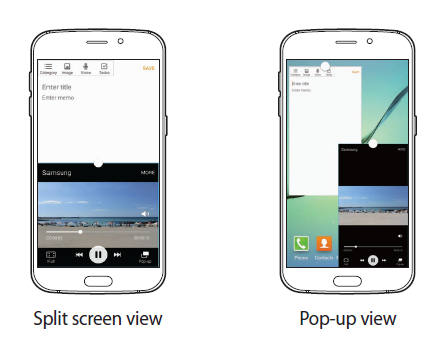
Use split screen view in Samsung Galaxy S6 multi window?
How to launch Samsung Galaxy S6 multi window in split screen view?
To launch split screen view for Samsung Galaxy S6 multi window, you can choose one of the two methods:
- Tap the Recent apps button, then select first app from the list.
The post Samsung Galaxy S6 Multi Window appeared first on Galaxy S6 Guide.
How to unlock Samsung Galaxy S6 and S6 edge, if you forget the screen lock password (and your fingerprint is not accepted either)
simonIf you forget the password or PIN for your Galaxy S6, S6 Edge, S6 Edge+, or any other Samsung Galaxy phones, the only way to unlock the phone is using Samsung’s Find My Mobile. The latest guide can be found here.
Google Android Device Manager (Find My Device) can only lock or erase your phone with your Google account. It is not able to unlock your Android phone with a Google account any more.
Update: In most regions, you can use Google account to unlock Galaxy S6 again if you forget your PIN or password or backup password. The guide was added below (link to this part). Please notice the two requirements: internet connection and main Google account.
Why Samsung Galaxy S6 does not accept my password and fingerprint?
It is usually recommended to set up lock screen security for your Galaxy S6 or S6 edge if you have any concern on your personal data on the phone and possible loss of the phone.
As detailed in this page, there are different levels of security you can set for Samsung Galaxy S6 and S6 edge.
However, maybe suddenly, your password or fingerprint is not accepted by Galaxy S6 or S6 edge.
You are locked out of Samsung Galaxy S6 or S6 edge.
Rebooting Galaxy S6 or S6 edge is useless. This is the purpose of the screen lock: if someone steals your galaxy S6, they cannot access your data on the phone if it is locked.
But if you are locked out of your own phone, it is hard for you to calm down. Most owners may blame the “stupid” lock screen policy.
Anyway, the stupid unlock policy is here to protect your data from unauthorized access.
There are a couple of ways to unlock Samsung Galaxy S6 and S6 edge even when your password or fingerprint is not recognized:
- You can reset the phone. All personal data and files will be erased, and you have to set up the phone just like a new one. Please follow this guide on how to reset the Galaxy S6 and Galaxy S6 edge.
- If the fingerprint is not recognized, you can still use the backup password. The problem is Samsung enforce a security policy on backup password length and complexity, and many owners forget it very quickly.
- If you use pattern lock, after a few fails, you can use your Google account to unlock Galaxy S6 or S6 edge.
The post How to unlock Samsung Galaxy S6 and S6 edge, if you forget the screen lock password (and your fingerprint is not accepted either) appeared first on Galaxy S6 Guide.
Galaxy S6 buttons
simonGalaxy S6 and Galaxy S6 edge share identical buttons. The functions of Galaxy S6 buttons are identical to those on Galaxy S6 edge.
There are 5 physical buttons on Galaxy S6 (and on Galaxy S6 edge).
Galaxy S6 Home button
Galaxy S6 Home button is located below the screen. You may refer to this page on Galaxy S6 layout.
Galaxy S6 fingerprint sensor is also embedded into the Home button. When you touch the Home button, Galaxy S6 may also scan you fingerprint.
When the Galaxy S6 screen is locked, press the Home button to turn on the screen. But you are still on the lock screen.
When you are using any apps on Galaxy S6, press the Home button to suspend the app and return to home screen.
When the screen is not locked and you are on any other pages, press Galaxy S6 Home button to return to home screen.
When the screen is not locked, press and hold Galaxy S6 Home button to launch Google Now.
Galaxy S6 Power button
Galaxy S6 Power button is located in the right side of Galaxy S6.
When the phone is powered off, press and hold Galaxy S6 Power button to power on the phone.
When the phone is powered on, press and hold Galaxy S6 Power button to get power options, including restarting the phone and powering off the phone.
When the screen is on, press Galaxy S6 Power button to turn off the screen and lock the screen by default.
When the screen is off, press Galaxy S6 Power button to turn on the screen. In this case, the function is same as pressing Home button.
You may also configure the galaxy S6 power button for other functions, e.g., ending a phone call.
Galaxy S6 Back button
The main function of the Galaxy S6 Back button is to return to the previous screen of the app you are running.
The actual behavior of Galaxy S6 Back button may depend on individual app. Some apps may just exit once you tap the Galaxy S6 Back button.
In Samsung Galaxy S6 and Galaxy S6 edge, by default, the light duration (when touched) of Back button and Recent buttons are NOT user-configurable, unlike previous generation Galaxy S or Galaxy Note devices. If you want to change the light duration or turn off the light for Galaxy S6 Back button and Recent Apps button, please check this guide.… Read the rest
The post Galaxy S6 buttons appeared first on Galaxy S6 Guide.
Android Nougat Update Guide for Galaxy S6, Galaxy S6 edge and Galaxy S6 edge+
simon Android Nougat update for Galaxy S6, Galaxy S6 edge, and Galaxy S6 edge+ probably is the last major update for these 3 devices. Samsung usually released two major Android updates for their flagship phones.
There are many new features and improvements in Android Nougat update for Galaxy S6, Galaxy S6 edge, and Galaxy S6 edge+.
This guide will try to give you the most important and practical info related to Android Nougat update for Galaxy S6, Galaxy S6 edge, and Galaxy S6 edge+.
Where are the updated user manuals for Galaxy S6, Galaxy S6 edge and Galaxy S6 edge+?
We have the updated user manuals for Galaxy S6, Galaxy S6 edge, and Galaxy S6 edge+ with Android Nougat update.
You can download a copy in your own languages or read it online.
For Galaxy S6 with Android Nougat update, the updated user manuals can be found here.
For Galaxy S6 edge and Galaxy S6 edge+ with Android Nougat update, the updated user manuals can be found here.
Please note, if you cannot find the language you want, you may leave your request in corresponding pages. We will try to add them.
When will I get the Android Nougat update for Galaxy S6, Galaxy S6 edge, and Galaxy S6 edge+?
It really depends on your region and carrier.
Major Android update requires the approval from carriers. In addition, the update is always rolled in stages.
Anyway, if you haven’t got Android Nougat update for Galaxy S6, Galaxy S6 edge, and Galaxy S6 edge+, you have to wait.
Do not flash the phone with firmware for other regions. You may brick the phone.
New status icons in Galaxy S6 and Galaxy S6 edge Nougat update
There are a couple of new icons in Android Nougat update for Galaxy S6, Galaxy S6 edge and Galaxy S6 edge+.
If you encounter any new icons, you may check this guide.
How to use the new multi-window feature in Android Nougat update for Galaxy S6, Galaxy S6 edge and Galaxy S6 edge+?
Multi window feature is getting better in Samsung’s Android Nougat update.
If you want to learn about the new features including split-screen view action, using more than 2 apps simultaneously, launching an app in pop-up view mode directly, managing floating app icons, please check this guide.
How to use the new quick settings panel and customize quick setting buttons in Android Nougat update for Galaxy S6, Galaxy S6 edge, and Galaxy S6 edge+?
The post Android Nougat Update Guide for Galaxy S6, Galaxy S6 edge and Galaxy S6 edge+ appeared first on Galaxy S6 Guide.
How to use Galaxy S6 camera voice control?
simonWhat is Galaxy S6 camera voice control?
Probably you already know you can use Google Now voice commands (“Open Camera” or “take a photo”) to launch the camera app. S Voice also has the similar capability.
But they can only launch the camera app, not take a photo.
Even worse, in Galaxy S6, and Galaxy S6 edge, “OK Google” detection from any screen was removed and the only way to use Google Now voice commands is to start the Google search app.
Galaxy S6 (and S6 edge) camera app comes with voice control: you can shout some magic words (“Cheese“, “Smile“, “Capture“, “Shoot” or “Record video“) to take photos or record videos when your hands are busy or your hands cannot reach the shutter button on the screen.
This is Galaxy S6 camera voice control we are talking about in this guide.
Of course, Galaxy S6 camera voice control is not new. Samsung has this feature in their camera app for long time. For example, we even have a detailed guide on a similar feature for Galaxy Note 4.
How to enable Galaxy S6 camera voice control?
By default, Galaxy S6 camera voice control is turned off in most regions.
In order to use your voice to take photos or record videos, you need enable Galaxy S6 camera voice control first.
Step 1: Start camera app.
You can start Galaxy S6 camera in many methods:
- Tapping the Camera app icon in the favorite tray in Galaxy S6 home screen.
- Pressing home buttons twice to use Galaxy S6 camera quick launch (even when galaxy S6 is locked).
- Using Google Now voice command (e.g., “Start camera”) or S Voice command (“Open Camera app”).
Step 2: tap Settings icon as shown below.
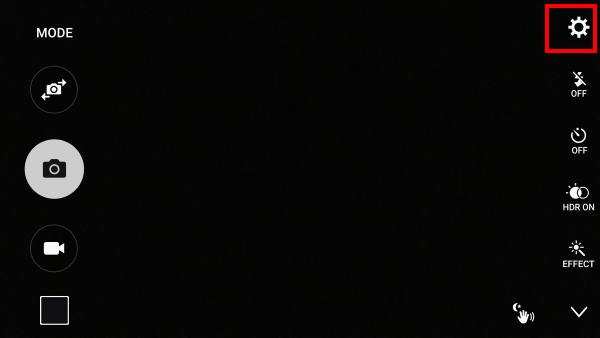
Step 3: tap Voice control
You can tap the Voice control as shown below to enable Galaxy S6 camera voice control if it is currently disabled.
If the switch is shown in green color (in the right side), it means Galaxy S6 camera voice control is enabled already. Tapping it to disable this Galaxy S6 camera feature.
When Galaxy S6 camera voice control is enabled, it will show the voice commands you can use in a pop up window as shown below.
Tap OK to close the pop out window.
Please note, there is no microphone icon in the camera preview window after the Galaxy S6 voice control is enabled.… Read the rest
The post How to use Galaxy S6 camera voice control? appeared first on Galaxy S6 Guide.
How to use Galaxy S6 camera burst mode?
simonWhat is Galaxy S6 camera burst mode?
Galaxy S6 (and S6 edge) has the best smartphone camera you can find in 2015. Galaxy S6 camera is not only fast to focus, fast to launch (quick launch), but also fast to take photos.
When you want to take photos continuously for any critical moments, you can use Galaxy S6 camera burst mode.
Galaxy S6 camera burst mode allows you to take up to 30 photos (in about 3-4 seconds) continuously in one shot. You can choose the best photos later or manage individual photos.
Galaxy S6 camera burst mode is most useful when:
- you want to capture the transition of facial expression or body language.
- you want to select the best photo later.
- you want to capture the transition of the background (e.g., fountain)
Please note, Galaxy S6 camera burst mode is NOT good for fast moving objects. You may try Sports mode (please follow this guide to install Sports mode for Galaxy S6 camera).
How to use Galaxy S6 camera burst mode?
If you follow this Galaxy S6 camera modes guide, you will find there is no burst mode for galaxy S6 camera.
You cannot download and install Galaxy S6 camera burst mode either.
So, where is Galaxy S6 camera burst mode?
Burst mode is always enabled on Galaxy S6 (and S6 edge). It is NOT necessary to enable or choose it.
To use Galaxy S6 camera burst mode, you just press and hold the on-screen shutter button in Camera app.
Galaxy S6 will stop taking photos when either:
- you release the shutter button;
- or, 30 photos have been taken.
Of course, you can use the burst mode again immediately 30 photos were taken.
If you didn’t silence Galaxy S6 camera shutter sound, you should hear the shutter sound when photos are being taken.
How to manage photos taken with Galaxy S6 camera burst mode?
Photos taken with Galaxy S6 camera burst mode can be managed as a group or as individuals in Gallery app.
However, if you are using other apps, or copy the photos to other devices, you have to treat them as individual photos.
Manage burst mode photos as a group
By default, in Gallery app, burst mode photos are shown as a group as shown below.
The icon illustrated in green circle indicates this is a group of photos taken with Galaxy S6 camera burst mode.… Read the rest
The post How to use Galaxy S6 camera burst mode? appeared first on Galaxy S6 Guide.
Galaxy S6 edge+ vs Galaxy S6 edge: top 6 new features you should know
simon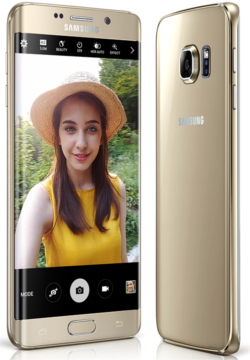 Update 1: Official Samsung Galaxy S6 edge+ user manuals are available here. Download the Galaxy S6 edge+ user manual in your own languages.
Samsung just announced the plus-size sibling of Galaxy S6 edge: Galaxy S6 edge+ on August 13 (together with Galaxy Note 5).
Apparently, the sales of the duo (Galaxy S6 and Galaxy S6 edge) are not as good as expected as reported. Samsung need new flagship phones to get the market.
Will Galaxy S6 edge+ give Samsung a lift in poor sales?
This post will try to highlight new features of Galaxy S6 edge+ vs Galaxy S6 edge.
1. Galaxy S6 edge+ is bigger (and heavier)
As suggested by its name, Galaxy S6 edge+ is really a plus-size sibling of Galaxy S6 edge.
The screen size of Galaxy S6 edge+ is 5.7″, which is significantly larger than the 5.1″ S6 edge.
The dimension of the Galaxy S6 edge+ is 6.08″ x 2.98″ x 0.27″; while Galaxy S6 edge only has a dimension of 5.59″x 2.76″ x 0.28″.
You will also feel Galaxy S6 edge+ is about 16% heavier (153g) than S6 edge (132g).
But for most owners, one-hand operation is not a big issue.
2. More features for edge screen
Edge screen is a signature feature in Galaxy S6 edge.
In addition to all features of the edge screen in Galaxy S6 edge, the Galaxy S6 edge+ adds more features to the edge screen. Now you can add favorite apps to edge screen.
For existing Galaxy S6 edge owners, Samsung may bring this feature to your phone in future update.
3. New camera features
Galaxy S6 and Galaxy S6 edge set the standard for smartphone cameras in 2015.
Although Galaxy S6 edge+ uses the identical camera sensors as Galaxy S6 edge, significant improvements in camera features can be spotted. These include:
- RAW support in Pro Mode. For advanced users, Galaxy S6 edge+ can save photos in RAW format. This means you have the full freedom to edit the photos after they are taken. You are not limited to effects and filters. You can travel back and re-adjust camera settings.
- Video collage mode. You can capture multiple videos and play them in a single collage.
- Live broadcast. You can broadcast yourself live through YouTube in Galaxy S6 edge+ camera app. You can set the broadcast as private (only invited contacts can watch) or public.
Again, probably (no confirmation or guarantee from Samsung yet) these features will be added to Galaxy S6 edge in future update.… Read the rest
The post Galaxy S6 edge+ vs Galaxy S6 edge: top 6 new features you should know appeared first on Galaxy S6 Guide.
How to disable Flipboard Briefing on Galaxy S6 home screen?
simonWhat is Flipboard Briefing on Galaxy S6 home screen?
Flipboard Briefing on Galaxy S6 home screen is one dedicated page/panel (the leftmost) showing you latest articles in various categories based on your interest and configurations.
In a nutshell, it is a customized full-page widget of the Flipboard app.
Nobody knows why Samsung still insists on adding Flipboard Briefing in Galaxy S6 home screen. If it was just a normal re-sizable widget, I believe more people would have used it frequently.
Flipboard Briefing was not welcomed in Galaxy Note 4 and many owners are asking how to remove it on Galaxy Note 4. The older version of Flipboard Briefing is called My Magazine in Galaxy S5, which is equally unpopular.
Flipboard is an excellent magazine app and many Galaxy S6 owners like it. But if you force Galaxy S6 owners to use it as a fixed-page widget, many are not happy with it.
To make the situation worse in Galaxy S5 and Galaxy Note 4, once Flipboard Briefing (or My Magazine in Galaxy S5) is enabled, you cannot scroll across it when you try to swipe the home screen panels in one direction. Luckily, in Galaxy Note 4 and Galaxy S5, you can disable Flipboard Briefing (or My Magazine), and cycle through all home screen panels in both directions.
Samsung Galaxy S6 edge has the identical Flipboard Briefing on the home screen, so this guide also applies to disable Flipboard Briefing on Galaxy S6 edge.
Good news and bad news on Flipboard Briefing on Galaxy S6 home screen?
The good news on Flipboard Briefing on Galaxy S6 home screen is that you can disable it.
The bad news is that you still cannot cycle through the first panel or last panel of the Galaxy S6 home screen, even after you disable Flipboard Briefing on Galaxy S6 home screen.
This is the limitation (improvement??joking??) of the new and improved TouchWiz in Samsung Galaxy S6 and Samsung Galaxy S6 edge.
How to disable Flipboard Briefing on Galaxy S6 home screen?
You can easily disable Flipboard Briefing on Galaxy S6 home screen by following these steps.
Step 1: enter editing mode of Galaxy S6 home screen
Tap and hold any empty area in the home screen to enter editing mode for Galaxy S6 home screen.
You can also use pinching gesture on home screen to enter editing mode.
Step 2: Swipe to the leftmost panel
As mentioned, Flipboard Briefing on Galaxy S6 home screen lies in the leftmost (first) panel.… Read the rest
The post How to disable Flipboard Briefing on Galaxy S6 home screen? appeared first on Galaxy S6 Guide.
Samsung Galaxy S6 release date
simon Update 1: it is confirmed Samsung Galaxy S6 release date will be April 10, 2015. It will be first available in 20+ countries /regions and then released in 150+ countries/regions within Q2 2015.
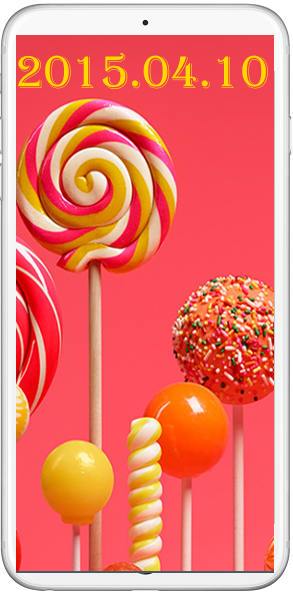 Update 1: it is confirmed Samsung Galaxy S6 release date will be April 10, 2015. It will be first available in 20+ countries /regions and then released in 150+ countries/regions within Q2 2015.
It is almost certain that Samsung will announce Galaxy S6 on March 1, 2015, one day before Mobile World Congress (MWC) 2015.
But you may wonder what the Samsung Galaxy S6 release date is. Or in other words, when can you get the Samsung Galaxy S6?
What is the difference between Samsung Galaxy S6 release date and March 1, 2015?
On March 1, 2015, Samsung will only announce the Galaxy S6. You cannot buy it on that day.
Samsung Galaxy S6 release date means you can buy the phone on that day. A smartphone usually is announced or launched (it is usually demoed as well in the event) before the release date. Of course, on a few occasions (usually for smaller players), the phone may be announced and released at the same day.
For Samsung, most flagship smartphones and tables are released about one month after they are announced. As a comparison, Apple, usually releases new iPhone or iPad about one week after the announcement.
The duration (waiting period) between the release date and announcement is more profound than what you may think.
In the technical and logistic aspect, a large-scale product release requires more staff to cope with the surge in sales. The stocking and dispatching to distributors is also a factor to be considered. Apple has full control of its sales channel in most regions. Samsung has to rely on distributors in some regions.
In the marketing aspect, if the duration is too long, people already forget the announcement and the excitement. If it is too short, the product will not be talked enough in the newspaper and social media. Apple usually has no issue with media coverage when a new iPhone or new iPad is announced because they have very limited new products each year.
On the contrary, Samsung has so many phones; they have to find a suitable time slot for each product. Normally, Galaxy S series phones are announced in February/March to catch the sales in summer. Galaxy Note devices are announced in September/October to catch the sales in the holiday season.
In short, you have to wait from a few weeks to a few months before you can get the Galaxy S6 depending on your region.… Read the rest
The post Samsung Galaxy S6 release date appeared first on Galaxy S6 Guide.
Samsung Galaxy S6 Home screen
simonWhat is Samsung Galaxy S6 home screen?
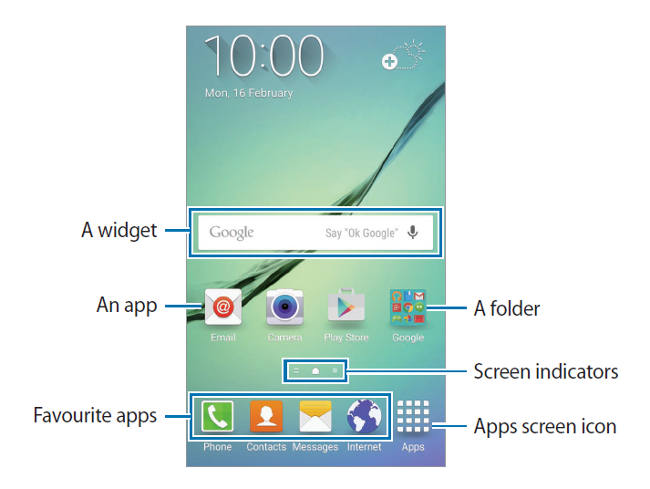
Samsung Galaxy S6 home screen is the starting point for accessing all features in Galaxy S6 (or Galaxy S6 edge). Once Galaxy S6 is rebooted (and unlocked), the first page you encounter is the home panel of home screen (as shown below).
You can always reach Samsung Galaxy S6 home screen (and the home panel) by pressing the Home button.
Please note Samsung Galaxy S6 and Samsung Galaxy S6 edge share the identical home screen. This guide also applies to Samsung Galaxy S6 edge, although in the text, I use Galaxy S6.
Samsung Galaxy S6 home screen displays:
- widgets;
- shortcuts to apps (so that you can access these apps quickly);
- app folders (for your to manage and group apps without using excessive home screen panels);
- screen indicators (indicating the location of current panel/page among all home screen panels);
- favorite apps (which will show on all panels of Samsung Galaxy S6 home screen. You can put most frequently used apps here to use Galaxy S6 effectively);
- apps screen icon (link to Apps screen)
By default, Samsung Galaxy S6 home screen consists of several pages (called panels). To view other panels of Galaxy S6 home screen, swipe to the left or right, or tap one of the screen indicators at the bottom of the screen as shown below.
Please note, Samsung Galaxy S6 home screen does NOT support cycling through home screen panels. In other words, there is a start and a end of home screen panels when you swipe the home panels in one direction. In old Samsung Galaxy devices, for example in Samsung Galaxy S5, when you reach the right most panel, next panel will be the leftmost panel. This feature was removed in Samsung Galaxy S6 home screen.
Samsung Galaxy S6 home screen options
You can customize Samsung Galaxy S6 home screen by adding, deleting, or rearranging home screen panels.
You can also set Samsung Galaxy S6 home screen wallpaper, add widgets to the home screen, change the themes of home screen, and set screen grid.
On Samsung Galaxy S6 home screen, tap and hold an empty area, or pinch your fingers together to access the available options as shown below. Please refer to the Galaxy S6 touchscreen page on these gestures.
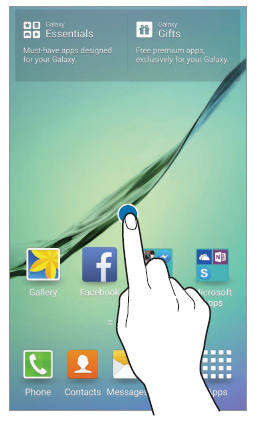
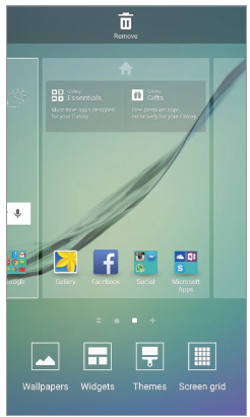
The Samsung Galaxy S6 home screen options include:
- Wallpapers: Change the wallpaper settings for Samsung Galaxy S6 home screen and the locked screen.
The post Samsung Galaxy S6 Home screen appeared first on Galaxy S6 Guide.
How to use Samsung Galaxy S6 safe mode?
simon1. What is Samsung Galaxy S6 safe mode?
Safe mode is an integrated, and usually hidden part in Android OS. It is a defense system of Android to prevent the device from messing up itself, usually due to third-party apps.
Most Android users probably never use Android safe mode because of the improvement in each version of Android. But sometimes, safe mode can solve your problem without modifying your settings or changing your files on the phone.
Some Android vendors may implement safe mode in a slightly different ways. So, in different Android devices, the way to access safe mode may be slightly different.
Samsung fully implemented Android safe mode in Galaxy S6 and Galaxy S6 edge, similar to previous generation of Galaxy devices.
Samsung Galaxy S6 safe mode may be launched automatically if the system detects some miscreant apps or operations are trying to crash the system. But this happens very very rarely nowadays.
Samsung Galaxy S6 safe mode is a special state of your Galaxy S6: all third-party apps (apps that are installed by you, not pre-installed) are disabled. Some settings are also temporally rolled back to default settings in Samsung Galaxy S6 safe mode.
2. When will you need Samsung Galaxy S6 safe mode?
Samsung Galaxy S6 safe mode temporally turns off all user-installed apps. Only pre-installed apps are available in safe mode.
You will need Samsung Galaxy S6 safe mode:
- when you need check some weird behavior of your phone. Such abnormal behavior is usually caused by some buggy or incompatible third-party apps.
- when you are locked in kids mode and forget the password to exit kids mode.
- when your Galaxy S6 thinks it should enter safe mode because of the abnormal behavior or operations of certain apps.
3. How to boot into Samsung Galaxy S6 safe mode?
To boot Samsung Galaxy S6 into safe mode, you may follow these steps:
Step 1: Power off the phone.
If your Galaxy S6 is on now, you need power off the phone first.
Press and hold the power button for 2-4 seconds to get the power menu on the screen as shown below.
Tap Power off as shown below.
Tap POWER OFF in the confirmation window as shown below. This step is to avoid powering off Galaxy S6 accidentally.
This will turn off Galaxy S6.
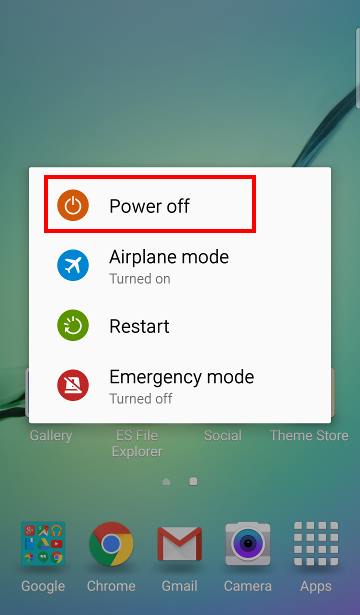
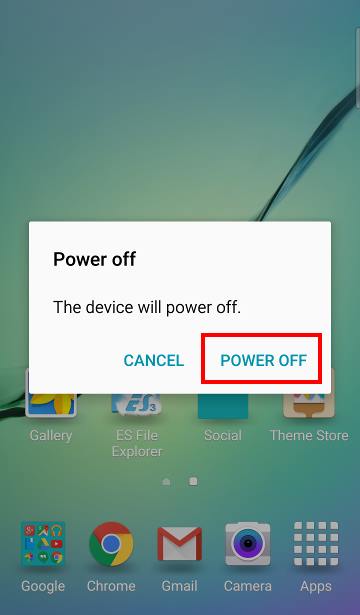
Step 2: Wait one or two minutes.
After Samsung Galaxy S6 is turned off, it ‘s better to wait one or two minutes before proceeding to step 3.… Read the rest
The post How to use Samsung Galaxy S6 safe mode? appeared first on Galaxy S6 Guide.

A Complete Guide to Android ADB Wireless Debugging
simonWith the release of Android 11, Google integrated Android Debug Bridge (ADB) wireless debugging as a native feature within the operating system. This major update in ADB introduced a secure pairing mechanism that completely eliminates the need for an initial USB connection. This modern approach, fully integrated into both Android’s Developer Options and Android Studio, […]
The post A Complete Guide to Android ADB Wireless Debugging appeared first on Android Guides.
Android 16: the definitive guide on new features and changes
simonOfficially released on June 10, 2025, Android 16 moves beyond incremental feature additions to address long-standing structural challenges within the Android ecosystem, most notably platform fragmentation and the inconsistent user experience on large-screen devices. The Android 16 release is defined by three core strategic pillars: This Android 16 guide explains all the new features and […]
The post Android 16: the definitive guide on new features and changes appeared first on Android Guides.
Master Android 15 Easter Egg Game: Landroid
simonThe Android 15 Easter egg is an iterative enhancement of the space-themed mini-game introduced in Android 14, a game of exploration now widely referred to as “Landroid.” This Android 15 guide explains what Android Easter Eggs are, the Android 15 Easter Egg Game (Landroid), how to unlock the Android 15 Easter Egg to claim the […]
The post Master Android 15 Easter Egg Game: Landroid appeared first on Android Guides.
New Features and Improvements of Android 15
simonThe annual release of a new Android version has evolved from a spectacle of sweeping visual change to a more nuanced and architecturally significant event. Android 15, codenamed “Vanilla Ice Cream,” epitomizes this evolution. It is not a release defined by a dramatic user interface overhaul but rather by a profound maturation of the underlying […]
The post New Features and Improvements of Android 15 appeared first on Android Guides.
Top 14 new features of Android 14
simonAndroid 14 is the latest version (2023) of the Android operating system, and it comes with a number of new features and improvements. Some of these new features of Android 14 are focused on improving the user experience, while others are designed to give users more control over their devices. In this Android 14 guide, […]
The post Top 14 new features of Android 14 appeared first on Android Guides.
Top 10 New Features of Android 13
simonAndroid 13 was released on August 15, 2022, with a plethora of new features and improvements to make your Android devices more personal and secure. However, many new features of Android 13 are not eye-catching and deep inside the Settings or apps. This Android 13 guide explains the top 10 new features of Android 13 […]
The post Top 10 New Features of Android 13 appeared first on Android Guides.
Extra Dim in Android 12: The Definite Guide
simonExtra Dim is a less-known yet very useful new feature in Android 12. It is not included in our top 12 new features in Android 12 because Extra Dim is a “niche” feature for very specific scenarios (if you often use the phone in a dark environment), not because it is not important. Extra Dim […]
The post Extra Dim in Android 12: The Definite Guide appeared first on Android Guides.

How to turn on and turn off Galaxy S7 and Galaxy S7 edge when phone hangs?
simon
Update: Android Nougat update for Galaxy S7 and S7 edge will prevent you from powering the phone before you unlock the phone. You can bypass this restriction by power off Galaxy S7 and S7 edge without unlocking the phone.
Who doesn’t know how to turn on or turn off Galaxy S7?
When you get a new phone, the first thing you will do is probably power it on (i.e. turn on).
Galaxy S7 (or Galaxy S7 edge) is not an exception. In most regions, Samsung does not offer 1-to-1 exchange. You have to check the phone before leaving the counter; otherwise, any problems will probably be handled through service centers.
Any kids can turn on Galaxy S7 or turn off Galaxy S7 because the power button is there.
But if Galaxy S7 does not respond to holding power button, or any buttons in Galaxy S7 or S7 edge, what can you do?
Remember, the battery in Galaxy S7 (and S7 edge) is non-removable for users. You cannot pull out the battery and insert it again.
This guide will try to show you how to turn on Galaxy S7 and turn off Galaxy S7 in all situations, including when the phone does not respond to any buttons.
How to reboot or turn off Galaxy S7 and Galaxy S7 edge if phone is not responding to power button?
When Samsung first changed design slimmed down TouchWiz for Galaxy S6 (and Galaxy S6), there are some reports that the phone is not responsive for no reason. You may read comments in this page to get a better idea on the issue in Galaxy S6 and Galaxy S6 edge.
Through incremental improvements in Galaxy Note 5, the reported cases of non-responsive Galaxy S7 have significantly decreased.
But occasionally, some Galaxy S7 and Galaxy S7 edge owners still encountered the similar issue: Galaxy S7 is not responsive to touch screen gestures and pressing of any buttons.
The issue can be caused by some apps you installed. But most of the time, it is caused by bugs in firmware bugs or TouchWiz.
Anyway, finding out the cause of the problem is out of the scope of this post.
When Galaxy S7 is not responsive to any touchscreen gesture or any buttons (i.e, Galaxy S7 hangs), the first thing you can try is to hold power button for more than 7 seconds. In most cases, your Galaxy S7 should reboot (i.e.,… Read the rest
The post How to turn on and turn off Galaxy S7 and Galaxy S7 edge when phone hangs? appeared first on Galaxy S7 Guides.
Switch to Galaxy S7: how to migrate old phone data to Galaxy S7 and Galaxy S7 edge with Smart Switch?
simonIf you just switch to Galaxy S7 and are trying to migrate old phone data to Galaxy S7 or S7 edge, this guide will show you the best way to migrate your data.
You probably even do not need to install any apps or tools when you switch to Galaxy S7 and S7 edge.
The tool we are going to use to help you switch to Galaxy S7 is called Smart Switch, free software offered by Samsung.
What is Smart Switch for me to switch to Galaxy S7?
Smart Switch is Samsung’s killer tool for you to migrate old phone data to Galaxy S7 and Galaxy S7 edge. It will help you migrate to Galaxy S7 and Galaxy S7 edge.
There are 2 different Smart Switch software packages:
- Samsung Smart Switch Mobile App. The Smart Switch mobile app allows you to migrate data from your old device (Android, iOS, BlackBerry) to Galaxy S7 directly (from mobile to mobile).
- Samsung Smart Switch for PC/Mac. The Smart Switch for PC/Mac allows you to backup phone (Galaxy phones only) data to the PC/Mac, and to restore backup data (not limited to Galaxy phones) to Galaxy S7.
When you switch to Galaxy S7, Smart Switch mobile app can migrate old phone data to Galaxy S7 in 2 different ways:
- Wireless transfer through WiFi Direct. If your old phone is 1). an Android phone with Android ICS 4.o or later, or 2). an iPhone with iCloud backup, you can use this method. You need install Smart Switch app on the old Android phone.
- Wired transfer through USB cable. If you old phone is 1). a Galaxy phone with Android Jelly Bean 4.3 or later, or 2). an iPhone with iOS 5 or later, or 3). a BlackBerry with BlackBerry 7 OS or earlier, you can migrate the phone data from old device to Galaxy S7 with the USB connector in your Galaxy S7 box and the USB cable.
Why I cannot install Smart Switch on Galaxy S7 and Galaxy S7 edge?
Smart Switch was pre-installed and enabled in Galaxy S7 and Galaxy S7 edge already. You don’t need to install Smart Switch on Galaxy S7.
But you cannot find Smart Switch app on Galaxy S7 or Galaxy S7 edge.
Then, how to launch and use Smart Switch on Galaxy S7 and Galaxy S7 edge to switch to Galaxy S7?
Samsung puts Smart Switch in Settings— Backup and reset –-Open Smart Switch as shown below. … Read the rest
The post Switch to Galaxy S7: how to migrate old phone data to Galaxy S7 and Galaxy S7 edge with Smart Switch? appeared first on Galaxy S7 Guides.
How to use direct dial, direct message and contact shortcuts in Galaxy S7 and Galaxy S7 edge?
simonWhat are direct dial, direct message and contact shortcuts in Galaxy S7 and Galaxy S7 edge?
Normally, when you want to call someone from your Galaxy S7 or S7 edge, you have to start the phone app or contacts app, find the contact, then dial.
Similarly, when you want to text someone, you have to start the messaging app, find the contact, compose the message, then send it from your Galaxy S7 or S7 edge.
But you may not know, you can use direct dial, direct message and contact shortcuts in Galaxy S7 and Galaxy S7 edge to speed up the process.
Direct dial allows you to dial someone by tapping one icon on the Galaxy S7 home screen. It is not necessary to start the dialer app, or to find the contact.
Direct message allows you to direct text someone without fiddling around the messaging apps or finding the contact.
Contact shortcuts allow you to open the contact from Galaxy S7 home screen. You can then choose to text, dial, or other actions from the home screen.
Anyway, direct dial, direct message and contact shortcuts can save you tremendous time if you need call some contacts or text some contacts frequently.
Please note, although this guide shows you how to use direct dial, direct message and contact shortcuts in Galaxy S7 and S7 edge, these features are available in all Android devices. It is a native feature of Android (of all versions).
The only difference among different Android vendors, and different versions of Android, is the way to add widgets for direct dial, direct message and contact shortcuts to home screen.
How to add direct dial, direct message and contact shortcuts to Galaxy S7 home screen?
As mentioned, direct dial, direct message and contact shortcuts are all widgets of the Contacts app in Galaxy S7 and S7 edge.
So, to add direct dial, direct message and contact shortcuts to Galaxy S7 home screen, you can just add them as normal widgets as explained in this guide.
Step 1: Switch to edit mode of Galxy S7 home screen
You can switch to edit mode of Galaxy S7 home screen with one of the following two methods:
- Pinch (to zoom in) in Galaxy S7 home screen (any home screen panels).
- Tap and hold (aka long tap) any blank area in Galaxy S7 home screen (any panels).
Once in edit mode as shown below, tap Widgets.… Read the rest
The post How to use direct dial, direct message and contact shortcuts in Galaxy S7 and Galaxy S7 edge? appeared first on Galaxy S7 Guides.
Samsung Galaxy S7 apps screen
simonDifference between Samsung Galaxy S7 apps screen and home screen
Galaxy S7 apps screen, aka Galaxy S7 app drawer, is a special page that displays icons of all apps installed on your Galaxy S7 or Galaxy S7 edge.
Galaxy S7 home screen is the entrance for all phone features. Normally, selected apps and widgets are placed in home screen for quick access.
You can imagine the role of Galaxy S7 home screen and Galaxy S7 apps screen in this way: Galaxy S7 home screen is the storefront for Galaxy S7 and S7 edge, and Samsung Galaxy S7 apps screen is the warehouse of apps you have on Galaxy S7 or S7 edge.
For new Android users, especially, iPhone users (because iPhone does not have apps screen), it can be very confusing: why do you need two places to hold apps?
If there is no Galaxy S7 apps screen, then you have to put all apps on the home screen. This may be inconvenient fro some owners:
- most users you actually want to put frequently used apps and widgets in the home screen.
- if all apps are placed in the home screen, you cannot remove it. Otherwise, it is hard to track all apps installed although you can manage them in the application manager.
- if all apps are placed in the home screen, you cannot have more than one copy of the app icons in the home screen. For example, you may want to put Gmail app in two or more different app folders.
Anyway, up to know, no Android vendors try to remove apps screen, simply because it exists for its reasons. It is also a symbolic feature of Android OS.
How to use Galaxy S7 apps screen?
You can access Galaxy S7 apps screen by tapping the apps icon (9 dots) in favorite tray in Galaxy S7 home screen.
Once in Galaxy S7 apps screen, you can find these items (as shown below) in the apps screen:
- icons for apps. These corresponds to individual apps installed. You can launch the app by tapping it just like in home screen. Tap and hold the app icon to add the app to the home screen.
- app folders. You can group apps into app folders in Galaxy S7 app screen.
- search button (1). Tap Search button to search apps.
- sort button (2). You can tap sort (A-Z) button to re-arrange apps in alphabetical order in the apps screen.
The post Samsung Galaxy S7 apps screen appeared first on Galaxy S7 Guides.
Manage Galaxy S7 camera modes
simonWhy you need manage Galaxy S7 camera modes?
In addition, you can download and install 6 additional Galaxy S7 camera modes for other scenarios.
This means you may end up with more than 20 Galaxy S7 camera modes on the phone. You may find it is not easy to find the camera modes when you want to use them.
One way to solve this problem is to add Galaxy S7 camera mode shortcuts to home screen so that you can launch camera app in the specific camera mode directly from Galaxy S7 Home screen.
Another way to solve the issue is to manage the items in Galaxy S7 camera modes page.
For example, you can relocate Galaxy S7 camera modes so that the most frequently used camera modes are in the top 10 spots. Normally, you can access these 10 camera modes without scrolling.
You can also uninstall some downloaded camera modes if you no longer use them.
Anyway, when auto mode is not sufficient for you, it is time to consider to manage Galaxy S7 camera modes so that you can use them more efficiently.
How to manage Galaxy S7 camera modes?
To manage Galaxy S7 camera modes in your Galaxy S7 and Galaxy S7 edge, you may follow the following steps.
Step 1: Start Galaxy S7 Camera app
You can use any of these 4 methods to launch camera app on Galaxy S7 and S7 edge.
Step 2: Enter Galaxy S7 camera mode page
In Galaxy S7 camera preview screen, tap MODE as shown below.
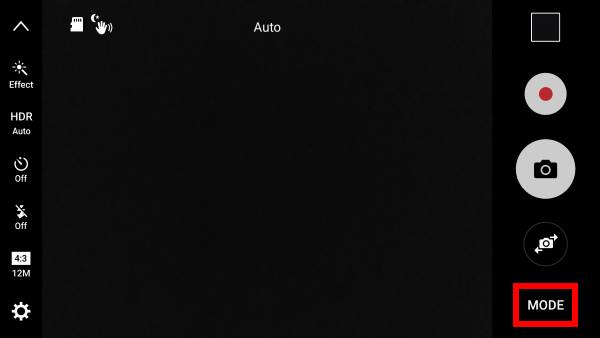
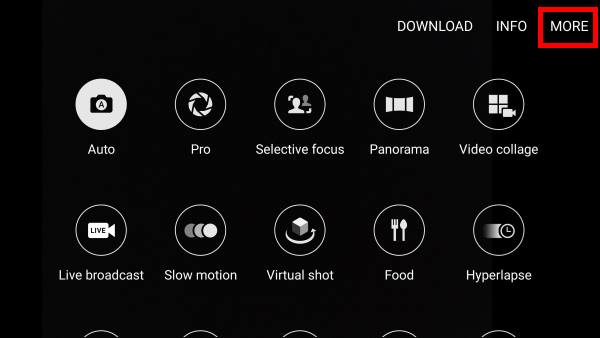
Step 3: Enter edit mode of Galaxy S7 camera modes
In Galaxy S7 camera mode page, tap MORE as shown above.
Tap EDIT as shown below to enter the edit mode for Galaxy S7 camera modes.
In Edit mode, you can relocate the icon locations of all camera modes in Galaxy S7 and S7 edge.
You can also uninstall the Galaxy S7 camera modes that are downloaded (as shown in this guide).
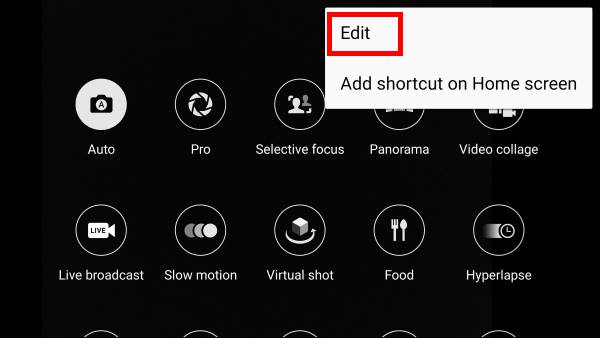
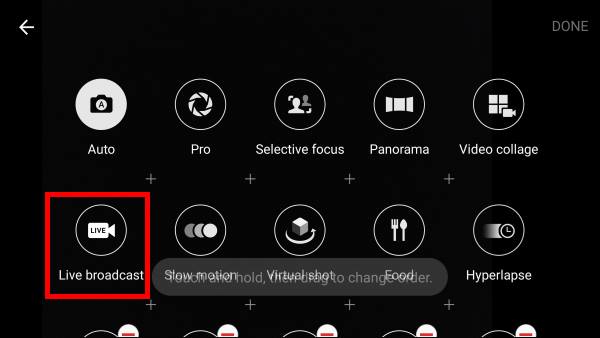
Step 4: Manage Galaxy S7 camera modes
In edit mode, you can re-arrange spots for the icons.
Usually, you may want to put the frequently used camera modes in the top 10 spots so that you can access them without scrolling.
To move and relocate a Galaxy S7 camera mode, you can tap and hold the icon. … Read the rest
The post Manage Galaxy S7 camera modes appeared first on Galaxy S7 Guides.
How to use volume key to take photos in Galaxy S7 camera app?
simonVolume key is not just for volume control
You may not know you can use volume key to take photos in Galaxy S7 camera app.
This can be very useful in occasions when you are using one hand to take photos.
And you can use volume key to take photos for both front and rear cameras in Galaxy S7 and Galaxy S7 edge.
So, for front camera, in addition to the 5 shooting methods discussed in this guide, you can use volume key as the 6th shooting method.
For rear camera, you already know that you can use shutter button, or use voice control to take photos. Volume key is the 3rd shooting method for the rear camera in Galaxy S7 and Galaxy S7 edge.
In Galaxy S7 and Galaxy S7 edge, in addition to controlling volume, volume key have many other functions in various apps, for example,
- Messages app: you can adjust text size using volume up and volume down keys.
- Camera app: you can use volume key to take photos or zoom in/out or recording videos.
Anyway, volume key is not just for volume controls in Galaxy S7 and S7 edge. Many apps may use volume keys for special functions.
This guide shows you how to use volume key to take photos in Galaxy S7 and Galaxy S7 edge.
How to disable/enable volume key for taking photos
By default, in Galaxy S7 camera app, you can press volume key to take photos without any settings. Volume down and volume up keys work identically for taking photos.
However, if you do not want to use volume key to take photos, or if you want to configure volume key for other functions in Galaxy S7 camera app, you may follow these steps.
Step 1: Start Camera app
You can use one of the following ways to start Camera app in Galaxy S7 and S7 edge:
- use Galaxy S7 camera quick launch (double tap Home button);
- tap camera app icon in Galaxy S7 home screen;
- tap camera app icon in apps screen;
- use Galaxy S7 camera mode shortcuts;
- use apps edge or tasks edge from edge screen (for Galaxy S7 edge only).
Step 2: Enter camera settings
In Galaxy S7 camera app preview screen, tap Settings button (gear icon) as shown below to enter camera settings.
In Camera settings page, as shown below, tap Volume keys function.… Read the rest
The post How to use volume key to take photos in Galaxy S7 camera app? appeared first on Galaxy S7 Guides.
Use Galaxy S7 camera preview screen
simonAs mentioned in this guide, you can launch Galaxy S7 camera app in different ways, including quick launch. But the Galaxy S7 camera preview screen you get is identical.
Understanding Galaxy S7 camera app interface (preview screen) can help you use the camera properly and effectively.
As shown in the screenshot below, in Galaxy S7 camera preview screen, there are several items.
Updated: Galaxy S7 camera app was updated in Android Nougat for Galaxy S7 and Galaxy S7 edge. The camera preview screen is different from the screenshot below. Please check Use Galaxy S7 camera app with Android Nougat update in S7 and S7 edge if your Galaxy S7 or S7 edge is running Android Nougat.
1. Camera settings icon
Tap this icon in Galaxy S7 camera preview screen to enter camera settings page.
Please note, Galaxy S7 camera settings page for front camera and for rear camera are different.
If you need change settings for front camera, you need switch to front camera first, then tap camera settings icon.
2. Photo size
You can set photo size in the preview screen without entering Galaxy S7 camera settings page.
Actually, this is the only place to set photo size in Galaxy S7 and Galaxy S7 edge. Samsung removed photo seize settings from Galaxy S7 camera settings page.
Tap the icon to set picture size.
3. Flash on/off
You can tap the icon to turn on or off the LED flash for the rear camera.
For front camera on Galaxy S7 or S7 edge, you can also turn on flash. If the flash is turned on for Galaxy S7 front camera, the screen will light up when tapping shutter button.
4. Timer
You can turn on/off timer for Galaxy S7 camera (both rear and front).
You can set the timer as 2 or 5 or 10 seconds.
If the timer is on, you then have the option to take 3 photos instead of 1.
5. HDR
Tap this icon to turn on or turn off HDR (high-dynamic-range) for Galaxy S7 camera.
6. Camera effects (filter)
You can apply camera effects while taking photos.
The photos shown in the Galaxy S7 camera preview screen will be the final photo (with camera effects applied).
You can tap this icon to select, download and manage Galaxy S7 camera effects.
Please check this guide on using Galaxy S7 camera effects.
7. Hide or show icons from Galaxy S7 camera preview screen
Tap this icon to hide ions in left side as shown below.… Read the rest
The post Use Galaxy S7 camera preview screen appeared first on Galaxy S7 Guides.
How to use flash for Galaxy S7 front camera?
simonYou can use flash for Galaxy S7 front camera
As explained in Galaxy S7 layout, there is a LED flash for the rear camera (main camera) in Galaxy S7 and Galaxy S7 edge.
But many owners of Galaxy S7 and Galaxy S7 edge may not be aware of that they can also use flash for Galaxy S7 front camera when taking selfies.
Of course, there is no LED flash in the front of Galaxy S7 or Galaxy S7 edge.
So, how to use flash for Galaxy S7 front camera?
Galaxy S7 and Galaxy S7 edge can use the screen as flash so that your face will get better lighting conditions.
Because you are usually close to the screen when taking selfie, the additional light offered by the screen usually is sufficient for selfies even you are in total darkness.
Using screen as flash is not a new feature in Android phones. There are even some third-party apps (e.g., this one)for this.
But for Samsung phones, this is new. And it works surprisingly well.
How to use flash for Galaxy S7 front camera?
Just like for rear camera, you can set to use flash for Galaxy S7 front camera as the following 3 modes:
- Off. This will not use flash for Galaxy S7 front camera when taking selfies.
- Auto. Flash will be used only if the lighting conditions are not good. If this mode is used, you will see the flash icon if flash will be used as shown below.
- On. Flash will be always used regardless of the light conditions.
When flash is used for Galaxy S7 front camera, the screen will light up as white for 1-2 seconds and photos will be taken during this period.
Please note, when burst mode is used, flash will not work. This is true for rear camera as well.
But you can use flash for Galaxy S7 front camera together will any of the 5 shooting methods for Galaxy S7 front camera and using volume keys to take photos.
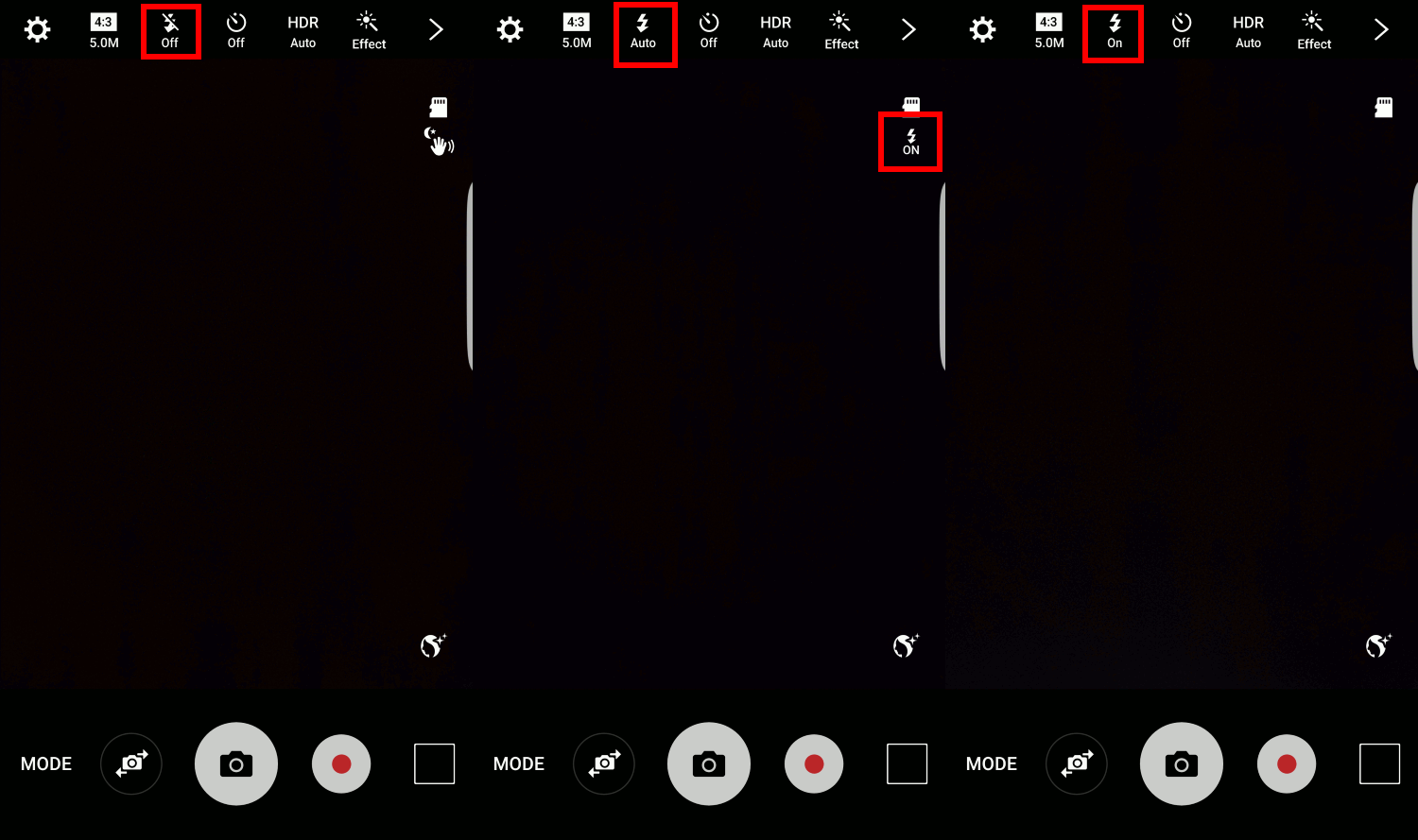
Do you know how to enable and use flash for Galaxy S7 front camera when taking selfies in Galaxy S7 and Galaxy S7 edge?
If you have any questions or encounter any problems to enable and use flash for Galaxy S7 front camera when taking selfies in Galaxy S7 and Galaxy S7 edge, please let us know your questions or problems in the comment box below.… Read the rest
The post How to use flash for Galaxy S7 front camera? appeared first on Galaxy S7 Guides.
How to set Galaxy S7 camera picture size and video size on Galaxy S7 and Galaxy S7 edge?
simonWhen you may consider to set Galaxy S7 camera picture size and video size?
Most Galaxy S7 owners and Galaxy S7 edge owners may just use the default settings for picture size (resolution) and video size.
But you may consider to set Galaxy S7 camera picture size and video size:
- when the storage is a consideration.
- when you need specific aspect ratio for the photo or videos.
Both Galaxy S7 and Galaxy S7 edge support micro SD card up to 200GB. It seems this gives you “enough” storage for your photos and videos.
But for dual SIM versions of Galaxy S7 and S7 edge, if you use two SIM cards, there will be no slot for micro SD card as explained in this page. This means you only have 32GB storage (actually less than 25GB are usable) if you use the dual SIM feature. You probably have to be mindful on the storage and consider to reduce Galaxy S7 camera picture size and video size whenever possible.
In some cases, you may want photo or video with 16:9 or 1:1 aspect ratio, not the default 4:3.
So, in these scenarios, the default settings can not meed your needs and you have to set Galaxy S7 camera picture size and video size.
But before we jump to set Galaxy S7 camera picture size and video size, we should know what are the “good enough” size for photos and videos based on your needs.
What are the “good enough” Galaxy S7 camera picture size and video size?
For Galaxy S7 camera picture size and video size, you need consider two parameters:
- Aspect ratio. Galaxy S7 camera offers 3 aspect ratio: 4:3 (default), 16:9 and 1:1 for both photos and videos.
- Resolution. The resolution depends on whether front camera or rear camera is used.
For aspect ratio, you may consider:
- 16:9 if the photo or video are mainly viewed in PCs and TVs, or shared through online services like YouTube.
- 4:3 if you may print photos on standardized photo papers.
- 4:3 if the video will be mainly viewed in very old TVs, or shared through MMS or email.
- 1:1 if you will use it for design.
For the resolution of photo, you may consider
- 12M (4032*3024, 4:3) if you plan to print the photo in 8R or larger photo papers,
- 6.2M (2880*2160, 4:3) if you plan to print the photo in a 4R or smaller photo paper
- 9.1M (4032*2268, 16:9) if you mainly view photos on PC or TV or share them on social networks.
The post How to set Galaxy S7 camera picture size and video size on Galaxy S7 and Galaxy S7 edge? appeared first on Galaxy S7 Guides.
Galaxy S7 performance mode in Android Nougat update for Galaxy S7 and Galaxy S7 edge
simonAndroid Nougat update for Galaxy S7 and Galaxy S7 edge introduced Galaxy S7 performance mode optimized for different usage scenarios: gaming, entertaining, and high performance.
What is Galaxy S7 performance mode in Android Nougat update for Galaxy S7 and Galaxy S7 edge?
Different owners may use Galaxy S7 or S7 edge very differently. Even one owner may use the phone differently during different periods.
Such different usages may have different requirements for hardware and software optimization to get the best user experience.
One-size-fits-all type configuration is almost impossible to deliver the best user experience, even Galaxy S7 and Galaxy S7 edge have top-notch hardware specs.
Samsung tried to address this issue with Galaxy S7 performance mode in Android Nougat update for Galaxy S7 and Galaxy S7 edge.
Each Galaxy S7 performance mode is designed for a specific usage scenario: gaming, entertaining, high performance,
By default, after applying Nougat udpate, Galaxy S7 and Galaxy S& edge will enter “optimized” mode, which is optimized for normal daily usage.
For example, the optimized mode set the screen resolution to full HD 1080p, instead of the WQHD 1440p. Of course, you can change Galaxy S7 screen resolution and change screen zoom level.
If you need to use Galaxy S7 or Galaxy S7 edge for gaming, watching videos, or for maximum performance, you can then change and customize Galaxy S7 performance mode.
What are the 3 Galaxy S7 performance modes in Android Nougat update for Galaxy S7 and Galaxy S7 edge?
In addition to the default optimized mode, Galaxy S7 and S7 edge offer 3 additional pre-defined performance modes in Android Nougat update for Galaxy S7 and Galaxy S7 edge.
Of course, you can further customize any of these 3 Galaxy S7 performance modes.
1. Game mode
Game mode is optimized for gaming experiences.
By default, when you choose game mode for Galaxy S7 performance mode, the screen brightness will increase by 10% automatically, screen resolution will be adjusted to full HD 1080p, game tools and game launcher will be activated instantly.
As mentioned, you can also customize the default profile. For example, set default screen resolution in game mode as WQHD 1440p.
2. Entertainment mode
Entertainment mode is optimized for watching videos and listening music.
When this Galaxy S7 performance mode is enabled, by default, the screen resolution will be adjusted to WQHD, video enhancer will be turned on. UHQ upscaler for music and video will also be turned on automatically.… Read the rest
The post Galaxy S7 performance mode in Android Nougat update for Galaxy S7 and Galaxy S7 edge appeared first on Galaxy S7 Guides.

How to enable developer options in Chromecast with Google TV and Google TV Streamer?
simonThe developer options in Chromecast with Google TV allow you to access some advanced features of Android TV, e.g., sideloading apps directly through ADB commands. This Chromecast with Google TV guide explains what you can do with developer options in Chromecast with Google TV and how to enable it for the dongle. Please note this […]
The post How to enable developer options in Chromecast with Google TV and Google TV Streamer? appeared first on All About Chromecast.
How to disable Google Home and Chromecast casting notification?
simonWhat is the Google Home and Chromecast casting notification? With the release of Google Home, the Google cast app was renamed as Google Home app. Now, Chromecast (including Chromecast Ultra), Chromecast Audio and Google Home are all managed by the same Google Home app. One of the new features in Google Home app (through Google Play […]
The post How to disable Google Home and Chromecast casting notification? appeared first on All About Chromecast.
How to launch Videostream (and other Chrome apps as well)?
simonYou can launch Videostream just like other Chrome apps As explained in this page, Videostream for Google cast is one of the best solutions to stream local contents to Chromecast. It is both powerful enough and simple enough for most Chromecast owners. We also published a detailed guide on how to use Videostream extension to stream […]
The post How to launch Videostream (and other Chrome apps as well)? appeared first on All About Chromecast.
Meaning of LED light on voice remote for Chromecast with Google TV and Google TV Streamer
simonThe LED light on the voice remote for Chromecast with Google TV and Google TV Streamer can give you some quick information about the status of the remote. This Chromecast with Google TV guide explains the meaning of the LED light on the voice remote for Chromecast with Google TV and Google TV Streamer to […]
The post Meaning of LED light on voice remote for Chromecast with Google TV and Google TV Streamer appeared first on All About Chromecast.
How to use VLC media player on PC to stream music and video to Chromecast and Chromecast Audio?
simonChromecast support was finally introduced in VLC media player 3.0. So, you can now easily use VLC media player on PC to stream music and video to Chromecast and Chromecast Audio. This adds one more method to stream local media files to Chromecast and Chromecast Audio. Please note, Google Home, Google Hoem Mini, and Google […]
The post How to use VLC media player on PC to stream music and video to Chromecast and Chromecast Audio? appeared first on All About Chromecast.
Chromecast guest mode guide
simonChromecast guest mode allows your guests to cast to Chromecast without connecting to your WiFi network. This Chromecast guide explains everything you need to know about the Chromecast guest mode: what the guest mode is, how it works, how to enable or disable it, how to cast in the guest mode, and the limitations of […]
The post Chromecast guest mode guide appeared first on All About Chromecast.
You can also reach us in following manners:
- Facebook page
- Google+ community
- Email (contact us form)
- Follow Simon (the main contributor) on Google+
- Follow us on YoutTube.
Please let us know your thoughts in the comment box below or contact us directly with the methods mentioned above.