• Skip to primary navigation
  • Skip to main content
  • Skip to primary sidebar
  • Skip to footer

Google Home Guides

  • About
    • What is Google Home?
    • About Google Home Guides
    • Google Home Mini vs Google Home
    • Google Nest Mini vs Home Mini: what’s new and what’s not changed?
    • Nest Audio vs Google Home: new features and improvements
    • Contact Us
  • Google Home
    • Google Home layout and buttons
    • Meaning of Google Home LED lights (and colors)
    • How to factory data reset Google Home?
    • 3 methods to change Google Home volume and how to silence Google Home
    • How to create and use Google Home speaker pair (stereo pairing)?
    • How to set up Google Home with Google Home app?
    • How to rename Google Home?
    • How to find and redeem Google Home promotional offers?
    • How to customize Google Home settings?
    • How to use Google Home as a Bluetooth speaker?
    • How to change Google Home WiFi network settings?
    • How to adjust alarm volume and timer volume in Google Home, Google Home Mini, Nest Audio and Google Home Max?
    • How to adjust the equalizer (EQ) of Google Home, Google Home Mini and Google Home Max?
  • Home Mini
    • How to connect Google Home to a Bluetooth speaker?
    • Meaning of Google Home Mini LED lights and Google Home Max LED lights
    • How to use touch control for Google Home Mini?
    • How to reset Google Home Mini?
    • How to reset Google Nest Mini (Google Home Mini 2nd Gen)?
    • Google Home Mini layout and buttons
    • Layout of Google Nest Mini (Google Home Mini 2nd Gen)
    • Google Home Mini vs Google Home
    • How to adjust alarm volume and timer volume in Google Home, Google Home Mini, Nest Audio and Google Home Max?
    • Google Nest Mini vs Home Mini: what’s new and what’s not changed?
  • Nest Audio
    • Nest Audio Layout
    • How to Factory Data Reset Nest Audio?
    • How to control Nest Audio?
    • Meaning of Nest Audio LED lights
    • Nest Audio vs Google Home: new features and improvements
  • Nest Hub
    • Understand the layout of Nest Hub (including Nest Hub 2nd Gen, Google Home Hub)
    • How to Factory Data Reset Nest Hub (Google Home Hub and Nest Hub 2nd Gen)?
    • Nest Hub 2nd Gen vs Nest Hub vs Google Home Hub: what’s new and what’s not changed?
    • How to Use Quick Gestures on Nest Hub 2nd Gen and Nest Hub Max?

Meaning of Google Home LED lights (and colors)

Last updated on: January 3, 2021 · First published on: December 1, 2016 7 Comments

You can understand the status of Google Home by checking the LED lights (and colours).

This Google Home guide explains why you should know the meaning of Google Home LED lights and the exact meaning (and possible implications) of all LED lights pattern on Google Home.

Please note, due to the differences between Google Home vs Nest Audio (2nd gen Google Home) and Google Home vs Google Home Mini (and Google Nest Mini), the LED lights on Google Home are different from other Google Home speakers. So, this guide applies to Google Home (1st Gen) only. You may check this guide on the meaning of Nest Audio LED lights, and this guide for the meaning of LED lights on Google Home Mini (and 2nd Gen Google Home Mini/ Google Nest Mini).

Contents hide
1) Why do you need to know the meaning of Google Home LED lights?
2) Meaning of Google Home LED lights when Google Home is in standby mode
2.1) 1. Boot up
2.2) 2. Factory data reset
2.3) 3. Alarm ringing
2.4) 4. Timer ringing
3) Meaning of Google Home LED lights when Google Assistant is working (or not working)
3.1) 1. Google Home is waiting for your voice input
3.2) 2. Google Assistant is working to find the answer (thinking)
3.3) 3. Google Home is responding
3.4) 4. Microphone is muted (Google Home is not listening)
4) Meaning of Google Home LED lights when you set up Google Home
4.1) 1. Google Home is ready to set up
4.2) 2. Verify device
4.3) 3. Connecting to WiFi
4.4) 4. Downloading
4.5) 5. Installing
5) Meaning of Google Home LED lights for Google Home volume
5.1) 1. Volume level
5.2) 2. Volume mute
6) Meaning of Google Home LED lights for system error
6.1) Something wrong

Why do you need to know the meaning of Google Home LED lights?

As mentioned in Google Home layout, Google Home only has one physical button to turn on/off the microphone,  or to factory data reset Google Home.

The touch panel in the top of Google Home plays a very important role in using and configuring Google Home.  And the LED lights (and their colours) give you the status of the device and possible problems with it.

So, as an owner of Google Home, you should know the meaning of Google Home LED lights.

The LED lights work differently when you set up Google Home, or when you use Google Assistant.

This guide will explain to you the meaning of Google Home LED lights in the setup stage, in standby mode, or in Google Assistant mode.

This guide is for Google Home only. For Google Home Mini (including Google Nest Mini, aka 2nd Gen Google Home Mini) and Google Home Max, please check this guide for the meaning of LED lights in Home Mini and Max.

Also, the 2nd Gen of Google Home was released as Nest Audio. You may check this guide for the Nest Audio layout and this guide for the meaning of Nest Audio LED lights.

Meaning of Google Home LED lights when Google Home is in standby mode

1. Boot up

When Google Home is booting up, the multi-coloured LED lights will spin and blink, as shown below.

Meaning of Google Home LED lights when Google Home is in standby mode

2. Factory data reset

You can hold the microphone button to reset Google Home as explained in this guide.

Once the factory data reset (FDR) starts,  the LED light colour will change to orange. At the same time, the LED lights countdown (reducing the number of LED lights) as shown below.

Meaning of Google Home LED lights when Google Home is in standby mode

3. Alarm ringing

When alarm rings, LED lights will be shown in white and pulse slowly at the same time.

You can stop the alarm by using voice command “Stop” or by tapping the touch panel.

Meaning of Google Home LED lights when Google Home is in standby mode

4. Timer ringing

When timer rings, white LED lights move slowly, as shown below.

Similar to stopping alarm ringing, you can stop timer ringing with voice command or tapping the touch panel.

Meaning of Google Home LED lights when Google Home is in standby mode


Meaning of Google Home LED lights when Google Assistant is working (or not working)

1. Google Home is waiting for your voice input

When Google Home hears the hotword of “OK Google” or “Hey Google”,  four-colour LED lights will spin in clockwise direction and pulse at the same time, as shown below.

Now Google Assistant is waiting for your commands or queries.

Meaning of Google Home LED lights when Google Assistant is working (or not working)

2. Google Assistant is working to find the answer (thinking)

After Google Assistant takes voice input, but before Google Home gives you the answer,  the four-colour LED lights will continue to spin clockwise. But they stop pulsing as shown below.

It means Google Assistant is working hard to find the answer.

Meaning of Google Home LED lights when Google Assistant is working (or not working)

3. Google Home is responding

When Google Home is responding to your voice command (with speaker), the 4-colour LED lights will stop spinning, and start to pulse continuously until it stops audio output, as shown below.

Now Google Home is responding.

Please note, when Google Home plays music or podcasts, it is NOT considered as responding and therefore, there are no LED lights once Google Home starts to play music.

Meaning of Google Home LED lights when Google Assistant is working (or not working)

4. Microphone is muted (Google Home is not listening)

If you mute the microphone (you can use the only button in the back of Google Home to mute the microphone), Google Home is not listening.

You may want to mute the Google Home microphone sometimes for privacy considerations.

When the Google Home microphone is muted (turned off), 4 orange LED lights will be shown on the top touch panel, as shown below.

The LED lights will be off only after you turn on the microphone again.

Meaning of Google Home LED lights when Google Assistant is working (or not working)

Meaning of Google Home LED lights when you set up Google Home

1. Google Home is ready to set up

When you power on Google Home first time, or after you factory data reset Google Home, 4 white LED lights will pulse slowly indicating it is ready for you to set up the Google Home.

Meaning of Google Home LED lights when you set up Google Home

2. Verify device

When you start to set up Google Home from Google Home app in your mobile device, it will first check available devices nearby.

Once you find and select Google Home device, the colour of 4 LED lights will change from white to blue.  The LED lights will continue pulsing slowly

Meaning of Google Home LED lights when you set up Google Home

3. Connecting to WiFi

After you provide WiFi info for Google Home, it will try to connect to the WiFi.

At this time, the colour of 4 LED lights changes back to white. The LED lights stop pulsing and start to spin clockwise, as shown below.

Meaning of Google Home LED lights when you set up Google Home

4. Downloading

When Google Home is downloading new firmware or some necessary software during setup, the white LED lights will light up from top to bottom.

Please note, Google Home need to check update and download some software during the initial setup.

After the setup, the firmware update is always downloaded automatically in the background and applied automatically. You should never worry about the software update.

Meaning of Google Home LED lights when you set up Google Home

5. Installing

When you install the downloaded firmware update, and some other software packages,  6 white LED lights will spin clockwise as shown below.

Meaning of Google Home LED lights when you set up Google Home

Meaning of Google Home LED lights for Google Home volume

1. Volume level

Google Home uses 10 white dots (LED lights) to indicate volume level from 1 to 10 (or 10% to 100%) as shown below.

You will see this Google Home volume indicator when you try to adjust Google Home volume with voice commands or with touch panel.

1 dot (LED light) is the lowest volume, and 10 the loudest.

Meaning of Google Home LED lights for Google Home volume

2. Volume mute

In addition, to adjust Google Home volume, you can also mute the speaker temporally so that you can continue the music later.

You can mute Google Home use the voice command “mute” or use the touch panel to swipe volume down continuously. One white LED light will be shown in the top touch panel, as shown below.

Please note, when you mute Google Home, the music will be paused (not stopped) and you can un-mute to continue the playing.  You may refer to this guide on how to silence Google Home or adjust Google home volume.

Meaning of Google Home LED lights for Google Home volume

Please note, volume settings are for media and Google Assistant only. Alarms and timers use their own volume settings, which can be adjusted only through Google Home app, as explained in this guide.

Meaning of Google Home LED lights for system error

Something wrong

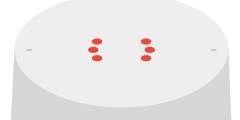
If you get 6 orange LED lights on the touch panel as shown below, it means something wrong with Google Home.

In this case, you cannot use Google Home.

You can try to unplug Google Home, wait a few mins, then try again.
Meaning of Google Home LED lights for system error

Do you know the meaning of Google Home LED lights?

If you have any questions on the meaning of Google Home LED lights, please let us know in the comment box below.

The community will help you.

Please check other Google Home guides here.

For Google Home Mini specific guides, please check this page.

You can find Nest Audio guides here.

Filed Under: Google Home, How-to guides Tagged With: alarm volume, factory data reset, Google Assistant, Google Home, Google Home app, Google Home layout, Google Home Mini, Google Nest Mini, LED color, LED lights, mute switch, Nest Audio, reset Google Home, set up Google Home, timer volume, touch control, touch control panel, voice command, volume control, WiFi

Reader Interactions

Comments

  1. Loran Forbes says

    January 5, 2018 at 6:27 pm

    Can you help me connect a new wifi?

    Reply
    • simon says

      January 6, 2018 at 2:35 am

      You can just open Home app in the phone, then follow the instructions.

      Any Google Home devices that are not currently connected to WiFi will be listed in your Home app as devices to be set up. Of course, you can also factory data reset the device and then set it up as a new device.


      -- Our Facebook page || Galaxy S6 Guides || Galaxy S7 Guides || Android Guides || Galaxy S8 Guides || Galaxy S9 Guides || Google Home Guides || Headphone Guides || Galaxy Note Guides || Fire tablet guide || Moto G Guides || Chromecast Guides || Moto E Guides || Galaxy S10 Guides || Galaxy S20 Guides || Samsung Galaxy S21 Guides || Samsung Galaxy S22 Guides || Samsung Galaxy S23 Guides

      Reply
  2. Linet L. says

    July 10, 2018 at 6:18 am

    This GOOGLE HOME worked before with our WI-FI, but doesn’t work anymore!
    Fed up w/ it.. Gonna throw away tomorrow!
    Very FRUSTRATED!

    Reply
    • simon says

      July 10, 2018 at 11:08 am

      What’s not working? Can you find it in Google Home app m


      -- Our Facebook page || Galaxy S6 Guides || Galaxy S7 Guides || Android Guides || Galaxy S8 Guides || Galaxy S9 Guides || Google Home Guides || Headphone Guides || Galaxy Note Guides || Fire tablet guide || Moto G Guides || Chromecast Guides || Moto E Guides || Galaxy S10 Guides || Galaxy S20 Guides || Samsung Galaxy S21 Guides || Samsung Galaxy S22 Guides || Samsung Galaxy S23 Guides

      Reply
  3. Anonymous says

    May 18, 2019 at 11:00 pm

    I have a Sony speaker, which has Google Home built into it, and it has to two light blue lights above the time. What does this mean??

    Reply
    • simon says

      May 19, 2019 at 10:59 am

      It depends on the model. What’s the model number of the Sony speaker?


      -- Our Facebook page || Galaxy S6 Guides || Galaxy S7 Guides || Android Guides || Galaxy S8 Guides || Galaxy S9 Guides || Google Home Guides || Headphone Guides || Galaxy Note Guides || Fire tablet guide || Moto G Guides || Chromecast Guides || Moto E Guides || Galaxy S10 Guides || Galaxy S20 Guides || Samsung Galaxy S21 Guides || Samsung Galaxy S22 Guides || Samsung Galaxy S23 Guides

      Reply
  4. Freddy says

    August 31, 2019 at 11:37 am

    Quiero poner musica

    Reply

Leave a ReplyCancel reply

Primary Sidebar

Follow Us

  • View gadgetguideonline’s profile on Facebook
  • View MadeBySimonMa’s profile on YouTube
  • View +SimonMaSg’s profile on Google+

RSS Galaxy S23 Guides

  • Explanation of all One UI 6.1 features for Galaxy S23, S23+, S23 Ultra, and other Galaxy devices
  • How to use One-Tap Editing in the Android 14 (One UI 6) update?
  • How to enable and use Auto Scan to scan documents automatically on Galaxy S23, S22, and S21?
  • New camera features in One UI 6 (Android 14) update for Galaxy S23, S22, and S21
  • Galaxy S23 User Manual in American English with Android 14 (One UI 6) Update
  • Galaxy S23 User Manual in British English with Android 14 (One UI 6) update
  • How to Use the Drag and Drop with Two Hands Gesture on Galaxy S23, S22, and S21 with Android 14 (One UI 6) update?
  • How to create and use custom stickers on Galaxy S23, S22, S21, and S20?
  • How to use Image Clipper on Galaxy S23, S22, and S21 with Android 14 update (One UI 6)?
  • How to Enable and Use Quick Settings Instant Access on Galaxy S23, S22, and S21 with Android 14 Update?

RSS Galaxy S22 Guides

  • A Complete Guide for Android 14 (One UI 6) Update on Samsung Galaxy Devices
  • How to touch and hold to customize Lock Screen on Galaxy S22, S21, and S20 with the Android 13 update?
  • How to use Maintenance Mode on Galaxy S23, S22, S21, and S20 with Android 13 (One UI 5)?
  • How to extract text from photos and images on Galaxy S22, S21, and S20?
  • A complete list of the new features of One UI 5.1 update for Galaxy S22, S21, and S20
  • How to use multiwindow on Galaxy S22, S21, and S20?
  • How to Use the Help Icon and Histogram for Pro Camera Mode in Android 13 (One UI 5) Update for Galaxy S22, S21, and S20?
  • How to customize the call background on Galaxy S23, S22, S21, and S20 with the Android 13 update (One UI 5)?
  • How to Automatically Add and Customize Watermarks on Photos on Galaxy S22, S21, or S20 with the Android 13 update (One UI 5)?
  • The Definite Guide to Stack Widgets in One UI 5 on Galaxy S23, S22, S21, and S20

RSS Samsung Galaxy S21 Guides

  • Top 12 new features in Android 12 update for Galaxy S21, S20 and S10
  • Android 12 update vs One UI 4.0 vs One UI 4.1: update Galaxy S21, S20 and S10 to Android 12
  • How to set and resize photo size on Samsung Galaxy S21, S20, S10, and S9 without using any third-party apps?
  • How to Customize Galaxy S21 Home Screen?
  • Master Galaxy S21 Lock Screen Settings
  • How to use widgets on Galaxy S21?

RSS Galaxy S20 guides

  • The End of the Road: No Android 14 Update for the Galaxy S20
  • How to Use Enhanced Processing on Galaxy S20 with Android 11 update?
  • How to access, use, and customise widgets on Galaxy S20 lock screen and AOD screen with Android 11 update for Galaxy S20?
  • How to update Galaxy S20 to Android 11?
  • How to use Galaxy S20 lockdown mode?

RSS Galaxy10 Guides

  • End of security update for Galaxy S10, S10+ and S10e
  • Top 10 new features in Android 10 update for Galaxy S10
  • Top 5 new features added in Galaxy S10 September Update
  • How to move apps to the micro SD card to free phone storage on Galaxy S10 ?
  • Galaxy S10 wireless charging guide

RSS Galaxy S9 Guides

  • How to use Bixby quick commands on Galaxy S9, S9+, S8, S8+, Note 8, and Note 9 with the Android Pie update?
  • How to remap Bixby button on Galaxy S9 and S9+ after updating to Android Pie?
  • How to use the updated camera app in Android Pie update for Galaxy S9 and S9 Plus?
  • How to use the rotation toggle to change and lock screen orientation in Android Pie update for Galaxy S9 and S9 Plus?

RSS All About Chromecast

  • How to enable developer options in Chromecast with Google TV and Google TV Streamer?
  • Meaning of LED light on voice remote for Chromecast with Google TV and Google TV Streamer
  • What’s new in Chromecast 2018 (3rd gen of Chromecast)?
  • How to use VLC media player on PC to stream music and video to Chromecast and Chromecast Audio?

RSS Moto G Phone Guide

  • Stylus features on Moto G Stylus (all models)
  • What’s new in Moto G 2024? Moto G 5G 2024 vs Moto G Power 2024 vs Moto G Play 2024
  • Understand Moto G Model Names

RSS Android Guides

  • A Complete Guide to Android ADB Wireless Debugging
  • Android 16: the definitive guide on new features and changes
  • Master Android 15 Easter Egg Game: Landroid
  • New Features and Improvements of Android 15

RSS Drive in Singapore

  • Singapore ERP (Electronic Road Pricing): 6 Facts You Need to Know
  • Car Insurance in Singapore Explained
  • Top 5 rules of driving in Singapore safely and legally during COVID-19 Circuit Breaker period
  • Understand COE Price by 10 Simple Questions
  • How to convert a foreign driving license to a Singapore driving license?
  • How to get a Touch ‘n Go card as a Singapore driver?
  • What is covered in the car warranty in Singapore? What is not?
  • What is the Singapore Road Speed Limit?
  • How to register, collect and use Malaysia Vehicle Entry Permit (VEP)?
  • Why are cars in Singapore so expensive?

RSS Headphone Guide Pro

  • Bone Conduction Audio Technology: A Technical Breakdown
  • Science And Architecture of Bluetooth Auracast
  • Bluetooth LE Audio and the LC3 Codec: A Technical Deep Dive
  • The Physics and Engineering of Super Wide Band (SWB) Voice
  • True Wireless Stereo (TWS) Explained

Top Google Home Guides

  • How to set up Google Home with Google Home app?
  • Layout of Google Nest Mini (Google Home Mini 2nd Gen)
  • Google Home layout and buttons
  • How to rename Google Home?
  • Meaning of Nest Audio LED lights
  • What is Google Home?
  • How to factory data reset Google Home?
  • How to change Google Home WiFi network settings?
  • How to use touch control for Google Home Mini?
  • How to Use Quick Gestures on Nest Hub 2nd Gen and Nest Hub Max?

Footer

RSS Galaxy S6 Guide

  • Android Nougat Update Guide for Galaxy S6, Galaxy S6 edge and Galaxy S6 edge+
  • Official Galaxy S6 user manual with Android Nougat update
  • Top 10 new features in Android Marshmallow update for Galaxy S6, Galaxy S6 edge and S6 edge+
  • FAQs on Android Marshmallow update for Galaxy S6

RSS Galaxy S7 Guides

  • How to use Galaxy S7 multi window new features in Android Nougat udpate for Galaxy S7 and Galaxy S7 edge?
  • How to customize Galaxy S7 quick setting buttons after Android Nougat update?
  • Galaxy S7 performance mode in Android Nougat update for Galaxy S7 and Galaxy S7 edge
  • Top 7 new features in Android Nougat update for Galaxy S7 and Galaxy S7 edge
  • How to use flash for Galaxy S7 front camera?

RSS Guides for Fire Tablet

  • Fire Tablet Buyer’s Guide 2025
  • How to use Writing Assist on Fire Tablet?
  • How to use Wallpaper Creator on your Fire tablet?
  • How to Use Webpage Summaries on Your Fire Tablet?
  • What’s new in Fire HD 8 2024 (12th Gen)?

© 2015–2026 · GadgetGuideOnline.com is a online community for Gadget Owners! · Hosted by PTRHosting
Google Home guides, tips and tricks for Google Home, Google Home Mini, Google Home Max, Google Home Hub, and Google Nest Hub.
Powered by Genesis framework for WordPress
Disclaimer: Google, Google Home, Google Home Mini, Google Home Max, Google Home Hub, and Google Nest Hub are trademarks of Google. This website is NOT affiliated with Google in any ways. All the information provided on this website is provided on an "as is" and "as available" basis and you agree that you use such information entirely at your own risk.

Add Google Home Guides to your Homescreen!

Add
We use cookies to ensure that we give you the best experience on our website. If you continue to use this site we will assume that you are happy with it.