What is factory data reset Google Home?
Factory data reset Google Home means you let Google Home roll back to a state that is identical to a new Google Home.
This state is usually referred to factory state (a state when Google Home leaves factory)
This means when you factory data reset Google Home, all settings, including linked account and connected devices are unlinked and disconnected.
In addition, your Google account associated with the Google Home device will also be disassociated.
Once the data are removed, you cannot undo it to recover any of them. You have to set up Google Home as a new device after a factory data reset (FDR).
When you need to factory data reset Google Home?
Of course, you should not consider to reset Google Home if it works normally.
However, you may have to factory data reset Google Home in following scenarios:
- the initial Google Home setup ends prematurely and it seems you cannot finish the setup process.
- you want to use Google Home in a new WiFi network.
- Google Home does not work. You may check the color of LEDs in the top touch panel.
- you plan to give away your Google Home to others.
Anyway, you may reset Google Home when you have problems in setting it up or using it, or you plan to give the device to others.
How to factory data reset Google Home?
You cannot reset Google Home from Google Home app, or by using your voice.
The only way to reset Google Home is to hold the microphone button for about 15-20 seconds until you hear the audio confirmation. Then release the button.
There is no way to press the wrong button because there is only one button in Google Home as explained in Google Home layout page.
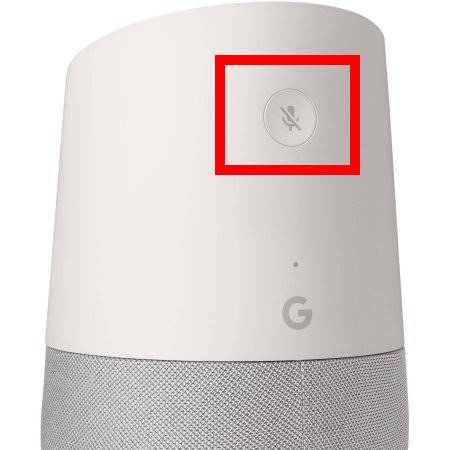
Also, you should hear the audio feedback from Google Home when the reset is triggered.
Once factory data reset starts, the orange LED lights in the top touch panel will count down as explained in Meaning of Google Home LED lights (and colors) page.
You may wait a few mins before you can set it up again.
Do you know how to reset Google Home now?
If you have any questions or encounter any errors when you try to factory data reset (FDR) Google Home, please let us know in the comment box below.
The community will help you.
Please check other Google Home guides here.
For owners of Google Home Mini, you may also check Google Home Mini Guides.
Please note, both Google Home Mini and Google Home Max have a reset button, which is not available in Google Home.
So, the way to reset Google Home and to reset Google Home Mini (and Max) is different. This guide applies to Google Home factory data reset only.
To reset Google Home Mini, please check this page.

I only have 2 white non-blinking lights and it won’t factory reset
Do you mean two LED lights on the touch panel? What happens if you unplug the power adapter, wait a few mins, then reconnect it?
-- Our Facebook page || Galaxy S6 Guides || Galaxy S7 Guides || Android Guides || Galaxy S8 Guides || Galaxy S9 Guides || Google Home Guides || Headphone Guides || Galaxy Note Guides || Fire tablet guide || Moto G Guides || Chromecast Guides || Moto E Guides || Galaxy S10 Guides || Galaxy S20 Guides || Samsung Galaxy S21 Guides || Samsung Galaxy S22 Guides || Samsung Galaxy S23 Guides
I got mine as a Christmas gift and got it to work that day. Put it in the box and went traveling. I got it out once at my son’s and it would not connect to his internet. Put it back in the box. Tried it today and it will NOT connect to my internet. I unplugged it, I pushed the mic button to reset it. I am watching netflix now on this internet so it’s not the internet. Help!
Google Home can only remember one WiFi password. If you want it to use other networks, you have to reset it and configure it as a new device on that network.
After reset, you should set it up with Google Home app as if it’s a new device. Did you do that? What’s the color of the led in the top of Google home panel? Can your Google home app in your phone detect the device?
-- Our Facebook page || Galaxy S6 Guides || Galaxy S7 Guides || Android Guides || Galaxy S8 Guides || Galaxy S9 Guides || Google Home Guides || Headphone Guides || Galaxy Note Guides || Fire tablet guide || Moto G Guides || Chromecast Guides || Moto E Guides || Galaxy S10 Guides || Galaxy S20 Guides || Samsung Galaxy S21 Guides || Samsung Galaxy S22 Guides || Samsung Galaxy S23 Guides
Took the bottom cover off,what is the phone HDMI entrance for?
There is no HDMI interface in Google Home. What are you talking about?
-- Our Facebook page || Galaxy S6 Guides || Galaxy S7 Guides || Android Guides || Galaxy S8 Guides || Galaxy S9 Guides || Google Home Guides || Headphone Guides || Galaxy Note Guides || Fire tablet guide || Moto G Guides || Chromecast Guides || Moto E Guides || Galaxy S10 Guides || Galaxy S20 Guides || Samsung Galaxy S21 Guides || Samsung Galaxy S22 Guides || Samsung Galaxy S23 Guides
There was an error when I was setting up my Google home I search to do a reboot I follow the instructions and held down the mute for almost 2 minutes but there was nothing from Google device that said it had been rebooted as instructions informed I watch the LED light over top of the G flash as though doing a countdown nothing happened….. help
I have unplugged it multiple times left it deleted app reinstalled up cleared Wi-Fi devices I’m not sure what else to do
In your Home app, does it find it as a new Google Home device?
Make sure power adapter is connected when resetting.
-- Our Facebook page || Galaxy S6 Guides || Galaxy S7 Guides || Android Guides || Galaxy S8 Guides || Galaxy S9 Guides || Google Home Guides || Headphone Guides || Galaxy Note Guides || Fire tablet guide || Moto G Guides || Chromecast Guides || Moto E Guides || Galaxy S10 Guides || Galaxy S20 Guides || Samsung Galaxy S21 Guides || Samsung Galaxy S22 Guides || Samsung Galaxy S23 Guides
Google voice doesn’t say how may I help you when I say ok Google
What’s the LED light on the top of Google Home (under home control)?
-- Our Facebook page || Galaxy S6 Guides || Galaxy S7 Guides || Android Guides || Galaxy S8 Guides || Galaxy S9 Guides || Google Home Guides || Headphone Guides || Galaxy Note Guides || Fire tablet guide || Moto G Guides || Chromecast Guides || Moto E Guides || Galaxy S10 Guides || Galaxy S20 Guides || Samsung Galaxy S21 Guides || Samsung Galaxy S22 Guides || Samsung Galaxy S23 Guides
Is there a way to adjust the bass on the Google home speaker
Yes, you can. In Google Home app, tap the devices, find the Google Home device you want to change, tap menu key (3 vertical dots) for that device, tap settings. Then you can find EQ settings. You can adjust the bass there.
We are actually preparing a detailed guide for changing the equalizer for Google Home, home Mini and Max. It will be released soon.
-- Our Facebook page || Galaxy S6 Guides || Galaxy S7 Guides || Android Guides || Galaxy S8 Guides || Galaxy S9 Guides || Google Home Guides || Headphone Guides || Galaxy Note Guides || Fire tablet guide || Moto G Guides || Chromecast Guides || Moto E Guides || Galaxy S10 Guides || Galaxy S20 Guides || Samsung Galaxy S21 Guides || Samsung Galaxy S22 Guides || Samsung Galaxy S23 Guides
Hello!!! My Google Home device doesn’t work… I’ve tride to resete but nothing happens… There is an Orange light below the microphone button and is fixed. The App doesn’t recognize the device… Two days ago it worked great and suddenly it does not work. We have tried a thousand things and nothing. Can you help me ??? Thanks!!!
Did you hear anything when you reset Google Home? You may try to rest it again.
After you reset the device, wait a few mins, then open Google Home app in your mobile phone. The app should find a device to be set up. You need to follow the instructions to set it up as a new Google Home.
What are the LED colours ?
-- Our Facebook page || Galaxy S6 Guides || Galaxy S7 Guides || Android Guides || Galaxy S8 Guides || Galaxy S9 Guides || Google Home Guides || Headphone Guides || Galaxy Note Guides || Fire tablet guide || Moto G Guides || Chromecast Guides || Moto E Guides || Galaxy S10 Guides || Galaxy S20 Guides || Samsung Galaxy S21 Guides || Samsung Galaxy S22 Guides || Samsung Galaxy S23 Guides
The Led is always in Orange. I pressed the button about 30 seconds and there is no sound, no beep, no nothing. I have uninstalled the App, reinstalled again and nothing…
You have a Google Home or Home Mini?
You need to press and hold the button.
What’s the LED colour if you don’t press the microphone button?
-- Our Facebook page || Galaxy S6 Guides || Galaxy S7 Guides || Android Guides || Galaxy S8 Guides || Galaxy S9 Guides || Google Home Guides || Headphone Guides || Galaxy Note Guides || Fire tablet guide || Moto G Guides || Chromecast Guides || Moto E Guides || Galaxy S10 Guides || Galaxy S20 Guides || Samsung Galaxy S21 Guides || Samsung Galaxy S22 Guides || Samsung Galaxy S23 Guides
I have a Google Home and yes, I have left the button pressed but nothing happens… At first the led light was white but since two days ago is Orange… Another detail is that I live in Spain and I know that Google Assistant isn’t ready for this country, but I use it for music, like a speaker and to put music from Spotify… And it worked well until now
The location is not important. Google Home should work in all regions.
Not sure what exactly the situation is. Can you answer these questions one by one?
1. if you power it off, wait a min, then power it on, do you hear any voice prompt?
2. Continue to #1, after a few mins, what is the LED color on the top? how many dots are shown?
3. Now, if you hold (don’t release) the microphone button for 30 seconds, do you hear anything from the device? Can you see any LED color change or dots change?
-- Our Facebook page || Galaxy S6 Guides || Galaxy S7 Guides || Android Guides || Galaxy S8 Guides || Galaxy S9 Guides || Google Home Guides || Headphone Guides || Galaxy Note Guides || Fire tablet guide || Moto G Guides || Chromecast Guides || Moto E Guides || Galaxy S10 Guides || Galaxy S20 Guides || Samsung Galaxy S21 Guides || Samsung Galaxy S22 Guides || Samsung Galaxy S23 Guides
First of all, I want to thank you for the inconvenience that you are taking in helping me and excuse my horrible english . Now: 1. There is no sound or voice when I plug in the device, no lights either, just the back led in Orange… I wish could send a pic… 2. On top there is no light in any color. 3. Nothing happens when I hold the microphone button for reset… This is so weird and I’m breaking my head trying to fix it, hehehe…
The LED in the back (above the letter G, and below the mic button) should be white. If it is orange, then it means one of the two possibilities:
1. power supply problems. You can try to unplug the power cord from Google Home device, wait a few mins, plug it back, then try again.
2. severe hardware issues that prevent Google Home from booting up. If it is still under warranty, try to claim it. If not, you may have to let it retire. Repairing cost is usually higher than getting a new one.
-- Our Facebook page || Galaxy S6 Guides || Galaxy S7 Guides || Android Guides || Galaxy S8 Guides || Galaxy S9 Guides || Google Home Guides || Headphone Guides || Galaxy Note Guides || Fire tablet guide || Moto G Guides || Chromecast Guides || Moto E Guides || Galaxy S10 Guides || Galaxy S20 Guides || Samsung Galaxy S21 Guides || Samsung Galaxy S22 Guides || Samsung Galaxy S23 Guides
Thank you Simon!! We think that too. Maybe a device’s problem… Well, we’ll see WhatsApp happens because I bought it in the USA and I’m not coming back for the moment… ???????????? Thank you again!!!
Your can check the promotions of Google home from time to time. The price can be far lower in promotion.
-- Our Facebook page || Galaxy S6 Guides || Galaxy S7 Guides || Android Guides || Galaxy S8 Guides || Galaxy S9 Guides || Google Home Guides || Headphone Guides || Galaxy Note Guides || Fire tablet guide || Moto G Guides || Chromecast Guides || Moto E Guides || Galaxy S10 Guides || Galaxy S20 Guides || Samsung Galaxy S21 Guides || Samsung Galaxy S22 Guides || Samsung Galaxy S23 Guides
My Google Home App suddenly quit working. The only way to reset it was to set it up on my husband’s android device. We went out of town for the Labor Day weekend, and I was able to reset it to my voice and connect to our vacation home WiFi with no issue. It was great to be able to use my music channels! We came home, I tried to reconnect to our home WiFi and could not set up. I would get a message that said the device was CONNECTED, and within 10 seconds, I’d get another message saying something went wrong. We tried multiple times to connect via my iPad and iPhone, all without success. We tried to connect using my husband’s Android and it worked, but it did not have the features of my personal Google account, so we disconnected. We called the Google Home 800 Help line and the technical assistant was CLUELESS!!! He said he was going to have another tech call me within 5 minutes. That was an hour ago; no one called back. Finally, I gave up. It’s very frustrating to see so many similar situations as mine, but yet there’s no solution. Surely someone knows the fix. C’mon GOOGLE!
If you factory data reset the device, then follow the guidance to set it up as if it’s a new device, what did you get?
During the set up, if it’s stated it’s connected, you need to wait a while, don’t close the Google Home app
-- Our Facebook page || Galaxy S6 Guides || Galaxy S7 Guides || Android Guides || Galaxy S8 Guides || Galaxy S9 Guides || Google Home Guides || Headphone Guides || Galaxy Note Guides || Fire tablet guide || Moto G Guides || Chromecast Guides || Moto E Guides || Galaxy S10 Guides || Galaxy S20 Guides || Samsung Galaxy S21 Guides || Samsung Galaxy S22 Guides || Samsung Galaxy S23 Guides