• Skip to primary navigation
  • Skip to main content
  • Skip to primary sidebar
Guides for Samsung Galaxy S22 phones

Guides for Samsung Galaxy S22 phones

  • Home
    • About Us
    • Contact Us
  • New Features
    • A Complete Guide for Android 14 (One UI 6) Update on Samsung Galaxy Devices
    • A complete list of the new features of One UI 5.1 update for Galaxy S22, S21, and S20
    • Top 13 new features in One UI 5 update (Android 13 update) for Galaxy S22, S21, and S20
      • The Definite Guide to Stack Widgets in One UI 5 on Galaxy S23, S22, S21, and S20
      • How to Automatically Add and Customize Watermarks on Photos on Galaxy S22, S21, or S20 with the Android 13 update (One UI 5)?
      • How to customize the call background on Galaxy S23, S22, S21, and S20 with the Android 13 update (One UI 5)?
      • How to use multiwindow on Galaxy S22, S21, and S20?
      • How to extract text from photos and images on Galaxy S22, S21, and S20?
      • How to use Maintenance Mode on Galaxy S23, S22, S21, and S20 with Android 13 (One UI 5)?
      • How to touch and hold to customize Lock Screen on Galaxy S22, S21, and S20 with the Android 13 update?
      • How to Use the Help Icon and Histogram for Pro Camera Mode in Android 13 (One UI 5) Update for Galaxy S22, S21, and S20?
    • Should I enable Protect Battery to limit the maximum battery charge to 85% on Galaxy S22, S21, S20, and S10?
    • How to use Extra Dim on Galaxy S23, S22, S21, S20, and S10?
    • Do You Need to Enable the Suspend Execution for Cached Apps on Galaxy S22 or Galaxy S21, S20, and S10 with Android 12 update?
    • Everything about S Pen on Galaxy S22 Ultra
    • A complete guide for Writing Assistant on Samsung Keyboard on Galaxy S22, S21, S20 and S10 (with Android 12)
  • How-to
    • A Complete Guide for Android 14 (One UI 6) Update on Samsung Galaxy Devices
    • A Definitive Guide to Meaning of Galaxy S22 Status Icons and Notification Icons
      • A Complete Guide to Galaxy S22 Quick Settings
      • Master Galaxy S22 Developer Options
      • How to use multiwindow on Galaxy S22, S21, and S20?
    • How to Charge Galaxy S22 Battery?
      • Should I enable Protect Battery to limit the maximum battery charge to 85% on Galaxy S22, S21, S20, and S10?
      • How to use Extra Dim on Galaxy S23, S22, S21, S20, and S10?
      • Do You Need to Enable the Suspend Execution for Cached Apps on Galaxy S22 or Galaxy S21, S20, and S10 with Android 12 update?
    • Galaxy S22 Layout
      • How to Take Screenshots on Galaxy S22?
      • Top 7 limitations of using the fingerprint reader to unlock Galaxy S22, S21, S20 and S10
      • Master Galaxy S22 touchscreen gestures
      • How to Use and Customize the Side Key on Galaxy S22?
      • How to Use and Customize Galaxy S22 Power-off Menu?
      • Unbox Galaxy S22: what are in the box?
    • Using SIM Card on Galaxy S22: the Definitive Guide
      • How to customize Galaxy S22 ringtones without installing any apps?
      • How to customize the call background on Galaxy S23, S22, S21, and S20 with the Android 13 update (One UI 5)?
    • How to Set Up Screen Lock on Galaxy S22 to Protect Data and Privacy?
      • Understand Galaxy S22 Lock Screen
      • How to use Smart Lock on Galaxy S22 to keep the phone unlocked automagically?
      • Lockdown Mode On Galaxy S22: The Definite Guide
      • Master Galaxy S22 Lock Screen Settings
      • How to customise notifications on Galaxy S22 lock screen?
      • How to Hide PIN, Password or Pattern on Galaxy S22 When You Type Them?
      • How to Use and Customise Widgets on Galaxy S22 Lock Screen (and S21, S20, S10)?
      • How to Use Face Recognition on Galaxy S22 to Unlock the Phone?
    • Master Galaxy S22 Home Screen
      • How to use Dual Messenger on Galaxy S22?
      • How to organize apps on Galaxy S22 Home screen?
      • How to Use Galaxy S22 Home Screen Edit Mode?
      • The complete guide to Home Screen panels on Galaxy S22
      • The Definite Guide to Stack Widgets in One UI 5 on Galaxy S23, S22, S21, and S20
    • Galaxy S22 Navigation Buttons and Navigation Bar: how to use and customize them?
      • A Survival Guide for Galaxy S22 Navigation Gestures
    • How to transfer data to Galaxy S22 from your old phone?
    • Top 13 new features in One UI 5 update (Android 13 update) for Galaxy S22, S21, and S20
  • Camera
    • How to use Galaxy S22 Camera app like a pro?
    • How to enable and use Galaxy S22 camera quick launch?
    • A complete guide to Galaxy S22 camera settings
    • A Complete Guide to Galaxy S22 Camera Modes
    • How to Automatically Convert a Photo to a Time-lapse video with Scene Relighting on Galaxy S22, S21, S20, S23, and S10?
    • How to Automatically Add and Customize Watermarks on Photos on Galaxy S22, S21, or S20 with the Android 13 update (One UI 5)?
    • How to Use the Help Icon and Histogram for Pro Camera Mode in Android 13 (One UI 5) Update for Galaxy S22, S21, and S20?
  • Accessories
    • A complete guide to Galaxy S22 LED View Cover
    • How to use and customize Galaxy S22 Smart Clear View Cover?
  • User Manual
  • Show Search
Hide Search
Home » How to Use and Customize Galaxy S22 Power-off Menu?

How to Use and Customize Galaxy S22 Power-off Menu?

Last Modified: January 10, 2024 · Leave a Comment

How to Use and Customize Galaxy S22 Power-off Menu?

Galaxy S22 Power-off menu lets you not only power off or reboot the phone but also enter emergency mode or lockdown mode.

This Galaxy S22 how-to guide explains what the Galaxy S22 Power-off menu is, two ways to access the Galaxy S22 Power-off menu, and how to add the lockdown button to the Galaxy S22 Power-off menu.

  • What is the Galaxy S22 Power-off menu?
  • How to access the Galaxy S22 Power-off menu?
    • Hold the Side key to access the Galaxy S22 Power-off menu
    • Tap the software Power button in Galaxy S22 quick settings panel to access Galaxy S22 Power-off menu
  • How to add the Lockdown mode button to the Galaxy S22 Power-off menu?
    • Step 1: Open Galaxy S22 Settings.
    • Step 2: Access Secure lock settings
    • Step 3: Enable Show Lockdown option
  • Can you use and customize Galaxy S22 Power-off menu on Galaxy S22, S22+, and S22 Ultra?

What is the Galaxy S22 Power-off menu?

Traditionally, if you hold the Power button of the phone, you will get the Power-off menu so that you can choose to reboot or power off the phone.

This still works on Galaxy S22, by default, although Samsung used the Side key to replace the Power key since Galaxy S20.

Like other Android phones, Samsung also added the Emergency mode button and a shortcut to the Side key settings page to the Galaxy S22 Power-off menu.

Besides, you can also add the Lockdown mode option into the Galaxy S22 Power-off menu.

So, the Galaxy S22 Power-off menu has the following functions and features (as shown in the screenshot below):

  1. Power off Galaxy S22.
  2. Restart Galaxy S22.
  3. Turn on Emergency mode.
  4. Turn on Lockdown mode.
  5. Access the Sidekey settings page directly.
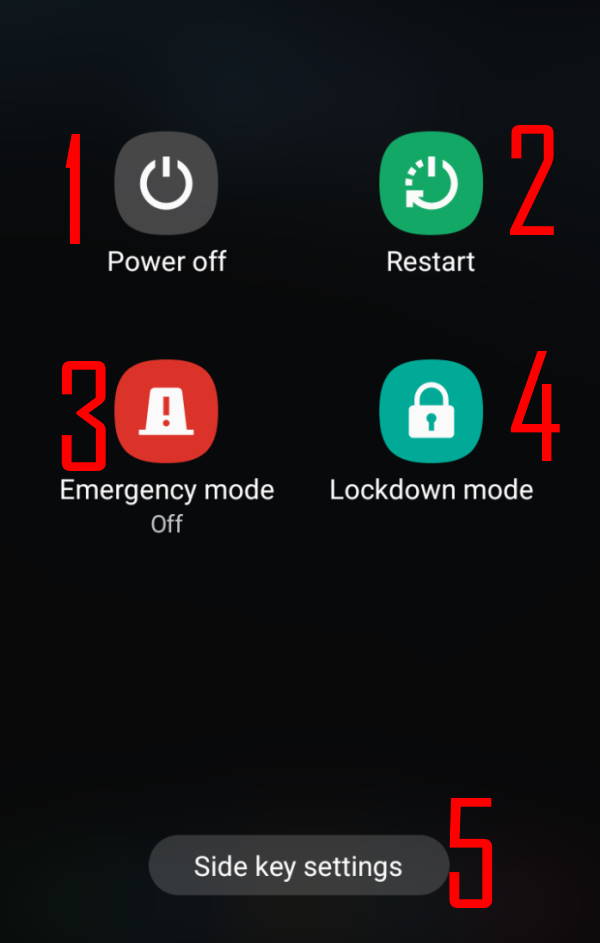
Galaxy S22 Power-off menu
Galaxy s22 Power-off menu

Although you may not use the Galaxy S22 Power-off menu, most Galaxy owners will use it sooner or later.

Please note you can access the Power-off menu on the lock screen. But you need to unlock the phone to reboot or power off the phone.

After enabling the Galaxy S22 developer options, you can add the bug report shortcut in the Power-off menu.

How to access the Galaxy S22 Power-off menu?

There are two ways to access the Galaxy S22 Power-off menu.:

  1. Hold the Side key for more than 2 seconds.
  2. Tap the software Power-off button in Galaxy S22 quick settings panel.

Method 2 always works. However, method 1 may not, depending on how you customize the Side key.

Hold the Side key to access the Galaxy S22 Power-off menu

By default, you can hold the Side key (which is located on the right side of Galaxy S22, as shown in the Galaxy S22 layout) to access the Galaxy S22 Power-off menu.

As discussed in this guide, you can customize the long-press gesture of the Side key to either the Galaxy S22 Power-off menu (default) or Bixby in Galaxy S22 Settings — Advanced features — Side key — Press and hold.

If you get Bixby Voice after pressing and holding the Side key, it means you assigned the gesture to Bixby. You may assign it back to the Galaxy S22 Power-off menu.

Tap the software Power button in Galaxy S22 quick settings panel to access Galaxy S22 Power-off menu

On Galaxy S22 quickly settings panel, there is a software Power button, as shown in the screenshot below,
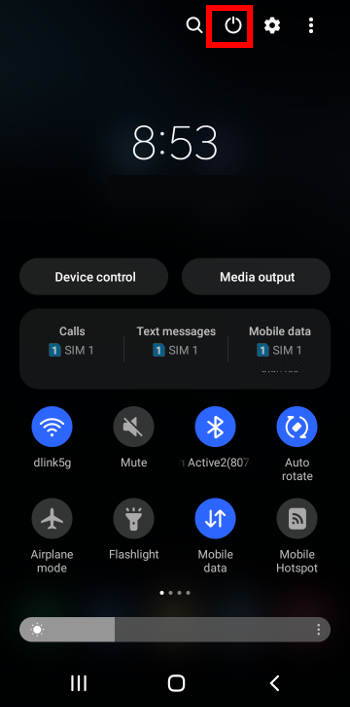
Tap the software Power button in Galaxy S22 quick settings panel to access Galaxy S22 Power-off menu

You can tap this software (on-screen) button to access the Galaxy S22 Power-off menu.

To access Galaxy S22 quick settings panel, you can use any of the following methods:

  • Swipe down twice from the status bar (or top of the screen when the status bar is hidden).
  • Swipe down once with two fingers from the status bar (or top of the screen when the status bar is hidden)
  • Swipe down once from the Galaxy S22 notification panel.
  • If you have updated your Galaxy S22 to Android 14 (One UI 6) and Quick Settings Instant Access is enabled, you can swipe down from the right side of the status bar once.

You can find the detailed guide on using and customizing Galaxy S22 quick settings here.

Samsung Galaxy Buds FE True Wireless Bluetooth Earbuds, Comfort and Secure in Ear Fit, Auto Switch Audio, Touch Control, Built-in Voice Assistant, Graphite [US Version, 1Yr Manufacturer Warranty]
Amazon Echo Glow (newest model), Night light for kids, Works with Alexa
Samsung Galaxy Buds FE True Wireless Bluetooth Earbuds, Comfort and Secure in Ear Fit, Auto Switch Audio, Touch Control, Built-in Voice Assistant, Graphite [US Version, 1Yr Manufacturer Warranty]
Amazon Echo Glow (newest model), Night light for kids, Works with Alexa
$97.49
$29.99
-
Amazon Prime
Buy on Amazon
Buy on Amazon
Samsung Galaxy Buds FE True Wireless Bluetooth Earbuds, Comfort and Secure in Ear Fit, Auto Switch Audio, Touch Control, Built-in Voice Assistant, Graphite [US Version, 1Yr Manufacturer Warranty]
$97.49
-
Buy on Amazon
Amazon Echo Glow (newest model), Night light for kids, Works with Alexa
$29.99
Amazon Prime
Buy on Amazon

How to add the Lockdown mode button to the Galaxy S22 Power-off menu?

Google introduced the Lockdown mode in Android Pie (Android 9) as a security feature.

Once the Lockdown mode is enabled, two security features will be applied immediately:

  • No notifications on the Galaxy S22 lock screen.
  • You can only unlock Galaxy S22 with the screen lock pattern, PIN, or password. Biometrics (face recognition and fingerprint recognition) will be blocked and cannot be used to unlock the phone. The smart lock will also be disabled.

In fact, the Lockdown mode is the only way to stop the smart lock on Galaxy S22 temporarily.

Galaxy S22 will automatically exit the Lockdown mode after you unlock the phone. Please check this guide on how to use lockdown mode on Galaxy S22. Do not confuse the lockdown mode with the Maintenance mode.

To use the Lockdown mode, you need to add the button to the Galaxy S22 Power-off menu. By default, it is not added.

You may follow these steps to add the lockdown mode to the Galaxy S22 Power-off menu.

Step 1: Open Galaxy S22 Settings.

You can open Galaxy S22 Settings by tapping the app icon on the Galaxy S22 Home screen or Apps screen.

Alternatively, you can tap the gear icon in Galaxy S22 quick settings panel.

Step 2: Access Secure lock settings

On the Galaxy S22 Settings page, as shown below, tap the Lock screen to access settings for the Galaxy S22 lock screen.
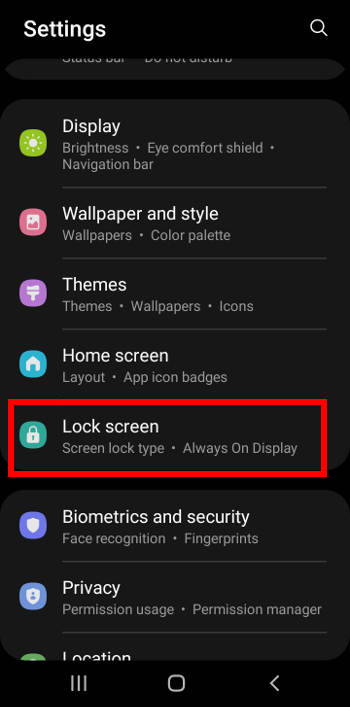
Galaxy S22 settings
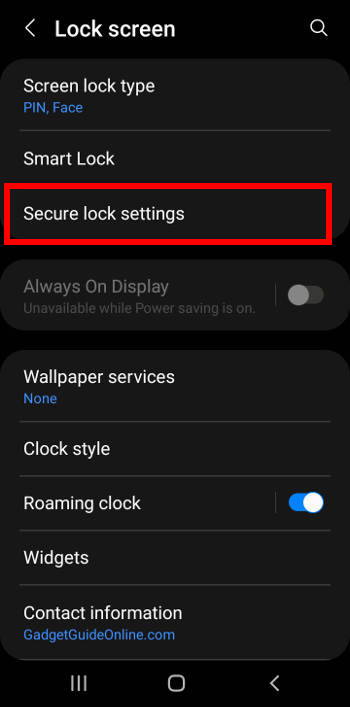
Galaxy s22 lock screen settings

On the Galaxy S22 lock screen settings page, tap Secure lock settings, as shown in the screenshot above.

To access the Secure lock settings, you will be asked to authenticate yourself with the PIN or password for the screen lock.

Step 3: Enable Show Lockdown option

On the Secure lock settings page, as shown in the screenshot below, you can enable the Show Lockdown option.
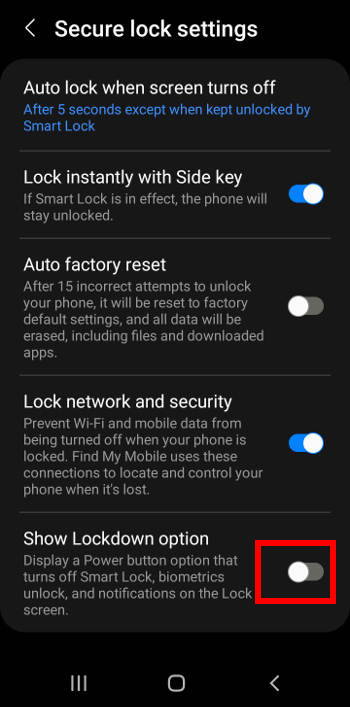
Enable show Lockdown option on Galaxy S22 Power-off menu.

You can bow hold the Side key to check whether the Lockdown mode button is shown on the Power-off menu or not.

Can you use and customize Galaxy S22 Power-off menu on Galaxy S22, S22+, and S22 Ultra?

If you have any questions about using or customizing the Galaxy S22 Power-off menu on Galaxy S22, S22+, and S22 Ultra, please let us know in the comment box below.

The community will help you.

SAMSUNG 15W Wireless Charger Duo w/USB C Cable, Charge 2 Devices at Once, Cordless Super Fast Charging Pad for Galaxy Phones and Devices, 2022, US Version, Black
Chromecast with Google TV (HD) - Streaming Stick Entertainment on Your TV with Voice Search - Watch Movies, Shows, and Live TV in 1080p HD - Snow
SAMSUNG 15W Wireless Charger Duo w/USB C Cable, Charge 2 Devices at Once, Cordless Super Fast Charging Pad for Galaxy Phones and Devices, 2022, US Version, Black
Chromecast with Google TV (HD) - Streaming Stick Entertainment on Your TV with Voice Search - Watch Movies, Shows, and Live TV in 1080p HD - Snow
$68.00
Price not available
-
-
Buy on Amazon
Buy on Amazon
SAMSUNG 15W Wireless Charger Duo w/USB C Cable, Charge 2 Devices at Once, Cordless Super Fast Charging Pad for Galaxy Phones and Devices, 2022, US Version, Black
$68.00
-
Buy on Amazon
Chromecast with Google TV (HD) - Streaming Stick Entertainment on Your TV with Voice Search - Watch Movies, Shows, and Live TV in 1080p HD - Snow
Price not available
-
Buy on Amazon

You may check other Galaxy S22 guides:

  • Galaxy S22 new features guides, including Android 13 (One UI 5.0 and One UI 5.1) update and Android 14 (One UI 6) update.
  • Galaxy S22 how-to guides.
  • Galaxy S22 camera guides.
  • Galaxy S22 accessories guide.
  • Official Galaxy S22 user manuals (in PDF).

If you want to discuss any issues privately, you can reach us through:

  • Facebook page.
  • WhatsApp (coming soon).
  • Contact form.

Please do not forget to subscribe to our newsletter to get the latest updates, guides, tips, and tricks for Galaxy S22, S22+, and S22 Ultra.

Share this:

  • Share on X (Opens in new window) X
  • Share on Facebook (Opens in new window) Facebook
  • Share on Pinterest (Opens in new window) Pinterest
  • Share on WhatsApp (Opens in new window) WhatsApp
  • More
  • Share on Reddit (Opens in new window) Reddit
  • Share on Telegram (Opens in new window) Telegram

Related

Galaxy S22 How-to Guides advanced features, Android 14, developer options, extend unlock, face recognition, fingerprint reader, fingerprint recognition, Galaxy S22, Galaxy S22 home screen, Galaxy S22 layout, Galaxy S22 lock screen, Galaxy S22 Plus, Galaxy S22 quick settings, Galaxy S22 settings, Galaxy S22 Ultra, gesture, lock screen settings, lockdown mode, maintenance mode, notification, One UI 6, power-off menu, quick settings instant access, reboot Galaxy S22, screen lock, side key, smart lock, unlock Galaxy S22

Reader Interactions

Leave a ReplyCancel reply

Primary Sidebar

The ultimate collection of narrative humor, organized by location. From the boardroom to the bedroom, never run out of things to say again

Stop Telling Boring One-Liners. Start Telling Unforgettable Stories

Follow Us

  • Facebook
  • RSS
  • YouTube

Offers

Samsung Galaxy Buds 3 Pro AI True Wireless Bluetooth Earbuds, Noise Cancelling, Sound Optimization, Redesigned Comfort Fit, Silver [US Version, Amazon Exclusive, 2Yr Warranty]
Amazon Prime
$239.99
Buy on Amazon

Subscribe to Our Newsletter

Don’t miss any Galaxy S22 tips and updates!

We don’t spam! Read our privacy policy for more info.

Check your inbox or spam folder to confirm your subscription.

RSS Galaxy S24 Guides

  • The definitive guide to One UI 7 (Android 15) update for Galaxy S24, S23, S22, and S21
  • The Definitive Guide to Galaxy AI on Galaxy S24, S23, S22, Fold 6, Fold 5, Flip 6, and Flip 5
  • Use the Light Performance Profile to Extend Battery Life and Reduce Heat on Galaxy S24, S23, S22, and S21 (all Samsung Galaxy Phones with Android 14/One UI 6.0)
  • How to adjust lock screen timeout on Galaxy S24, S23, S22, and other Galaxy devices?
  • How to use Circle to Search on Galaxy S24?
  • Meaning of Galaxy S24 status icons and notification icons on Galaxy S24, S24+, and S24 Ultra
  • Samsung Galaxy S24 Smart View Wallet Case: A Definite Guide
  • Understand Galaxy S24 Camera App
  • Galaxy S24 Flipsuit Case: A Definite Guide
  • How to use the new Battery Protection on Galaxy S24?

RSS Headphone & Earbuds Guide

  • Bone Conduction Headphones Buyer’s Guide: 2026 Edition
  • Bone Conduction Audio Technology: A Technical Breakdown
  • Science And Architecture of Bluetooth Auracast
  • Bluetooth LE Audio and the LC3 Codec: A Technical Deep Dive
  • The Physics and Engineering of Super Wide Band (SWB) Voice
  • True Wireless Stereo (TWS) Explained
  • The Complete Technical Guide to the Galaxy Buds 4 & Buds 4 Pro

RSS Galaxy S23 Guides

  • Explanation of all One UI 6.1 features for Galaxy S23, S23+, S23 Ultra, and other Galaxy devices
  • How to use One-Tap Editing in the Android 14 (One UI 6) update?
  • How to enable and use Auto Scan to scan documents automatically on Galaxy S23, S22, and S21?
  • New camera features in One UI 6 (Android 14) update for Galaxy S23, S22, and S21
  • Galaxy S23 User Manual in American English with Android 14 (One UI 6) Update
  • Galaxy S23 User Manual in British English with Android 14 (One UI 6) update
  • How to Use the Drag and Drop with Two Hands Gesture on Galaxy S23, S22, and S21 with Android 14 (One UI 6) update?
  • How to create and use custom stickers on Galaxy S23, S22, S21, and S20?
  • How to use Image Clipper on Galaxy S23, S22, and S21 with Android 14 update (One UI 6)?
  • How to Enable and Use Quick Settings Instant Access on Galaxy S23, S22, and S21 with Android 14 Update?
  • How to use the camera widget on Galaxy S23, S22, and S21 with the Android 14 update?
  • Top 20 new features of Android 14 update (One UI 6) for Galaxy S23, S22, and S21
  • When and How to Use Galaxy S23 Navigation Gestures?
  • How to use Gallery Widget to Show Photos, Albums, and Stories on the Home Screen of Galaxy S23, S22, S21, and S20?

RSS Neato XV Guides

  • Neato XV Revival Guide: Repair, Hack & Restore (The 2026-2027 Edition)
  • The Scavenger’s Guide: How to Buy “Broken” Neato XVs for $20 (And Fix Them)
  • 3D Print Your Own Spare Parts: The Neato XV STL Guide
  • Stop Guessing: How to Use NeatoControl to “X-Ray” Your Robot
  • The Forbidden Upgrade: Neato Firmware Update to Vorwerk VR100 (Offline Guide)
  • The Vault: Neato XV & Vorwerk VR100 Software Repository
  • Neato Charging Station Blinking Green? The $2 C10 Capacitor Fix
  • Neato Error 3000 Fix: Lidar Motor & Belt Replacement Guide (XV-21, XV-15, XV-13, XV-11)
  • The Battery Dilemma: How to Double Your Neato XV’s Runtime (NiMH vs. Lithium)?
  • Why the “Ancient” Neato XV is Better Than Modern Robots (In 2025 and 2026)

Subscribe to Our Newsletter

DON’T MISS A BEAT

Get the latest guides, tips, tricks & updates for Galaxy S22, S22+, and S22Ultra.

We don’t spam! Read our privacy policy for more info.

Check your inbox or spam folder to confirm your subscription.

Copyright © 2026 · Galaxy S22 [email protected] · Powered by WordPress with Genesis Framework · Hosted by PTRhosting
Samsung Galaxy S22 Guides: how-to guides, user manuals, tips and tricks for Samsung Galaxy S22, Galaxy S22+, and Galaxy S22 Ultra owners.
Disclaimer: Samsung, Galaxy, Galaxy S22, Galaxy S22+ and Galaxy S22 Ultra are trademarks of Samsung. Android is a trademark of Google. This website is NOT affiliated with Samsung or Google in any way. All the information provided on this website is provided on an "as is" and "as available" basis and you agree that you use such information entirely at your own risk.
Galaxy S22 Guides@GadgetGuideOnline is a member site of GadgetGuideOnline.com : Guides for your Gadgets.

  • Contact Us
  • S21
  • S20
  • Headphone
  • Galaxy Note

Add Guides for Galaxy S22 phones to your Homescreen!

Add
pixel