• Skip to main content
  • Skip to primary sidebar
  • Home
    • About
    • Contact
  • How-to
    • Android 12 update vs One UI 4.0 vs One UI 4.1: update Galaxy S21, S20 and S10 to Android 12
      • Top 12 new features in Android 12 update for Galaxy S21, S20 and S10
      • How to use Extra Dim on Galaxy S22, S21, S20, and S10? How to use Extra Dim on Galaxy S22, S21, S20, and S10?
      • Should I enable Protect Battery to limit the maximum battery charge to 85% on Galaxy S22, S21, S20, and S10?
      • Do You Need to Enable the Suspend Execution for Cached Apps on Galaxy S22 or Galaxy S21, S20, and S10 with Android 12 update?
      • How to Automatically Convert a Photo to a Time-lapse video with Scene Relighting on Galaxy S22, S21, S20, and S10?
      • A complete guide for Writing Assistant on Samsung Keyboard on Galaxy S22, S21, S20 and S10 (with Android 12)
    • How to charge Galaxy S21 battery properly?
    • Ultimate Guide for Using SIM Card on Galaxy S21
    • Master Meaning of Galaxy S21 Status Icons and Notification Icons
    • Layout of Galaxy S21, S21+, and S21 Ultra
      • How to Use and Customize Galaxy S21 Side Key?
      • How to use Galaxy S21 quick settings panel?
      • How to use touchscreen gestures on Galaxy S21?
      • How to power on, power off, and reboot Galaxy S21,even when the phone hangs?
      • How to migrate to Galaxy S21 with Samsung Smart Switch?
    • Understand and Use Galaxy S21 Lock Screen
      • How to lock Galaxy S21 screen?
      • Master Galaxy S21 Lock Screen Settings
    • How to Use Galaxy S21 Home Screen?
      • How to use widgets on Galaxy S21?
      • How to Customize Galaxy S21 Home Screen?
      • How to use LED icon editor to customize LED icons for Smart LED View Cover and LED Back Cover?
    • How to use and customize Galaxy S21 navigation buttons and navigation bar?
      • How to use navigation gestures on Galaxy S21?
      • How to use NavStar (Good Lock) to customize navigation buttons and navigation bar on Samsung Galaxy phones?
  • New Features
    • Top 13 new features in One UI 5 update (Android 13 update) for Galaxy S22, S21, and S20
    • Android 12 update vs One UI 4.0 vs One UI 4.1: update Galaxy S21, S20 and S10 to Android 12
    • Master Google Discover and Samsung Free on Galaxy S21
    • Top 6 disappointments of Galaxy S21 Ultra
    • Galaxy S21 vs Galaxy S21+ vs Galaxy S21 Ultra
  • Camera
    • How to use Galaxy S21 Camera App?
    • How to Use Galaxy S21 Camera Modes?
    • Ultimate Guide for Galaxy S21 Camera Settings
    • How to use Galaxy S21 camera quick launch?
    • How to set and resize photo size on Samsung Galaxy S21, S20, S10, and S9 without using any third-party apps?
  • Accessories
    • How to use Galaxy S21 Smart Clear View Cover (S-View Flip Cover)?
    • How to Use Galaxy S21 Smart LED View Cover (LED Wallet Cover)?
    • How to use LED icon editor to customize LED icons for Smart LED View Cover and LED Back Cover?
  • User Manual
Samsung Galaxy S21 Guides

Samsung Galaxy S21 Guides

navigation gestures

How to Customize Galaxy S21 Home Screen?

Last updated on: October 14, 2021

Customize Galaxy S21 Home Screen in Galaxy S21 Home screen edit modeYou can customize most aspects of the Galaxy S21 Home screen in the Galaxy S21 Home screen edit mode.

This Galaxy S21 guide explains what the Galaxy S21 Home screen edit mode is, how to use it, how to add/remove/manage home screen panels, and how to assign the one panel as the “home” of the Galaxy S21 Home screen.

How to access Galaxy S21 Home screen edit mode?

There are two gestures for you to access the Galaxy S21 Home screen edit mode.

Method 1: Pinch to access Galaxy S21 Home screen edit mode

As shown in the picture below, you can pinch (moving two fingers together) on the Home screen to access the edit mode of the Galaxy S21 Home screen.

The pinch gesture only requires you to move two fingers together, as explained in detail here. It does not matter whether you do it vertically or horizontally. It does not matter where your fingers are placed (as long as on one of the home screen panels).

You can use this gesture to enter Galaxy S21 Home screen edit mode on any home screen panel.
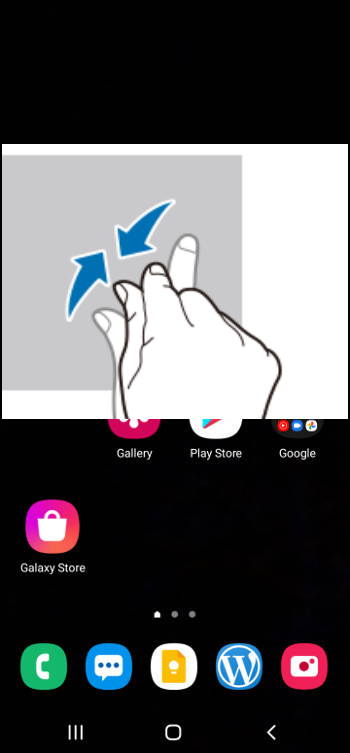
use pinch gesture to access the edit mode of Galaxy S21 Home screen

Method 2: Long tap (tap and hold) to access Galaxy S21 Home screen

… Read the rest

How to use Galaxy S21 quick settings panel?

Last updated on: November 27, 2023

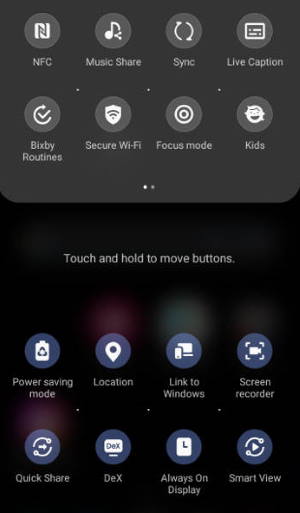
 use Galaxy S21 quick settings panelGalaxy S21 quick settings panel (aka Galaxy S21 quick panel or Galaxy S21 quick setting buttons) lets you turn on/off some features or change some settings quickly from a dropdown panel without navigating through the Galaxy S21 Settings.

This Galaxy S21 guide explains what Galaxy S21 quick settings panel is, how to access the Galaxy S21 quick panel, the components in the quick settings panel on Galaxy S21, how to customize the layout of the quick settings panel, and how to add (and remove) buttons to Galaxy S21 quick panel.

Update: in the Android 14 (One UI 6) update for Galaxy S21, S22, and S23, the quick settings panel was greatly improved with a new button layout, smart flight mode, and instant access to the quick settings.

What is Galaxy S21 quick settings panel?

Galaxy S21 quick settings panel (aka Galaxy S21 quick panel, quick settings buttons) is a special page with some buttons for you to access or turn off some features directly without digging into the Galaxy S21 Settings page.

Just like other Android phones, you can turn on or turn off some features quickly on the quick settings panel of Galaxy … Read the rest

How to use NavStar (Good Lock) to customize navigation buttons and navigation bar on Samsung Galaxy phones?

Last updated on: March 31, 2024

You can customize Galaxy S21 navigation buttons and navigation bar with NavStar (a module of the Good Lock app) if you are not satisfied with the default navigation buttons and navigation bar.

This Galaxy S21 how-to guide explains what NavStar is, how to install and enable NavStar through Good Lock,  and how to use it to customize Galaxy S21 navigation buttons and navigation bar.

Because NavStar works identically on all Samsung Galaxy phones with Android 11, this guide applies to not only Galaxy S21 but also other Galaxy phones with Android 11 updates, including Galaxy S20, Galaxy S10, Galaxy Note 10, and Galaxy Note 20.

This guide focuses on customizing Galaxy S21 navigation buttons. If you want to customize the navigation gestures on Galaxy S21, S20, S22, or S23, please check this guide.

What is NavStar (and Good Lock)?

Samsung removed most of the navigation bar customizations (e.g., as in Galaxy S8) when One UI was introduced. On Galaxy S21, by default, you can only customize the button layout, as discussed here.

To cater to seasoned Samsung phone owners, Samsung put most of the available customizations into NavStar, which is NOT pre-installed. Most Galaxy S21 owners who… Read the rest

How to use navigation gestures on Galaxy S21?

Last updated on: November 14, 2023

how to use navigation gestures on Galaxy S2You can use navigation gestures instead of the default navigation buttons on Galaxy S21.

In fact, Galaxy S21 offers two sets of navigation gestures, and you can choose any of them and switch between them (or switch back to navigation buttons if you want) at any time.

This Galaxy S21 how-to guide explains the two sets of navigation gestures on Galaxy S21, how to use them, and how to switch between navigation gestures and navigation buttons on Galaxy S21.

Navigation gestures are identical n all Galaxy S21 models. So this guide applies to Galaxy S21, S21+, and S21 Ultra.

Navigation buttons vs navigation gestures: who needs what?

Prior to Android 9, Android uses 3 navigation buttons (Back, Home, Recents/Overview) for you to navigate through pages (panels) and apps.

Google introduced the two-button navigation gestures in Android 9 (Android Pie). Full-screen navigation gestures were introduced in Android 10.

In Google’s view, the future is navigation gestures, not navigation buttons. It is a natural evolution from physical navigation buttons (like this one) to software (on-screen) navigation buttons, and now to navigation gestures.

Of course, it is merely Google’s perspective. Many Android users still prefer the old-school navigation buttons … Read the rest

How to use touchscreen gestures on Galaxy S21?

Last updated on: October 15, 2021

use touchscreen gestures on Galaxy S21You cannot skip touchscreen gestures when using Galaxy S21.  Even if you choose to use navigation buttons, you still need to use the touchscreen gestures for many operations on Galaxy S21.

This Galaxy S21 how-to guide explains the 8 supported touchscreen gestures on Galaxy S21 and demonstrates how to use them. Some advice on taking care of the Galaxy S21 screen is also covered.

This guide applies to all models and variants of Galaxy S21 phones because the touchscreen gestures are a common software feature on these phones.

What are the supported touchscreen gestures on Galaxy S21?

Galaxy S21 supports 8 touchscreen gestures:

  1. Tap (single tap).
  2. Double-tap.
  3. Triple tap.
  4. Long tap (tap and hold).
  5. Swipe (slide).
  6. Drag.
  7. Pinch.
  8. Spread.

These are touchscreen gestures supported at the system level. Some apps may support other fancy gestures.

Tap (single tap)

Tapping is the simplest and most frequently used touchscreen gesture on Galaxy S21.

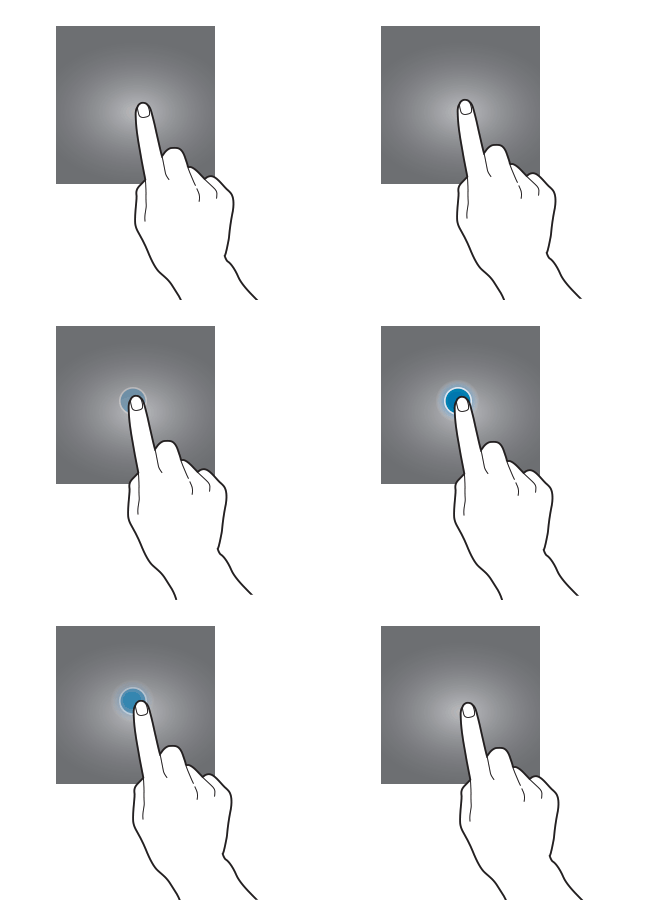
You touch (tap) somewhere on the Galaxy S21 screen once, then move your finger away from the screen, as illustrated below.

Galaxy S21 touchscreen gestures: Tap (single tap)

When using DeX with a mouse, the corresponding operation is  “click”.

The action of the tapping gesture depends on the object you touched and the app you … Read the rest

How to Use Galaxy S21 Home Screen?

Last updated on: November 14, 2023

Galaxy S21 Home screenGalaxy S21 Home screen is an essential part of your phone. It is a convenient location for you to open apps and check widgets.

This Galaxy S21 how-to guide explained what the Galaxy S21 Home screen is, why you need it, the meaning and usage of all items you may find on the Galaxy S21 Home screen, and how to use gestures on the Galaxy S21 Home screen.

Although Galaxy S21, S21+, and S21 Ultra differ in hardware configurations and a few software features, the home screen is identical on these 3 phones. So, this guide applies to all Galaxy S21 phones.

What is the Galaxy S21 Home screen? Why do you need it?

Galaxy S21 Home screen is the centre of the phone. You always start from the home screen after you unlock the phone (you SHOULD set up lock screen security for Galaxy S21). It is like your desktop on a PC.

Like on other Android phones, the Galaxy S21 Home screen can be used to hold frequently used apps, app folders, and widgets. You can also use it to pin files and pictures.

So, the Galaxy S21 Home screen can help you use the phone … Read the rest

How to use and customize Galaxy S21 navigation buttons and navigation bar?

Last updated on: January 25, 2023

use and customize Galaxy S21 navigation buttons and navigation barSamsung offers both Galaxy S21 navigation buttons and navigation gestures on Galaxy S21. So, you choose what you like to navigate through different pages and apps.

This Galaxy S21 how-to guide explains the options for Galaxy S21 navigation buttons and navigation gestures, shows you how to enable and use navigation buttons on Galaxy S21, and how to customize the Galaxy S21 navigation buttons layout.

The navigation system options on all Galaxy S21 phones are identical. So this guide applies to Galaxy S21, S21+, and S21 Ultra.

Galaxy S21 navigation buttons vs navigation gestures

Traditionally, Android adopts 3 navigation buttons. Google ditched the Overview (Recents) button and switched to navigation gestures for the stock Android since Android Pie (Android 9.0).  And in Android 10, the Home button and Back button were removed, and navigation gestures fully replaced the buttons.

Samsung adopted a conservative approach. They offered both navigation buttons and two types of navigation gestures on Galaxy S21. So, all owners can own choices.

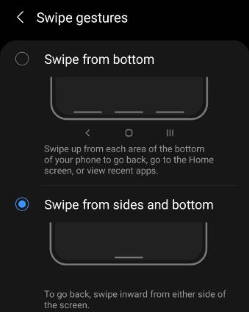
On Galaxy S21, you can choose one of the following three navigation types:

  1. Navigation buttons.
  2. Swiping from the bottom (Samsung style).
  3. Swiping from sides and bottom (similar to stock Android 10 and
… Read the rest

How to use Galaxy S21 Camera App?

Last updated on: November 27, 2023

Galaxy S21 Camera AppYou need to understand the meaning of all icons and buttons in the Galaxy S21 Camera app to take desired photos with Galaxy S21 camera.

This Galaxy S21 camera guide explains everything you need to know about the Galaxy S21 Camera app: how to access (open) the Camera app, the layout and meaning of all buttons in the app, and touchscreen gestures supported in the Galaxy S21 Camera app.

Although Galaxy S21 Ultra has a more sophisticated camera system, compared to Galaxy S21 and Galaxy S21+,  the Camera app on all these 3 models of Galaxy S21 phones are almost identical. So, this guide applies to all Galaxy S21 phones.

Update: if you updated your Galaxy S21 to Android 12, there are a few new features for the Galaxy S21 camera.

Update 2: In the Android 14 (One UI 6) update for Galaxy S23, S22, and S21, there are many new features you should try. For the Camera app, there is a new resolution button. You can also use the camera widget to access any specific camera mode from the Home screen. Document scan (Auto Scan) is also separated from the Scene Optimizer.… Read the rest

Primary Sidebar

  • Facebook
  • RSS
  • YouTube

The ultimate collection of narrative humor

Stop Telling Boring One-Liners. Start Telling Unforgettable Stories

Subscribe to Our Newsletter

Don’t miss any Galaxy S21 Guides!

Subscribe to our FREE Samsung Galaxy S21 Tips and Tricks Newsletter now!

We don’t spam! Read more in our privacy policy

Check your inbox or spam folder to confirm your subscription.

RSS Galaxy S24 Guides

  • The definitive guide to One UI 7 (Android 15) update for Galaxy S24, S23, S22, and S21
  • The Definitive Guide to Galaxy AI on Galaxy S24, S23, S22, Fold 6, Fold 5, Flip 6, and Flip 5
  • Use the Light Performance Profile to Extend Battery Life and Reduce Heat on Galaxy S24, S23, S22, and S21 (all Samsung Galaxy Phones with Android 14/One UI 6.0)
  • How to adjust lock screen timeout on Galaxy S24, S23, S22, and other Galaxy devices?
  • How to use Circle to Search on Galaxy S24?
  • Meaning of Galaxy S24 status icons and notification icons on Galaxy S24, S24+, and S24 Ultra
  • Samsung Galaxy S24 Smart View Wallet Case: A Definite Guide
  • Understand Galaxy S24 Camera App
  • Galaxy S24 Flipsuit Case: A Definite Guide
  • How to use the new Battery Protection on Galaxy S24?

RSS Galaxy S23 Guides

  • Explanation of all One UI 6.1 features for Galaxy S23, S23+, S23 Ultra, and other Galaxy devices
  • How to use One-Tap Editing in the Android 14 (One UI 6) update?
  • How to enable and use Auto Scan to scan documents automatically on Galaxy S23, S22, and S21?
  • New camera features in One UI 6 (Android 14) update for Galaxy S23, S22, and S21
  • Galaxy S23 User Manual in American English with Android 14 (One UI 6) Update
  • Galaxy S23 User Manual in British English with Android 14 (One UI 6) update

RSS Headphone & Earbuds Guides

  • Understand The Physics of Open-Ear Directional Audio
  • Bone Conduction Headphones Buyer’s Guide: 2026 Edition
  • Bone Conduction Audio Technology: A Technical Breakdown
  • Science And Architecture of Bluetooth Auracast
  • Bluetooth LE Audio and the LC3 Codec: A Technical Deep Dive
  • The Physics and Engineering of Super Wide Band (SWB) Voice
  • True Wireless Stereo (TWS) Explained
  • The Complete Technical Guide to the Galaxy Buds 4 & Buds 4 Pro

RSS Galaxy S22 Guides

  • A Complete Guide for Android 14 (One UI 6) Update on Samsung Galaxy Devices
  • How to touch and hold to customize Lock Screen on Galaxy S22, S21, and S20 with the Android 13 update?
  • How to use Maintenance Mode on Galaxy S23, S22, S21, and S20 with Android 13 (One UI 5)?
  • How to extract text from photos and images on Galaxy S22, S21, and S20?
  • A complete list of the new features of One UI 5.1 update for Galaxy S22, S21, and S20
  • How to use multiwindow on Galaxy S22, S21, and S20?
  • How to Use the Help Icon and Histogram for Pro Camera Mode in Android 13 (One UI 5) Update for Galaxy S22, S21, and S20?
  • How to customize the call background on Galaxy S23, S22, S21, and S20 with the Android 13 update (One UI 5)?
  • How to Automatically Add and Customize Watermarks on Photos on Galaxy S22, S21, or S20 with the Android 13 update (One UI 5)?
  • The Definite Guide to Stack Widgets in One UI 5 on Galaxy S23, S22, S21, and S20

RSS Chromecast Guides

  • How to enable developer options in Chromecast with Google TV and Google TV Streamer?
  • Meaning of LED light on voice remote for Chromecast with Google TV and Google TV Streamer
  • What’s new in Chromecast 2018 (3rd gen of Chromecast)?
  • How to use VLC media player on PC to stream music and video to Chromecast and Chromecast Audio?
  • How to use Chromecast Ultra to stream 4K content?
  • How to disable Google Home and Chromecast casting notification?
  • How to launch Videostream (and other Chrome apps as well)?
  • A Guide to Chromecast Offers
  • Chromecast guest mode guide
  • Screen mirroring with Chromecast

Tags

Android 12 Android 13 Android 14 app icon app shortcut Apps screen camera camera app camera modes camera quick launch charge Galaxy S21 battery fingerprint scanner Galaxy S21 Galaxy S21 camera settings Galaxy S21 Home screen Galaxy S21 Home screen edit mode Galaxy S21 layout Galaxy S21 LED Wallet Cover Galaxy S21 lock screen Galaxy S21 quick settings Galaxy S21 quick settings panel Galaxy S21 settings Galaxy S21 Smart LED View Home screen layout of Galaxy S21 lock screen long tapping navigation bar navigation button navigation gestures NavStar notification notification icon One UI 6 power off power off menu reboot Galaxy S21 Side key status bar status icon touchscreen gesture User Manual wallpaper widget wireless charging

Copyright © 2026 · Galaxy S21 [email protected] · Powered by WordPress with Genesis Framework · Hosted by PTRhosting
Samsung Galaxy S21 how-to guides, user manuals, tips and tricks for Samsung Galaxy S21, Galaxy S21+, Galaxy S21 FE and Galaxy S21 Ultra owners.
Disclaimer: Samsung, Galaxy, Galaxy S21, Galaxy S21+ (S21 Plus), Galaxy S21 FE and Galaxy S21 Ultra are trademarks of Samsung. Android is a trademark of Google. This website is NOT affiliated with Samsung or Google in any way. All the information provided on this website is provided on an "as is" and "as available" basis and you agree that you use such information entirely at your own risk.
Galaxy S21 Guides@GadgetGuideOnline is a member site of GadgetGuideOnline.com : Guides for your Gadgets.

Add Samsung Galaxy S21 Guides to your Homescreen!

Add
pixel