camera assistant

One UI 8 Update Highlights for Galaxy S25, S24, S23, and S22
Galaxy S25 How-to Guides, Galaxy S25 New Features

One UI 8 Update Highlights for Galaxy S25, S24, S23, and S22

One UI 8 Update Highlights for Galaxy S25, S24, S23, and S22

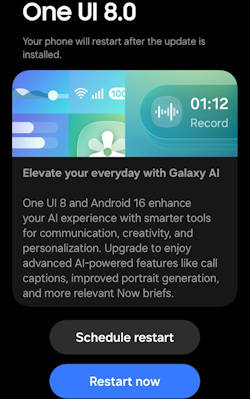
The One UI 8 update brings an array of exciting enhancements to Galaxy S25, S24, S23, and S22 devices, focusing on integrating advanced artificial intelligence features and optimizing user experience (see the list of all new features of One UI 8). With its foundation built on Android 16, One UI 8 is designed to elevate the way users interact with their devices, offering personalized suggestions, refined photo editing tools, and seamless multitasking capabilities. As Galaxy AI becomes a central feature of the user experience, One UI 8 aims to provide a smarter, more personalized, and visually appealing interface that adapts to individual user needs.

This Galaxy S25 new features guide aims to highlight the notable features introduced with the One UI 8 update. It provides a comprehensive analysis of the key enhancements within this update and underscores its significance for users of the Galaxy S25, S24, S23, and S22 models, enhancing your understanding of the new capabilities brought by One UI 8.

One UI 8 update has been rolled out to multiple Galaxy devices. Most of the new features are available on all devices. Therefore, this guide applies to most of the Galaxy devices with the One UI 8 (Android 16) update, not limited to Galaxy S25, S24, S23, and S22. You may also check the complete list of new features of One UI 8 and their usage.

Multimodal Intelligence: New Galaxy AI features

One UI 8 establishes Galaxy AI as a fully integrated, foundational layer within the software stack, moving beyond simple application features to optimizing complex user interactions through advanced multimodal capabilities.

Now Brief Enhancements and Personalized Suggestions

Utilizing the underlying Personal Data Intelligence (PDI) system, Now Brief provides personalized, proactive suggestions based on recognized user routines and context. These … Read the rest

Use Galaxy S25 Camera App
Galaxy S25 Camera Guide, Galaxy S25 How-to Guides

How to Use Galaxy S25 Camera App?

Use Galaxy S25 Camera App

The Galaxy S25 Camera app is essential for unlocking the device's outstanding photographic potential. Mastering the Galaxy S25 Camera app is crucial for capturing high-quality photos and videos.

This Galaxy S25 Camera app guide explains the 5 sections of the Galaxy S25 Camera app user interface and their functions. It covers how to use the shutter button in the Camera app, how to switch between the front and rear cameras on the Galaxy S25, and how to manage the various camera modes in the Galaxy S25 Camera app. Additionally, the guide provides a detailed explanation of the meanings and usage of all the settings found in the Galaxy S25 Camera app user interface.

Although Galaxy S25, S25+, and S25 Ultra differ in camera capabilities, the Camera app on these 3 phones is identical. So, this guide applies to all Galaxy S25 phones. Some features that are exclusive to the Galaxy S25 Ultra are highlighted explicitly.

Understand the Galaxy S25 Camera app user interface

The Galaxy S25 Camera App user interface can be divided into 5 sections, as shown in the screenshot below:

  1. Preview screen section.
  2. Zoom and the quick tools section
  3. Functional buttons section.
  4. Camera mode selection section
  5. Current options section.
5 sections of Galaxy S25 Camera app interface

1. Preview screen section

In the Galaxy S25 Camera app, the preview screen section has three functions:

  • Preview the photo or video to be captured. This allows you to preview the scene before capturing it.
  • Enhance your photo-taking experience with exposure adjustment and lock, focus lock, pinch-to-zoom, and swipe-to-switch between front and rear
Read the rest
Scroll to Top